Best YouTube Video Downloader for Mac and Windows in 2026

Quick answer: best YouTube video downloader for Mac and Windows
SYC PRO is our pick for Apple-device delivery because you can choose a computer, iPhone or iPad as the destination. ClipGrab is a free basic option. For high-resolution desktop downloads and playlists, compare 4K Video Downloader Plus and SnapDownloader. Softorino makes SYC PRO; the recommendations below use vendor documentation, not new on-device testing.
Permission comes first. Respect both copyright and YouTube's terms. Creator permission, personal use or public-domain status alone does not override platform restrictions. Download only when the service authorizes it or you have the required written permissions. Do not bypass DRM, paid access or private-video restrictions.
Before we begin
Download Softorino YouTube Converter PRO (SYC PRO) for permitted MP4 video or MP3/AAC audio, with a computer or connected Apple-device destination. Start with the Mac download and free trial; Windows users can choose their build on the SYC PRO product page. SYC PRO runs on a computer, not as a standalone iPhone app.
Choose by destination first: official offline viewing inside YouTube, local files on a computer, or permitted downloads delivered to an iPhone or iPad.
Best for | Pick | Why it fits |
|---|---|---|
Apple-device delivery | SYC PRO | Computer or connected iPhone/iPad destination; MP4, MP3 and AAC |
Free basic desktop use | ClipGrab | Free conversion and downloading; Mac version labeled beta |
High-resolution files and playlists | 4K Video Downloader Plus | Windows, macOS and Ubuntu; source-dependent 4K/8K |
Downloading plus file processing | VideoProc Converter AI | Conversion and recording alongside downloading |
Official offline viewing | YouTube Premium | Playback inside YouTube on mobile or supported desktop browsers; no ordinary MP4 export |
A computer download and an iPhone-ready file are separate outcomes. Check the destination before paying, especially if you want playback in a native device app.
How we compared these YouTube video downloader options
This comparison uses official product pages and help documents reviewed in September 2026. We compared platform support, output formats, destination choices and free-plan restrictions. We did not install or benchmark these apps for this refresh. The existing product images illustrate the listings; they do not prove current performance or security.
- Platform: a Mac or Windows build that supports your computer; check the current requirements before installing.
- Formats: MP4 video, MP3 or AAC audio, and the codecs your player accepts.
- Quality: HD, 4K or 8K only when the source and app support that output.
- Batch features: playlists, subtitles and queues where the vendor documents them.
- Destination: a local computer folder or a supported Apple-device app.
- Cost: distinguish a free app, a restricted free plan and a temporary trial.
No app earns a safety or speed ranking without test evidence. Existing screenshots may show older branding. Prices and daily quotas vary by plan.
1. SYC PRO: best for YouTube downloads plus iPhone/iPad transfer
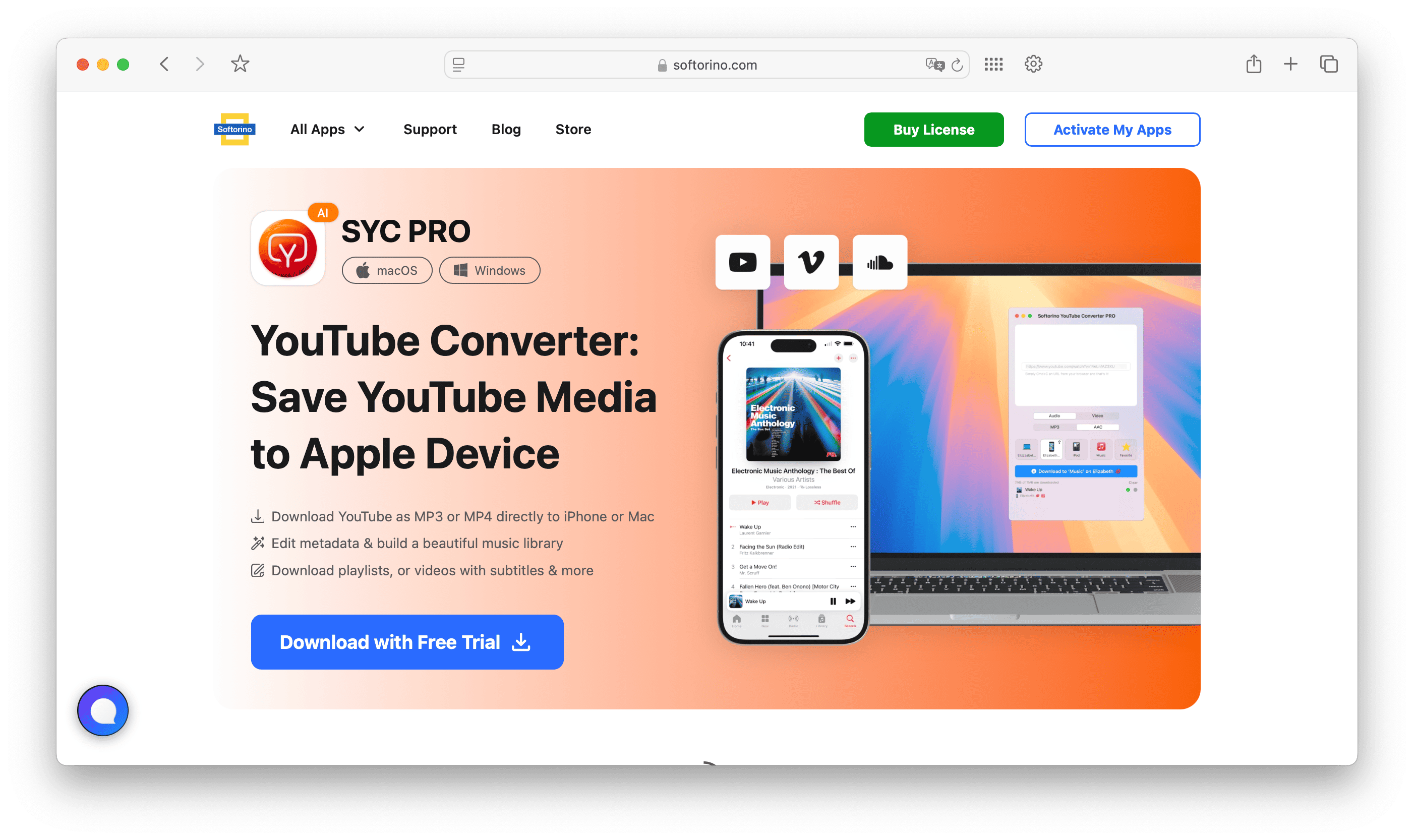
SYC PRO suits Mac and Windows users who want the file on an iPhone or iPad. Softorino documents MP4 video, MP3/AAC audio and direct Apple-device delivery. You can also keep the file on your computer. That destination choice is the reason to consider SYC PRO over a downloader chosen only for resolution.
For example, choose a permitted lecture as MP4 when you need the slides, or MP3/AAC when you only need speech. In SYC PRO, select the computer or connected device as the destination. Softorino identifies Music and TV as device destinations, depending on media type. This is a documented workflow, not a timed transfer claim.
How to use SYC PRO
- Install and open SYC PRO on your computer, then copy a video URL you are allowed to download.
- Choose MP4 for video or MP3/AAC for audio, then select an available quality.
- Connect your iPhone or iPad if needed and choose the device or computer destination.
- Download one file, then open it at the destination and check both picture and audio.
For file labels, SYC PRO offers Fill Metadata with AI. Review and edit the suggested title, artist and other fields before downloading. Do not assume AI suggestions are correct. Softorino also documents playlists and subtitles when available, plus source-dependent video quality up to 4K/2160p and 60fps.
SYC PRO requires a desktop installation and offers a free trial. Choose Premium instead if you only need official offline playback inside YouTube.
For a longer walkthrough, see how to save YouTube videos to your computer. Start with one permitted video and confirm the destination before queuing a playlist. That check catches a wrong format or missing audio before you repeat the same settings across many files.
2. 4K Video Downloader Plus: quality and playlist controls
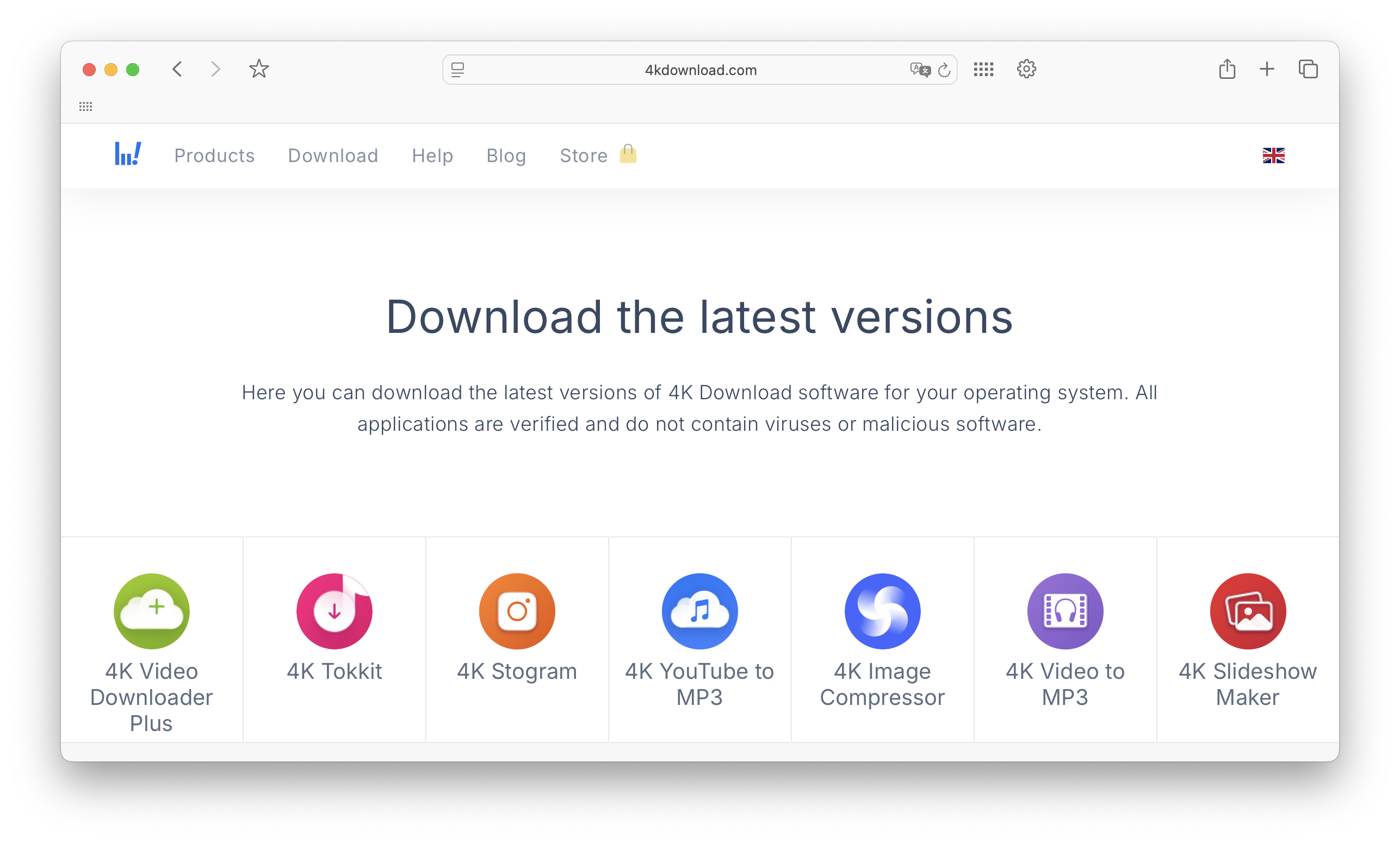
4K Video Downloader Plus is a desktop option for high-resolution files, playlists and subtitles. Its current name includes Plus, which matters when comparing current plans with older reviews. The vendor lists Windows, macOS and Ubuntu support. Choose it when your main task is managing downloads on a computer.
The product page advertises source-dependent 4K/8K, playlists and SRT subtitles. Starting-at-free pricing does not mean every function is unrestricted; check the current plan.
Who should consider 4K Video Downloader Plus
- Mac, Windows or Ubuntu users comparing one desktop product across platforms.
- People choosing between available video resolutions.
- Users who need documented playlist or SRT subtitle options.
For iPhone playback, verify the transfer route after downloading. SYC PRO documents an Apple-device destination; we do not assume other apps lack that feature.
Use the current Plus listing rather than an older review when checking plan limits and system requirements.
3. YTD Video Downloader: simple, familiar, but check the limits
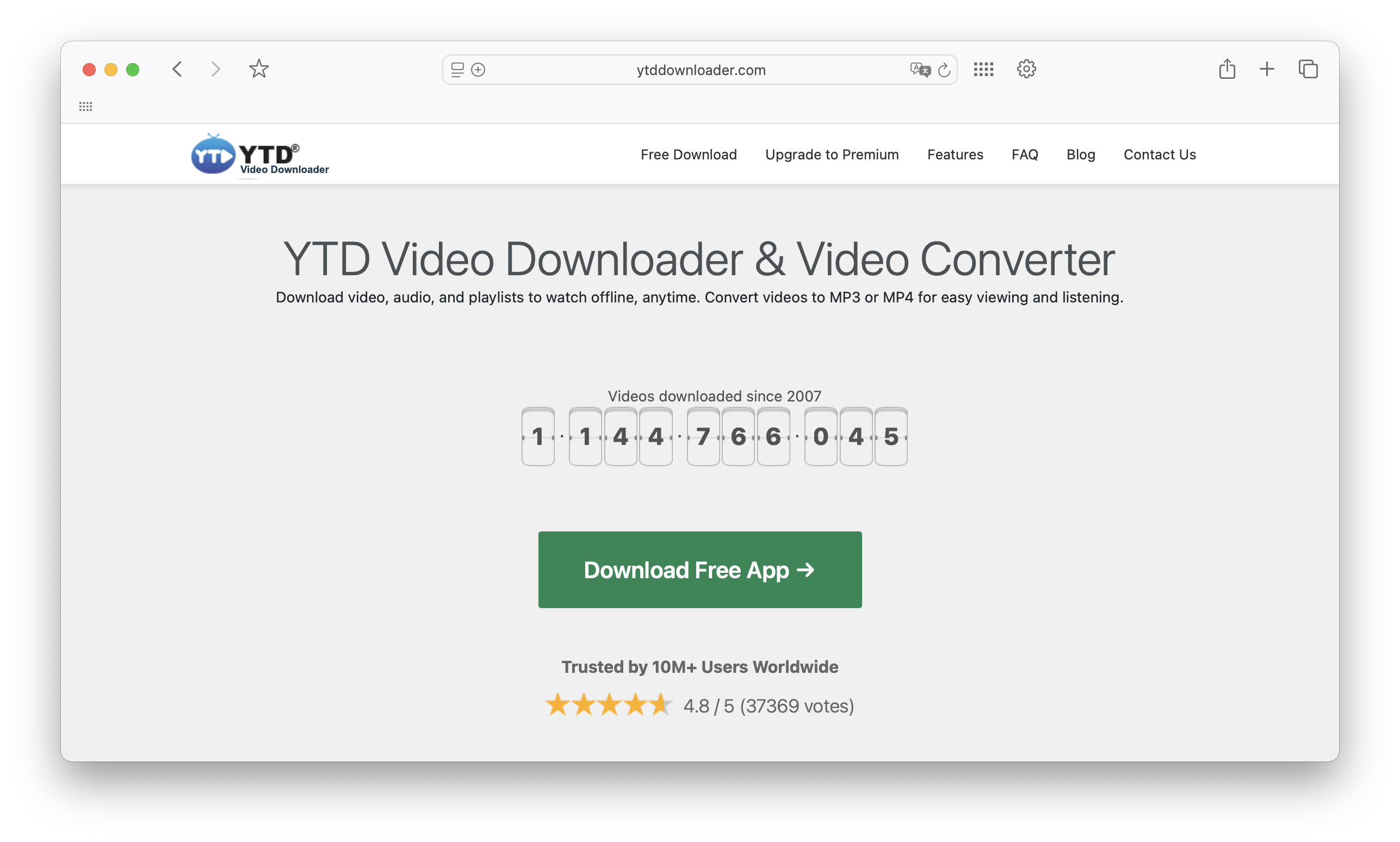
YTD Video Downloader offers Mac and Windows versions with downloading and MP4/MP3 conversion. Compare it for basic desktop use or a free plan before paying.
Quality, playlist and caption limits depend on the plan. YTD's product page contains differing descriptions of some limits, so this guide does not quote exact quotas or resolution caps. Confirm the feature in the current app or with YTD support before buying for a specific playlist or caption requirement.
Who should consider YTD
- Basic video downloads.
- Users who want a traditional desktop app.
- People who prefer a simple interface over advanced controls.
Get YTD from its developer. Read the installer prompts and decline unrelated changes to your browser or computer.
Before upgrading, confirm that the paid plan covers your specific quality, playlist or caption requirement. Do not pay on the strength of a general speed claim.
4. iTubeGo: good for broad format options
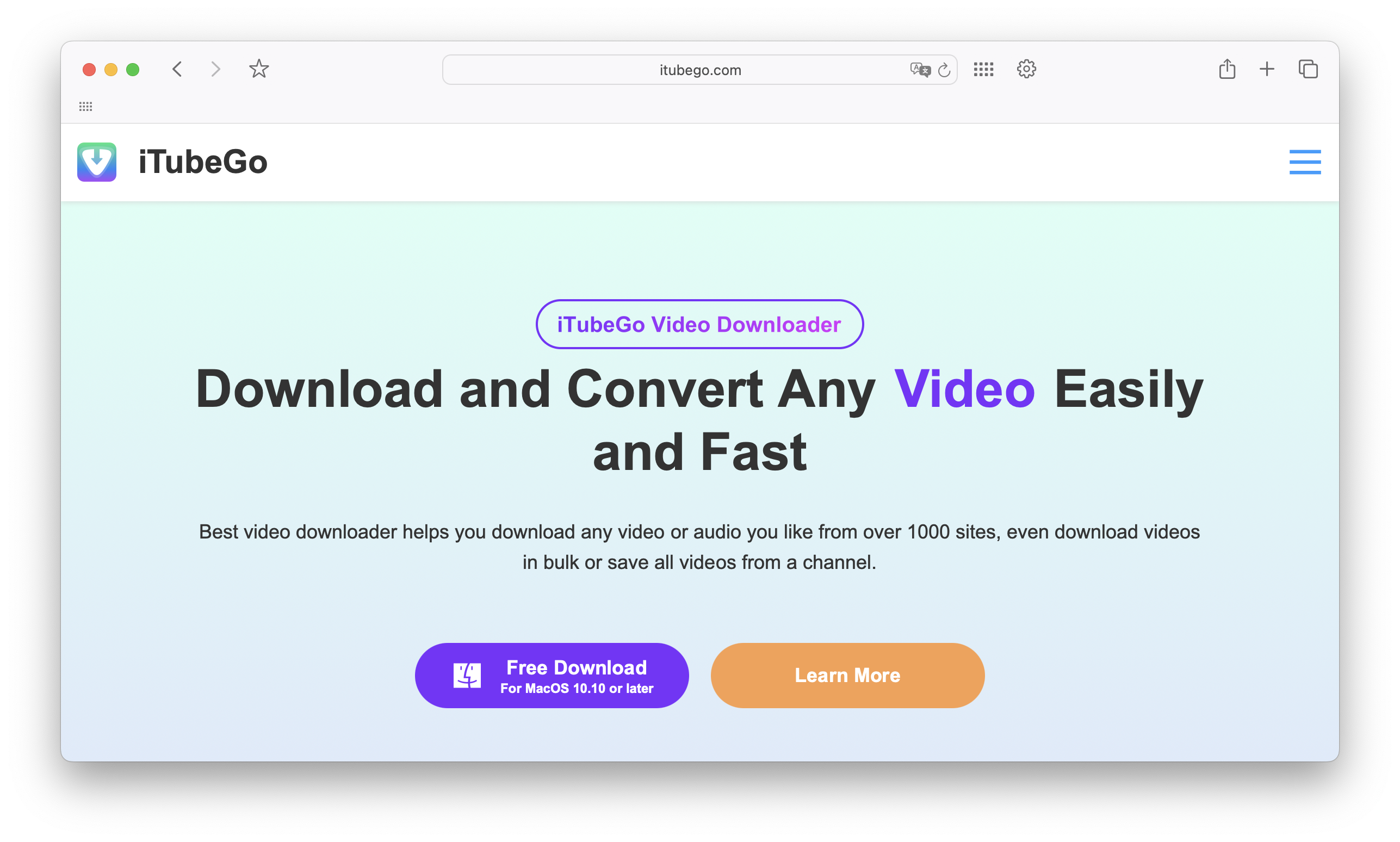
iTubeGo offers Mac and Windows downloading with MP4 video and MP3/AAC audio options. The vendor also documents playlists and SRT subtitles. It fits readers who need to choose between video and audio outputs rather than save every source with the same settings.
Choose MP4 for a visual demonstration or MP3/AAC for an interview. Check the subtitle language and license limits in your edition before buying.
Who should consider iTubeGo
- Format-heavy downloading.
- Users who want desktop software instead of web tools.
- People who save video and audio regularly.
Verify the exact feature you need before paying. Source quality and platform restrictions still apply; no format menu makes every video downloadable.
5. VideoProc Converter AI: downloading plus file processing
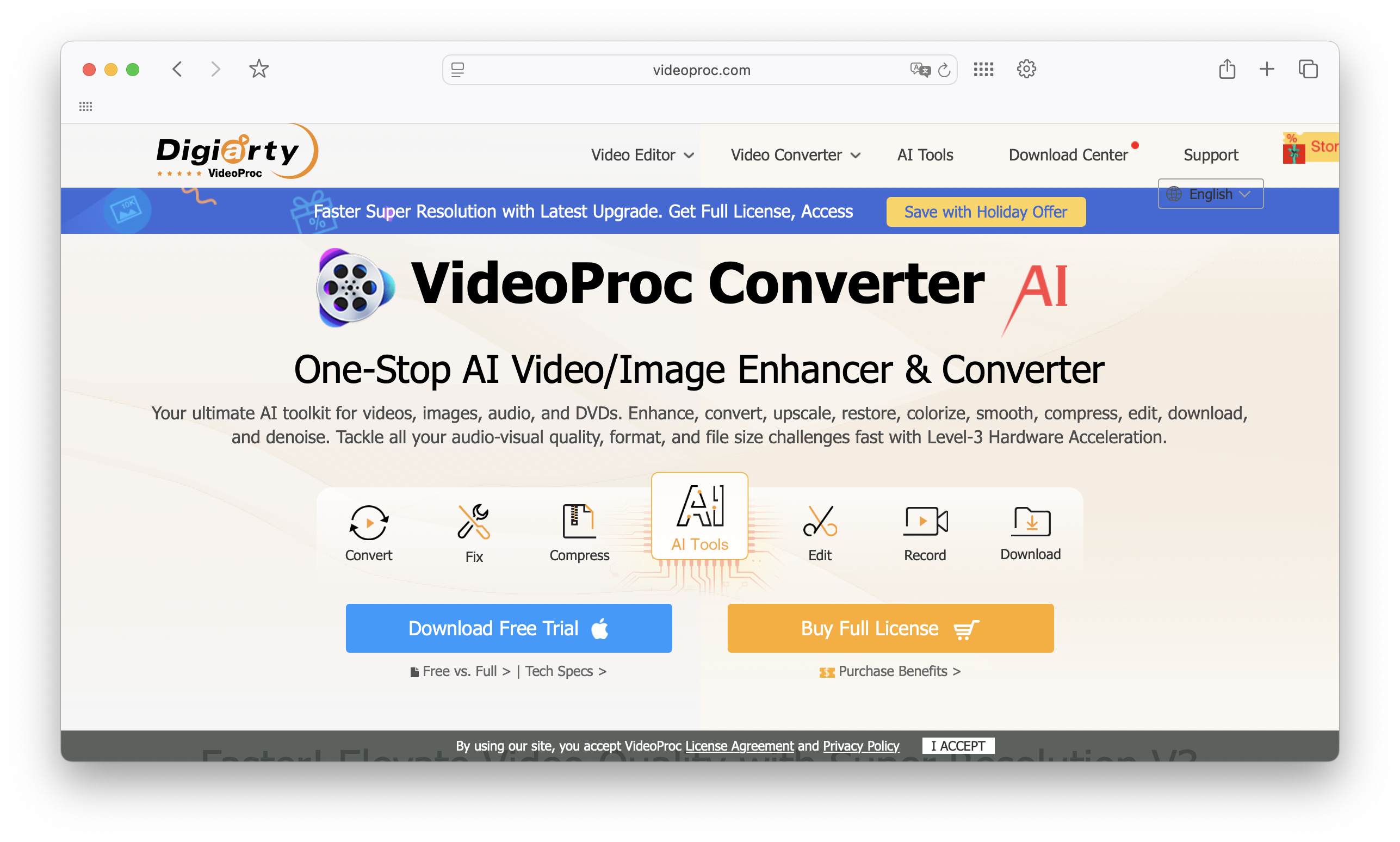
VideoProc Converter AI combines downloading with conversion and recording. Consider it when saving a video is one step in a larger file-processing job. The current product name includes AI. Check the platform-specific feature list because Mac and Windows editions need not include identical processing tools.
VideoProc documents MP4/MP3, playlists and subtitles. Free and paid features differ, and some processing tools may vary between Mac and Windows editions.
Who should consider VideoProc Converter AI
- Users who need downloading plus conversion.
- Creators who handle mixed video formats.
- People who want extra tools beyond a basic downloader.
Choose VideoProc when conversion or recording is part of the job. For downloading straight to an iPhone, compare its destination steps with SYC PRO.
6. ClipGrab: best free basic option
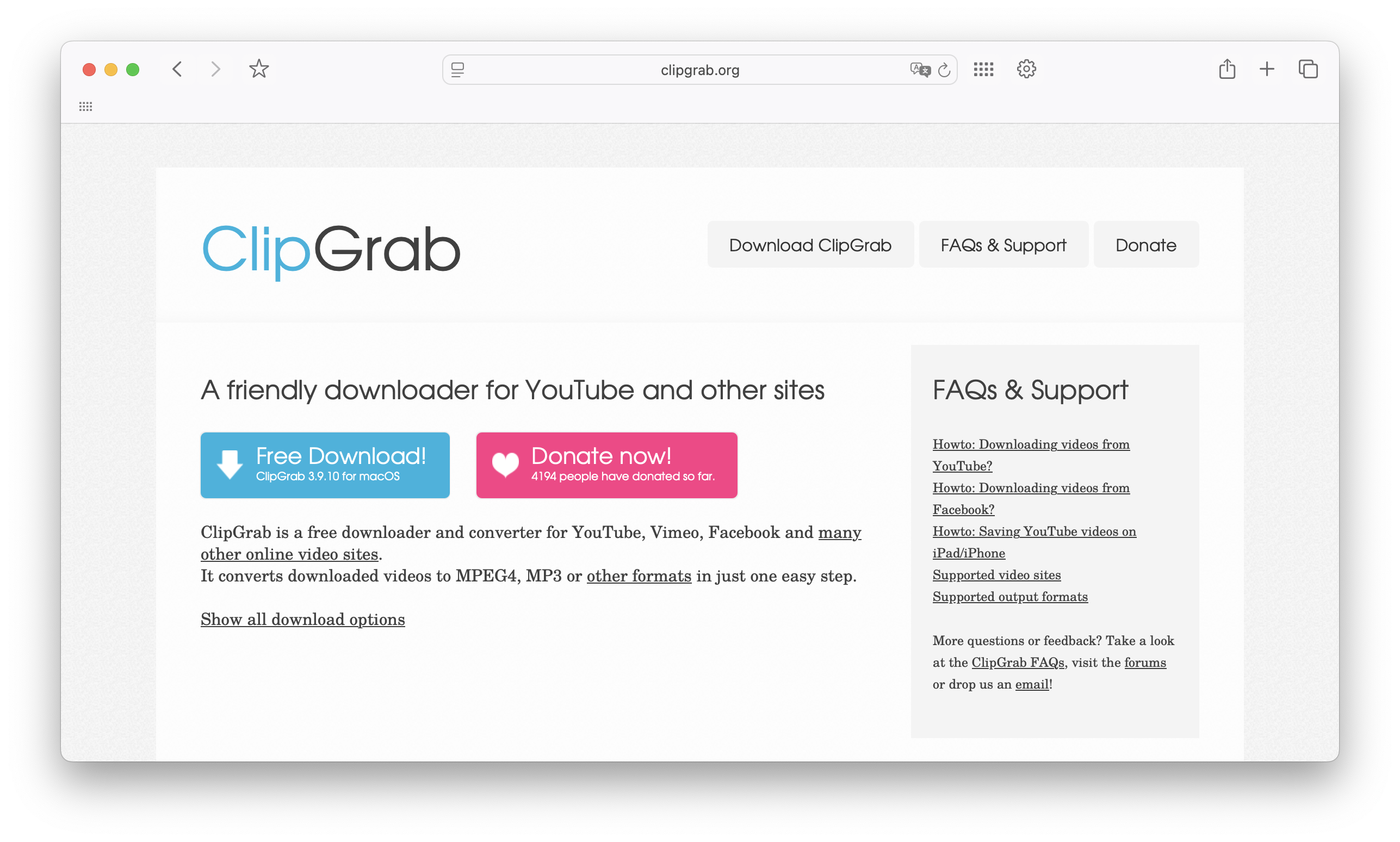
ClipGrab is the free basic option in this comparison. The developer lists Windows, macOS and Linux versions, with MPEG4 video and MP3 audio among its outputs. The Mac download is currently labeled beta, so check compatibility and the current release notes before relying on it for regular work.
ClipGrab covers basic downloading and conversion without an upfront payment. Advanced playlist and subtitle support were not verified for this guide.
Who should consider ClipGrab
- Users looking for a free basic downloader and converter.
- People saving occasional permitted video or audio files.
- Mac users who are comfortable evaluating the currently labeled beta build.
If iPhone delivery matters, verify the transfer route separately. The ClipGrab evidence here covers desktop downloading and conversion, not a native Apple-device destination.
7. Freemake Video Downloader: verify the current platform build
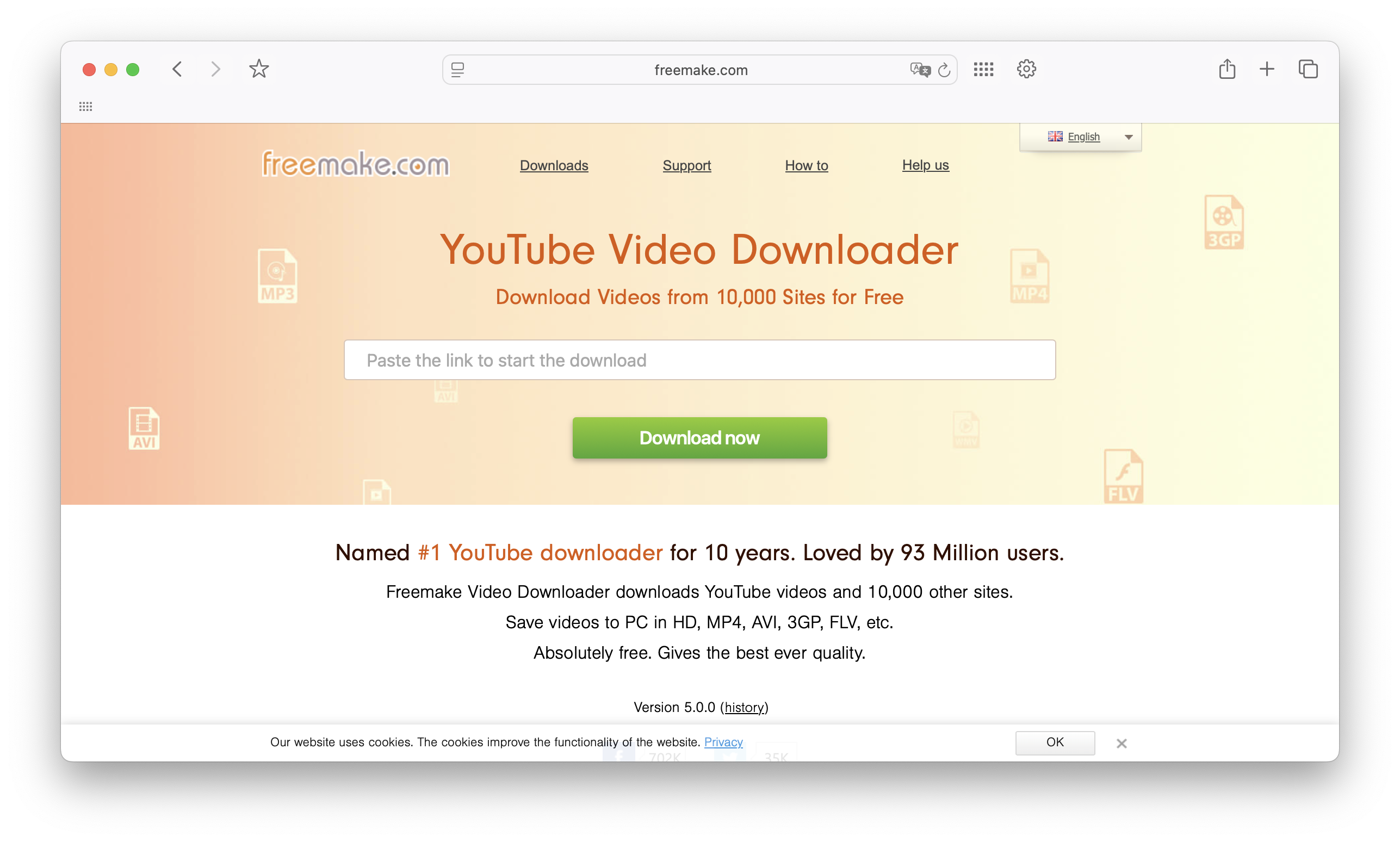
Freemake lists both Windows and Mac on its downloader pages. It should not be dismissed as Windows-only. Check the current installer and system requirements for your computer before choosing it. Its marketing pages describe broad website support, but no app can promise access to every video on every site.
Freemake restricted automated page access during this review. Readable official content lists both platforms, but that does not verify installer quality or current-macOS compatibility.
Who should consider Freemake
- Readers comparing Freemake's current Mac and Windows offerings.
- Users who can confirm their source site and output format in the current build.
- People willing to check edition limits before committing to a larger download job.
Confirm the current build and edition limits with Freemake. This guide does not endorse an installer that was not examined.
8. Any Video Converter: downloader plus converter in one app
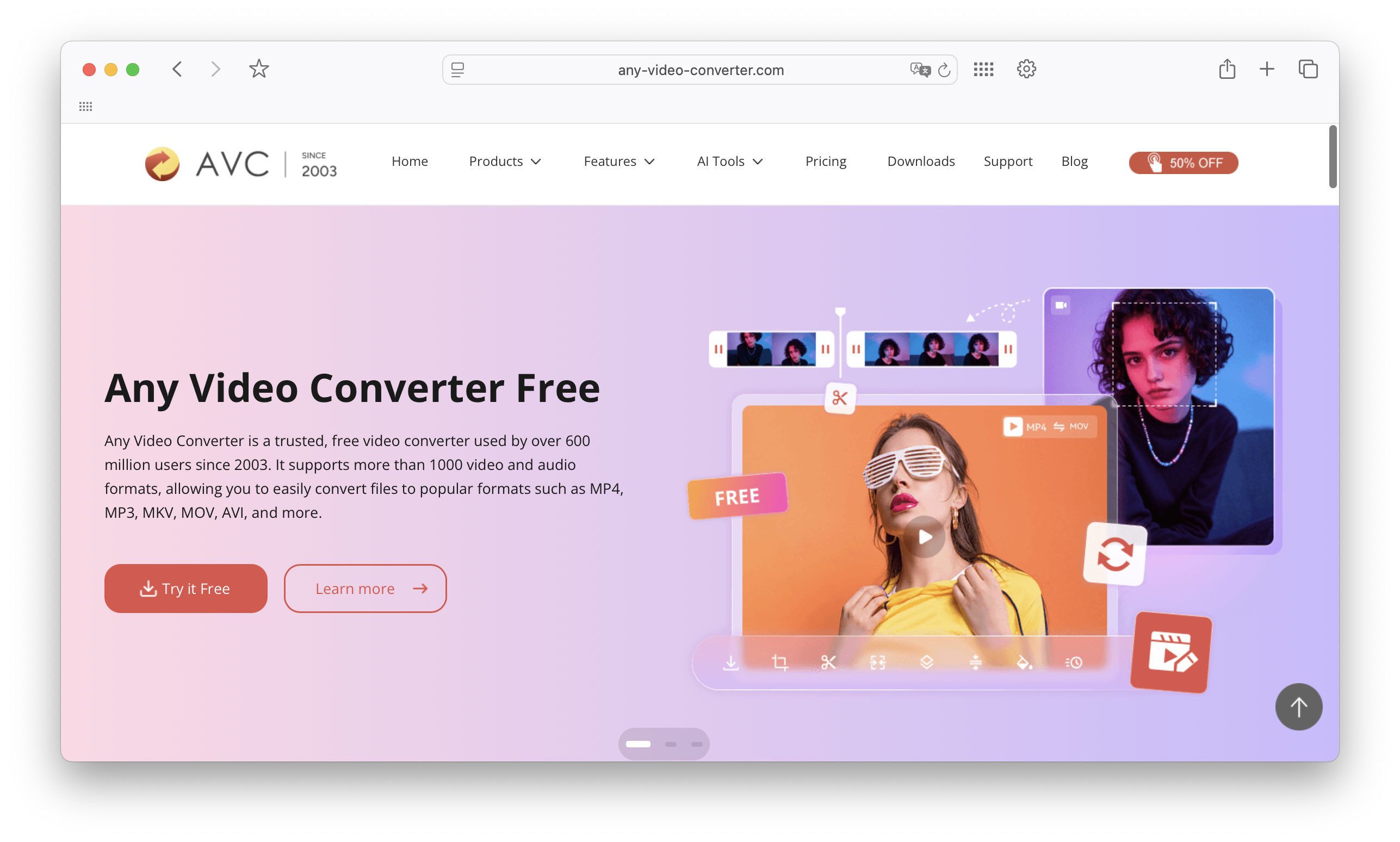
Any Video Converter combines format conversion with downloader options that vary by edition. Its official homepage lists Windows and macOS. Consider it if you also need to convert existing files, but check the downloader features for your platform before installing or buying a plan.
Free conversion does not prove unrestricted downloading. The Mac downloader listing describes MP4/MP3, but evidence here is limited. Confirm the current edition-specific features.
Who should consider Any Video Converter
- Users who need conversion features.
- People with mixed device playback needs.
- Desktop users who prefer one app for download and conversion.
Playlist and subtitle parity were not verified across Any Video Converter editions. Check those features rather than relying on a blanket yes in a comparison table.
9. SnapDownloader: premium pick for high-resolution downloads
SnapDownloader offers Mac and Windows downloads with batch and scheduling controls. The vendor documents playlists, channels, MP4/MP3 outputs and source-dependent video up to 8K. It is a candidate when you want to queue permitted files on a computer and control when downloads run.
SnapDownloader offers a free trial. Check your source, output and scheduling needs before paying. An 8K option cannot add detail absent from the upload.
Who should consider SnapDownloader
- Frequent desktop downloading.
- High-resolution output when the source supports it.
- Users who want a paid app with batch controls.
For iPhone playback, verify the transfer route after downloading. Choose SnapDownloader for documented queue and scheduling controls, not an untested speed or safety claim.
10. WinX YouTube Downloader: Windows, with a separate MacX option
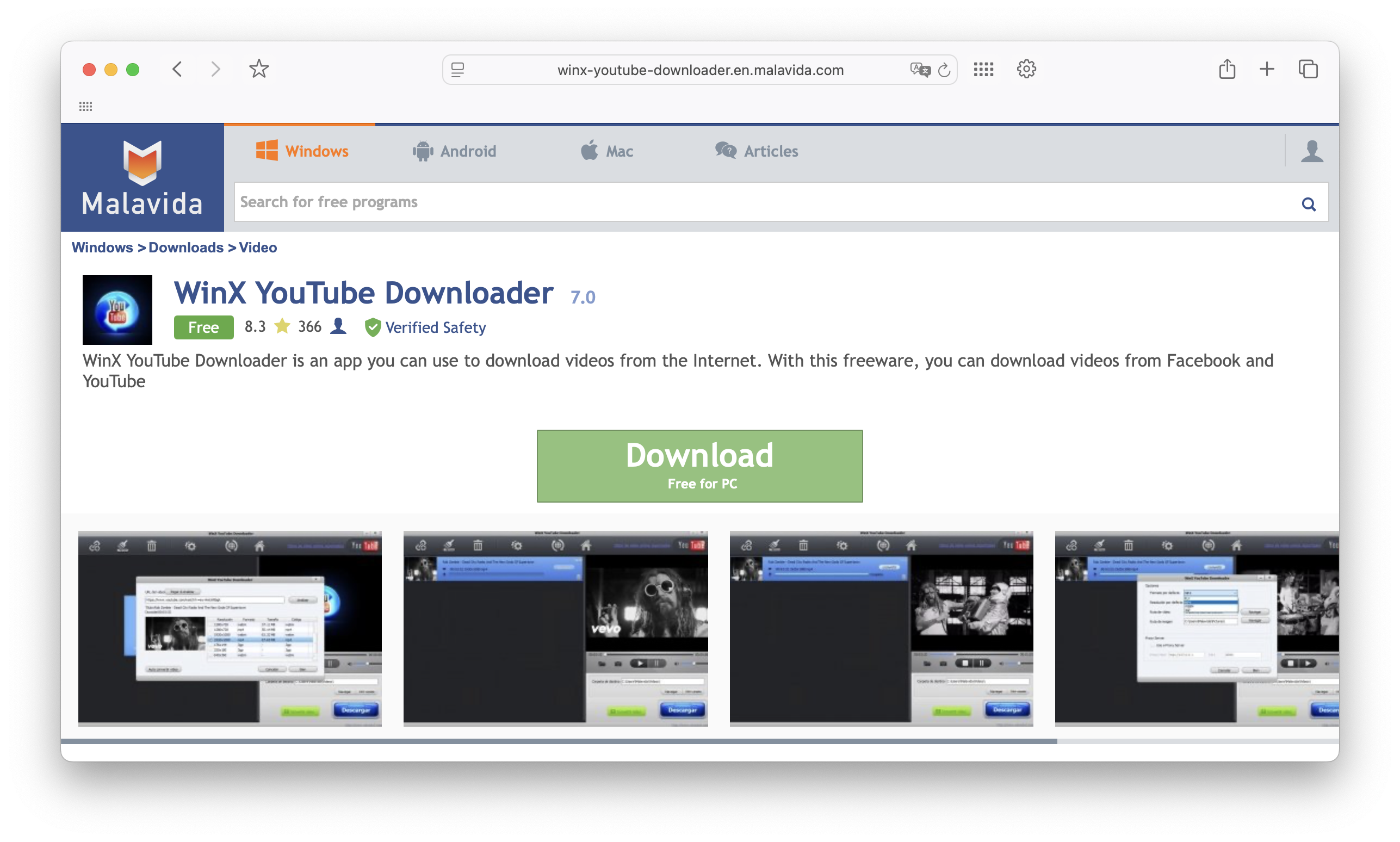
WinX YouTube Downloader is the Windows product; the developer also offers a separate MacX download. Do not install a WinX Windows build on a Mac or assume both products have identical requirements. Verify the MacX build against your macOS version before relying on it.
WinX documents batches, playlists and quality choices, but excludes copy-protected YouTube videos. Distinguish those features from separate Winxvideo AI upgrade advertisements.
Who should consider WinX
- Windows users who need desktop downloading and quality choices.
- People comparing batch or playlist support for permitted sources.
- Mac users checking the separate MacX product and its current system requirements.
For platform-specific steps, use our Windows downloader setup guide. Keep the comparison here focused on the tool and destination. If the final file must reach an iPhone, check both download and transfer steps before deciding which product to install.
Feature comparison table
Tool | Platform listed | Main reason to compare | Free or paid caution |
|---|---|---|---|
SYC PRO | Mac and Windows | MP4/MP3/AAC and Apple-device destination | Free trial |
4K Video Downloader Plus | Mac, Windows, Ubuntu | Quality, playlists, SRT subtitles | Starts free; plan limits apply |
YTD Video Downloader | Mac and Windows | Downloading and conversion | Free/paid; confirm feature limits |
iTubeGo | Mac and Windows | Formats, playlists, SRT subtitles | Check current license limits |
VideoProc Converter AI | Mac and Windows editions | Downloading plus conversion/recording | Free/paid functions differ |
ClipGrab | Windows, Linux; Mac beta | Basic free downloading/conversion | Free; check Mac beta support |
Freemake Video Downloader | Vendor lists Mac and Windows | Compare current downloader build | Verify build and current limits |
Any Video Converter | Mac and Windows editions | Conversion plus edition-specific downloading | Free conversion is not all-feature proof |
SnapDownloader | Mac and Windows | Batch queues and scheduled downloads | Free trial |
WinX / separate MacX | WinX Windows; separate MacX build | Batch downloading and quality choices | Check product and edition |
Mac vs Windows: what changes?
On Mac, check current system requirements. ClipGrab’s beta label and the separate MacX build need closer attention than a simple platform yes/no cell.
On Windows, check the source and edition of the installer. Decline unrelated browser extensions. Mac and Windows products with matching names may still differ in features.
For an iPhone or iPad, check the playback app as well as the file format. SYC PRO documents Music and TV destinations, depending on media type.
Desktop downloads versus official YouTube offline playback
YouTube Premium is the official option for offline viewing inside YouTube. Google documents mobile downloads and offline playback in supported desktop browsers, including Chrome, Edge, Firefox and Opera. Premium downloads stay within YouTube's playback system; they are not ordinary MP4 or MP3 files you can move between apps.
Choose a desktop downloader only when local files fit your needs and the download is authorized. Compare these practical requirements:
- You download often.
- You need playlists, long videos, or subtitles.
- You care about MP4/MP3 quality.
- You want fewer ads and fewer fake buttons.
- You need to move files to iPhone or iPad.
A desktop installer does not guarantee safety, and a browser tool does not guarantee privacy. Avoid pages that demand an unrelated codec, cleaner, extension or browser update to release a file. Use the official source and do not submit private links or account credentials to an unverified converter.
Which formats matter most?
MP4 video and MP3 audio are practical starting points. MP4 is a container, so playback also depends on the codecs inside it and your player. A filename ending in .mp4 is not a universal compatibility guarantee. Choose a format your destination device supports and open a sample before saving a batch.
Choose MP4 when the picture matters, such as a tutorial with on-screen steps. Choose MP3 or AAC when audio alone is enough. Higher resolution cannot restore detail absent from the source. Check picture and sound after downloading, especially when working with high-resolution video streams.
If a download looks wrong or has no sound, use our 1080p quality and missing-audio checks. Keep a working sample and its settings before repeating the job. Avoid redownloading a full playlist until you know the selected output plays correctly on your destination device.
When not to use a downloader
Do not use a downloader to bypass DRM, private access or paid restrictions. If you only need offline viewing of eligible videos, use YouTube Premium on mobile or in a supported desktop browser. Follow YouTube's sign-in and reconnection requirements for those downloads.
Read YouTube Permissions and Restrictions separately from copyright permission. The terms restrict downloading except as authorized by the service or with prior written permission from YouTube and, where applicable, rights holders. Permission from a creator alone is not a blanket exemption from platform rules.
Personal, educational or public-domain use does not settle both requirements. If permission is unclear, request an authorized original from the creator or use official offline viewing.
Choose local-file downloading only after confirming permission. SYC PRO’s device-transfer feature does not override the source platform’s restrictions.
FAQ: choosing a YouTube video downloader
What is the best YouTube video downloader for Mac?
SYC PRO is our pick for permitted downloads that need to reach an iPhone or iPad from a Mac. ClipGrab is a free basic option, with its Mac build labeled beta. Compare 4K Video Downloader Plus or SnapDownloader for high-resolution desktop files and playlist features. The best choice depends on your destination and plan limits.
What is the safest YouTube downloader for Mac?
This documentation-based comparison does not establish the safest YouTube downloader for Mac. Use official developer downloads, check permissions and avoid unrelated installer offers. YouTube Premium is the official offline-viewing route, including supported desktop browsers. That distinction is more useful than an untested security ranking.
Can I download YouTube videos directly to iPhone or iPad?
SYC PRO runs on a Mac or Windows computer and can download permitted files to a connected iPhone or iPad. It is not a standalone iPhone downloader. For official offline viewing on the phone itself, use YouTube's supported offline features. Respect copyright and platform permissions in either workflow.
Is a desktop downloader safer than an online YouTube downloader?
A desktop app is not automatically safer than an online YouTube downloader. Check the specific developer, installer source and permissions. Avoid sites that require unrelated software or browser changes to release a download. No comparative security testing supports a category-wide safety claim in this guide.
Is YouTube Premium better than a downloader?
YouTube Premium fits official offline viewing inside YouTube, including supported desktop browsers. A downloader fits authorized local-file tasks where you need an MP4 or audio file outside YouTube. Copyright permission and platform permission remain separate requirements; owning content alone does not override YouTube's terms.
What format should I choose for downloaded videos?
Choose MP4 when you need video, or MP3/AAC when audio is enough and your player supports it. MP4 playback depends on the codecs inside the file. Try one permitted download on the final device and check picture and sound before applying those settings to a playlist.
Quick takeaways: choose by destination
Choose SYC PRO for permitted downloads plus Apple-device delivery. Choose 4K Video Downloader Plus or SnapDownloader for their documented desktop quality and batch features. ClipGrab covers basic free downloading; check its Mac beta status. Use Premium if offline playback inside YouTube is all you need.
The best YouTube video downloader depends on the finished job: a computer file, a playlist, conversion or iPhone delivery. Check the current build and plan before paying.
Try one permitted file on the final device before downloading a batch. Check picture, sound and any subtitles with the settings you plan to reuse.
Try the SYC PRO free trial if you want local downloading and Apple-device delivery in one desktop workflow. On Windows, choose the appropriate build from the product page. Review the format and destination, then download a permitted sample before deciding whether SYC PRO fits your routine.

SYC PRO
Download Web Videos Like a PRO
