How to Use Old iPhone as iPod Touch: 2026 Setup Guide

How to Use Old iPhone as iPod: Quick Answer
Yes, you can use old iPhone as iPod in 2026. You do not need an active phone plan for music, podcasts, videos, audiobooks, games, or kid-safe apps. You do need Wi-Fi, enough storage, a working battery, and a device that can pass activation.
The clean path is: back up the phone, remove Find My and Activation Lock, erase it, set it up over Wi-Fi, turn off cellular noise, then load the media you want. Apple makes that sound harder than it is. This guide keeps the setup practical and explains where SIM cards, iTunes, Finder, and WALTR PRO fit.
TL;DR: To use old iPhone as iPod, remove Activation Lock, erase the iPhone, set it up on Wi-Fi, turn on Airplane Mode, re-enable Wi-Fi and Bluetooth, then add music or videos through streaming apps, Finder/iTunes, or WALTR PRO for local files.
Before we begin
If you plan to load local music or video after setup, download WALTR PRO for Mac or Windows. Activate and unlock the old iPhone first, connect it by cable for the first test, then send one file before moving the full library.
How to Use Old iPhone as iPod: Quick Takeaways
If you only need the short version, start here.
- An old iPhone can work like an iPod Touch after it passes activation.
- You usually do not need an active cellular plan for Wi-Fi-only music and video use.
- If activation reports an invalid or unsupported SIM or eSIM, follow that Apple or carrier error. Do not assume every old iPhone needs a SIM.
- Activation Lock is the real blocker. WALTR PRO, iTunes, and Finder cannot bypass it.
- A clean reset matters more than a clever app. Old iPhones feel better when they are not carrying years of junk.
- For local MP3, FLAC, AAC, MP4, MKV, PDFs, audiobooks, and ringtones, WALTR PRO is the easiest Softorino path after setup.
Can You Use Old iPhone as iPod? The Short Answer
You can use old iPhone as iPod if the phone turns on, connects to Wi-Fi, has usable storage, and can complete Apple activation. After setup, the iPhone works as a Wi-Fi-only media device.
Use it for:
- Apple Music, Spotify, Podcasts, and audiobooks if the apps still support the iOS version.
- Local MP3, FLAC, AAC, MP4, MKV, AVI, PDF, audiobook, and ringtone files.
- Books, saved videos, lightweight games, Safari, FaceTime, and Messages over Wi-Fi.
- A kid-safe device with Screen Time controls.
- A docked kitchen, desk, car, or speaker-side music player.
You do not need a monthly phone plan for day-to-day use. Activation is the only cellular-related catch. Many iPhones activate over Wi-Fi with no SIM. If Apple reports an invalid or unsupported SIM or eSIM, follow that exact error or contact the carrier. Once the iPhone is activated, you can use it with Airplane Mode on and Wi-Fi enabled.
Back Up the Old iPhone and Remove Activation Lock
Before you use old iPhone as iPod, save anything you still care about. Erasing the iPhone is easy. Recovering family photos, messages, contacts, or an Apple ID password after the wipe is where the pain starts.
Do these checks first:
- Back up important data with iCloud, Finder on Mac, Apple Devices on Windows, iTunes on older setups, or a Windows export tool.
- Confirm you know the Apple Account password for the iPhone.
- Turn off Find My iPhone before erasing the device.
- Check battery health under Settings > Battery > Battery Health & Charging.
- Check storage. A 16 GB iPhone fills quickly once you add offline music, video, and apps.
- Update iOS to the newest version the iPhone supports before you turn it into a dedicated media player.
Back up the iPhone before you erase it. Keep the backup until the repurposed device passes activation and you have checked the files you still need.
Apple’s Activation Lock guide explains that Activation Lock can stop someone from reactivating a device without the Apple Account password. If you see an Activation Lock screen after erasing, you need the owner account or Apple’s legitimate removal path. Do not buy a locked iPhone for this project and hope software will fix it.
If you use Windows and need to save photos, music, messages, contacts, videos, files, or backups before wiping, AltTunes can export iPhone data to a Windows PC without leaning on iTunes. Use it before the reset, not after.
How to Use Old iPhone as iPod Touch Step by Step
To use old iPhone as iPod Touch, erase the phone, set it up as new over Wi-Fi, then disable the cellular side of the device. This gives you the cleanest iPod-style setup.
Follow this reset path on current iOS versions:
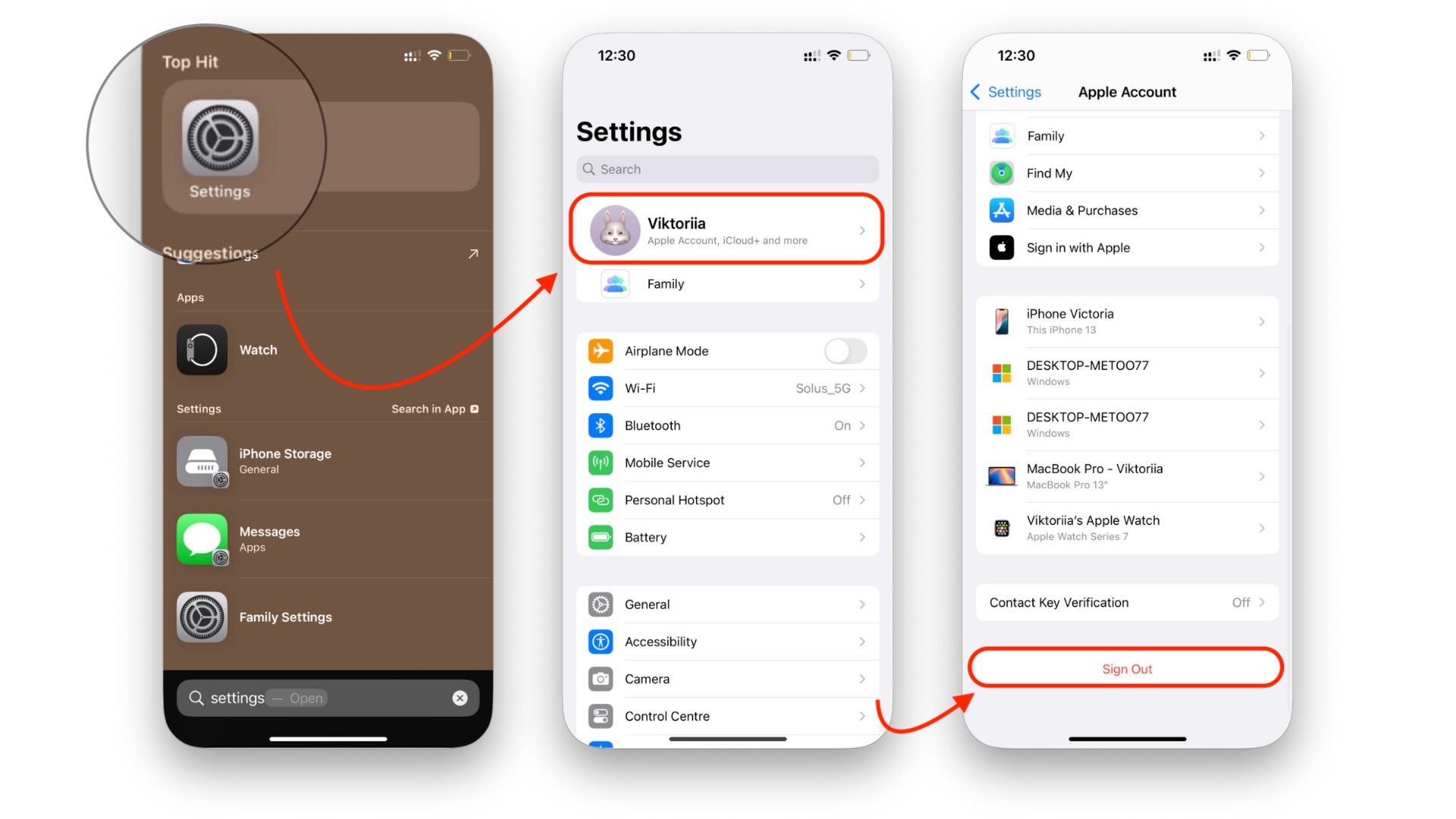
- Open Settings.
- Tap your name at the top.
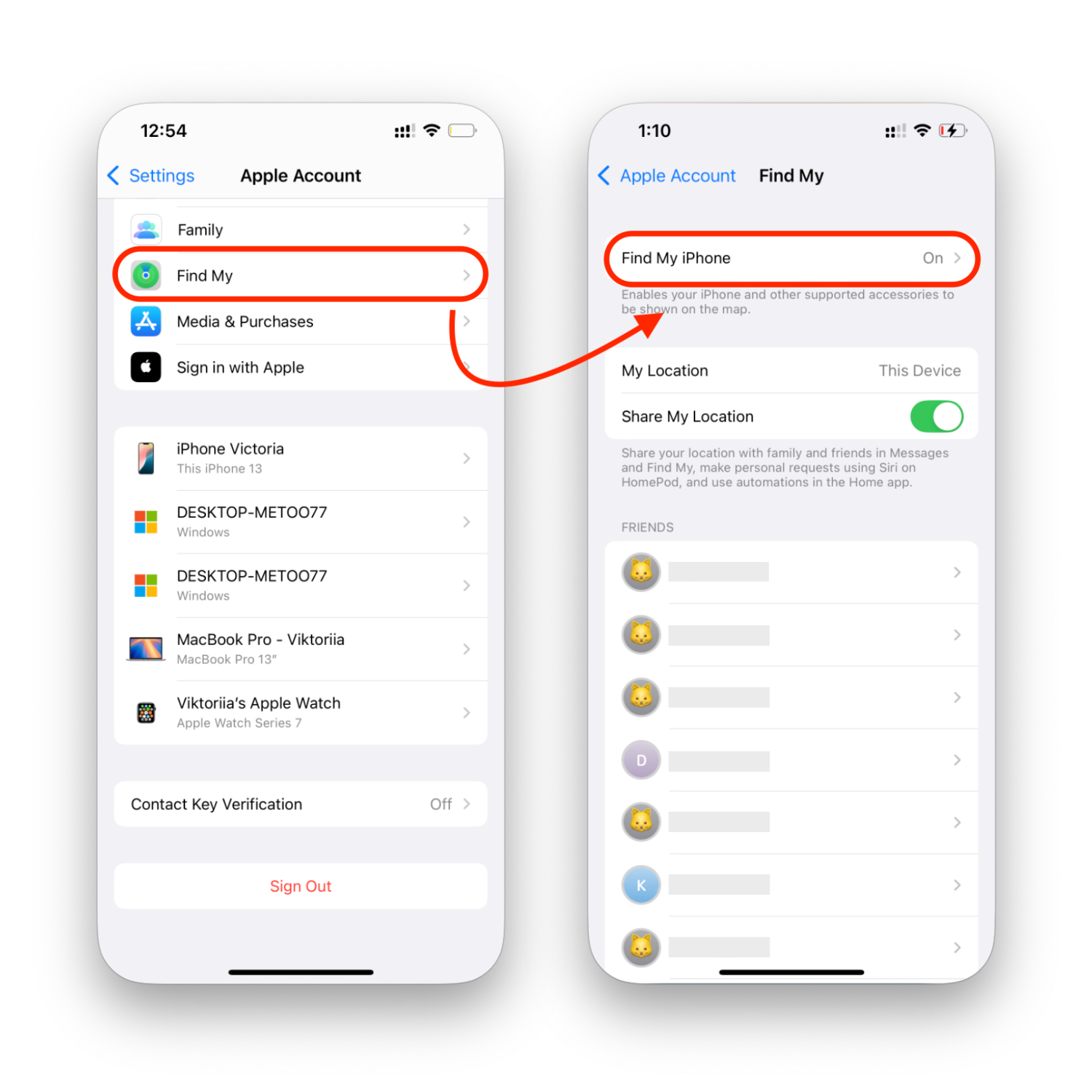
- Tap Find My.
- Tap Find My iPhone.
- Turn off Find My iPhone and enter the Apple Account password.
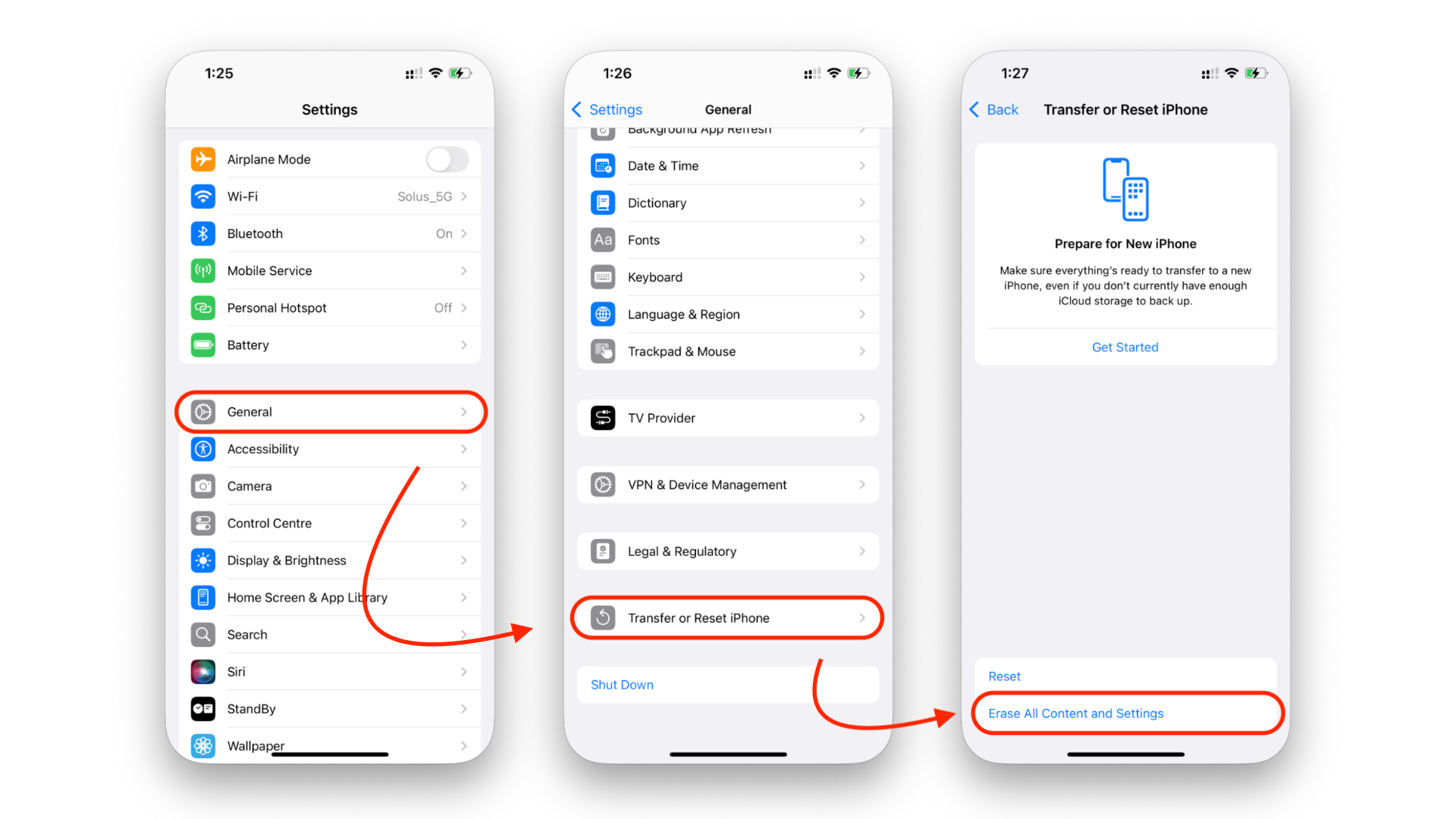
- Go back to Settings.
- Tap General.
- Tap Transfer or Reset iPhone.
- Tap Erase All Content and Settings.
- Follow the prompts until the iPhone restarts.
Apple’s current erase flow lives in the same device-prep guide linked above. Use that source if the menu names shift again, because Apple loves moving furniture inside Settings.
After the reset:
- Choose your language and region.
- Connect to Wi-Fi.
- Sign in with the Apple Account you want on this device.
- Choose a clean setup instead of restoring an old backup when Setup Assistant offers that choice.
- Skip cellular setup if the option appears and the iPhone allows it.
- Turn on Airplane Mode.
- Turn Wi-Fi and Bluetooth back on.
- Install only the apps you want on the device.
That last step matters. A clean old iPhone feels faster because it is not dragging old notifications, background sync, half-deleted apps, and forgotten accounts behind it.
Do You Need a SIM Card to Use Old iPhone as iPod?
You do not need an active SIM card to use old iPhone as iPod after activation. During setup, Apple may report an invalid or unsupported SIM or eSIM. Follow the exact error instead of treating a SIM as a universal requirement.
Here is the practical version:
Situation | What it means | What to do |
|---|---|---|
iPhone activates over Wi-Fi | No SIM needed for setup | Finish setup, turn on Airplane Mode, re-enable Wi-Fi |
Setup reports an invalid or unsupported SIM/eSIM | The device or carrier settings need attention | Follow Apple’s activation steps and contact the carrier if the error remains |
Carrier-locked iPhone | It may only accept the original carrier’s SIM | Use a SIM from that carrier or ask the carrier about unlocking |
Activation Lock screen | The iPhone is tied to an Apple Account | Use the owner password or Apple’s legitimate removal process |
Already activated iPhone | Day-to-day iPod use does not need cellular | Keep cellular off and use Wi-Fi for apps and downloads |
No active monthly plan is needed for music playback, local video, Books, Podcasts, downloaded playlists, Safari, Messages, or FaceTime over Wi-Fi. The SIM question is about getting through setup, not about using the old iPhone like an iPod every day.
If the iPhone keeps returning to a welcome screen or activation page, stop wiping it again and again. Check Wi-Fi, Apple Account ownership, Activation Lock, and Apple’s activation troubleshooting steps first. Repeating the erase flow will not unlock the device.
How to Add Music and Videos Without iTunes
The old iPhone becomes useful when it has offline media on it. Streaming works at home. Downloaded music, videos, audiobooks, and PDFs work in cars, gyms, travel days, kids’ rooms, and anywhere Wi-Fi acts weird.
Pick the media method based on where your files already live.
Method | Best for | Weak spot | Good fit for old iPhone as iPod? |
|---|---|---|---|
Apple Music or Spotify | Streaming subscribers who want offline playlists | App support may drop on old iOS | Yes, if the app still installs |
Finder or Apple Devices sync | People who already keep a clean Apple-managed library | Sync rules and library friction | Official route for an existing library |
WALTR PRO | Local music, video, PDFs, audiobooks, and ringtones | Requires installing a desktop app | Best Softorino fit for local files |
Softorino YouTube Converter | Allowed online video/audio for offline use | Rights matter | Useful for legal offline media |
Retro player apps | Nostalgia and click-wheel style interfaces | They do not solve transfer or activation | Fun extra, not the core setup |
Option 1: Use Apple Music, Spotify, or Podcasts
If you already pay for Apple Music or Spotify, install the app, sign in, and download playlists for offline listening. The built-in Podcasts and Books apps can also work well on an old iPhone.
The catch is app compatibility. Very old iPhones may stop receiving current app versions. If an app refuses to install, update iOS if the device supports a newer version. If it still cannot install, fall back to built-in apps and local media files.
Option 2: Sync with Finder or Apple Devices
On current Macs, Finder handles iPhone sync. On current Windows PCs, use Apple Devices. iTunes remains the legacy route on older setups. Apple documents both Finder sync and Apple Devices sync on Windows.
This method works if you already manage a tidy Apple media library. It is less pleasant when you only want to drop a few albums or videos onto the old iPhone. Syncing can feel like borrowing a forklift to move a shoebox.
Option 3: Transfer local files with WALTR PRO
If you have local MP3, FLAC, AAC, MP4, MKV, AVI, PDFs, audiobooks, or ringtones, WALTR PRO lets you transfer supported local files to iPhone without full-library sync. Connect the old iPhone by cable or Wi-Fi, drag the file into WALTR PRO, and send it to the device.
WALTR PRO fits this article because it solves the media-transfer part after the old iPhone is already set up. Supported files can land in native apps like Music, TV, or Books where possible. You do not need to rebuild an Apple library or babysit sync settings.
Keep the limits clear. WALTR PRO does not remove Activation Lock, unlock a carrier-locked iPhone, or transfer DRM-protected streaming tracks out of Apple Music or Spotify. It moves local files you have access to.
Option 4: Add offline online video carefully
If your goal is offline video or audio from supported online sources, Softorino YouTube Converter can download supported online videos for offline use. Use it only for content you own, created, licensed, or have permission to download.
For a child’s device, download what the child needs before handing over the iPhone. Then remove extra apps, accounts, browser access, and notifications.
Want the Old iPod Feel? Add a Retro Player Interface
If you want the iPhone to feel more like an iPod, install a retro music player app after setup. Some apps mimic the old click-wheel interface and make the device feel less like a phone.
Treat this as a cosmetic layer. A retro interface app may make Apple Music or the local library nicer to browse, but it will not remove Activation Lock, fix a SIM problem, load local FLAC files by itself, or make an unsupported streaming app work on old iOS.
Set up the old iPhone first. Load the music second. Add the nostalgia skin last.
Set Up the Old iPhone as a Wi-Fi-Only Music Player
Once the iPhone is reset and loaded with media, make it quiet. You want an iPod-style player, not a second phone begging for attention.
Use this setup:
- Turn on Airplane Mode.
- Turn Wi-Fi back on.
- Turn Bluetooth back on if you use AirPods, speakers, or a car stereo.
- Go to Settings > Notifications and disable anything noisy.
- Delete unused apps.
- Download playlists, podcasts, videos, books, and audiobooks for offline use.
- Set Auto-Lock under Settings > Display & Brightness.
- Keep a charger near the place where the old iPhone will live.
- Test playback with the screen locked, Bluetooth connected, and Wi-Fi off if you expect true offline use.
If the battery is weak, use the old iPhone as a docked kitchen, desk, car, or speaker-side music player. That still counts as a useful second life. Not every old iPhone needs to become a travel device.
Setting Up an Old iPhone for a Child
Use a child Apple Account, turn on Screen Time with a parent-only passcode, and install only the apps and media the child should use. Do not hand over an iPhone tied to your personal Apple Account.
For Family Sharing, restrictions, and travel prep, use Softorino’s full guide to turn an old iPhone into an iPod for kids. This general guide stays focused on the media-player setup.
Troubleshooting Common Problems
Most problems come from activation, old software, weak batteries, or file transfer confusion. Start there before blaming the music app.
The iPhone is stuck on Activation Lock
Activation Lock means the device is still tied to an Apple Account. If it is your iPhone, sign in and remove Find My. If it belonged to someone else, ask the previous owner to remove the device from their account. Apple also has a guide on how to remove Activation Lock through legitimate ownership steps.
The iPhone asks for a SIM card
Try Wi-Fi activation first. If Apple reports an invalid or unsupported SIM or eSIM, follow the on-screen error and Apple’s activation troubleshooting steps. Contact the carrier for a carrier lock or account problem. After activation, you can use the iPhone over Wi-Fi without an active plan.
Apps will not install
The iPhone may be too old for the current app version. Update iOS if possible. If the device cannot run a recent enough iOS version, use built-in apps, local files, or older compatible app versions if Apple offers them.
Battery drains fast
Turn on Airplane Mode, re-enable Wi-Fi, disable Background App Refresh, reduce notifications, and lower screen brightness. If the battery is badly worn, keep the phone plugged in or replace the battery if the device is worth saving.
Music will not sync or transfer
Check cable trust prompts, available storage, file format, and DRM status. If Finder or Apple Devices keeps fighting you, use WALTR PRO for supported local files and test with one album before moving a huge library.
Frequently Asked Questions About Old iPhone iPod Setup
Can an old iPhone work like an iPod Touch?
Yes. An old iPhone can work like an iPod Touch after it passes activation, connects to Wi-Fi, and has enough storage for media. It can play music, videos, podcasts, audiobooks, apps, and games without an active phone plan.
Can I use old iPhone as iPod without a SIM card?
Yes, after activation. Many iPhones activate over Wi-Fi without an active SIM. If setup reports an invalid or unsupported SIM or eSIM, follow that Apple or carrier error. Once activation finishes, Wi-Fi-only use does not need an active phone plan.
How do I put iPhone in iPod mode?
There is no official iPod mode switch. The practical version is to erase the iPhone, set it up on Wi-Fi, turn on Airplane Mode, re-enable Wi-Fi and Bluetooth, remove noisy apps, and load offline music or videos.
Should I erase the iPhone before giving it to a child?
Yes. Back it up first, turn off Find My iPhone, erase all content and settings, then set it up with a child Apple Account and Screen Time. Do not give a child a phone tied to your personal Apple Account.
Can I use Apple Music or Spotify on an old iPhone without cellular service?
Yes, if the app still supports the iOS version on that iPhone. Connect to Wi-Fi, install the app, sign in, and download playlists for offline listening before travel or kid use.
How do I put music on an old iPhone without iTunes?
Use Apple Music downloads, Finder sync on Mac, Apple Devices on Windows, or a transfer app. For local MP3, FLAC, AAC, MP4, MKV, PDFs, audiobooks, and ringtones, WALTR PRO transfers files without iTunes sync.
What should I do if the old iPhone is Activation Locked?
Remove it from the Apple Account that owns it. If it is your phone, sign in and turn off Find My. If it belonged to someone else, ask them to remove it. Without that, the iPhone is not useful as an iPod.
Will an old iPhone still get app updates?
Maybe. It depends on the model and the newest iOS version it supports. Very old iPhones can still play local media, but some modern streaming apps may stop installing or updating.
How to Use Old iPhone as iPod: Final Check
An old iPhone makes a good iPod-style media player if you set it up cleanly. Back it up, remove Activation Lock, erase it, use Wi-Fi only, and load the music or videos you want.
If your remaining problem is getting local files onto the device, download WALTR PRO. Activate, unlock, and trust the old iPhone first. Then test one supported music, video, PDF, audiobook, or ringtone file before moving the full library.

AltTunes
Seamlessly Browse, Manage & Export iOS Data
