Transfer Photos from iPhone to Windows: Across vs AltTunes


TL;DR: If you need to transfer photos from iPhone to Windows, do not confuse screen control with file export. That difference matters.
Transfer Photos from iPhone to Windows: Across vs AltTunes
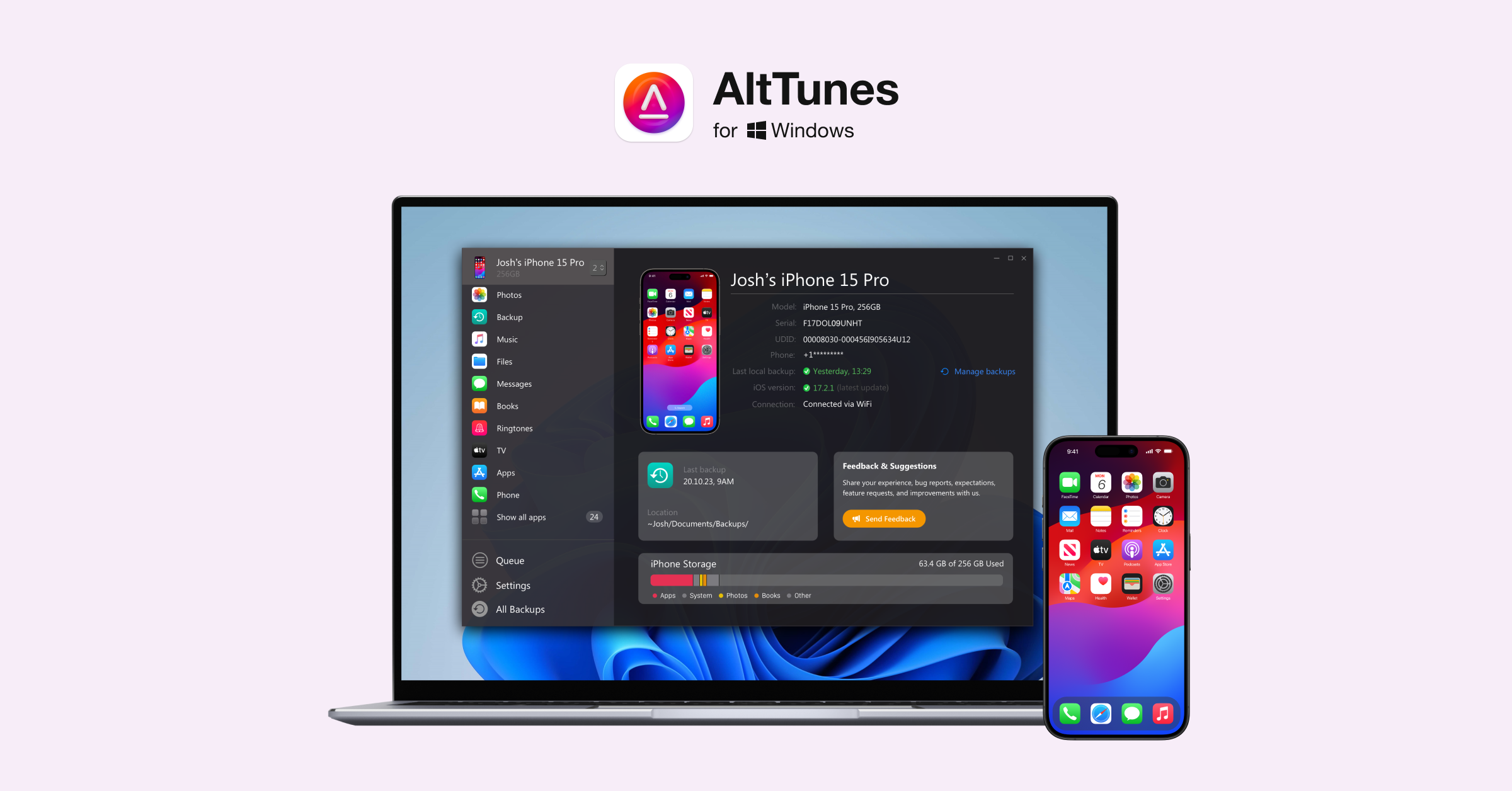
If you need to transfer photos from iPhone to Windows, do not confuse screen control with file export. Across helps you use a keyboard and mouse with nearby devices. AltTunes is the better fit when you need original iPhone photos, videos, messages, contacts, music, files, or backups saved on a Windows PC.
That difference matters. Viewing an iPhone screen from your computer does not put the photo file on your hard drive. It does not save the original HEIC or video. It gives you control, not ownership of the file on Windows.
So the short answer is simple: choose Across for device control. Choose AltTunes as an iPhone file manager for Windows when the job is moving iPhone photos and files to a PC and keeping them locally.
Before we begin
Windows users can download AltTunes to export iPhone photos to a PC and manage the files over USB. Test a small batch first and confirm the destination before exporting the full photo library.
Transfer photos from iPhone to Windows: quick comparison
Job | Across | AltTunes |
|---|---|---|
Main purpose | Bluetooth keyboard and mouse control | iPhone file manager for Windows |
Move iPhone photos to Windows | Not its core job | Exports iPhone photos to a PC |
Export iPhone videos to PC | Not its core job | Exports videos and other iPhone media |
Messages and contacts | Control-only workflow | Can export messages and contacts to Windows |
Backups | Not a backup tool | Supports USB-based iPhone backup |
Best for | Typing, controlling, switching devices | Saving original files to Windows storage |
Connection model | Bluetooth control workflow | USB-based iPhone access |
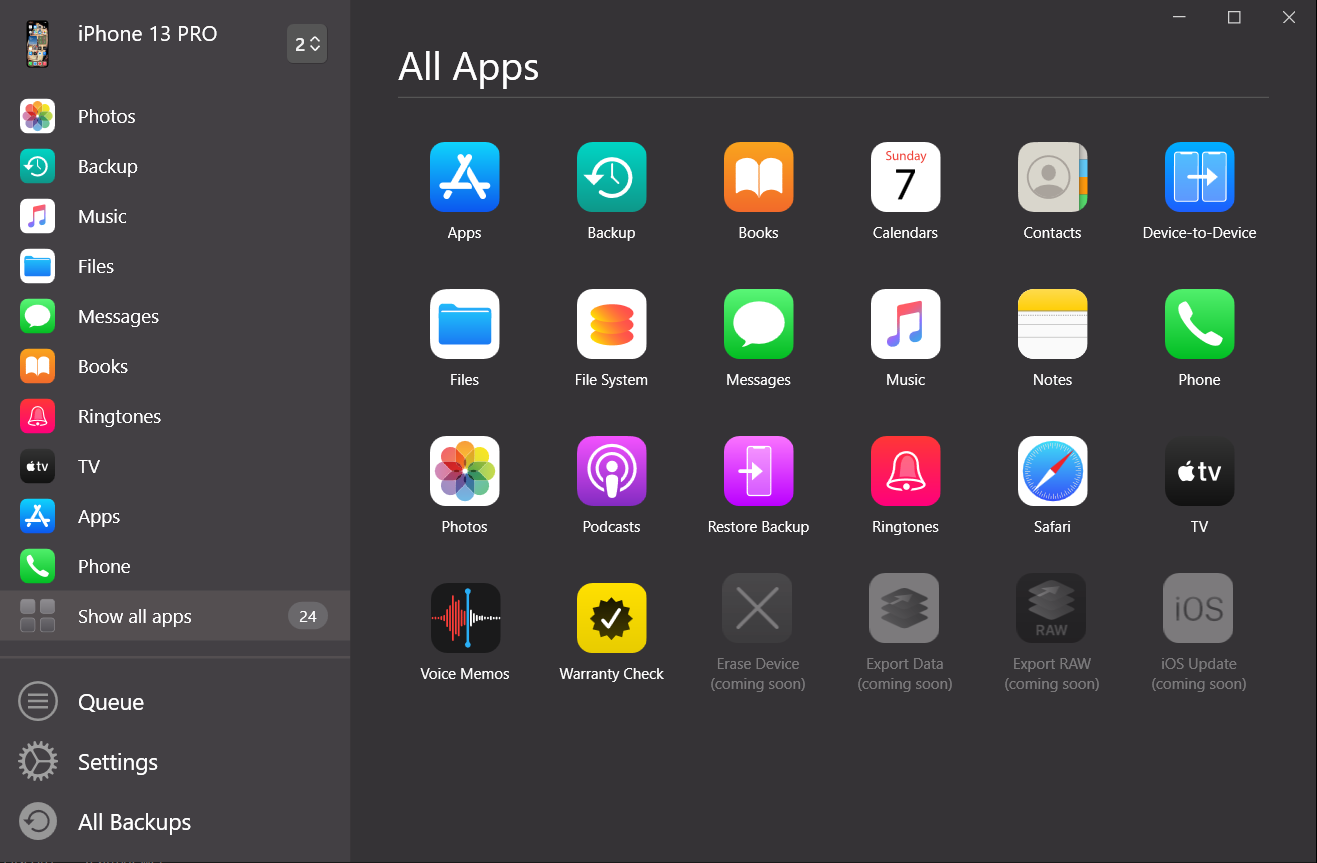
How AltTunes transfers iPhone photos and files to Windows
Quick takeaways
- Install AltTunes on Windows. Use the official AltTunes page, not a random driver bundle or web converter.
- Connect your iPhone with USB. Unlock the iPhone and trust the computer if iOS asks.
- Choose the content type. Work with photos, videos, music, messages, contacts, files, or backups depending on the job.
- Export to a Windows folder. Save the files where you want them: Pictures, an external SSD, a client folder, or a backup drive.
- Convert HEIC when needed. AltTunes includes HEIC-to-JPG auto-conversion, which helps when a Windows app does not like Apple photo formats.
This is the workflow the old comparison was trying to explain. Across can help you control the iPhone interface from a computer. AltTunes helps you move the actual content from the iPhone to the PC. For a photographer, support agent, marketer, or anyone cleaning up phone storage, those are two very different jobs.
Across controls your iPhone; it does not replace photo export
Across is useful in its own lane. It is positioned as a software KVM and Bluetooth keyboard/mouse sharing app. In plain English, it helps you control smart devices from a computer keyboard and mouse.
That can be handy if you type a lot on your phone, switch between devices during the day, demo an app, or want one input setup instead of juggling screens. Across is not pretending to be an iPhone photo-transfer app. The problem starts when users expect a control app to act like a file manager.
Control means you can operate the device. Export means Windows receives the original file. If you need the files on your PC, the export part is the whole point.
Viewing a photo remotely is not the same as saving the original photo file to your PC.
Why original-file export matters
A screenshot of an iPhone photo is not the same as the photo. A screen recording is not the same as the video. Remote viewing is not the same as a file transfer. If you care about quality, edits, metadata, filenames, or backup safety, you want the original file on your Windows drive.
This matters most when you are moving a large camera roll, a client shoot, travel videos, message attachments, or anything you may need later. A proper export gives you files you can organize, copy to another drive, open in Windows apps, or archive outside Apple’s cloud.
That is why search results for this topic often point to official import workflows, File Explorer, iCloud Photos, Microsoft Photos, and iPhone managers. The shared intent is not “how do I control my iPhone?” It is “how do I get my files off the iPhone and onto Windows?”
Official ways to transfer photos from iPhone to Windows
You can move iPhone photos to Windows without AltTunes. Apple and Microsoft both document official options. They are worth knowing because sometimes the built-in route is enough.
- Windows Photos import. Connect the iPhone by USB, unlock it, trust the PC, then import from the Photos app. Microsoft documents this flow for importing photos and videos from a phone to a PC.
- File Explorer / DCIM folder. Some users copy photos from the iPhone storage view in Windows. This can work, but the folder structure is not friendly when you have thousands of photos.
- iCloud Photos for Windows. Apple documents iCloud Photos as a way to sync and download photos. It is useful if your library already lives in iCloud, but it adds cloud sync, storage, and account setup to the job.
Use those options if you only need a quick import and they behave. Use AltTunes when you want a dedicated Windows iPhone file manager, selective export, broader content access, HEIC-to-JPG handling, messages, contacts, or USB-based backups in one place. For more general photo-transfer help, see Softorino’s guide on how to transfer photos from iPhone to computer.
External references: Apple Support explains photo and video transfer from iPhone or iPad to a PC. Microsoft Support explains how to import photos and videos from a phone to Windows.
When Across is still the better choice
Across can still be the right tool. Just use it for the right job.
- You want to type on your iPhone from a PC keyboard.
- You switch between a computer, tablet, and phone often.
- You need mouse and keyboard control for demos, testing, or quick replies.
- You do not need to export original photos, videos, messages, contacts, or backups.
- You want a Bluetooth control setup, not a Windows file-transfer workflow.
That is a fair reason to choose Across. It solves a control problem. It does not replace a file manager when you need local iPhone files saved on Windows.
When AltTunes is the better Across alternative
AltTunes is the better Across alternative when your real goal is iPhone file transfer on Windows. That includes photo export, video export, music extraction, message backup, contact export, file access, and local iPhone backup.
It also makes sense when iTunes feels like punishment. iTunes on Windows was never a pleasant answer for people who only want to move files. AltTunes keeps the job closer to how Windows users think: connect device, choose content, export to a folder.
If you are comparing broader iPhone managers, you may also want Softorino’s AltTunes vs iMazing comparison. iMazing is a direct iPhone-management competitor. Across is a different category, which is why this comparison should start with the task, not the brand name.
Best pick for Windows users
If you only need keyboard and mouse control, Across is the cleaner choice. If you need to transfer photos from iPhone to Windows, save original videos, export messages, move contacts, or keep a USB backup, use AltTunes.
The category split is the answer. Control apps help you operate a device. File managers help you keep the files. Most Windows users searching this topic need the second one.
Try AltTunes free if you want the photos and files on your PC, not just visible on your iPhone screen.
FAQ
Can Across transfer photos from iPhone to Windows?
Across is not designed as an iPhone photo-transfer tool. It is built around keyboard, mouse, and device-control workflows. If you need the original photo files saved on Windows, use a photo import method or an iPhone file manager such as AltTunes.
What is the easiest way to transfer photos from iPhone to Windows without iCloud?
For the built-in route, connect the iPhone by USB and use Windows Photos or File Explorer. If you want a dedicated export workflow with broader iPhone content access, AltTunes is a better fit because it works as a Windows iPhone file manager.
Does AltTunes export original iPhone photos?
AltTunes is built for exporting iPhone content to a Windows PC, including photos and videos. That is different from screen control, screenshots, or remote viewing because the files are saved locally on Windows.
Can AltTunes export messages and contacts too?
Yes. AltTunes can export photos, music, messages, contacts, videos, files, and backups from an iPhone to a Windows PC. Keep those claims to Windows only; AltTunes is not a Mac app.
Do I need iTunes for AltTunes photo transfer?
No. AltTunes is positioned as an iTunes alternative for Windows users. Use iTunes only if you specifically need Apple’s sync workflow. For local export, AltTunes is the simpler category fit.
Should I use Across or AltTunes?
Use Across when you want to control an iPhone or other device with a keyboard and mouse. Use AltTunes when you want to transfer photos from iPhone to Windows or save other iPhone content on your PC.

AltTunes
Seamlessly Browse, Manage & Export iOS Data
