ApowerMirror Alternative for iPhone File Transfer on Windows


ApowerMirror is useful when you need to show your iPhone screen on a PC. It is not the same thing as an iPhone file manager. If you searched for an ApowerMirror alternative because you need original photos, videos, messages, contacts, files, or backups on Windows, you need a transfer tool instead of a mirroring tool.
That is where AltTunes, an iPhone file manager for Windows, makes more sense. ApowerMirror helps you present what is on the iPhone screen. AltTunes helps you get the original iPhone files onto your PC.

ApowerMirror vs AltTunes: quick verdict
ApowerMirror and AltTunes solve different jobs. Choose ApowerMirror when you need live screen mirroring for meetings, teaching, app demos, or recordings. Choose AltTunes when you need to export iPhone data to Windows without iCloud, iTunes, or screenshots.
Job | ApowerMirror | AltTunes |
|---|---|---|
Mirror iPhone screen to PC | Yes. That is the main point. | No. AltTunes focuses on file access. |
Export original iPhone photos | Not the right tool for original file export. | Yes. Export iPhone photos to Windows folders. |
Transfer iPhone videos to PC | Can show or record a screen, but that is not the original file. | Yes. Move original videos from iPhone to PC. |
Save messages to Windows | Not a message backup tool. | Yes. Export iPhone messages and attachments. |
Export contacts | Not built for contact export. | Yes. Export contacts from iPhone to Windows. |
Create local iPhone backups | No. | Yes. AltTunes supports USB-based iPhone backups. |
Best fit | Presentations, demos, live viewing, screen recording. | File transfer, local backup, Windows iPhone management. |
If your goal is “show my iPhone on my computer,” ApowerMirror fits. If your goal is “move my iPhone photos to my PC,” AltTunes is the better ApowerMirror alternative.
Before we begin
Windows users can download AltTunes to transfer and manage iPhone photos, music, messages, contacts, and files on a PC. AltTunes handles file management, not screen mirroring, so choose ApowerMirror when mirroring is the real requirement.
Screen mirroring is not file transfer
Screen mirroring shows what your iPhone displays. File transfer moves the actual file. That difference matters when you care about quality, file names, metadata, backups, or editing.
A screenshot from a mirrored iPhone screen is not the original photo. A screen recording is not the original video. You might get a quick visual copy, but you lose the clean file export you need for storage, editing, printing, or archiving.
Apple's own support path for Windows photo import focuses on importing photos and videos, not mirroring the screen. Apple also points users toward iCloud Photos for Windows when they want cloud sync. Those are file workflows. Mirroring sits in a different lane.
For Windows users, that lane split is the whole decision. ApowerMirror helps you look at the iPhone screen on a bigger display. AltTunes helps you move iPhone content into Windows folders you control.
When AltTunes is the better ApowerMirror alternative
AltTunes is the better ApowerMirror alternative when the job starts with “I need the files.” That usually means you want local copies on your PC, not a live view of the phone.
Use AltTunes when you need to:
- Export iPhone photos to a Windows folder.
- Transfer iPhone videos to a PC for editing or storage.
- Save messages, iMessages, SMS, and attachments to Windows.
- Export contacts from iPhone to a PC.
- Browse iPhone files from Windows.
- Create a USB-based iPhone backup.
- Avoid iCloud when you want local storage.
- Avoid iTunes when you want a cleaner Windows workflow.
AltTunes is Windows-only, which is the point here. It exists for the people Apple still makes use iTunes on Windows. If you have ever opened iTunes to move a few photos and wondered why it feels like operating a fax machine, you are the audience.
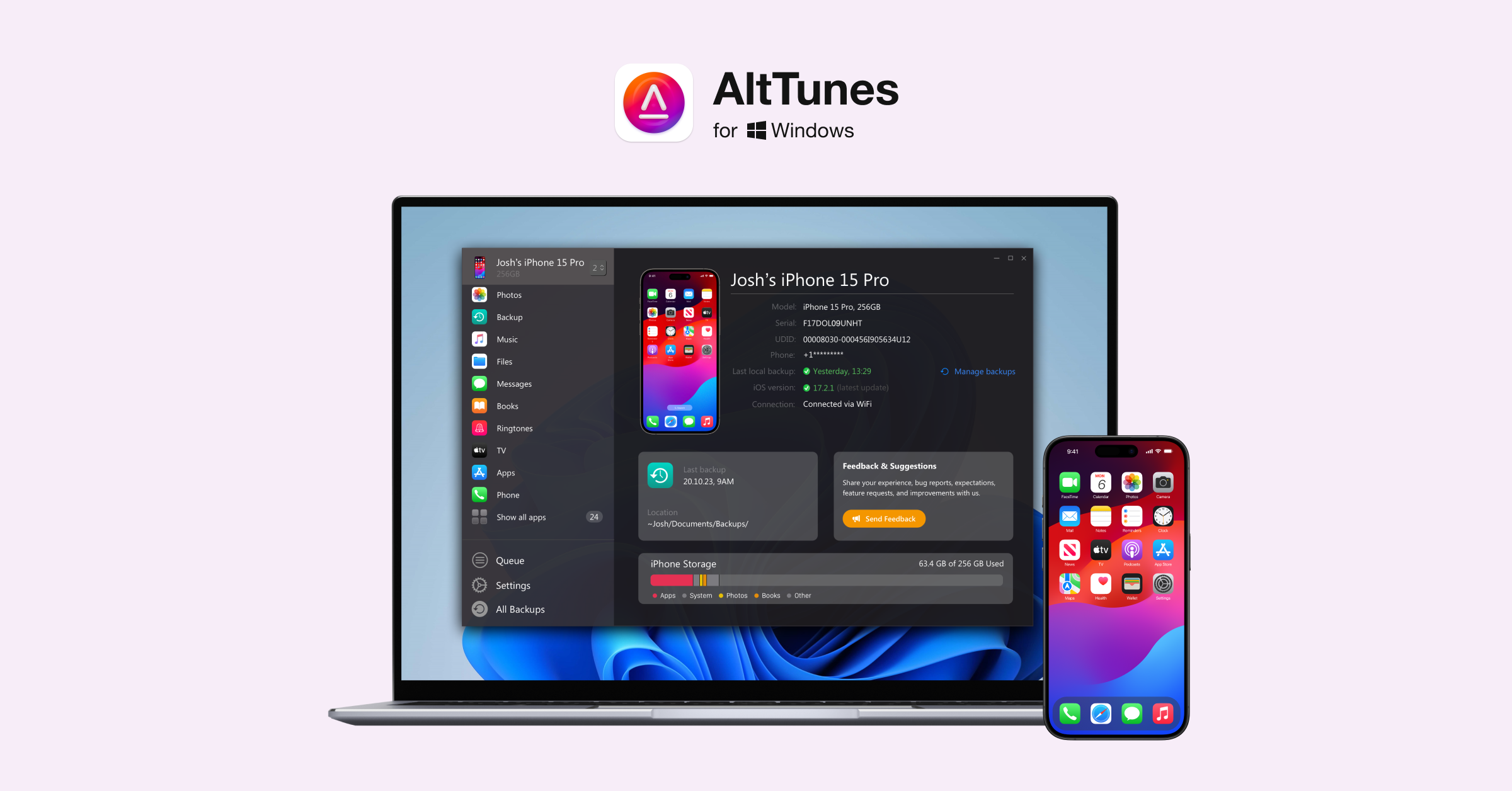
How AltTunes handles iPhone file access on Windows
AltTunes works like a Windows iPhone manager. You connect the iPhone with USB, browse the data categories, and export what you need to a folder on your PC. Keep the workflow broad unless you have the app open in front of you. Exact button labels can change.
A safe high-level workflow looks like this:
- Download AltTunes from Softorino and install it on your Windows PC.
- Connect your iPhone with a USB cable.
- Trust the computer on your iPhone if iOS asks.
- Open the content category you need: photos, videos, messages, contacts, music, files, or backups.
- Choose the items you want to save.
- Export them to a Windows folder.
That gives you original files on the computer. You can edit them, back them up, move them to an external drive, or store them locally without waiting for iCloud sync.
AltTunes also supports HEIC to JPG conversion. That helps when your iPhone photos need to open cleanly in Windows apps that do not handle HEIC well.
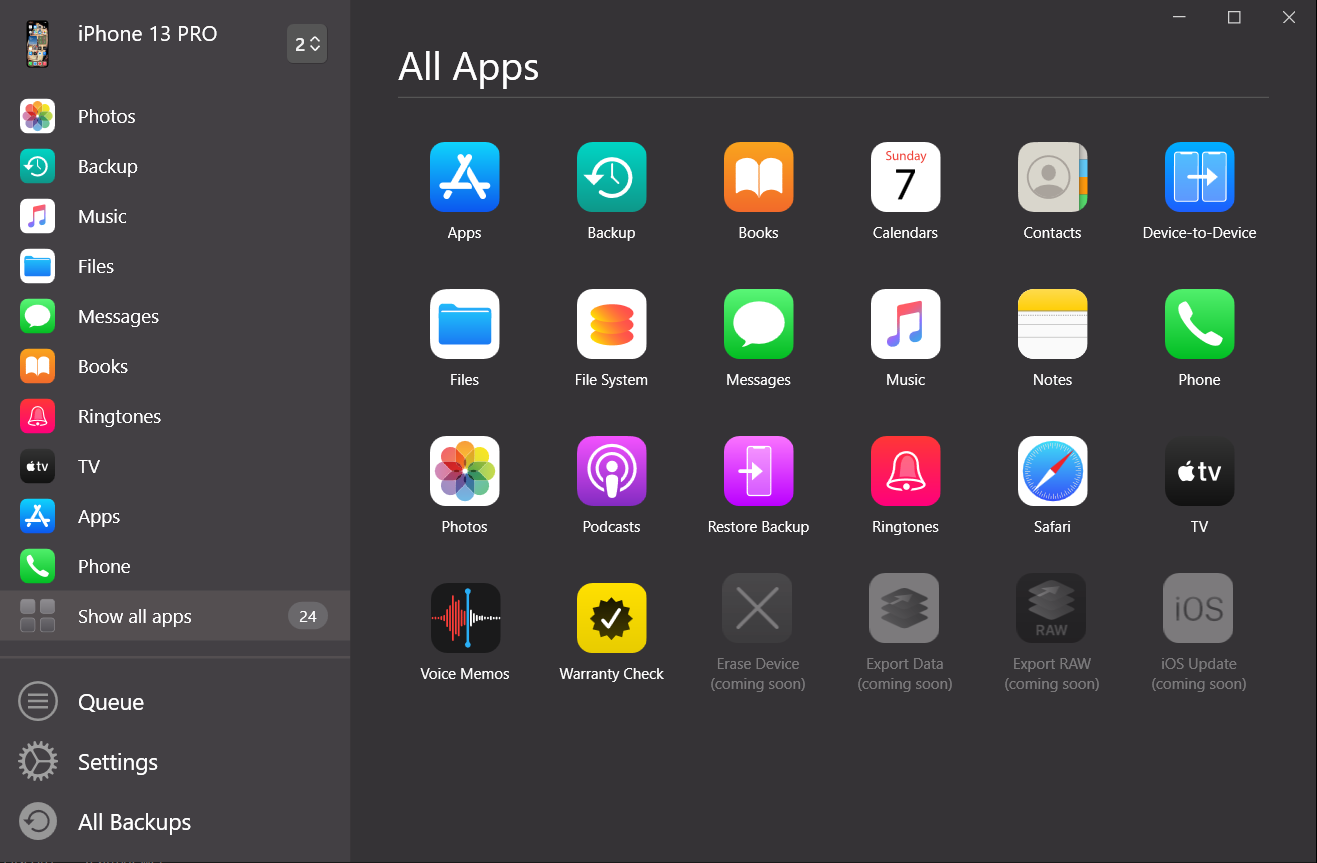
How to transfer photos from iPhone to PC without iCloud
The cleanest way to transfer photos from iPhone to PC without iCloud is to use a local USB workflow. iCloud sync can be useful, but it depends on storage, account state, internet speed, and the Windows iCloud app behaving itself. That is a lot of moving parts for a photo export.
With AltTunes, the job stays local:
- Connect your iPhone to the Windows PC by USB.
- Open AltTunes and go to the photo section.
- Select the photos or albums you want.
- Export them to a Windows folder.
- Open the folder and confirm the files are there before deleting anything from the phone.
If you want the broader Apple-supported route, Apple documents photo import and iCloud Photos for Windows in its support guides. Use those when you prefer the official Windows import or iCloud sync path. Use AltTunes when you want a dedicated Windows iPhone file manager with photos, videos, messages, contacts, files, and backups in one place.
For a deeper photo-only workflow, read Softorino's guide on how to transfer photos from iPhone to computer.
When ApowerMirror still makes sense
ApowerMirror is not the villain. It is the wrong answer only when the question is file transfer.
ApowerMirror makes sense when you need to:
- Show an iPhone app during a meeting.
- Teach from your phone screen in a classroom.
- Demo mobile workflows on a larger display.
- Use screen recording for a walkthrough.
- Use annotation or whiteboard-style presentation features.
- Mirror multiple devices for a live session.
If those are your jobs, use a mirroring app. A file manager will not make your iPhone screen appear on a projector. The best tool depends on the output you need.
ApowerMirror vs AltTunes for Windows users
Windows users often land on the wrong category because the words sound close. “Connect iPhone to PC” can mean 2 different things.
One person wants the iPhone screen on a computer monitor. Another person wants the iPhone photos, videos, and messages copied to the computer. Both say “connect,” but they need different software.
That is why a fair ApowerMirror vs AltTunes comparison should not pretend one app beats the other at everything. ApowerMirror wins for screen mirroring. AltTunes wins for original iPhone file export on Windows.
This is also where AltTunes differs from heavier iPhone managers. It focuses on the everyday export jobs Windows users search for: photos, videos, messages, contacts, files, and backups. If you are comparing broader phone-manager tools, the AltTunes vs iMazing comparison is the better next read.

What screenshots and recordings cannot replace
A mirrored screen can help you explain something. It does not replace the original file.
Here is what you lose when you use screenshots or recordings instead of real export:
- Original photo resolution and metadata.
- Original video file quality.
- File names and folder organization.
- Message history in a useful saved format.
- Contact data you can reuse.
- A backup you can store on an external drive.
For a classroom demo, a screenshot might be fine. For editing a video, printing a photo, storing family pictures, or saving message proof, you want the real file. AltTunes is built for that second group.
Related Windows iPhone tools and comparisons
If you are still comparing options, stay inside the same job category. Mirroring apps should be compared with mirroring apps. File managers should be compared with file managers.
Useful next reads:
- AltTunes vs iMazing for a direct Windows iPhone manager comparison.
- DouWan vs AltTunes if you are comparing another mirroring-style tool with file access.
- AltTunes vs ISL Light for another remote-access comparison angle.
- WALTR PRO if your job is the opposite direction: putting music, videos, PDFs, or ringtones onto an iPhone.

FAQ
Is AltTunes an ApowerMirror alternative?
Yes, AltTunes is an ApowerMirror alternative only if your real goal is iPhone file transfer on Windows. It is not a screen-mirroring replacement. Pick AltTunes for exporting photos, videos, messages, contacts, files, and backups to a PC.
Can ApowerMirror transfer files from iPhone to PC?
ApowerMirror is built around screen mirroring, casting, control, recording, and presentation-style workflows. It is not the right tool when you need original iPhone file export to Windows folders.
How do I transfer photos from iPhone to PC without iCloud?
Use a local USB workflow. Connect your iPhone to Windows, open AltTunes, select your photos, and export them to a PC folder. This avoids iCloud storage limits, sync delays, and internet dependence.
Can I save iPhone messages to Windows with AltTunes?
Yes. AltTunes can export iPhone messages, including iMessages, SMS, and attachments, to a Windows PC. ApowerMirror can show a message thread on screen, but that is not the same as saving message history.
Is AltTunes Windows-only?
Yes. AltTunes is a Windows iPhone file manager. If you need to put files onto an iPhone from Mac or Windows instead of exporting from iPhone, Softorino's related product is WALTR PRO.
Do I need internet to transfer iPhone files with AltTunes?
No. AltTunes uses a local USB connection for file access and export. You do not need iCloud sync or a live internet connection to move files from iPhone to your Windows PC.
Verdict: mirror the screen or move the files
Choose ApowerMirror if you need a bigger live view of your iPhone screen. It is the right lane for meetings, demos, classroom teaching, recordings, and presentations.
Choose AltTunes if you need an ApowerMirror alternative for iPhone file transfer on Windows. It moves the original photos, videos, messages, contacts, files, and backups to your PC. No iTunes gymnastics. No pretending a screenshot is a file export.
Try AltTunes free and move your iPhone files to Windows the normal way.

AltTunes
Seamlessly Browse, Manage & Export iOS Data
