Casting vs Mirroring: Which One Should You Use?

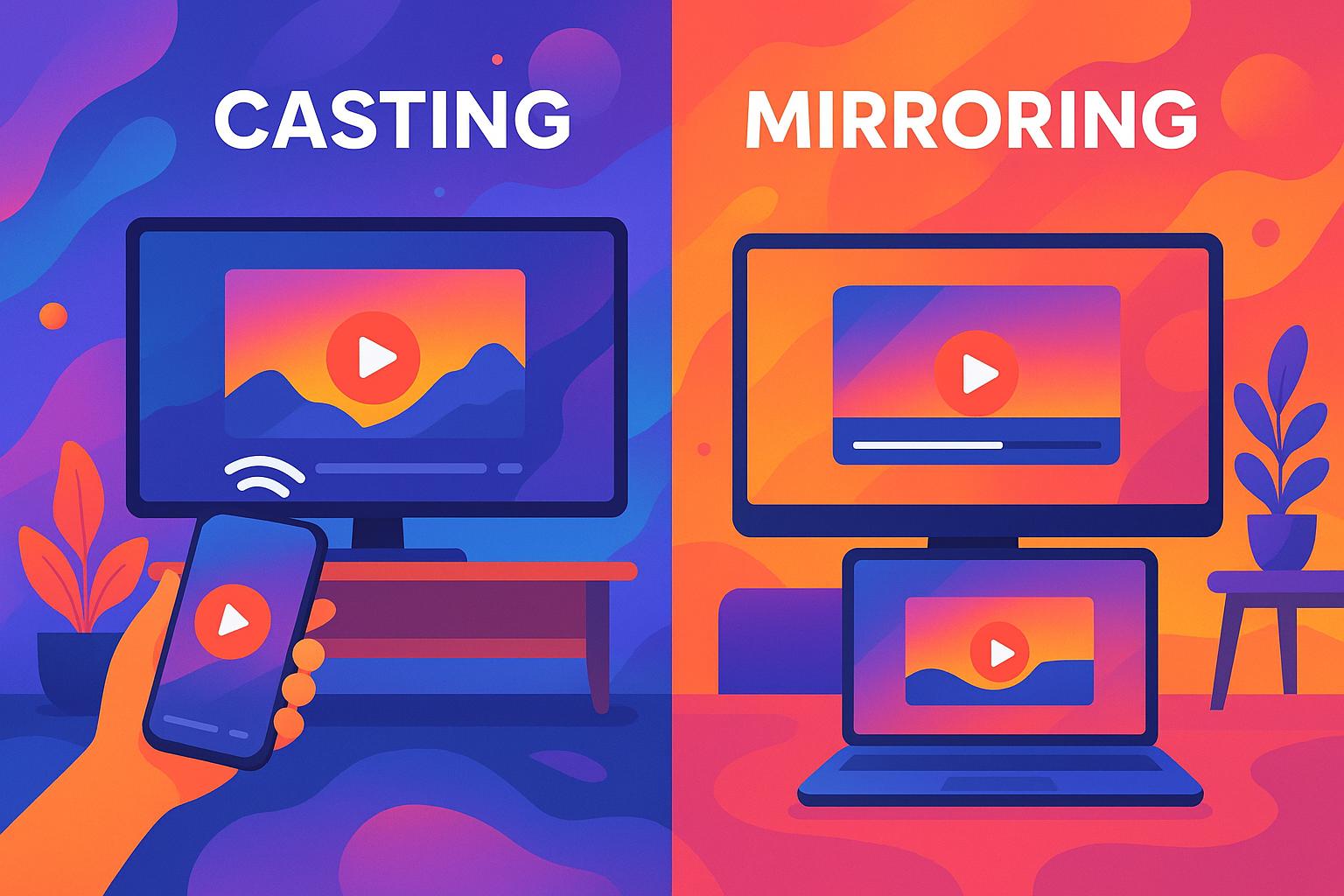
Casting vs mirroring comes down to one simple choice: cast when you want to watch selected media, mirror when you need to show your whole screen. Casting is usually better for movies, shows, YouTube, and music. Mirroring is better for presentations, app demos, photos, and anything where the TV needs to show exactly what you see.
If you only remember one casting vs mirroring rule, make it this: casting is for the content, mirroring is for the screen.
There is one extra wrinkle. If your real problem is a local video file on your Mac, normal app casting may not help. That is where Beamer 4 fits: it streams local video files from Mac to Apple TV, Chromecast, Google Cast, or AirPlay 2 TVs without making you convert the file first.
Before we begin
Mac users can download Beamer to stream local video files to Apple TV or Chromecast without mirroring the entire desktop. Use screen mirroring instead when the TV must show an app, presentation, or live browser session.
Casting vs Mirroring: The Short Answer
Casting sends one piece of media to a TV or speaker. Mirroring duplicates your entire device screen in real time.
Need | Use casting | Use mirroring |
|---|---|---|
Watch a movie, show, YouTube video, or music | Best fit | Usually worse |
Show slides, apps, browser tabs, or a full desktop | Not enough | Best fit |
Keep using your phone privately | Yes | No |
Avoid showing notifications | Safer | Riskier |
Save battery during long playback | Better | Worse |
Stream a local Mac video file | Use a sender app like Beamer 4 | Works, but often lower quality |
The fast rule: if the content has a Cast or AirPlay button, casting is usually cleaner. If the TV needs to see your whole screen, use mirroring. That is the casting vs mirroring test for almost every home setup, and it keeps the casting vs mirroring choice simple.
What Is Casting in Casting vs Mirroring?
Casting means your phone, tablet, or computer tells another device what to play. The TV, speaker, or streaming device then handles playback. In the casting vs mirroring choice, casting is the media-first option.
For example, you open YouTube on your phone, tap the Cast button, and pick your TV. The video plays on the TV. Your phone becomes the remote. You can pause, skip, change volume, or open another app without putting your whole screen on display.
Casting is best for selected media:
- Movies and TV shows from supported apps
- YouTube videos
- Spotify or Apple Music playback
- Photos or videos from apps that support Cast or AirPlay
- Local video files when you use a sender app built for that job
Casting usually gives you smoother playback than mirroring because it is not trying to send every pixel from your screen in real time. It also protects your privacy. Your messages, tabs, and notifications stay on your device.
The trade-off is compatibility. Casting needs the app, sender device, and receiver to support the same casting method. Netflix, YouTube, Spotify, Apple TV, Chromecast, Roku, Fire TV, and many smart TVs support some version of this. But the exact names and buttons differ.
What Is Mirroring in Casting vs Mirroring?
Mirroring shows your entire screen on another display. Everything appears: apps, cursor movement, taps, notifications, pop-ups, and mistakes. Especially mistakes. In the casting vs mirroring choice, mirroring is the screen-first option.
That makes mirroring useful when the screen itself is the point. Use it for slide decks, software demos, browser walkthroughs, photo sharing, app previews, or a meeting where everyone needs to see what you are doing.
Mirroring is also helpful when an app does not support casting. If there is no Cast or AirPlay media button, mirroring can still put the content on the TV as long as both devices support screen mirroring.
The downside is load. Your device has to capture the screen, encode it, and send it across the local connection while still running the app. That can mean more battery drain, more heat, and more lag. It can also expose private information if notifications are turned on.
Before mirroring in front of people, do 3 things:
- Turn on Do Not Disturb or Focus mode.
- Close private tabs, chats, and apps.
- Plug in your device if the session will run long.
Casting vs Screen Mirroring: Quick Comparison
Casting vs screen mirroring is not about which one is always better. It is about the job. A good casting vs mirroring decision starts with what you want the TV to show.
Factor | Casting | Screen mirroring |
|---|---|---|
What appears on the TV | One selected media item | Your entire screen |
Best use case | Movies, shows, music, local video playback with the right app | Slides, demos, meetings, apps, photos |
Privacy | Better because only the media appears | Worse because everything appears |
Multitasking | You can usually use your device | Your device stays visible |
Battery use | Usually lower | Usually higher |
Lag risk | Lower for supported media | Higher because the whole screen streams live |
Internet needs | Often needs internet for app-based media | May work over local Wi-Fi or direct device protocols |
Bad fit | Apps or screens that need full visual control | Long movies, fast games, private browsing |
A lot of confusion comes from AirPlay. AirPlay can work like casting when you send selected media to a TV. It can also work like mirroring when you choose Screen Mirroring from Control Center. Same Apple branding. Different behavior.
When Casting Is Better
Casting is better when you want to watch or listen, not show your whole device. For most streaming media, the casting vs mirroring answer is casting.
Use casting for movies, shows, music, and supported app playback. It keeps the TV focused on the content and lets your phone or computer stay useful. You can check a message, browse, or lock your phone without turning the TV into a live copy of your screen.
Casting is also the better choice for long viewing sessions. Because the receiving device handles playback, your phone or laptop usually does less work. That means less battery drain and less chance of the stream falling apart because your device is busy.
Good casting examples:
- Watching Netflix, YouTube, Disney+, or Apple TV on a TV
- Playing Spotify through a smart speaker or TV
- Sending a video from an iPhone to an AirPlay 2 TV
- Streaming a local Mac video file through an app that supports TV playback
Casting is not magic, though. If a file format is not supported by the TV or the streaming app, casting can fail or force you into conversion. MKV and AVI files are common troublemakers on Apple TV. The file may play fine on your Mac but refuse to behave on the TV.
When Mirroring Is Better
Mirroring is better when the audience needs to see exactly what you see. For demos and presentations, the casting vs mirroring answer is usually mirroring.
Use mirroring for presentations, app demos, browser walkthroughs, dashboards, whiteboards, photo browsing, and quick "look at this" moments. It works because it does not care whether the app has a Cast button. If it is on your screen, it can appear on the larger display.
Mirroring is also useful for troubleshooting. If you are showing someone where a setting lives or why an app is misbehaving, casting is useless. You need the full interface.
Good mirroring examples:
- Presenting slides in a meeting
- Showing an app prototype on a TV
- Walking through a website or dashboard
- Sharing a photo album from your phone
- Demonstrating a setting or workflow
Mirroring is a weaker fit for long video playback. It may work, but it often uses more battery and can introduce lag. It is also a privacy trap. If a text message lands during your demo, the room sees it.
AirPlay, Chromecast, Miracast, and Smart TVs: What Works With What
The names make casting vs mirroring messier than it needs to be.
AirPlay is Apple's wireless streaming system. On iPhone, iPad, and Mac, AirPlay can send selected media to Apple TV or an AirPlay-compatible smart TV. It can also mirror the whole screen when you choose Screen Mirroring. Apple's own AirPlay guide: https://support.apple.com/en-us/102661 is worth checking when the receiver does not appear.
Google Cast and Chromecast are built around sending supported app content to a Chromecast, Google TV device, speaker, or compatible TV. Many Android apps and browsers support it. Some apps on iPhone and iPad do too. Google's Chromecast casting help: https://support.google.com/chromecast/answer/6006232 explains the same-Wi-Fi and receiver basics.
Miracast is commonly used for screen mirroring, especially with Windows and some Android devices. Compatibility varies by PC, phone, and TV. If one device does not support it, the connection will not appear or will fail. Microsoft documents the Windows side in its wireless display guide: https://support.microsoft.com/en-us/windows/connect-a-wireless-display-to-your-windows-pc-5c678c2c-8e87-d9aa-1e7a-b1fdcb53a4f5.
Smart TVs, Roku, Fire TV, and brand-specific TV systems often support a mix of these methods. The same TV might support AirPlay, app casting, and screen mirroring, but use different menu names for each.
Use this practical casting vs mirroring checklist:
- Apple device to Apple TV or AirPlay TV: try AirPlay media casting first, then Screen Mirroring if needed.
- Android to Chromecast or Google TV: use the Cast button in supported apps.
- Windows to TV: check Wireless Display, Miracast, or HDMI if wireless support is flaky.
- Mac local video file to TV: use a Mac sender app like Beamer 4.
How to Cast or Mirror From iPhone, Android, and Mac
You do not need a 40-step device manual. You need to know where to start. These quick starts cover the most common casting vs mirroring setups.
For iPhone or iPad, open the media app and look for the AirPlay icon if you want to cast selected media. Choose your Apple TV or AirPlay-compatible TV. To mirror the whole screen, open Control Center, tap Screen Mirroring, and pick the receiver.
For Android, open a supported app and tap the Cast icon. For full-screen mirroring, look in Quick Settings or Settings for names like Cast, Screen Cast, Smart View, or Wireless Display. The label depends on the phone brand.
For Mac, use AirPlay from supported apps or the macOS screen mirroring controls when you need the whole desktop on a TV. For local files, drag-and-drop streaming through Beamer 4 is often cleaner than mirroring the video player.
For Windows, use Cast, Wireless Display, or Miracast when supported. If the TV or PC refuses to cooperate, HDMI is still the boring answer that works.
What If You Want to Stream a Local Video File From Mac?
If the file is an MKV, AVI, MOV, MP4, or HEVC video sitting on your Mac, casting from Netflix or YouTube will not help. You need a way to send that local file to the TV. This is the casting vs mirroring edge case most generic explainers miss.
That is the real Softorino use case here. Beamer 4: https://softorino.com/beamer lets you stream local video files from Mac to TV without converting them first. Open Beamer on your Mac, drag in the video file, pick Apple TV, Chromecast, Google Cast, or an AirPlay 2 TV, and watch.

Beamer 4 is not screen mirroring. It is built for video playback. That matters because local video files can be annoying: MKV, AVI, HEVC, subtitles, surround sound, and TV format support all have their own little ways of ruining movie night. In casting vs mirroring terms, Beamer is a better casting-style path for local Mac video.
With Beamer 4, your Mac handles the file and sends it to the TV. You avoid the usual "convert this first" dance. You also avoid mirroring your whole desktop just to watch one video.
Use Beamer 4 when:
- The video file is on your Mac.
- The TV or Apple TV does not like the format.
- You want subtitles or a playlist.
- You want to stream to Apple TV, Chromecast, Google Cast, or AirPlay 2 TV.
If you want the file on your iPhone or iPad instead of streamed to a TV, WALTR PRO: https://softorino.com/waltr-pro is the better Softorino fit. It transfers videos, music, books, subtitles, and documents to iPhone or iPad without iTunes.

Screen Sharing vs Casting vs Mirroring
Screen sharing is the third term people mix into casting vs mirroring. It usually means showing your screen to other people over a meeting or collaboration app, like Zoom, Google Meet, Teams, or classroom software.
Casting and mirroring are usually local display methods. You send content or a screen to a nearby TV, monitor, speaker, streaming stick, or smart display.
Here is the clean casting vs mirroring split:
- Casting: one media item goes to a receiver.
- Mirroring: your whole screen goes to a nearby display.
- Screen sharing: your screen goes to other people through a meeting or collaboration tool.
The lines can blur, but the use case tells you what to pick. Watching a movie? Cast. Running a meeting demo? Mirror or screen share. Playing a local Mac video file on Apple TV? Use Beamer 4.
Privacy, Battery, and Lag: What to Check Before You Start
Casting has fewer privacy risks because the TV usually shows only the selected media. Mirroring shows everything. That includes notifications, app names, private browser tabs, and the moment you forget where the setting is. Privacy is one of the easiest casting vs mirroring differences to overlook.
Before mirroring, turn on Do Not Disturb, close private apps, and test the receiver before the meeting starts. If you are presenting from a laptop, plug it in. If you are using a phone, start with a strong battery.
Lag depends on the device, receiver, network, and method. Casting is usually better for video playback because the receiver handles the stream. Mirroring is more sensitive because it sends the screen live.
For fewer connection problems:
- Keep devices on the same Wi-Fi network when required.
- Move closer to the router or receiver.
- Close heavy apps before mirroring.
- Use Ethernet for the TV or streaming device when possible.
- Use HDMI when wireless is not worth the fight.
Casting vs Mirroring FAQ
Is casting better than mirroring?
Casting is better for movies, shows, YouTube, and music because it sends selected media to the TV and lets your device stay private. Mirroring is better when the TV needs to show your entire screen. So the casting vs mirroring winner depends on the job.
Does casting use less battery than mirroring?
Casting usually uses less battery during long playback because the receiving device handles more of the media stream. Mirroring usually uses more battery because your device keeps capturing and sending the whole screen. For battery life, casting vs mirroring usually favors casting.
Can I use my phone while casting?
Yes, in most casting setups. Your phone becomes the remote, so you can pause, skip, adjust volume, or open other apps without showing everything on the TV.
Is AirPlay casting or mirroring?
AirPlay can be either. If you send a video or song to an Apple TV or AirPlay-compatible TV, it works like casting. If you choose Screen Mirroring, it duplicates the entire device screen. That is why AirPlay casting vs mirroring depends on which button you choose.
Why does mirroring lag?
Mirroring can lag because your device has to capture the screen, encode it, and send it live to the receiver. Weak Wi-Fi, distance from the router, older hardware, or heavy apps can make lag worse. For lag-sensitive video, casting vs mirroring usually favors casting.
What is the best way to stream an MKV from Mac to Apple TV?
For a local MKV on Mac, Beamer 4: https://softorino.com/beamer is the cleaner option. Drag the MKV into Beamer, choose Apple TV, Chromecast, Google Cast, or an AirPlay 2 TV, and stream without converting first.
Conclusion: Pick the Method That Matches the Job
Casting vs mirroring is easy once you stop treating them as the same thing. The best casting vs mirroring choice is the one that matches what you need the TV to show.
Use casting when you want to watch selected media with better privacy, lower battery use, and smoother playback. Use mirroring when you need to show the whole screen for a presentation, demo, photo browse, or unsupported app.
And if your problem is a local Mac video file, do not mirror your desktop for 2 hours. Use Beamer 4: https://softorino.com/beamer to stream the file to your TV directly. If you use Beamer with other Softorino apps, the Universal License: https://softorino.com/universal-license can be the better deal. Your notifications can stay where they belong: off the TV.

Beamer
Stream Any Video File from Mac to Apple TV
