How to Backup iPhone to iCloud, Mac, or Windows (2026)

Quick answer: how to backup iPhone
Quick answer: To back up iPhone, open Settings > [your name] > iCloud > iCloud Backup and tap Back Up Now. iCloud Backup suits daily backups without a computer. Apple computer tools provide a local copy through Finder or Apple Devices; choose encryption for sensitive data. AltTunes for Windows adds backup browsing and selected exports on Windows. Before a reset, check the completed backup date and save your encryption password. Exported files alone cannot restore the phone.
Tool | Best for |
|---|---|
iCloud Backup | Daily backups without a computer |
Apple computer tools | Encrypted local backup before reset or repair |
AltTunes for Windows | Windows backup browsing and selected exports |
Before we begin
Windows users can download AltTunes for local iPhone backups, backup browsing, and selected-data exports. Use exports when you need accessible copies of photos or messages on a PC. Keep an Apple backup for the documented restore route below; exporting files alone does not create a device restore backup.
Why listen to us?
Softorino makes AltTunes, one of the tools covered here. We reviewed Apple and vendor documentation on October 26, 2026; we did not run new device backups or restore tests. The recommendations distinguish a backup you can restore from files you can read. Apple's free computer tools remain the first choice when you only need a documented local recovery route.
Full comparison table
Tool | Best for | Storage location | Encryption | Restore or export route | Free and paid limits |
|---|---|---|---|---|---|
iCloud Backup | Automatic daily recovery backup | iCloud | Always encrypted | Restore during iPhone setup | 5 GB shared free; larger plans paid |
Apple computer tools | Local recovery backup | Mac or Windows PC | Optional; select it yourself | Finder, Apple Devices or older iTunes | Free tools; needs local disk space |
AltTunes for Windows | Windows backup browsing and exports | PC or supported local drive | Backup encryption offered; retain password | Backup browsing and selected-file exports | 24-hour trial; Universal License subscription |
iMazing for Mac and Windows | Scheduled backups and snapshots | Mac, PC, external drive or NAS | Password-protected backup supported | Backup management and selected exports | Personal backups free; trial export caps |
iPhone Backup Extractor | Recovering files from an existing backup | Existing local backup; supported cloud access | Password needed for encrypted local backup | Extract files rather than rebuild the phone | Free local extraction: 4 files at a time |
Price and compatibility check: Details reflect official pages reviewed October 26, 2026. Check your exact iOS version and the restore operation you need before paying. A free download button does not prove unlimited exports or free restore access.
How we evaluated
We compared documentation using five criteria: backup location, encryption controls, recovery route, readable exports and free-versus-paid limits. Apple's backup and encryption guides establish the recovery baseline. Vendor documentation supplies third-party features and license limits. No speed rankings, recovery-success scores or hands-on claims are included.
Quick Takeaways for iPhone backups
iCloud and computer backups protect supported device data for recovery.
Local backup encryption adds sensitive data; keep its password separately.
Exports give you readable files, not a replacement for a device backup.
An extractor needs an existing usable backup; it cannot recreate a missing one.
Confirm the completed backup date before erasing or trading in your iPhone.
Prepare your iPhone and backup destination
A failed backup often comes down to storage, connection, or trust prompts. Check the destination first, especially if you plan to erase the iPhone today. Enough space on your phone does not mean enough space in iCloud or on your computer.
- Connect to reliable Wi-Fi for an iCloud backup.
- Check available iCloud storage in Settings > [your name] > iCloud.
- For a computer backup, check free disk space and use a cable that supports data transfer.
- Unlock the iPhone and respond to Trust This Computer if asked.
- Keep the phone connected until the backup finishes.
- Save any backup encryption password somewhere you can access without the iPhone.
Warning: Do not erase, trade in, or reset the phone because you switched backup on. Confirm a recent completed backup first. Keep access to your Apple Account and recovery methods too.
How to backup iPhone to iCloud
iCloud is the simplest option when you want automatic backups without a cable. For a manual copy, follow Apple's iCloud backup instructions. You need enough iCloud storage for the backup, separate from free space on the iPhone.
- Connect your iPhone to Wi-Fi.
- Open Settings and tap your name.
- Tap iCloud, then iCloud Backup.
- Tap Back Up Now.
- Stay connected to Wi-Fi until the backup finishes.
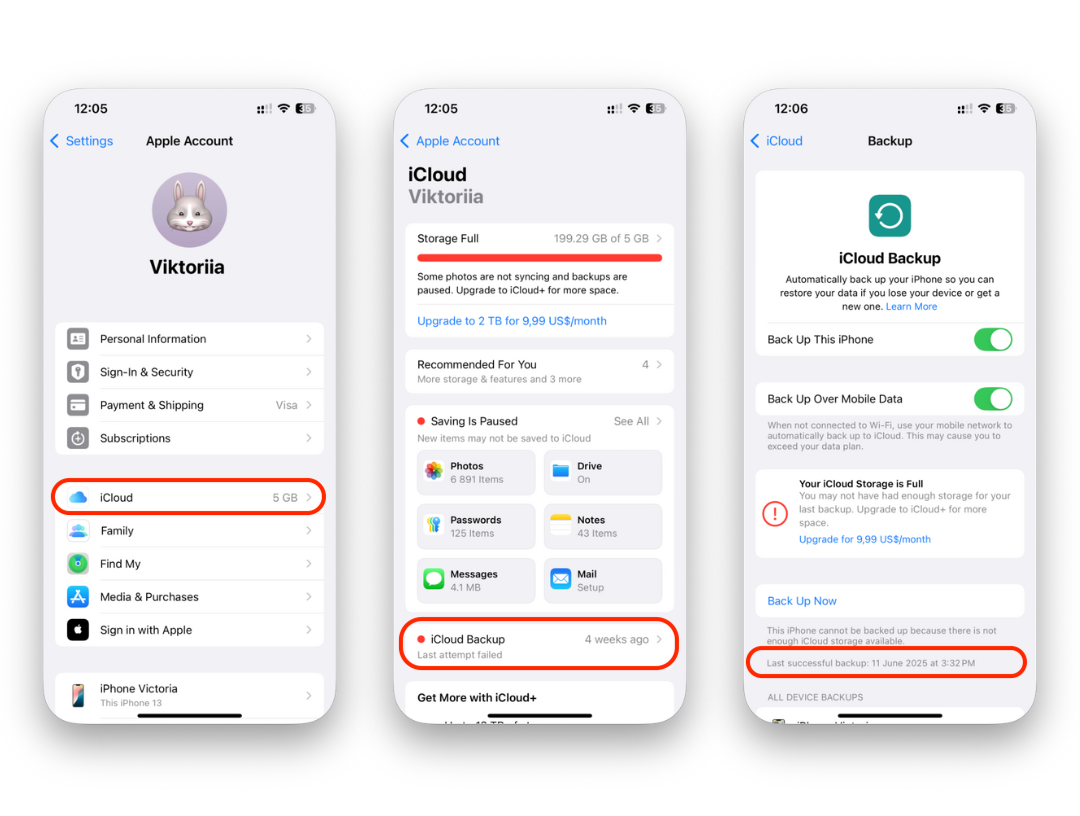
For automatic daily backups, enable Back Up This iPhone in the same settings. Connect the iPhone to power and Wi-Fi, and lock its screen. Those are the automatic-backup conditions; you do not need to lock the screen to start a manual Back Up Now job.
Apple includes 5 GB of free iCloud storage. Backups share that space with other iCloud data, so check available storage if a backup will not complete. Do not delete your only usable backup to make room for a replacement that has not finished.
Check your last iCloud backup
- Open Settings > [your name] > iCloud.
- Tap iCloud Backup.
- Look under Back Up Now for the date and time of the last successful backup.
If the date is old, the latest changes may not be in the backup. Run another backup and check again. A progress indicator or an enabled switch does not confirm completion.
How to back up iPhone to Mac with Finder
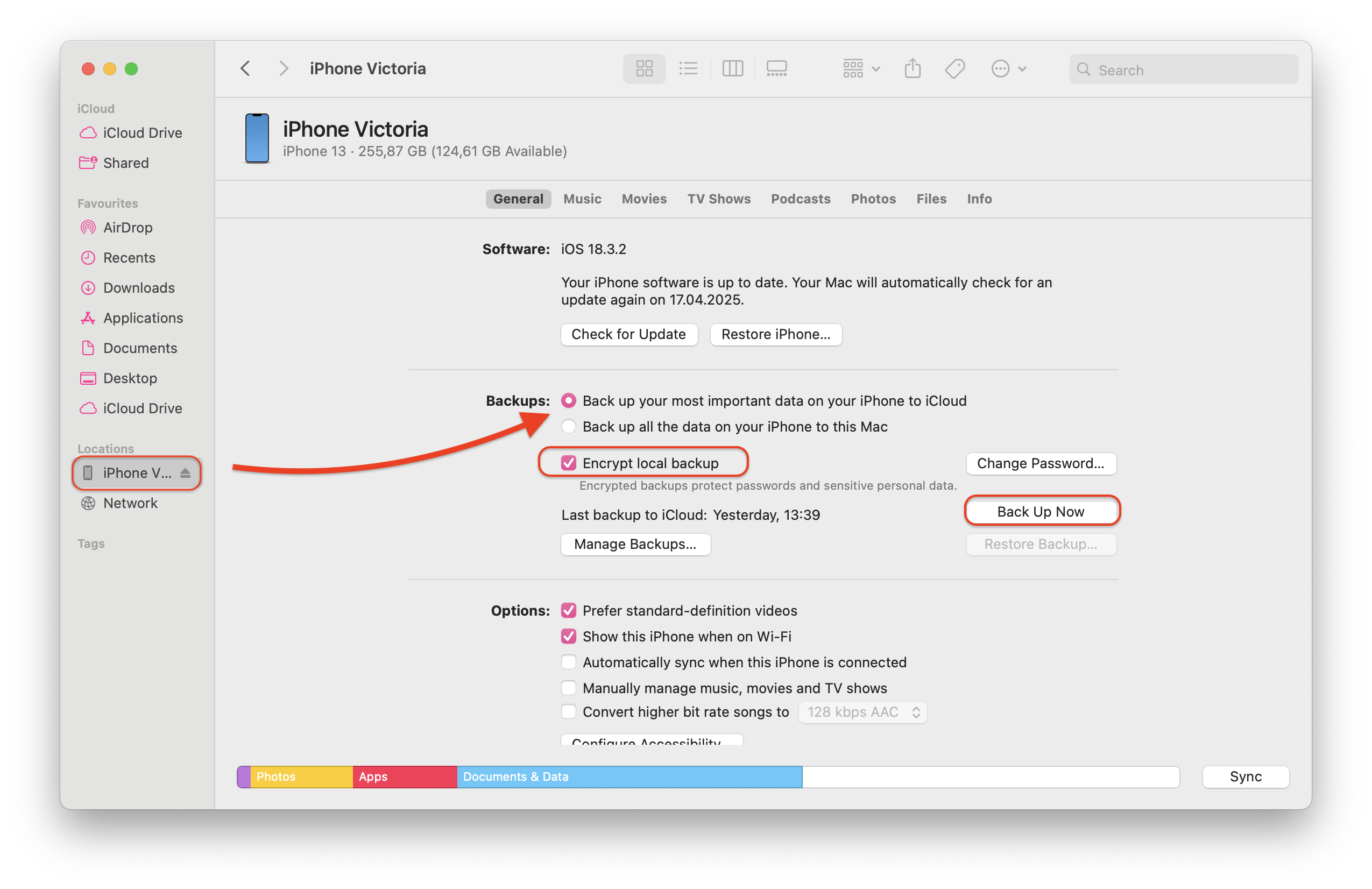
On macOS Catalina 10.15 and later, use Finder for iPhone backups. On macOS Mojave or earlier, use iTunes instead. Apple's computer-backup documentation describes the connection and trust prompts; keep the iPhone connected while the backup runs.
- Connect the iPhone to your Mac with a cable.
- Unlock the iPhone and approve Trust or Allow prompts if asked.
- Open Finder and select the iPhone in the sidebar.
- Open General and choose Back up all of the data on your iPhone to this Mac.
- Select Encrypt local backup if you want to include sensitive data. Set and save the password when prompted.
- Click Back Up Now and wait for completion.
- Check the latest backup date and time in Finder.
Encryption changes what a computer backup can include. Apple requires it for Health, Activity, and Keychain data. Encrypted backups can also include saved passwords, Wi-Fi settings, website history, and call history. They do not include Face ID, Touch ID, or your device passcode. The historical screenshot below locates the controls; select the Mac backup option for a local copy.
Can Google Drive or Dropbox replace an iPhone backup?
Google Drive, Dropbox, and OneDrive can hold copies of selected files. Use them for documents or photos you choose to upload. They do not create an iPhone restore backup containing device settings and app data. Check which files reached the service before relying on those copies.
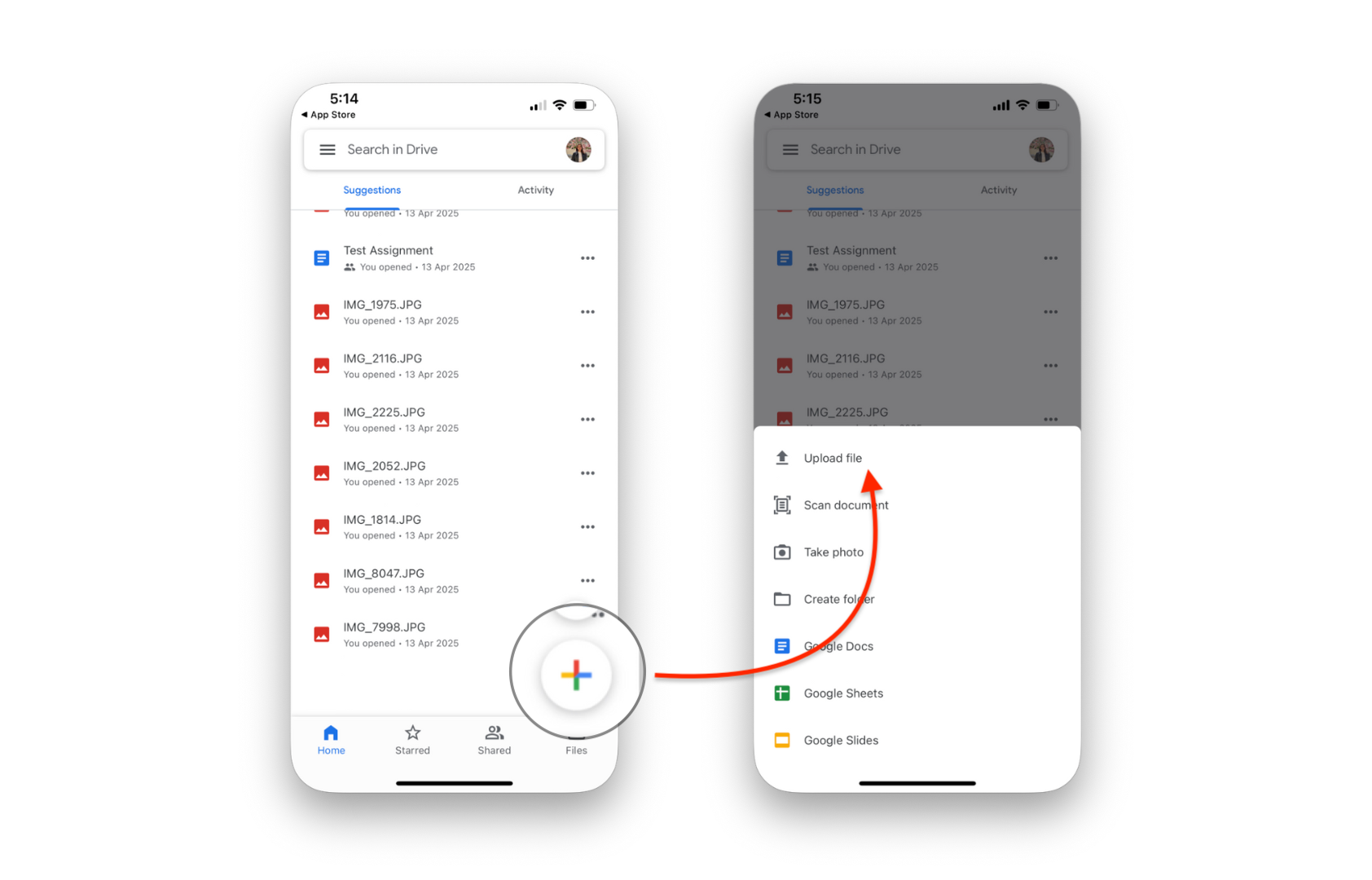
A folder of photos is useful if you need those photos on another computer. It will not rebuild your iPhone after a reset. Keep an iCloud or computer backup for recovery, and use cloud file storage as an extra copy of the files you need most.
How to backup iPhone on Windows with Apple Devices
- Open Apple Devices on your Windows PC. Install or update the app if needed.
- Connect the iPhone with a USB cable and unlock it.
- Approve the Trust This Computer prompt if it appears.
- Select the iPhone in Apple Devices, then choose General.
- Choose the option to back up all iPhone data to this computer.
- Select Encrypt local backup for sensitive-data coverage and save the password.
- Click Back Up Now. When it finishes, check the latest backup date and time.
If your PC does not have Apple Devices, use the iTunes fallback below. Apple's Windows backup guide distinguishes Apple Devices > General from iTunes > Summary. The historical screenshot below shows iTunes with an iPad selected. For this guide, select your iPhone instead; this is not the Apple Devices interface.
- Open iTunes, connect the iPhone, and approve any trust prompt.
- Click the device icon, then Summary.
- Under Backups, choose This Computer.
- Select Encrypt local backup if needed and save its password.
- Click Back Up Now and wait for completion.
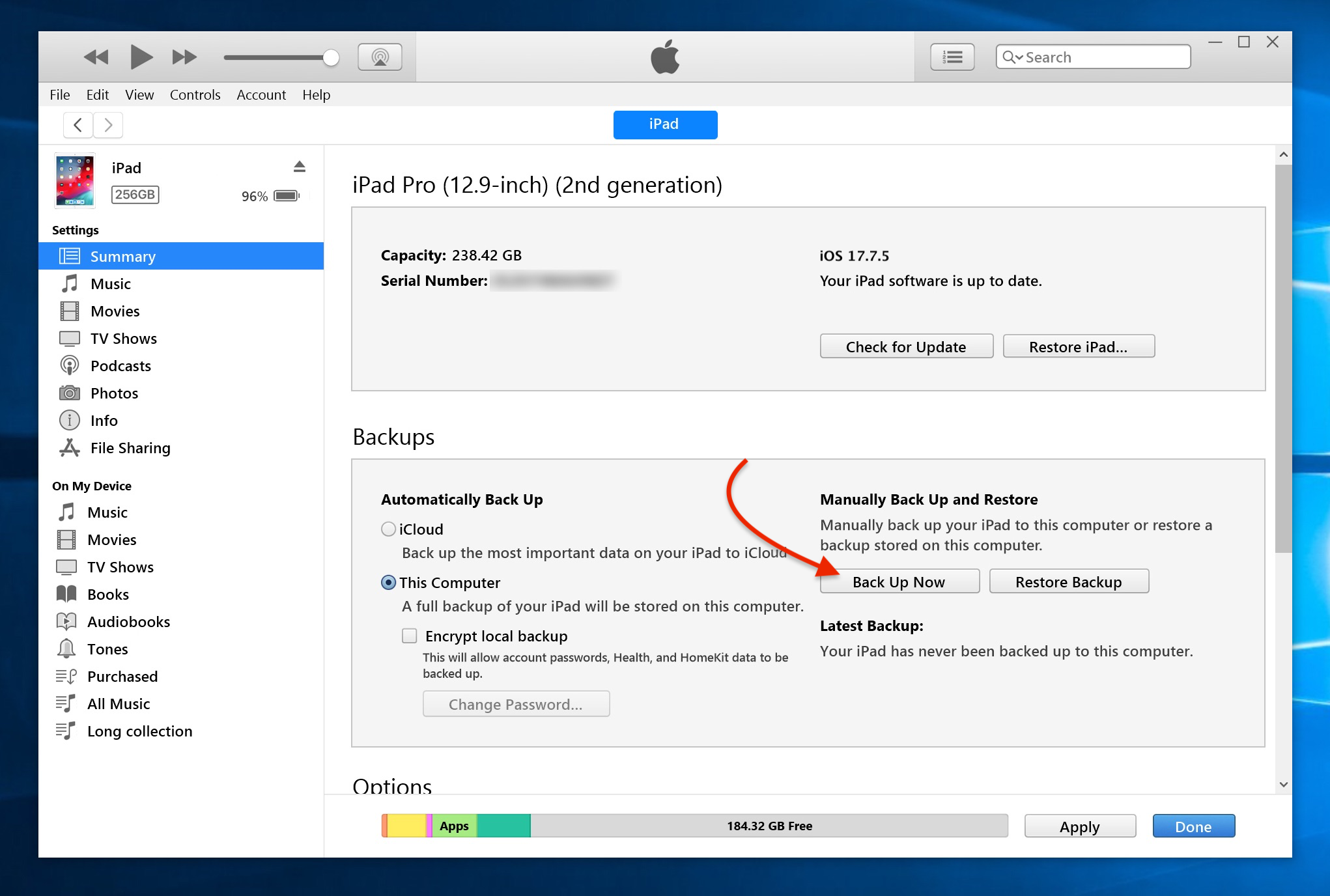
If Windows does not see the iPhone, unlock it, check the trust prompt, and try another data cable or USB port. Update Apple Devices or iTunes and restart the PC if needed. For more local-backup options, see how to back up iPhone without iCloud.
Use AltTunes for Windows backup browsing and exports
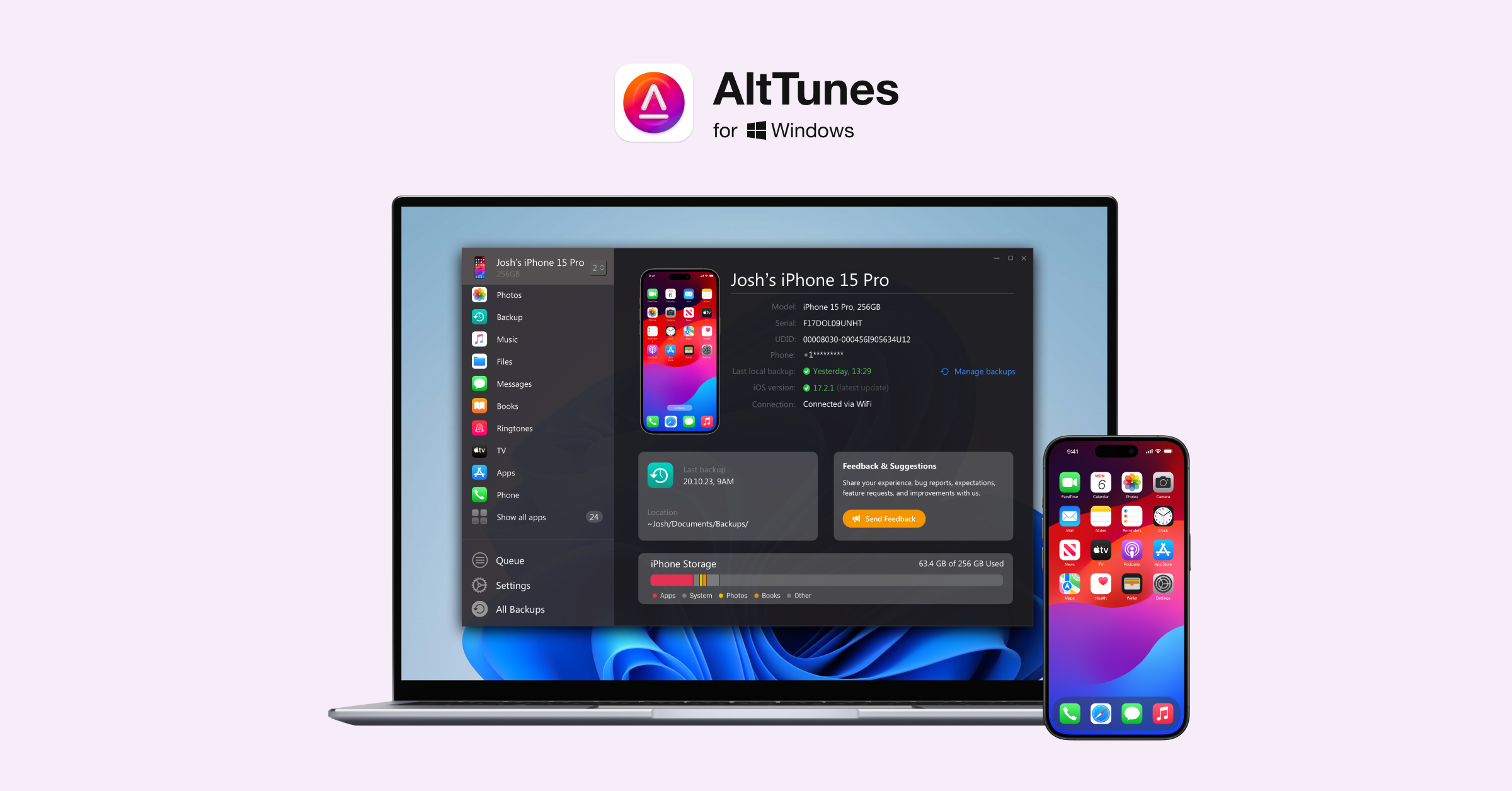
AltTunes is Softorino's Windows iPhone manager. It supports local backups and selected-data exports, including photos, messages, contacts, and music. It is relevant when you want to inspect saved data or keep accessible files on your PC as well as a backup.
Choose backup and export as separate jobs. A local backup supports recovery workflows; an export gives you individual files to open or store. Keep the Apple encrypted-backup route above for its documented sensitive-data coverage. Do not assume a folder of exported items replaces that backup.
Plan your AltTunes backup or export
- Download AltTunes from Softorino and install it on Windows.
- Connect your iPhone by USB and respond to any trust prompt.
- Decide whether you need a local backup or selected files. Check the current app guidance for that operation.
- Choose a supported save location on your PC with enough free space.
- Keep the iPhone connected until the operation finishes, then check the saved backup or exported files before changing the phone.
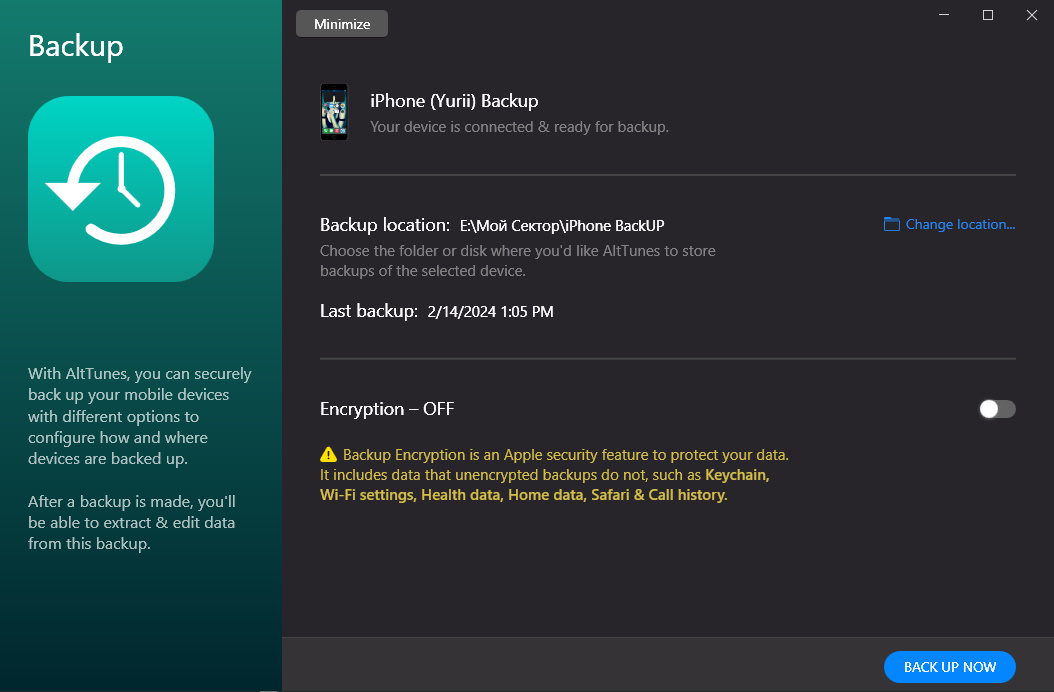
Softorino's local backup browsing guide describes AltTunes backup and export capabilities. These are documentation-based recommendations, not a report of a new app trial. Confirm support for your iOS version before relying on a third-party backup for a reset.
Verify your iPhone backup before reset or repair
Check the backup record, not only the setting. For iCloud, confirm the last successful date in iCloud Backup. In Finder or Apple Devices, select the iPhone, open General, then Manage Backups. Check the backup's date and the lock icon if you chose encryption.
In iTunes for Windows, use Edit > Preferences > Devices to inspect the backup list. Apple's encrypted-backup guide explains the lock icon and password requirements. Store the password safely; you cannot use an old encrypted backup without it.
- Confirm the backup belongs to the correct iPhone and has a recent date.
- Confirm you can access your saved encryption password. Do not erase or restore the phone merely to test it.
- Check Photos, Contacts, and Messages that sync separately, plus important files stored in other services.
- Check recovery access for authenticator, banking, and work apps. Follow each app's own migration guidance.
- Keep the old iPhone until your needed data is available on the replacement.
When you are ready to recover data, follow the separate guide to restore your iPhone from a backup. Creating a backup and restoring one are different operations; avoid starting a restore while you are still protecting the source phone.
Fix a failed or slow iPhone backup
Start with the error message and the destination. An iCloud storage error needs a different fix from a PC that cannot detect the phone. Keep the existing backup until a replacement completes.
Problem | What to check | Next action |
|---|---|---|
iCloud says storage is insufficient | Available iCloud space | Review storage use or upgrade the plan; preserve your only usable backup |
iCloud backup takes a long time | Wi-Fi connection and backup size | Keep a stable connection and power; allow the first backup time to finish |
Mac or PC cannot see iPhone | Cable, unlocked screen, trust prompt | Reconnect with a data cable and approve the prompt |
Computer backup fails | Disk space and Apple software updates | Free space safely, update the app, and retry |
Encrypted backup password is missing | Saved password records | Look for the original password; resetting backup settings will not unlock an old backup |
If a full backup still fails, copy critical files you can access while troubleshooting. Label those as partial exports. Do not treat them as proof that your settings, messages, or app data are recoverable.
Understand backup, sync, export, and exclusions
A backup stores data for later recovery. Sync keeps supported data current across devices. Export saves selected files outside their original app. Before a reset, know which data depends on each method.
- Backup: iCloud Backup or an Apple computer backup stores supported device data and settings for recovery.
- Sync: iCloud Photos and Messages in iCloud keep their data in iCloud when enabled. That data is not duplicated inside the iCloud backup.
- Export: AltTunes or a file-storage app can save selected items for separate access. Those files do not restore the whole phone.
Apple's backup comparison lists the exclusions. Computer backups exclude Apple Pay information, biometric settings, and some content already stored in iCloud or synced from a computer. Health, Activity, and Keychain data need an encrypted computer backup. No method here is an exact copy of everything on the device.
Choose a backup you can verify
For everyday use, enable iCloud Backup and check that it completes. Before a reset or repair, add an encrypted computer backup when you can. Keep the password and confirm the backup date before handing over the phone.
If you also need browsable backups or selected exports on Windows, download the AltTunes trial. Check that the saved data meets your needs while you still have the original iPhone.
Best iPhone backup software for your recovery plan
Choose software after deciding what you need back: a working phone, readable files, or items inside an old backup. The tools below serve different jobs. The setup steps above cover Apple's recovery route; these comparisons help you decide whether extra software is worth installing.
iCloud Backup: everyday backups without a computer
Verdict: Start with iCloud Backup if you want daily backups without connecting a computer. It stores supported device data in your Apple Account's cloud storage.
iCloud Backup key features
- Automatic backups when the phone meets Apple's power, Wi-Fi and locked-screen conditions.
- Manual Back Up Now control and a last-successful-backup timestamp.
iCloud Backup pros
- No separate desktop app or local disk is required.
- An off-device copy remains available if the phone is lost or damaged.
iCloud Backup cons
- Backups share storage with other iCloud data.
- Separately synced Photos and Messages are not duplicated inside the backup. Verify those services too.
iCloud Backup pricing
Apple includes 5 GB free. US iCloud+ prices checked October 26, 2026 are USD $0.99/month for 50 GB, $2.99/month for 200 GB and $9.99/month for 2 TB. Regional pricing and taxes vary. These are recurring storage plans, not one-time backup-app purchases.
Who iCloud Backup is best for
People who want automatic everyday protection and have enough iCloud space. Add a computer copy before a major reset when practical.
Apple computer tools: free local recovery backups
Verdict: Choose Finder on Mac or Apple Devices on Windows for a local backup before repair or reset. Use the iTunes fallback only where appropriate for the computer.
Apple computer tools key features
- Local backup and restore controls for the connected iPhone.
- Optional Encrypt local backup control and dated backup records.
Apple computer tools pros
- No paid backup-app subscription is required.
- Encrypted backups can include sensitive data excluded from unencrypted copies, including Health data and saved passwords.
Apple computer tools cons
- Computer storage and a usable connection are required.
- The backup is a recovery archive, not a normal folder of readable messages. Losing its encryption password can make the old backup unusable.
Apple computer tools pricing
Finder is included with macOS. Apple Devices and the applicable iTunes backup workflow require no separate app subscription. This does not include the cost of a computer or extra storage.
Who Apple computer tools is best for
Anyone whose main goal is a documented local restore route. Start here before buying a tool solely to make a backup.
AltTunes for Windows: Windows backup browsing and selected exports
Verdict: Choose AltTunes when you need local backup browsing or readable iPhone data on a Windows PC. Keep backup creation and file export as separate decisions.
AltTunes for Windows key features
- Local backup creation and backup browsing on Windows.
- Selected exports such as photos, messages, contacts and music.
- Backup-location and encryption controls shown in the historical screenshot above.
AltTunes for Windows pros
- Backup browsing and everyday data exports share one Windows app.
- Selected files can be saved for access outside the iPhone.
AltTunes for Windows cons
- There is no current Mac version.
- Exports cannot restore a whole device. Confirm current iOS support and the exact recovery route before a reset; this review did not test restores.
AltTunes for Windows pricing
Softorino lists a 24-hour trial and paid access through its Universal License subscription. There is no standalone AltTunes license. The store advertises a first-day promotion and recurring plans; confirm the full billing total, currency and renewal terms at checkout. We did not verify a final checkout quote or a published per-file trial cap.
Who AltTunes for Windows is best for
Windows users who want to browse saved data or export files as well as make local backups. Mac users should consider Apple's tools or iMazing instead.
iMazing for Mac and Windows: scheduled backups and backup history
Verdict: Consider iMazing if you need scheduled local backups, snapshots or a chosen external-drive destination on Mac or Windows.
iMazing for Mac and Windows key features
- Scheduled wireless backups and backup snapshots.
- External-drive or NAS storage options.
- Backup browsing and selected-data exports.
iMazing for Mac and Windows pros
- Personal device backups are available without restriction in its free version.
- Snapshots help retain earlier backup states rather than relying on one recent copy.
iMazing for Mac and Windows cons
- Free personal backups do not mean unlimited exports: the trial lists 50 photos, 25 messages and 10 contacts.
- Its trial FAQ contains conflicting statements about free restore access. Confirm that specific operation with iMazing before relying on the free tier.
iMazing for Mac and Windows pricing
On October 26, 2026, the store listed Personal at USD $49.99/year for 5 mobile devices and Family at $89.99/year for 20. These are annual subscriptions. Business backups require paid access; personal backup creation is free. Device allowances and export limits are different restrictions.
Who iMazing for Mac and Windows is best for
People managing recurring backups or several backup versions on Mac or Windows. If you only need one local backup before repair, try Apple's free route first.
iPhone Backup Extractor: files inside an existing backup
Verdict: Reincubate's iPhone Backup Extractor suits people who already have a backup and need to recover selected files from it.
iPhone Backup Extractor key features
- Browse and preview supported data inside existing backups.
- Extract selected files without restoring the whole phone.
iPhone Backup Extractor pros
- The free version permits local extraction in batches of 4 files.
- A useful option when the phone is unavailable but its backup still exists.
iPhone Backup Extractor cons
- It needs accessible backup data; it cannot recreate files absent from that backup.
- An encrypted local backup still requires its password. Extraction is not a substitute for a recurring device-backup plan.
iPhone Backup Extractor pricing
Free local extraction is limited to 4 files at a time. Paid plans exist, but we could not verify a numeric price or billing term from the official plan page on October 26, 2026. Check the current quote rather than relying on an old comparison price.
Who iPhone Backup Extractor is best for
Someone who needs specific data from an existing backup without replacing the phone's current contents. Choose a backup tool first if no backup exists.
How to choose
- If you want daily protection without a computer, choose iCloud Backup and check available space.
- If you need a local recovery copy before repair, use Finder or Apple Devices with encryption.
- If you need readable files and backup browsing on Windows, try AltTunes while you still have the original phone.
- If schedules, snapshots or an external backup destination matter, compare iMazing's free and paid features.
- If an old backup is all you have, preview it in an extractor before purchasing a recovery plan.
Protect the original first. Do not start a restore, delete a backup or erase the iPhone just to see whether a tool works. Save readable exports alongside a recovery backup when both are useful. Follow the app's current support guidance for your device and operating system.
Bottom line for iPhone backups
Use iCloud for routine backups and Apple's encrypted computer route for another recovery copy. Pay for extra software when you need a specific browsing, scheduling or extraction feature. Check the saved result and its limitations before giving up the old phone.
Frequently asked questions
Does iCloud back up everything on an iPhone?
No. iCloud Backup stores supported device data and settings, but data you already sync through services such as iCloud Photos or Messages in iCloud lives separately. Check those services and important apps before erasing the phone.
Is iCloud better than a computer backup?
Use iCloud for automatic everyday backups without a computer. Use Finder or Apple Devices for a local copy, with encryption for sensitive data. Keeping both gives you another recovery option before a reset or repair.
How do I back up iPhone without iCloud?
Connect the iPhone to a computer and use Finder on a current Mac or Apple Devices on Windows. Enable Encrypt local backup if you need sensitive-data coverage, save the password, and check the completed backup date.
How long does an iPhone backup take?
There is no fixed completion time. Backup size, the connection, and whether it is the first backup affect the wait. Keep the phone connected and check for a successful backup date rather than assuming elapsed time means completion.
Can I back up iPhone directly to an external drive?
Apple's standard Finder and Apple Devices steps save the backup on the computer; they do not provide an iPhone setting to select an external drive. Avoid moving or editing backup files casually, especially if they are your only copy.
Do I need iTunes to back up iPhone on Windows?
No. Apple Devices provides the current Windows backup route through its General section. If your PC does not have Apple Devices, use iTunes and its Summary section instead. Keep those menu paths separate.
What is the best iPhone backup software for free?
For a local recovery backup, start with Finder on Mac or Apple Devices on Windows. iCloud includes 5 GB of shared free storage. iMazing offers free personal backups, but export and restore access have separate limits. Choose by the operation you need, not the download button.
Is a backup extractor the same as backup software?
No. A backup extractor reads data from an existing backup and saves selected files. A backup tool creates the recovery copy in the first place. If you have no usable backup, an extractor cannot recreate the missing archive.

AltTunes
Seamlessly Browse, Manage & Export iOS Data
