How to Block Calls on iPhone: Numbers, Spam, and Unknown Callers

Need to know how to block calls on iPhone? Open Phone > Recents, tap the info (i) button beside the number, scroll down, tap Block this Caller, then confirm with Block Contact. That number can no longer reach you through normal phone calls, Messages, or FaceTime.
That is the fast fix for one annoying caller. This guide also shows how to block saved contacts, block someone from Messages or FaceTime, silence unknown callers, use spam filters, and unblock a number if you change your mind.
Quick answer: blocking a number stops normal calls, texts, and FaceTime from that number. It does not block the same person inside WhatsApp, Gmail, Instagram, or other third-party apps.
Before we begin
Windows users can download AltTunes to export important iPhone call history to a PC before blocking numbers or unknown callers. AltTunes handles only the separate archive step; use Phone, Messages, carrier, and spam-filter controls below to block calls.
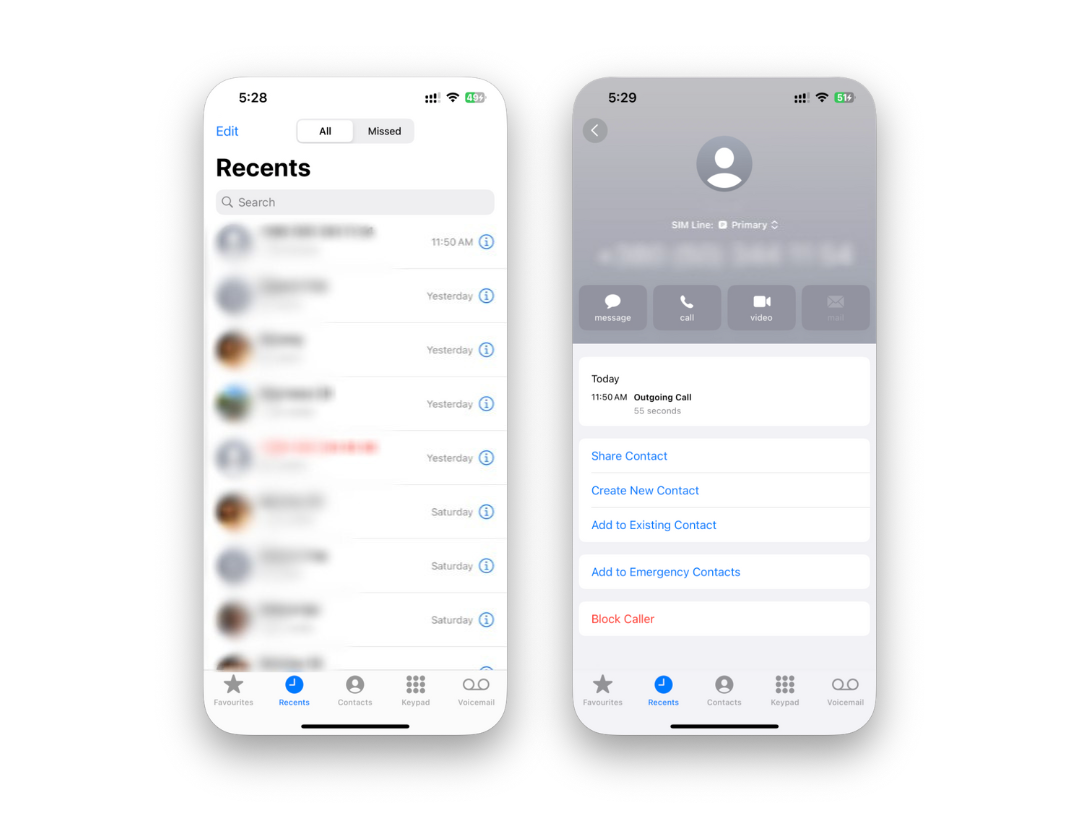
How to block calls on iPhone from Recents
The Phone app is the best place to block a number that already called you. Use this when the number appears in your recent call list and you do not want it ringing again.
- Open the Phone app.
- Tap Recents at the bottom.
- Find the number you want to block.
- Tap the info (i) button beside the number.
- Scroll down and tap Block this Caller.
- Tap Block Contact to confirm.
After that, the blocked number stays on your iPhone blocked list. You do not need to save the number as a contact first.
If you are blocking harassment or repeated spam, take a screenshot or keep the call log before deleting anything. Blocking stops future contact, but it does not create a formal report by itself.
How to block a saved contact on iPhone
You can block any saved contact from the Contacts app or from the Contacts tab inside Phone. This works well when the person has more than one number saved under the same contact card.
- Open Contacts, or open Phone > Contacts.
- Tap the contact you want to block.
- Scroll to the bottom of the contact card.
- Tap Block this Caller.
- Confirm with Block Contact.
Your iPhone blocks the contact details listed on that card. If the person uses another number, email address, or app account that is not on the contact card, you may need to block that separately.
How to block someone from Messages or FaceTime
Blocking from Messages or FaceTime is useful when the problem starts outside the Phone app. The end result is the same across Apple apps: calls, texts, iMessages, and FaceTime attempts from that sender stop reaching you.
Block from Messages
- Open Messages.
- Open the conversation with the sender.
- Tap the name, number, or profile icon at the top.
- Tap Info if your iPhone shows it.
- Tap Block this Caller, then confirm.
For spam texts, use Report Junk when Apple shows the option. Apple explains message filtering and reporting in its iPhone Messages filtering guide. Reporting junk is separate from blocking. Blocking stops that sender from reaching you again; reporting helps flag spam patterns.
Block from FaceTime
- Open FaceTime.
- Find the caller in your FaceTime history.
- Tap the info (i) button beside the name or number.
- Scroll down and tap Block this Caller.
- Confirm with Block Contact.
Apple’s own guide to blocked phone numbers, contacts, and emails covers the same cross-app behavior. Use the official page if you want the source straight from Apple: Block phone numbers, contacts, and emails on your iPhone or iPad.
How to block calls on iPhone from unknown callers and spam
Silence Unknown Callers is not the same as blocking every unknown number. It sends many unknown callers to voicemail instead of ringing your phone. Contacts, recent outgoing calls, and Siri Suggestions can still ring through.
- Open Settings.
- Tap Phone. On some newer iOS versions, go to Settings > Apps > Phone.
- Tap Silence Unknown Callers.
- Turn on Silence Unknown Callers.
Use this setting when spam calls are the problem and you can tolerate new callers landing in voicemail. Do not use it before a job interview, delivery window, medical call, or anything else where an unknown number might be legitimate.
Private numbers and No Caller ID calls are harder. iPhone does not give you one perfect “block every private caller” switch. Silence Unknown Callers is the closest built-in workaround. If private-call spam continues, ask your carrier what filtering tools they offer.
Use Call Blocking & Identification for spam-filter apps
Spam-call apps and carrier filters can identify or block suspicious calls before they reach you. These tools vary by carrier, country, and app, so treat them as extra filtering, not magic.
- Install a trusted caller ID or carrier spam-filter app from the App Store.
- Open Settings.
- Tap Phone. On some iOS versions, use Settings > Apps > Phone.
- Tap Call Blocking & Identification.
- Turn on the app you want to allow for call identification or blocking.
Apple explains the call identification setup in its Phone settings guidance. Your carrier may also offer a spam app, such as Verizon Call Filter, AT&T ActiveArmor, or T-Mobile Scam Shield. Availability and pricing can change, so check your carrier before relying on it.
How to view or unblock blocked numbers on iPhone
Your iPhone keeps blocked callers in one list. Use it when you blocked the wrong number, changed your mind, or want to check whether a contact is already blocked.
- Open Settings.
- Tap Phone. On some iOS versions, go to Settings > Apps > Phone.
- Tap Blocked Contacts.
- Review the blocked numbers and contacts.
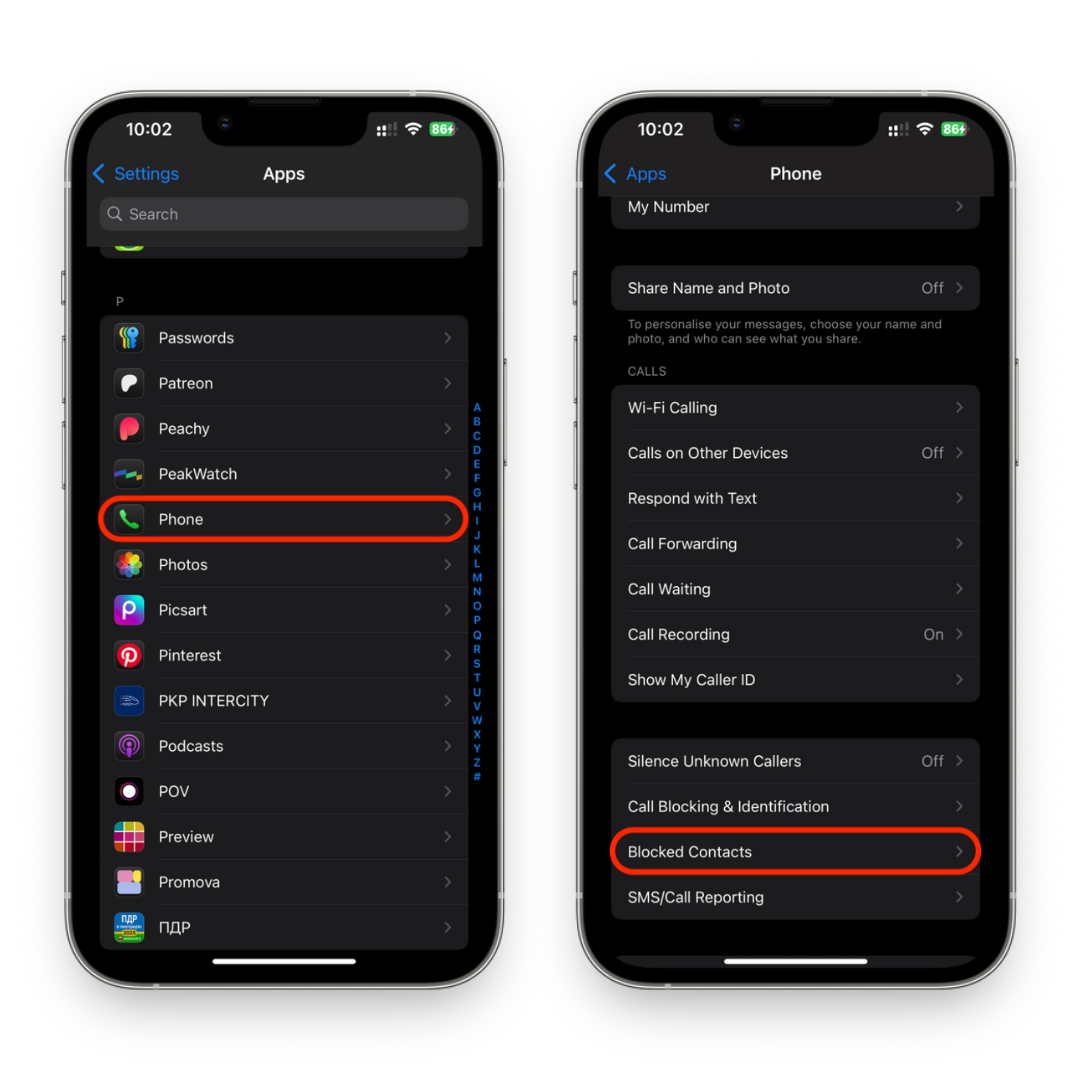
To unblock someone, tap Edit, tap the red minus button beside the contact or number, then tap Unblock. You can also open the contact card, scroll down, and choose Unblock this Caller if that option appears.
What happens when you block a number on iPhone?
Blocking a number on iPhone is quiet. The blocked person does not get a notification, banner, or message saying you blocked them. Your iPhone stops showing their normal calls, texts, iMessages, and FaceTime attempts.
- Calls: blocked calls do not ring your iPhone. They may go to voicemail, depending on carrier behavior.
- Messages: new SMS and iMessages from the blocked sender do not appear in your conversation.
- FaceTime: FaceTime calls from the blocked contact do not reach you.
- Old messages: your previous conversations stay on your iPhone unless you delete them.
- Third-party apps: WhatsApp, Messenger, Telegram, Gmail, and similar apps need their own block settings.
If you use the same Apple ID on multiple Apple devices, blocked contacts usually sync across Apple apps. Still, check your iPad or Mac if something slips through. Apple settings can be annoyingly specific.
Can you block all calls on iPhone temporarily?
Use Focus or Do Not Disturb when you want quiet time instead of a permanent block. Blocking is for specific people or numbers. Focus is for controlling who can interrupt you during work, sleep, meetings, or family time.
- Open Settings.
- Tap Focus.
- Choose Do Not Disturb or create a new Focus.
- Under People, choose who can notify you.
- Turn on the Focus manually or set a schedule.
This is the safer option when you want to silence most calls for a few hours. You can allow favorites, family, or repeated calls while muting everyone else. Apple’s Focus setup guide covers the official controls.
Which method should you use?
Situation | Best iPhone setting |
|---|---|
One number keeps calling | Block from Phone > Recents |
A saved contact will not stop | Block from the contact card |
Spam texts | Block from Messages and use Report Junk when available |
Unknown callers keep ringing | Turn on Silence Unknown Callers |
Robocalls from changing numbers | Use carrier filtering or a trusted call-blocking app |
You need quiet for a few hours | Use Focus or Do Not Disturb |
If you want more iPhone utility guides, Softorino keeps them practical and tool-first. Start with our related guides on blocking No Caller ID on iPhone, blocking text messages on iPhone, and hiding caller ID on iPhone.
FAQ
Can someone tell if I blocked their number?
No. iPhone does not notify someone when you block them. They may notice calls stop going through, but Apple does not send a block alert.
Does blocking a number on iPhone block texts too?
Yes. Blocking a number blocks normal phone calls, SMS, iMessage, and FaceTime from that number or contact in Apple apps.
Can I block No Caller ID or private numbers on iPhone?
Not directly with one native block button. Turn on Silence Unknown Callers, use Focus controls, or ask your carrier about private-call filtering.
Will blocked calls go to voicemail?
They can. Voicemail behavior depends on your carrier. Your iPhone will not ring, but the caller may still be able to leave a voicemail.
Does blocking a number delete old messages?
No. Blocking stops new messages from reaching you. It does not delete previous conversations or call history.
Can I block calls only at certain times?
Use Focus or Do Not Disturb for scheduled quiet hours. Blocking is meant for specific numbers, not temporary call schedules.
Why do blocked people still reach me in WhatsApp or Gmail?
iPhone call blocking applies to Apple’s Phone, Messages, and FaceTime apps. Block the same person inside WhatsApp, Gmail, Instagram, or any other app they use.
How do I unblock someone on iPhone?
Go to Settings > Phone > Blocked Contacts, tap Edit, remove the number, and tap Unblock. On some iOS versions, start from Settings > Apps > Phone.

AltTunes
Seamlessly Browse, Manage & Export iOS Data
