How to Download Movies on iPad: 6 Safe Methods (2026)

Quick answer: how to download movies on iPad
You can download movies on iPad without a computer through the Apple TV app or an eligible streaming app. For movie files already on a Mac or Windows PC, use a local transfer method instead.
For an Apple purchase, rental, or supported subscription title, open the Apple TV app and look for Download. For Netflix and other streaming services, check the title and plan support downloads in that service's iPad app. Protected downloads stay inside the app.
For local MKV, AVI, or MP4 files, WALTR PRO handles supported video conversion and transfer to the iPad's native TV app. VLC is a free alternative if you prefer to keep movies in a separate player. Choose by the movie's source and where you want to watch it.
Your movie source | Method to use | Where to find the movie | Main limit |
|---|---|---|---|
Apple purchase, rental, or eligible subscription | Apple TV app | Library > Downloaded | Availability and expiry vary by title |
Eligible Netflix, Prime Video, Disney+, or Hulu title | Official iPad app | The service's download area | Title, plan, and device must support downloads |
Local movie file on Mac or Windows | WALTR PRO | Native TV app library | Paid desktop app; supported unprotected files only |
Local file for a free player | VLC | VLC's local video library | Movie stays in VLC |
Movie file in cloud storage | iCloud Drive and Files | Files app | Needs a local copy and a compatible player |
Local file on a nearby computer | Finder, Apple Devices, or AirDrop | Chosen app or library | Workflow depends on computer and destination |
Subscription downloads are protected by DRM, which restricts copying and playback. Use the official app for those titles. Transfer only local files you have permission to copy; WALTR PRO and VLC do not remove streaming protection.
Before we begin
For movies already on your Mac or Windows PC, download WALTR PRO with a free trial. Connect your iPad and try one supported local file before moving a library. WALTR PRO handles file transfer; it does not download Netflix or protected Apple movies.
Method 1: Transfer local movies to iPad with WALTR PRO
Use WALTR PRO for supported movie files on your computer when you want playback in the iPad's native TV app. It runs on Mac and Windows and accepts common formats such as MKV, AVI, and MP4.
WALTR PRO converts supported video during transfer. You do not need a separate converter. Start with one movie and check playback before adding more.
If the movie exists only in a subscription app's Downloads area, use that app to watch it. WALTR PRO needs a local file.
Step 1: Download and install WALTR PRO
Install WALTR PRO from Softorino's official download page, then open the app on your Mac or Windows PC.
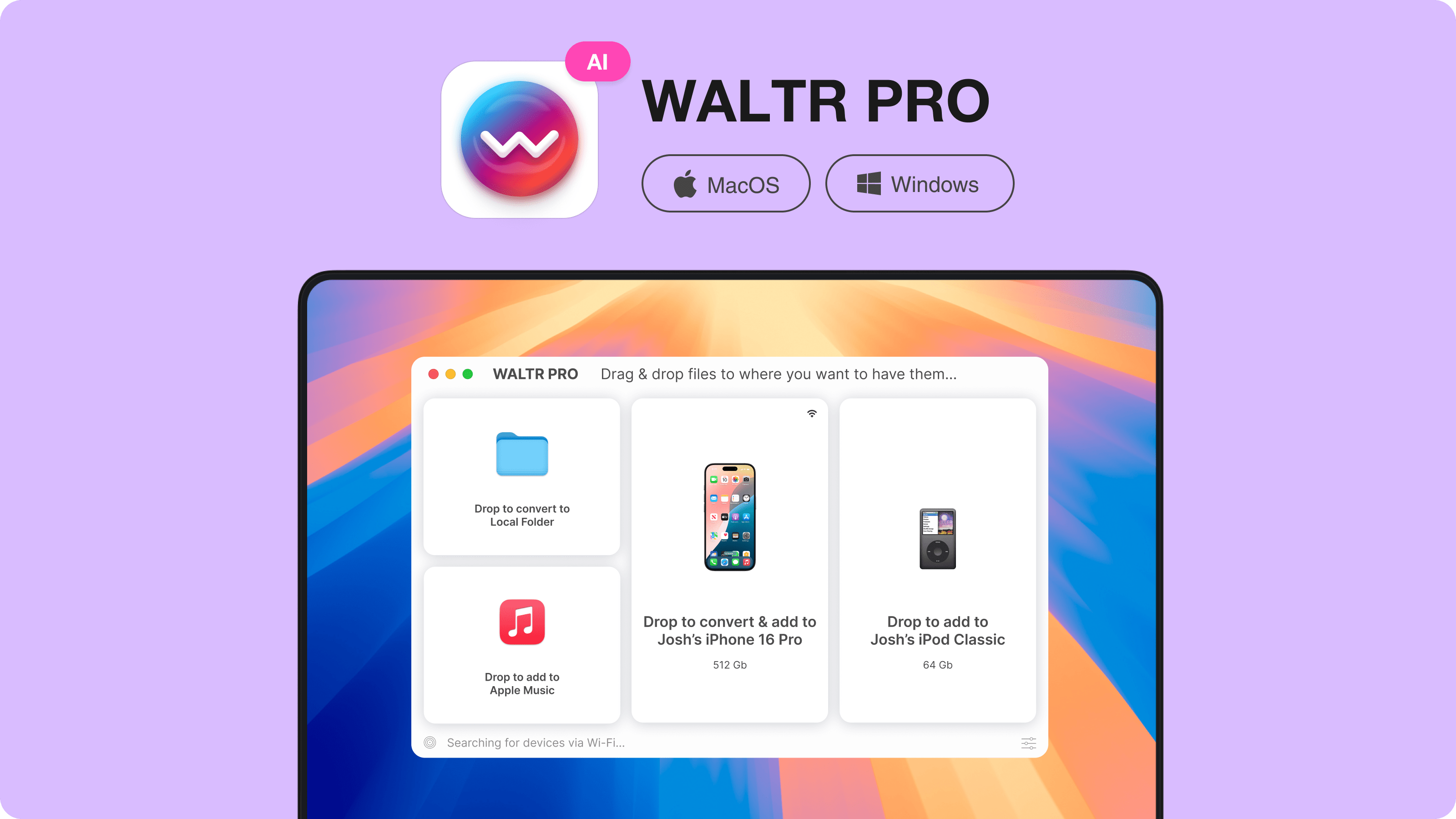
Check WALTR PRO supported video formats for the local-file route. If your library is mainly MP4, the narrower guide to transfer MP4 to iPad covers that format without changing the source-choice advice here.
Step 2: Connect your iPad
Connect the iPad by USB, unlock it, and tap Trust if iPadOS asks. Use a cable that supports data transfer.
WALTR PRO also supports Wi-Fi transfer. Set up the cable connection first, then check the wireless option in your installed app. For a first transfer, keep the process simple:
- Connect and unlock the iPad.
- Confirm the iPad appears as the destination in WALTR PRO.
- Leave the device connected until the movie finishes transferring.
Start with USB to avoid local-network connection problems. Try Wi-Fi later with both devices on the same network.
Step 3: Drag your movie into WALTR PRO
Drag a supported local movie into the WALTR PRO window. Common video inputs include MKV, AVI, MP4, and MOV. Wait for the transfer to finish rather than disconnecting when the file first appears in the library.
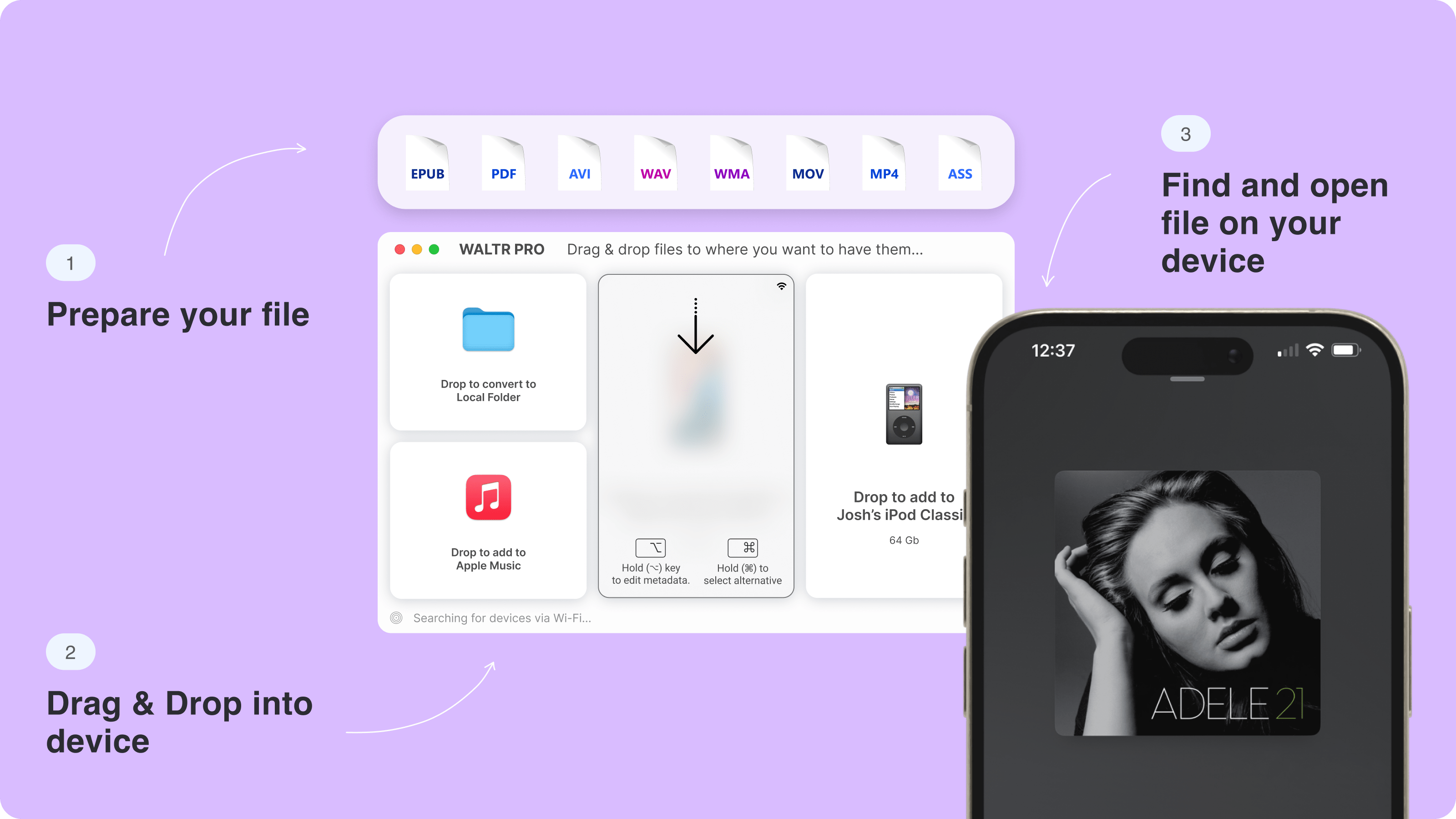
Open the TV app on your iPad and check its library, including Home Videos for transferred local movies. Play the file before removing the computer copy. If the movie is missing, confirm which iPad and destination you selected during transfer.
Optional: Add recognizable movie metadata
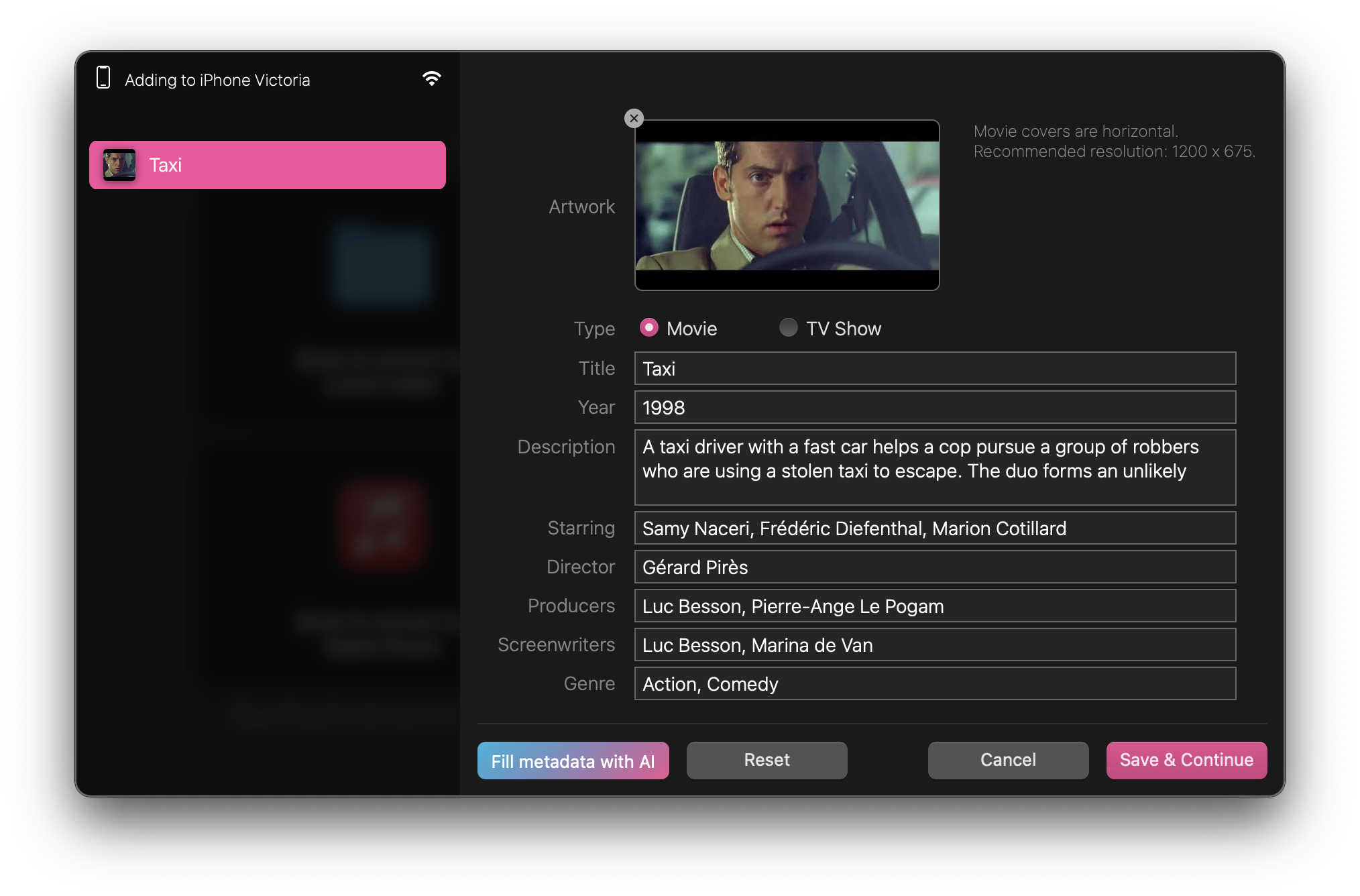
The current WALTR PRO product page documents an optional Fill Metadata with AI button. Use metadata tools when you want recognizable movie titles and artwork in the library. You can skip this step when your priority is getting the movie onto the iPad.
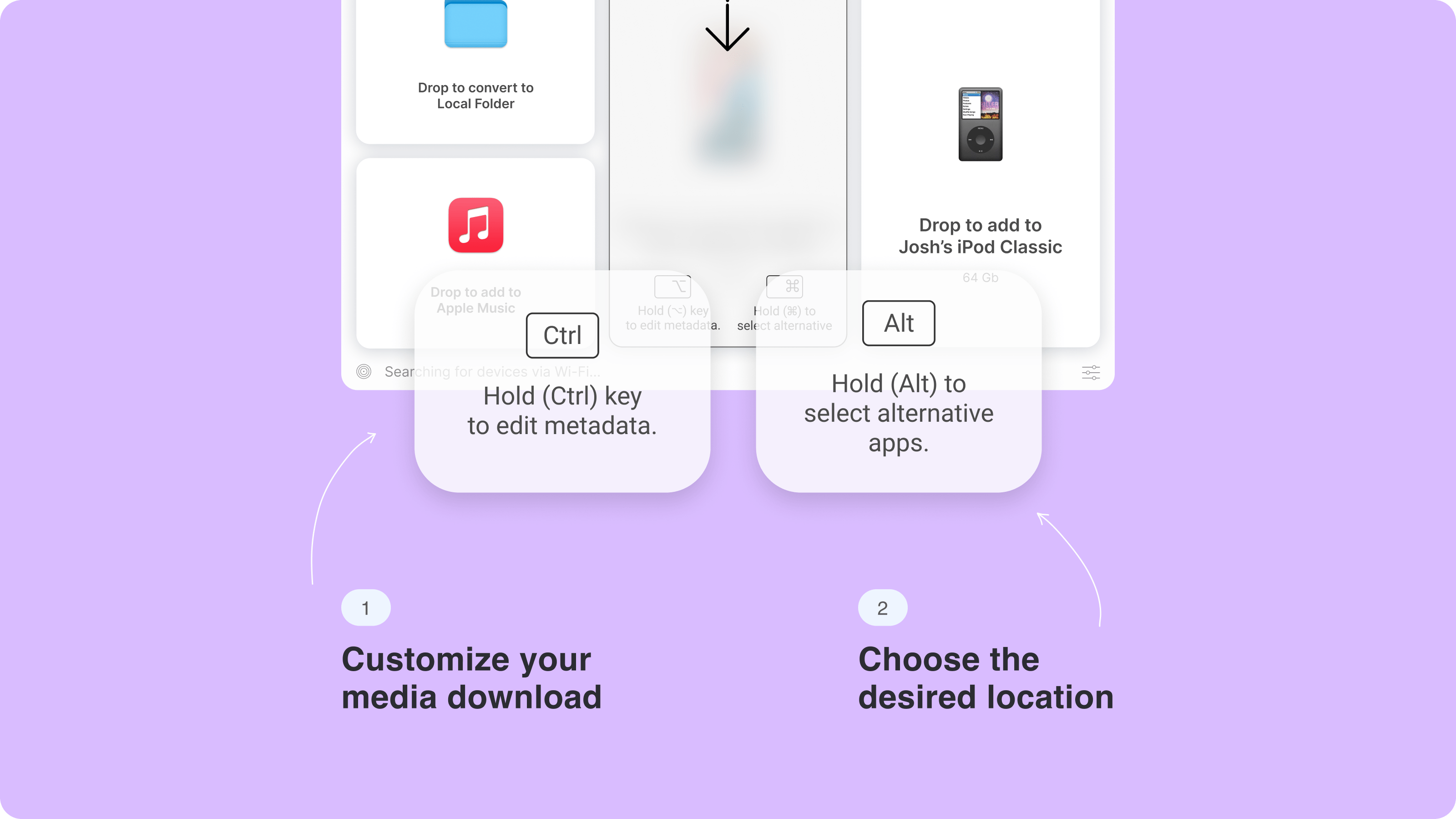
Review the suggested title and artwork. You can skip online metadata lookup when you only need the movie ready for travel.
When WALTR PRO fits your movie library
Choose WALTR PRO when you want conversion and transfer in one desktop app, with playback in native Apple apps.
- Mac and Windows support lets you use the computer holding your movie files.
- Supported video conversion removes the separate converter step.
- Native TV placement keeps transferred movies in an Apple library.
- USB and Wi-Fi options cover cable and local-network transfers.
- Local-file transfer avoids a full iTunes-style library sync.
Apple's app file-sharing tools can also copy files without a full sync. WALTR PRO's reason to exist here is its supported conversion and native-library workflow, not a claim that every Apple transfer requires syncing.
Method 2: Transfer local movies to VLC over Wi-Fi
Use VLC when you want a free player for local movie files and do not need Apple TV library placement. VLC can receive files across your local Wi-Fi network and play many video formats.
You open the movie in VLC after transfer. That separate library is the main trade-off compared with WALTR PRO's native-TV route.
How to transfer movies to VLC on iPad
- Install VLC from the App Store on your iPad.
- Connect the computer and iPad to the same trusted Wi-Fi network.
- Open VLC, allow local network access if prompted, and turn on Wi-Fi sharing.
- Enter the local address VLC displays into your computer's browser.
- Add your permitted movie file through the upload page.
- Wait for the upload to finish.
- Open VLC's local video library on the iPad and play the movie.
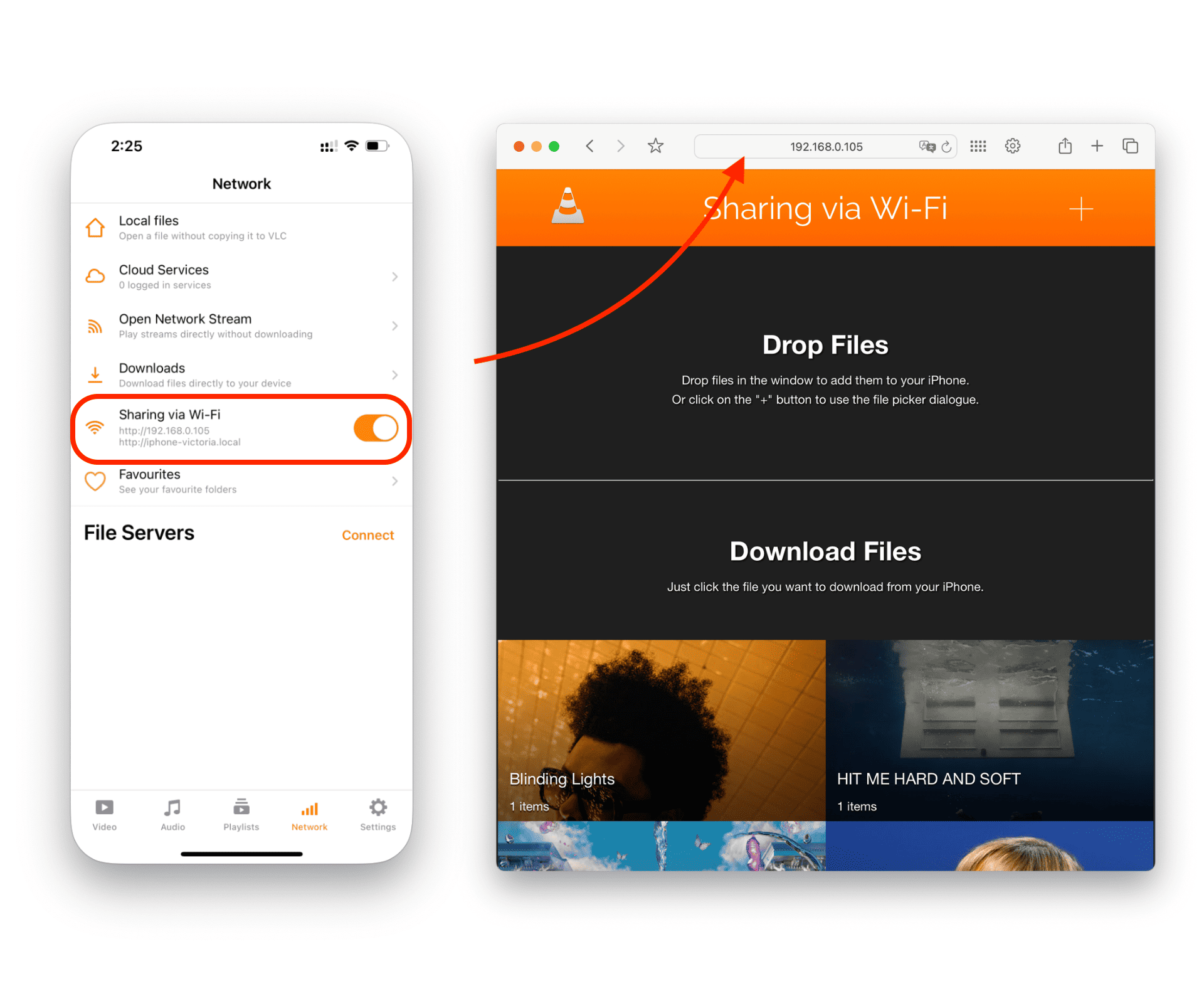
If the browser cannot reach the address, check both devices are on the same network and VLC has local network permission. Guest networks may prevent devices from reaching one another. Use the address your installed VLC app shows, not an address copied from an old screenshot.
Turn VLC sharing off when you finish. For travel, save a local copy instead of streaming from the computer.
Method 3: Download local movie files through iCloud Drive
Use iCloud Drive when your movie is already in cloud storage or you want to move it without a cable. Upload the permitted file from your computer, then download a local copy through Files on the iPad.
Cloud storage and iPad storage are separate limits. You need room for the upload in iCloud and room for the downloaded movie on the iPad. A large file also needs time for both upload and download, so start before you leave home.
How to save an iCloud movie on iPad
- Sign in to iCloud Drive on your computer with the Apple Account you use on the iPad.
- Upload the movie file.
- Wait for the upload to finish.
- Open Files on the iPad and browse to iCloud Drive.
- Open the movie and wait for the local download to complete.
- Check the file plays without a network connection before your trip.
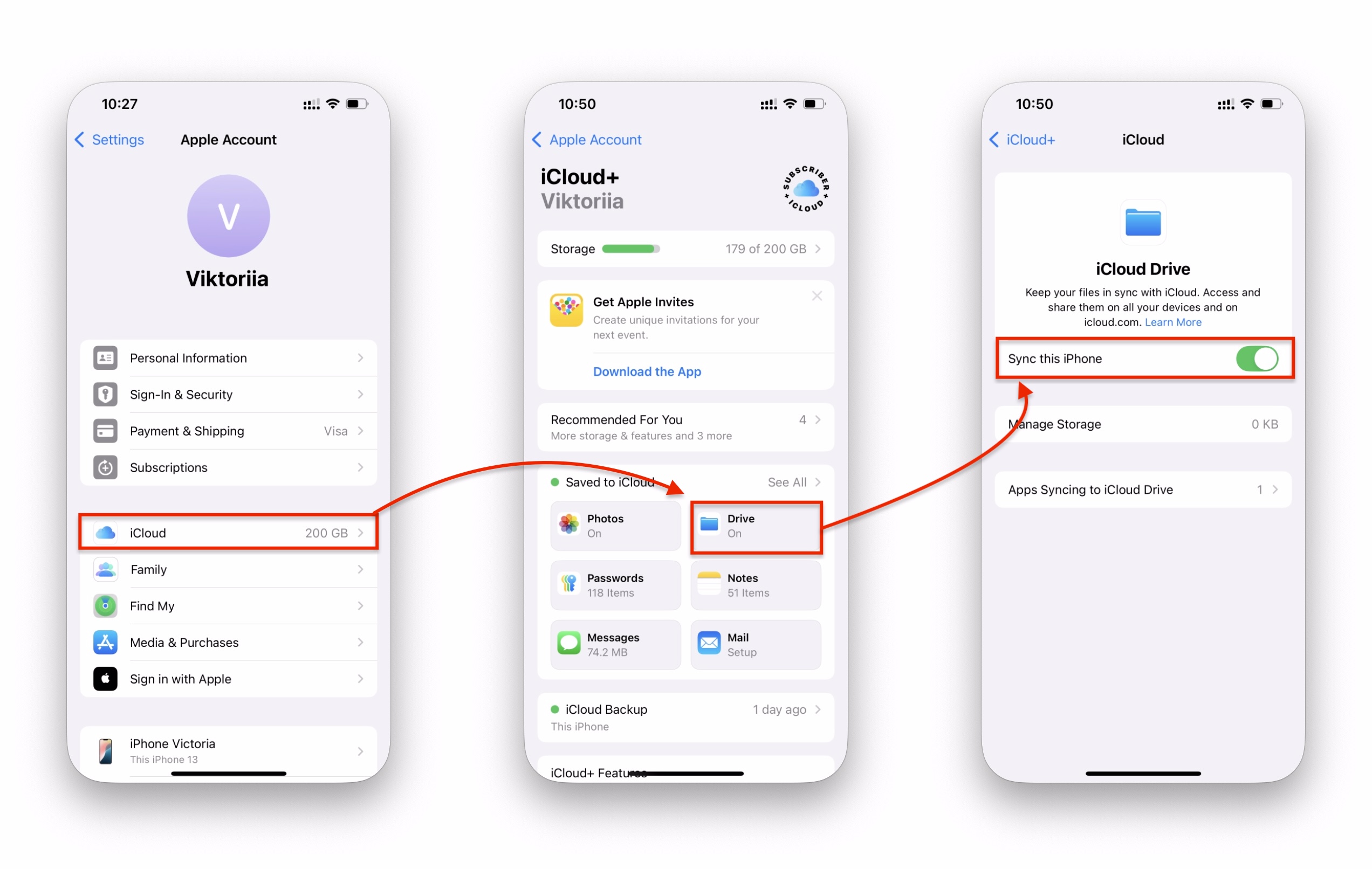
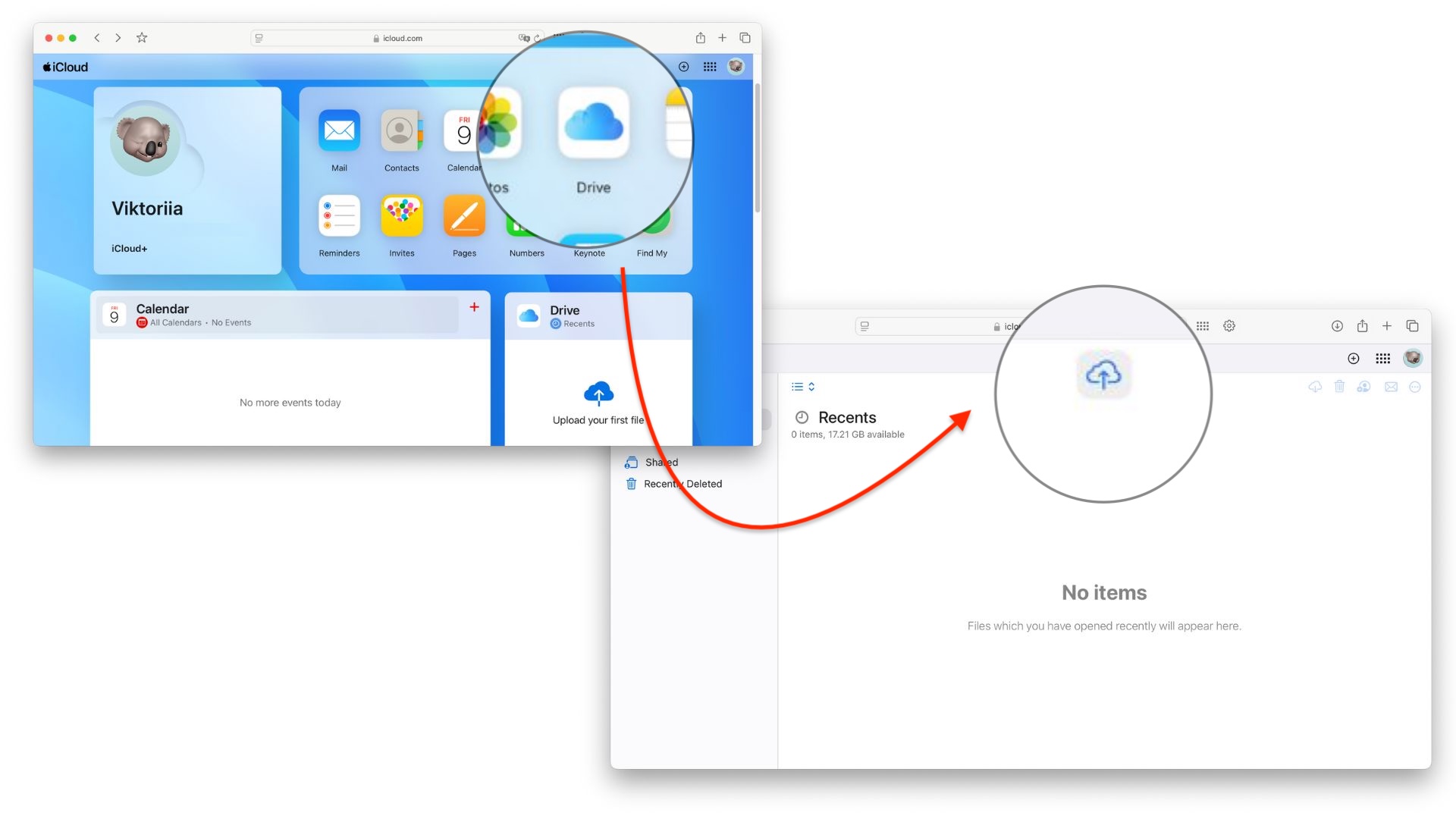
Files can preview supported videos. If the movie will not play there, open it in a compatible player such as VLC.
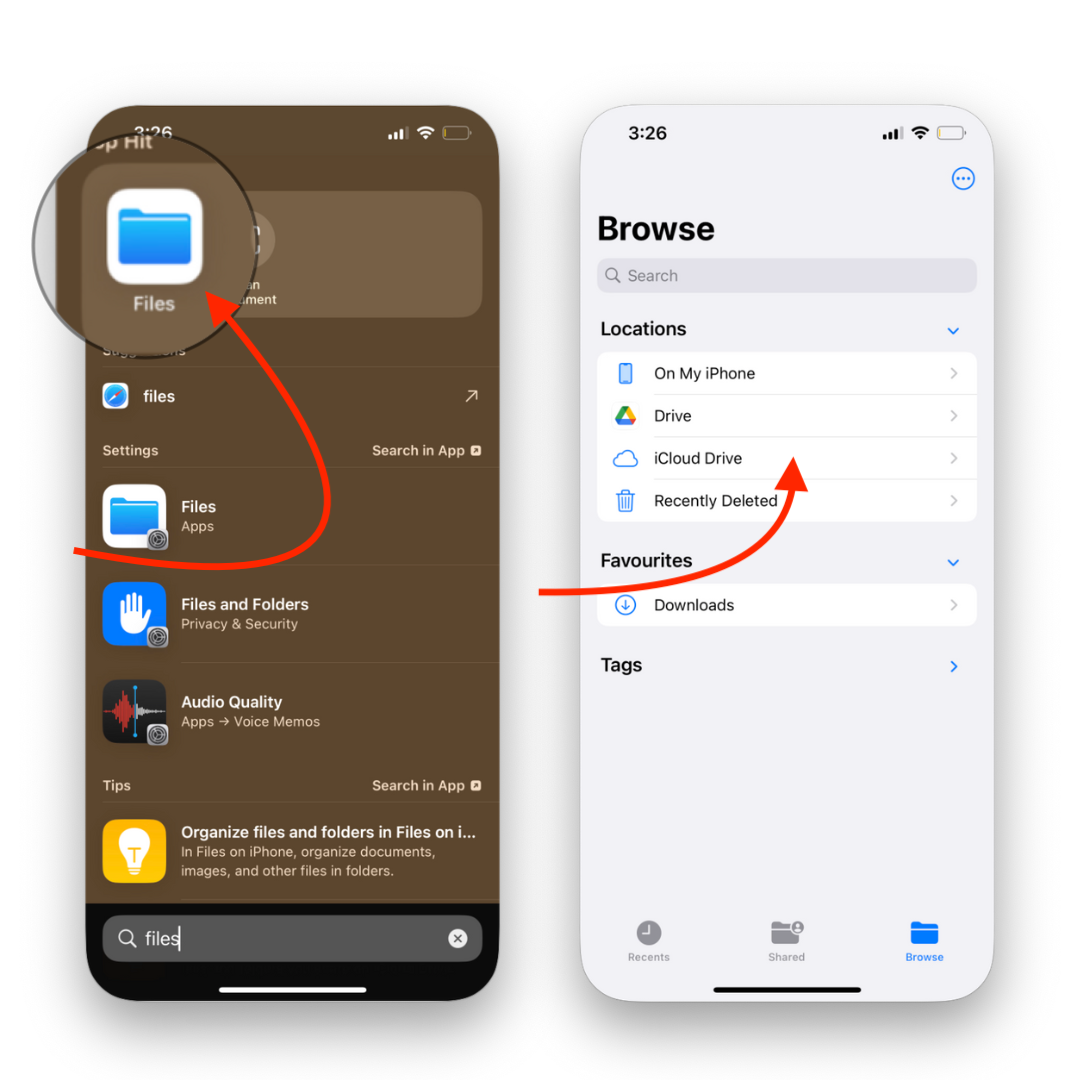
A cloud listing does not prove a movie is ready offline. Finish the download, then check playback with Wi-Fi and cellular data off.
Method 4: Use Apple's computer transfer tools
Use Finder file sharing on a current Mac or Apple Devices on Windows to copy into a supported app. AirDrop also works between a nearby Mac and iPad.
App file sharing is different from Movies sync. File sharing copies a file into an app that supports the feature. Movie-library sync uses library selections and sync settings. Do not click Sync or Apply without checking what those settings will change.
Copy movie files with Finder on Mac
- Connect and unlock the iPad, then trust the Mac if prompted.
- Open Finder and select the iPad in the sidebar.
- Choose Files to see apps that support file sharing.
- Drag your movie into a compatible destination app.
- Wait for copying to finish.
- Open that app on your iPad and check playback.
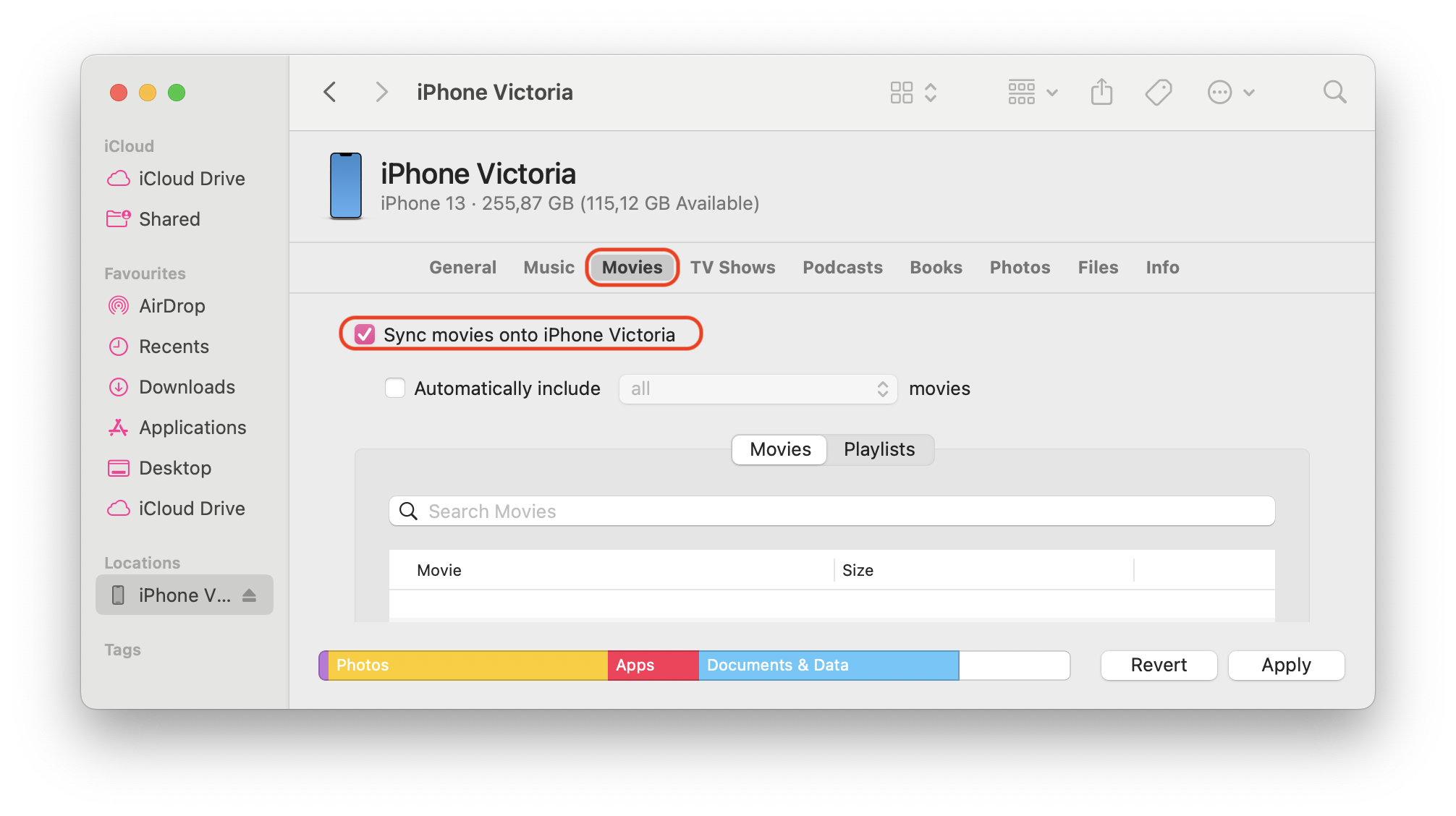
The screenshot shows Finder's Movies sync tab with an iPhone connected. For the file-sharing steps above, choose Files instead. Copying into a player app does not add the movie to the TV library.
Send a movie from Mac with AirDrop
AirDrop suits a one-off local file when the Mac and iPad are nearby. It does not convert the movie into a format your chosen player supports.
- Turn on Wi-Fi and Bluetooth on both devices.
- Locate the movie in Finder on the Mac.
- Open its Share menu and choose AirDrop.
- Select your iPad.
- Accept the transfer if prompted and choose an app or save location when offered.
- Open the received file and check playback.
If the iPad cannot preview the movie, use a compatible player. Keep the original file until you have checked video and sound on the iPad.
Copy movie files from Windows with Apple Devices
Apple documents file sharing in Apple Devices: connect the iPad, select the device, choose Files, select a supported app, and drag the file into its document list. Apple says this route does not need a sync.
Open the destination app on the iPad after copying. If no compatible app appears under Files, install a player that supports file sharing or use another method. Choose WALTR PRO instead when you want its supported video conversion and native-TV destination.
Method 5: Download movies on iPad with streaming apps
Use the service's iPad app for eligible Netflix, Prime Video, Disney+, or Hulu downloads. Check the title, plan, and device support offline viewing before relying on a subscription. A streaming catalog entry does not automatically include download rights.
For Netflix, follow the current Netflix download instructions. The iPad route starts in My Netflix, where Downloads includes See What You Can Download. Update the app if your menus differ.
- Open Netflix on your iPad and sign in.
- Open My Netflix > Downloads > See What You Can Download.
- Select an eligible movie and tap Download.
- Wait for the download to finish.
- Return to My Netflix > Downloads to watch the saved title.
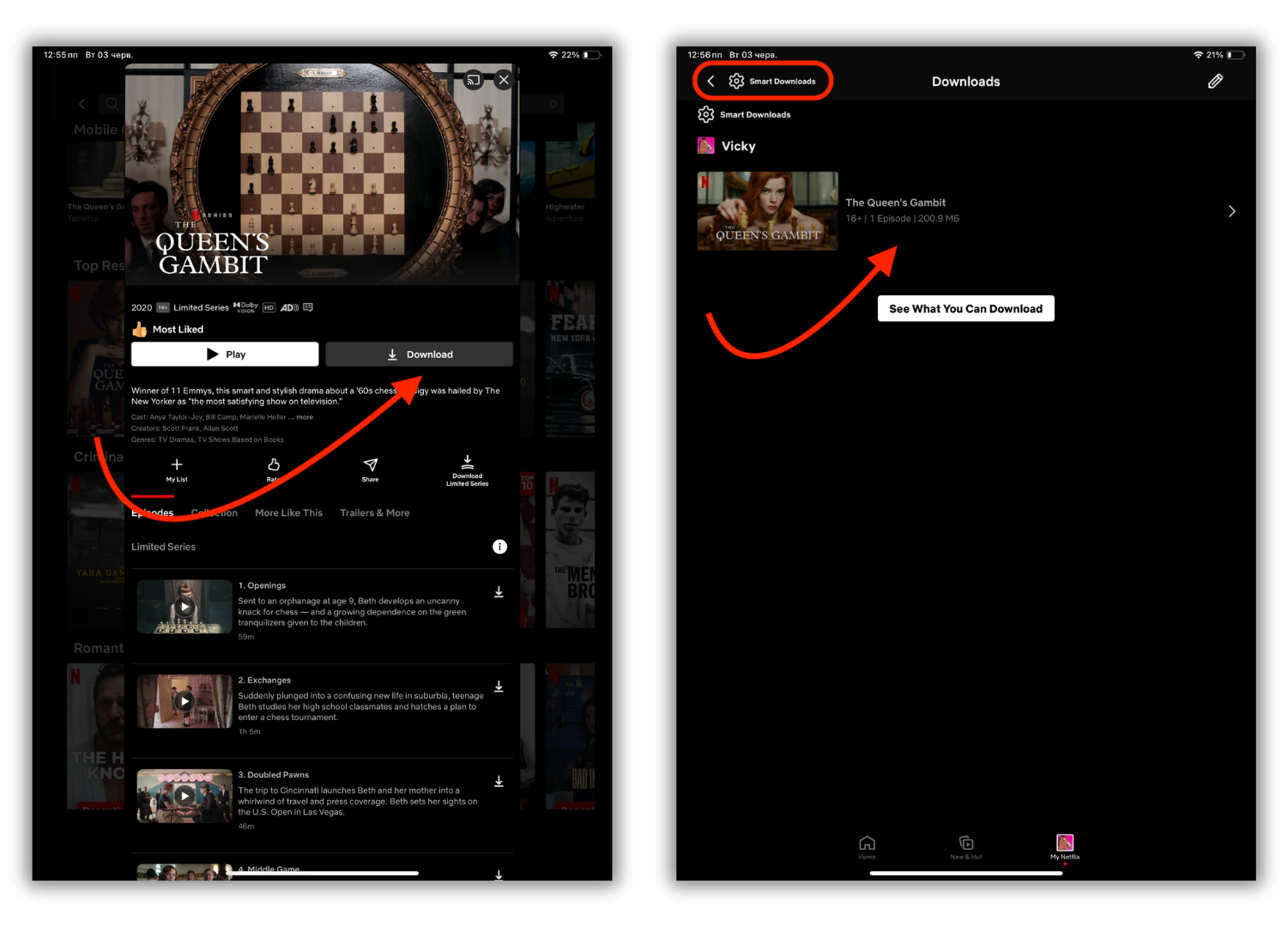
For Prime Video, Disney+, or Hulu, check the title's download option in that service's iPad app. Plan and title rules vary. If Download is missing, check the service's current eligibility guidance rather than using a third-party site to extract the movie.
Streaming downloads stay inside their app. You cannot copy them as ordinary MP4 files or send them through WALTR PRO. The service controls expiry and renewal.
Check expiry and try playback before your trip. If an app needs to renew a download, reconnect and renew it inside that app. Do not apply one service's expiry timer to movies from another service.
Method 6: Download movies on iPad in Apple TV
Use the Apple TV app for eligible purchases, rentals, and titles from subscriptions or channels you can access. You do not need a computer for this route. A subscription does not include every movie shown in the app.
Apple's download and streaming guide explains supported downloads and their limits. Availability and expiry vary by content and channel; check the specific title before planning to watch it offline.
How to download an Apple TV movie
- Open the Apple TV app on the iPad.
- Find a movie or episode you can access.
- Open the item's page.
- Tap Download if the item supports offline viewing.
- Wait for completion, then open Library > Downloaded to watch it.
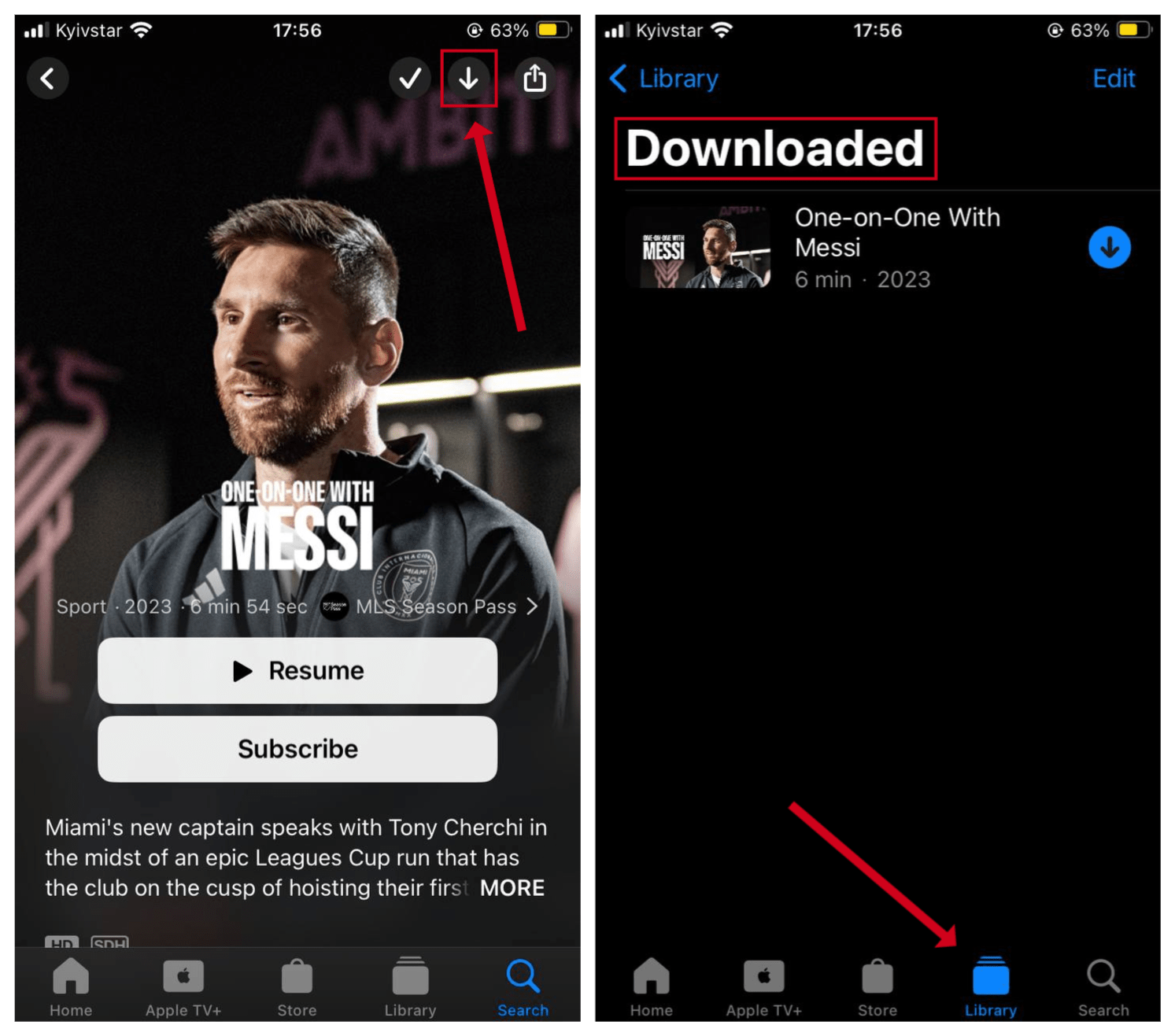
Protected Apple TV downloads stay inside the TV app. Use Library > Downloaded for those titles. Local movies transferred from a computer may appear elsewhere in the TV library, such as Home Videos, so check the source of the movie before searching for it.
If Download is missing, check the title's download rules and your access to it. A subscription does not include every movie in the TV app.
Quick takeaways: choose your offline movie method
What you need | Choose | What to check before travel |
|---|---|---|
Apple movie without a computer | Apple TV app | Eligible title in Library > Downloaded |
Subscription movie without a computer | Official streaming app | Supported plan, title, completed download, and expiry |
Local movie in the native TV library | WALTR PRO | Supported source file and completed transfer |
Free local-file playback | VLC | Finished upload and playback in VLC |
Movie stored in iCloud | Files plus a compatible player | Local copy, free storage, and offline playback |
Copy from a computer with Apple tools | Finder, Apple Devices, or AirDrop | Correct destination app and compatible file |
Before a flight: check iPad movies work offline
Finish downloads while you still have a reliable connection. An item in a library or queue is not enough: open the saved copy in its destination app. Check Settings > General > iPad Storage if you are running out of room.
- Wait for the download or transfer to finish.
- Open the movie from the app where you saved it.
- Turn off Wi-Fi and cellular data, or use Airplane Mode with Wi-Fi off.
- Play the movie and check video and sound.
- Check any expiry notice and reconnect to renew the title if needed.
Try one local file before copying a whole library. For example, start with one permitted MKV in WALTR PRO and check the iPad result. This is a pre-travel check you should perform, not a promise that every MKV codec will work.
Why a movie will not download or play
A missing Download button usually calls for an eligibility check. Confirm the app supports your iPad software, the plan includes downloads, and the title allows them. An expired download needs renewal in its original app; copying it elsewhere will not restore access.
If a movie is missing, check the correct destination: Apple TV downloads, Netflix Downloads, VLC, or Files. For local playback failures, confirm the transfer finished and test the original file on your computer. A player or codec mismatch can prevent playback even when the filename ends in MP4.
Choose the method that matches your movie
Use official apps to download eligible subscription movies and Apple titles. Keep those downloads in their original apps and check expiry before you travel. You can do this directly on the iPad without a desktop transfer tool.
For permitted local files on Mac or Windows, try WALTR PRO for local movie files. Use the free trial to transfer one supported movie, check the native TV library, and confirm offline playback before copying the rest.
Frequently asked questions about iPad movie downloads
How can I download movies on iPad without iTunes?
Use Apple TV or an eligible streaming app to download directly on the iPad. For local files on a computer, use WALTR PRO, VLC, iCloud Drive, or Apple's file-sharing tools. Choose the method by the source of your movie and the app where you want to watch it.
Can I download Netflix or Prime Video movies to iPad?
You can download eligible titles through the service's iPad app when your plan and device support downloads. Check the title's Download button and the app's download area. Saved movies remain inside that service's app and may expire.
Can WALTR PRO download Netflix or protected Apple movies?
No. WALTR PRO transfers supported local files from a computer to an iPad. It does not download Netflix titles or remove DRM from protected Apple movies. Use the official app for those downloads.
Can I transfer MKV, AVI, or MP4 movies to iPad?
WALTR PRO supports common MKV, AVI, and MP4 inputs and handles supported conversion during transfer. VLC is a free separate-player option. Check one file first because the video and audio codecs matter as well as the filename extension.
Where do downloaded movies go on iPad?
Apple TV downloads appear in Library > Downloaded. Netflix uses My Netflix > Downloads. Other streaming apps keep their own download areas. VLC stores transferred movies in its local library, while iCloud Drive copies appear in Files.
Can I legally download free movies for offline viewing?
Use sources that explicitly permit downloads, or transfer local movies you have permission to copy. Free streaming does not necessarily include offline downloads. Check the source's rights and download options rather than assuming an ad-supported app offers an offline copy.

WALTR PRO
Convert & Push Any File into Any Apple Device
