How to Download YouTube Videos to iPhone in 3 Steps

You can download YouTube videos to iPhone in 3 steps with SYC PRO: install the Mac or Windows app, copy the YouTube link, then choose MP4, MP3, or AAC and transfer it to your iPhone.
YouTube Premium is still the official YouTube way to watch videos offline inside the YouTube app. That works if you only want in-app viewing. It does not give you a normal video or audio file you can move into your iPhone media library.
SYC PRO is for the other situation: you want the video on your iPhone, iPad, or Mac without wrestling with Finder, iTunes, sketchy converter sites, or five half-working workarounds.
Download only videos you own, have permission to save, or that are legally available for offline use. YouTube Premium is the official YouTube option for in-app offline viewing.
Before we begin
Download SYC PRO on Mac or Windows to save permitted YouTube video or audio and send it to an iPhone. Choose the format and destination first, and download only media you own or may legally save.
The phrase “download YouTube videos to iPhone” can mean 2 different things.
YouTube Premium lets you save videos inside the YouTube app for offline viewing. Google explains the offline feature in its YouTube Premium download help. That option is clean, official, and simple. It is also limited to the YouTube app. You do not get an MP4 file, and you do not transfer the video into your Apple media apps.
SYC PRO, short for Softorino YouTube Converter PRO, handles the file workflow. You copy a YouTube link, choose the format, then send the video or audio to your iPhone, iPad, Mac, or a folder. It is built for people who want a file-style workflow, not a locked in-app cache.
Here is the short version:
Method | Best for | Main limit |
|---|---|---|
YouTube Premium | Official offline viewing inside YouTube | Stays inside the YouTube app |
SYC PRO | MP4/MP3/AAC downloads and iPhone transfer | Needs the Mac or Windows app |
Online converters | Quick one-off tests | Ads, popups, quality limits, trust issues |
File-manager workarounds | iPhone-only tinkering | More steps and less predictable results |
If you want the simplest official option, use YouTube Premium. If you want to download YouTube videos to iPhone as transferable media, use SYC PRO.
How to download YouTube videos to iPhone with SYC PRO
This is the clean 3-step workflow. No iTunes. No Finder sync dance. No converter website with 14 fake download buttons.
Step 1: Download and install SYC PRO
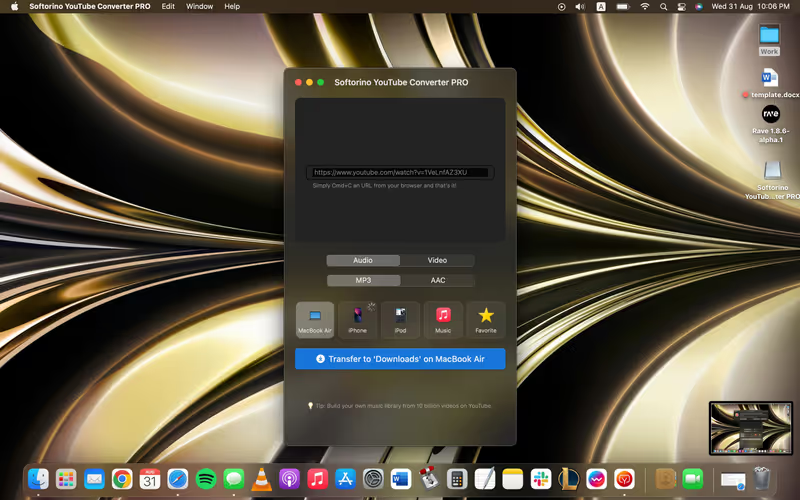
Download SYC PRO on your Mac or Windows PC. Install it, open the app, and connect your iPhone by USB or Wi-Fi.
The source article mentions a 24-hour trial. Use the current download page to confirm the latest trial terms before you buy. Product pages change; your iPhone transfer workflow should not depend on old promo wording.
Keep your iPhone unlocked during setup. If iOS asks whether to trust the computer, tap Trust. Apple likes adding one more gate to simple tasks. Classic.
Step 2: Copy the YouTube video link
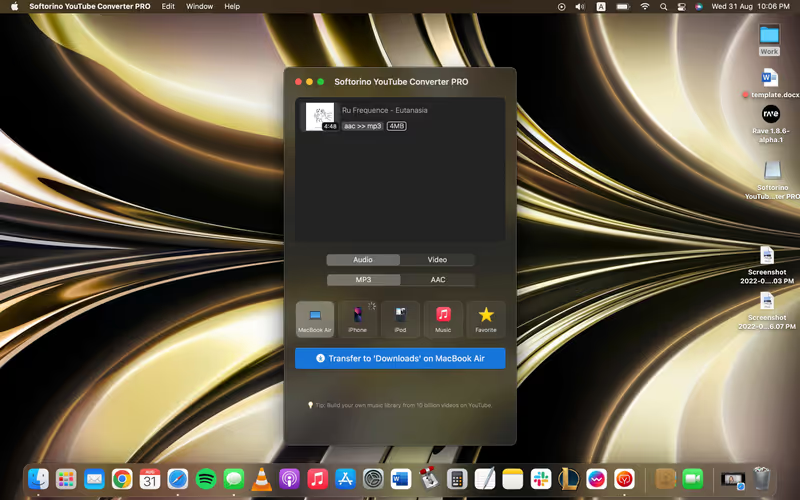
Open YouTube and copy the URL of the video you want to save. SYC PRO detects the link and adds it to the download queue.
This works best with public videos that are available to watch. Do not expect any app to download private videos, DRM-protected content, paid content, or anything the platform blocks.
Want to save more than one video? Add multiple links to the queue. If you are handling a long video, use Softorino’s guide to download long YouTube videos for the edge cases.
Step 3: Choose format, quality, and destination
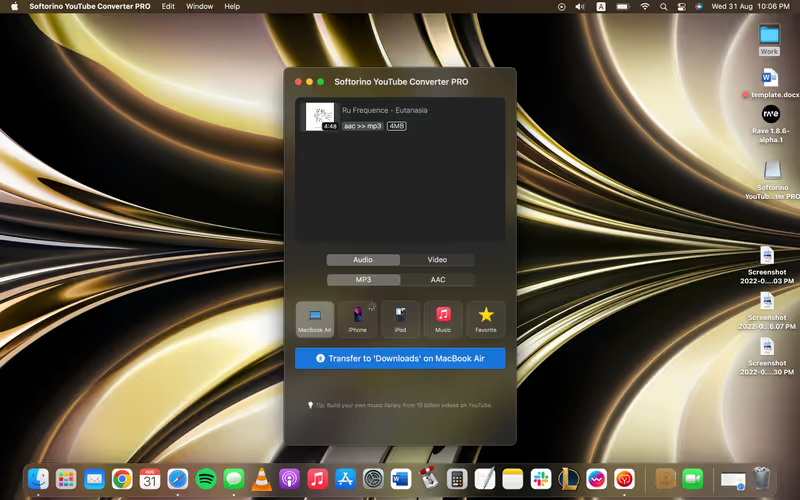
Choose the format based on what you need:
Then pick the available quality. SYC PRO can handle high-resolution downloads when the source video offers them, including 4K where available. Do not force 4K if the source video is 1080p. The app cannot create detail the original video does not have.
Choose where the file should go:
Hit Convert & Transfer. SYC PRO downloads the video, converts it if needed, and sends it to your selected destination.
- MP4 for video on iPhone or iPad
- MP3 for audio only
- AAC when you want an Apple-friendly audio format
- iPhone, iPad, or iPod by USB or Wi-Fi
- Your Mac or Windows downloads folder
- A music library or custom folder when the workflow supports it
Which iPhone YouTube download method should you use?
Use the method that matches the job.
If you want... | Use this | Why |
|---|---|---|
Official offline playback in YouTube | YouTube Premium | Google supports it, and it works inside the app |
A video file transferred to iPhone | SYC PRO | It handles download, conversion, and transfer in one app |
Audio from a YouTube video | SYC PRO | Choose MP3 or AAC and send it where you need it |
A free browser workaround | File manager or online converter | It may work, but expect more steps and more risk |
Playlists or long videos | SYC PRO | Better for queues than one-video web tools |
The key question is simple: do you want offline viewing, or do you want a usable file?
For offline viewing inside YouTube, Premium is enough. For YouTube to MP4 iPhone, YouTube to MP3 iPhone, playlists, and direct transfer, SYC PRO is the cleaner fit.
Why SYC PRO beats random online converters
Online YouTube converters look tempting because they are fast to open. Then the mess starts.
You paste a URL into a site you do not know. You dodge popups. You guess which download button is real. You hope the file is clean. Then you still need to move it to your iPhone.
SYC PRO keeps the workflow in one desktop app:
That matters if you download more than one video a month. It matters more if you care where the file lands.
SYC PRO also supports extra use cases beyond a single YouTube clip. You can use it for playlists, long videos, subtitles, and supported sources like SoundCloud and Vimeo. If you mainly save YouTube music, the audio workflow is the part you will use most.
For Mac-specific downloading, see Softorino’s guide to download YouTube videos on Mac.
- Copy the YouTube URL
- Choose MP4, MP3, or AAC
- Pick the quality and destination
- Transfer to iPhone without iTunes
What can you save to iPhone?
SYC PRO works best when you treat it as a downloader plus transfer tool.
You can use it for:
Livestreams need a small note. If a livestream is still live, unavailable, private, or not saved as a public recording, you may not be able to download it. Once YouTube makes the recording available like a normal video, SYC PRO can treat it like the rest of the queue.
You can also use SYC PRO for niche formats and video types. The old article mentioned VR video downloads. Keep that link if the VR use case matters to your reader, but do not make it the main point. Most people are here because they want a regular video or song on an iPhone.
- Regular YouTube videos
- Long YouTube videos when the source is available
- Playlists, if the playlist content is accessible
- Audio versions of videos as MP3 or AAC
- Livestream recordings after they become available as normal YouTube videos
- Supported non-YouTube sources such as SoundCloud and Vimeo
Troubleshooting: video will not download or transfer
If the download fails, start with the boring checks. They fix most problems.
Check the YouTube link
Open the video in a browser. If the video is private, removed, age-restricted, region-blocked, or unavailable, SYC PRO may not be able to download it.
Use a public video you can play normally. If you want to download videos from your own YouTube account, Google has separate uploaded-video download instructions. Then copy the full URL again.
Check your iPhone connection
If you transfer by USB, unlock your iPhone and trust the computer. If you transfer by Wi-Fi, keep both devices on the same network.
If the iPhone does not appear, reconnect the cable or restart SYC PRO. Simple, annoying, often effective.
Check storage
A 4K video can be large. If your iPhone is nearly full, the transfer may fail even if the download worked.
Delete old downloads or choose a lower resolution.
Check format choice
Use MP4 for video. Use MP3 or AAC for audio. If you are unsure, choose MP4 for the first test because it preserves the video.
Update the app
YouTube changes things often. Downloader apps need updates to keep working with those changes. If a link fails for no obvious reason, update SYC PRO and try again.
Download YouTube videos to iPhone without iTunes
The old Apple workflow makes this harder than it needs to be. Download the file. Convert it. Add it to a library. Sync the phone. Hope nothing weird happens.
SYC PRO skips that mess. You copy the video link, choose the output, and send it to the device. That is the whole reason to use a dedicated app instead of stitching together YouTube, Finder, Files, and random web tools.
If you use more than one Softorino app, check the Universal License. It covers the core Softorino utilities under one subscription, including tools for iPhone transfer and media workflows.
FAQ
Can I download YouTube videos to my iPhone without YouTube Premium?
Yes. You can use SYC PRO to download YouTube videos and transfer them to your iPhone without a YouTube Premium subscription. Use it only for videos you own, have permission to save, or that are legally available for offline use.
Is YouTube Premium enough?
YouTube Premium is enough if you only want offline playback inside the YouTube app. It is not the same as saving an MP4 or MP3 file you can move to your iPhone media library.
Can I save YouTube videos to Camera Roll?
SYC PRO focuses on downloading, converting, and transferring media to supported iPhone destinations. The exact destination depends on format, device, and current app behavior, so choose the destination shown inside the app before you transfer.
Can I download YouTube videos in 4K on iPhone?
You can choose 4K when the YouTube source provides 4K and SYC PRO shows that quality option. If the source video is lower resolution, pick the best available quality instead.
Can I download YouTube as MP3 on iPhone?
Yes. Copy the YouTube link into SYC PRO, choose MP3 or AAC, then transfer the audio to your iPhone or save it to your computer.
Can I download playlists or long YouTube videos?
SYC PRO supports playlist and long-video workflows when the videos are available. For long-video edge cases, use Softorino’s guide to download long YouTube videos.
Is it safe to use online YouTube converters?
Some online converters work, but many rely on aggressive ads, popups, fake buttons, or inconsistent quality. A desktop app like SYC PRO gives you a cleaner workflow and keeps the transfer step out of random websites.
Is SYC PRO free?
SYC PRO is a paid Softorino app with trial options that may change over time. Use the official SYC PRO download page to check the current trial and pricing before installing.
Final take
If you want the official YouTube offline button, use YouTube Premium. If you want to download YouTube videos to iPhone as MP4, MP3, or AAC files and move them without iTunes, use SYC PRO.
Start with one public video. Copy the link, choose the format, transfer it to your iPhone, and see if the workflow fits how you actually watch and listen offline.
Download SYC PRO and try the 3-step workflow.

SYC PRO
Download Web Videos Like a PRO
