How to Find Downloads on iPhone and iPad (2026 Guide)

Quick Answer: How to Find Downloads on iPhone
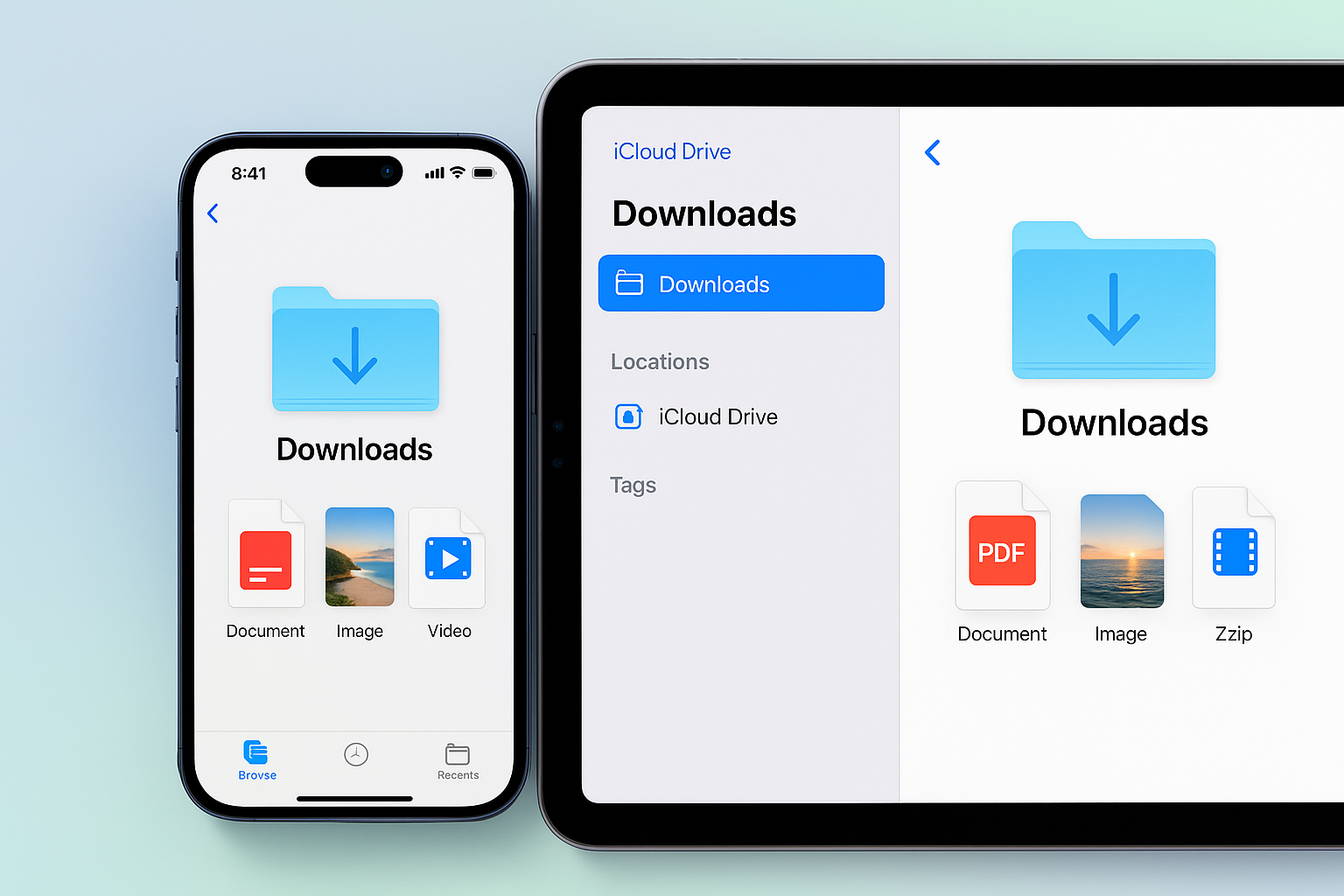
On an Apple iPhone or Apple iPad, open Files, tap Browse, then open iCloud Drive > Downloads. If the file is not there, check On My iPhone, Safari's Downloads button, Photos, or the app that saved it.
Before we begin
Download WALTR PRO on Mac or Windows if the file is still on your computer and you need to move it to an iPhone or iPad. WALTR PRO handles that separate transfer job. Use the Files, Safari, Photos, and source-app steps below for files already on the device.
Quick Takeaways for Finding iPhone Downloads
- Start in Files: open Browse > iCloud Drive > Downloads.
- Look in Photos: an image saved to the photo library appears in Photos, not Files.
- Check the source app: offline media may stay inside the app that downloaded it.
- Use search: type part of the filename or an extension such as PDF or ZIP in Files.
How to Find Downloads on iPhone in the Files App
Apple's current quick path is Files > Browse > iCloud Drive > Downloads. This is the first place to check for a PDF, ZIP archive, document, or other file downloaded through Safari. Apple's download location guide confirms this route.
- Open the Files app. Its icon is a blue folder.
- Tap Browse at the bottom of the screen. On iPad, use the Browse sidebar.
- Under Locations, tap iCloud Drive.
- Open the Downloads folder.
- Tap the file to open it, or press and hold it for more actions.
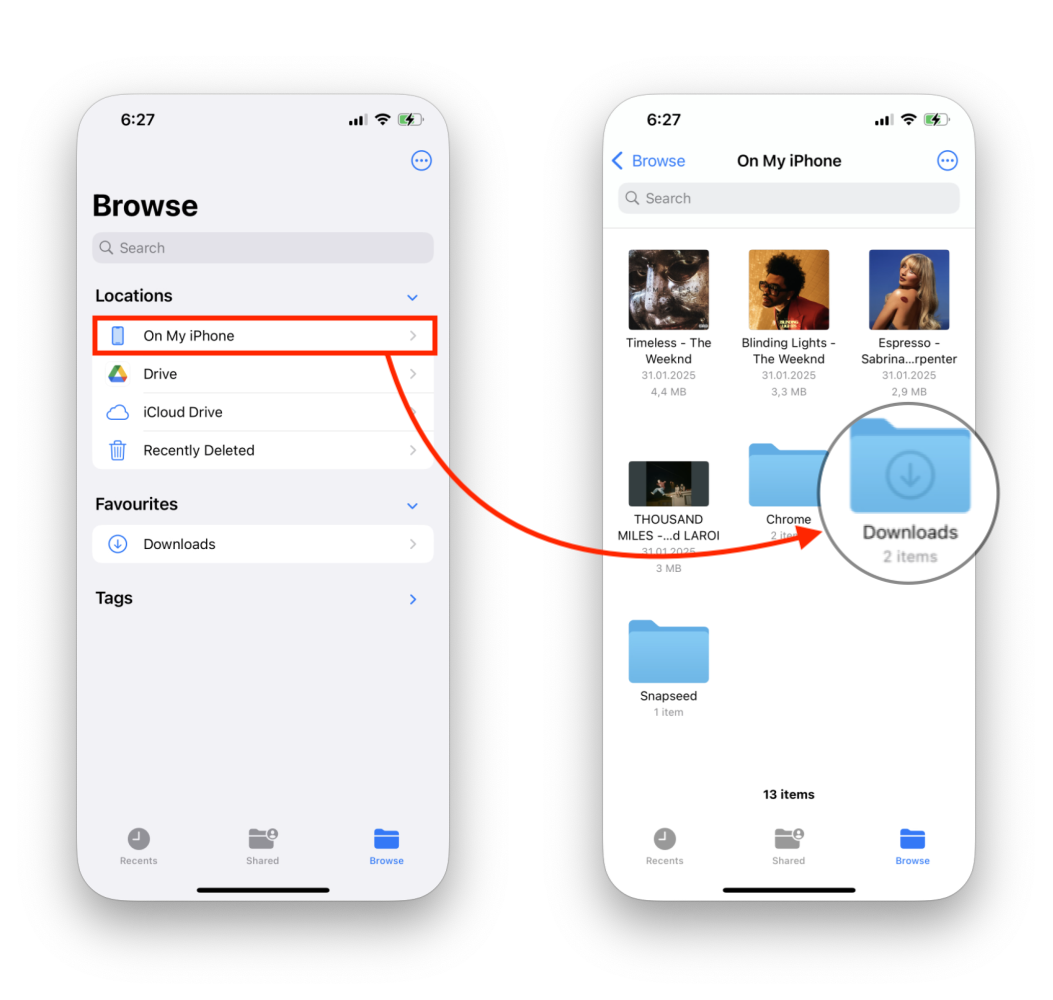
If Downloads is empty, open On My iPhone or On My iPad. Safari may use local storage, and Files can show supported cloud services under Locations.
Can't see the Files app? Swipe down on the Home Screen and search for Files.
Search Files When You Cannot Find a Download
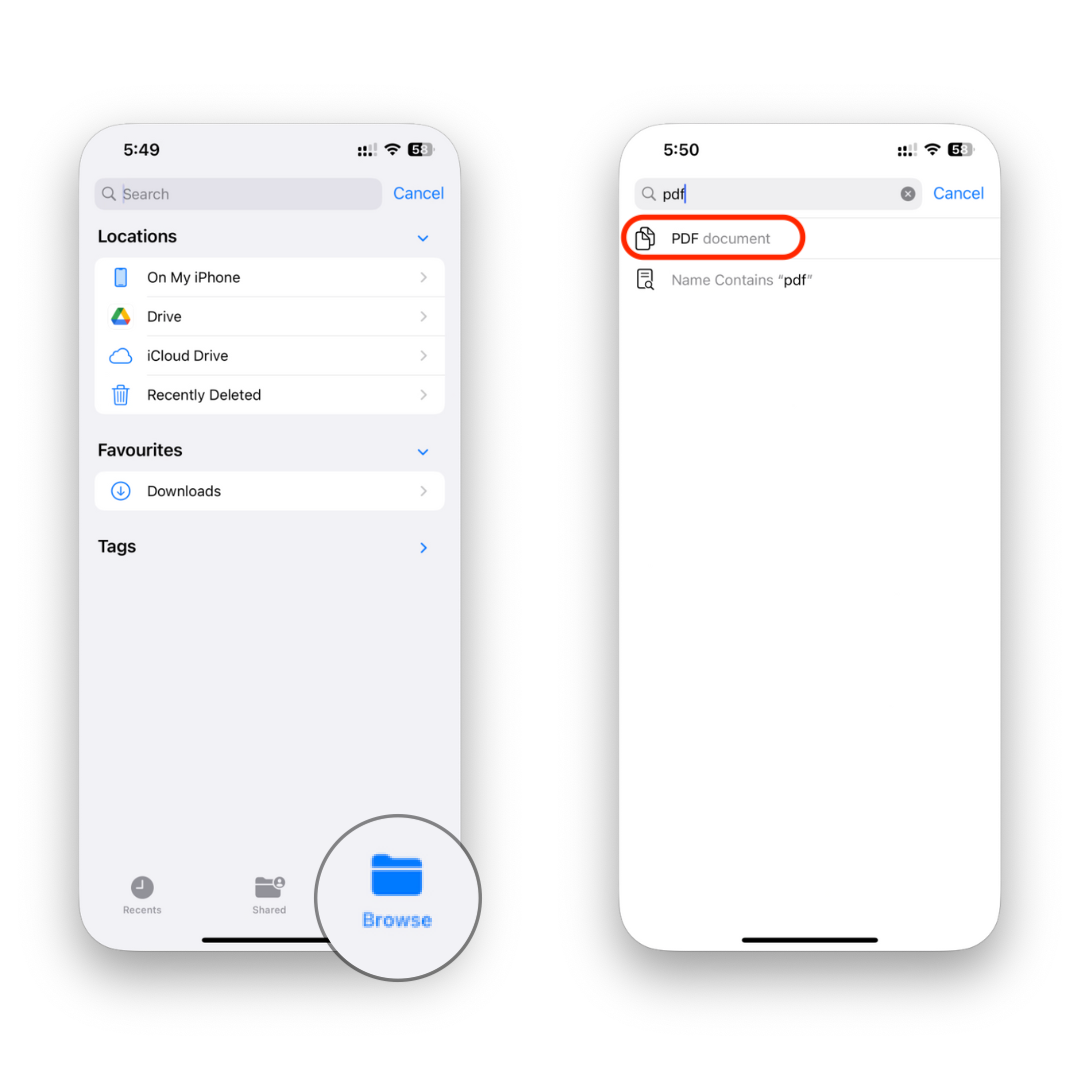
Files search helps when you know the filename or file type but not the folder. Open Files, tap the search field, and enter part of the name. You can also search for an extension such as `pdf`, `zip`, or `docx`.
- Search the exact filename, one distinctive word, or the file extension.
- Check both iCloud Drive and On My iPhone in the results.
Files does not search every app's private storage. Offline movies, audio, and attachments may appear only inside the source app.
Where Downloads Go on iPhone by File Type
Use this table to choose the right first check for each save action.
What you downloaded or saved | First place to check |
|---|---|
Safari PDF, ZIP, or document | Files > iCloud Drive > Downloads, unless Safari's location was changed |
File saved with Save to Files | The Files folder you selected |
File saved to local storage | Files > On My iPhone or On My iPad |
Image saved to the photo library | Photos > Recents |
Offline movie, song, map, or message attachment | The source app's Downloads, Offline, Saved, or media section |
File moved from Mac or Windows | The destination app or folder chosen by the transfer method |
Apple's Files app guide lists these locations. For one format, see how to save a PDF to Files or Books.
How to See Recent Safari Downloads on iPhone
Safari keeps a short route back to recent downloads. Tap Safari's Downloads button when it appears near the address bar or toolbar. Tap a file to open it, or use the folder or magnifying-glass control to reveal its location in Files when that control is available.
- Open Safari.
- Tap the Downloads button.
- Check whether the download finished.
- Tap the item to open it.
- Open its location in Files if Safari shows that option.
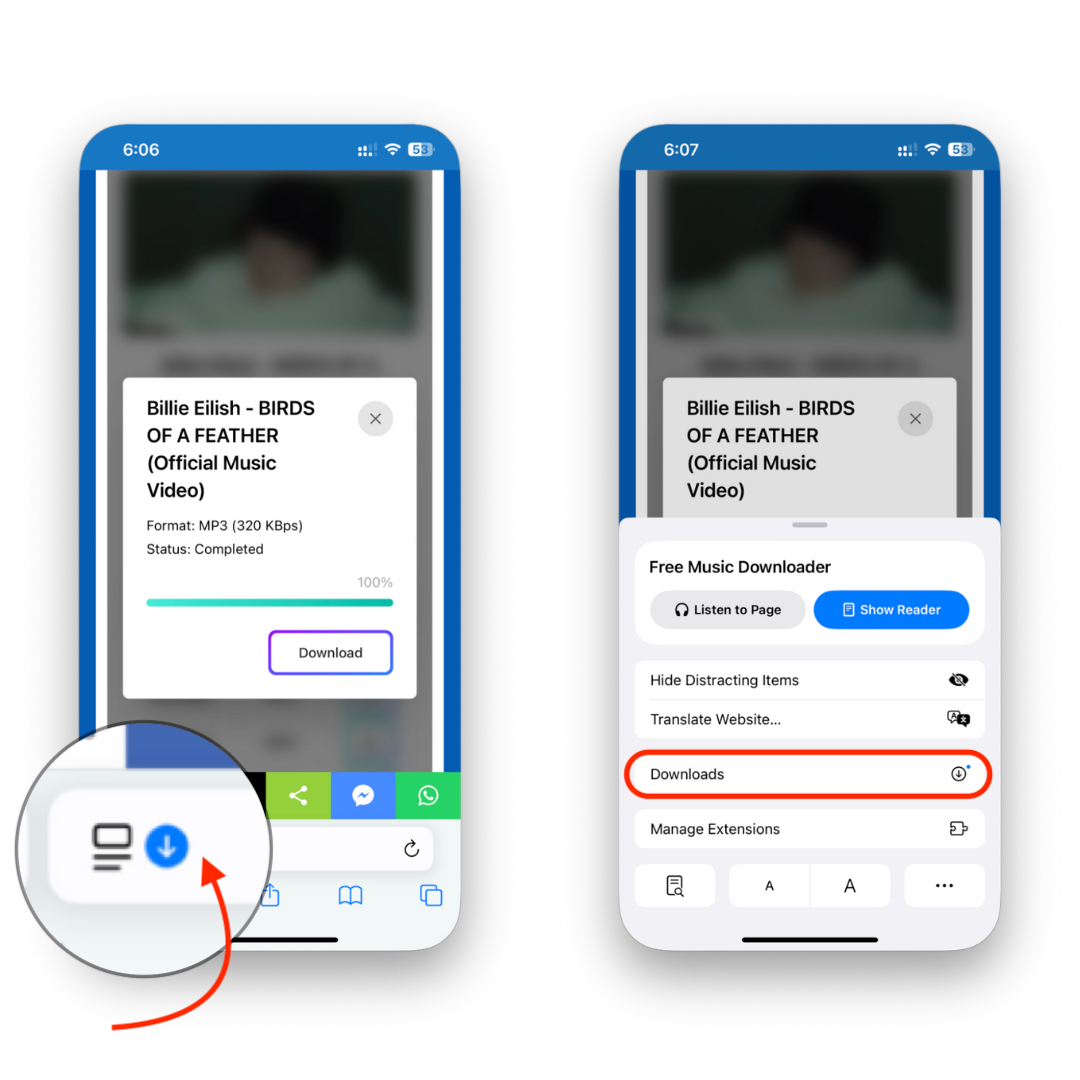
The button may disappear after Safari clears its recent list. A finished file remains in Files, so check the configured Downloads folder.
Change Where Safari Saves Downloads
On iOS 26 and iPadOS 26, open Settings > Apps > Safari > Downloads. Apple's Safari settings guide lists 3 choices: iCloud Drive, On My iPhone, or Other.
- Open Settings.
- Tap Apps, then Safari.
- Tap Downloads.
- Choose iCloud Drive, On My iPhone, or Other.
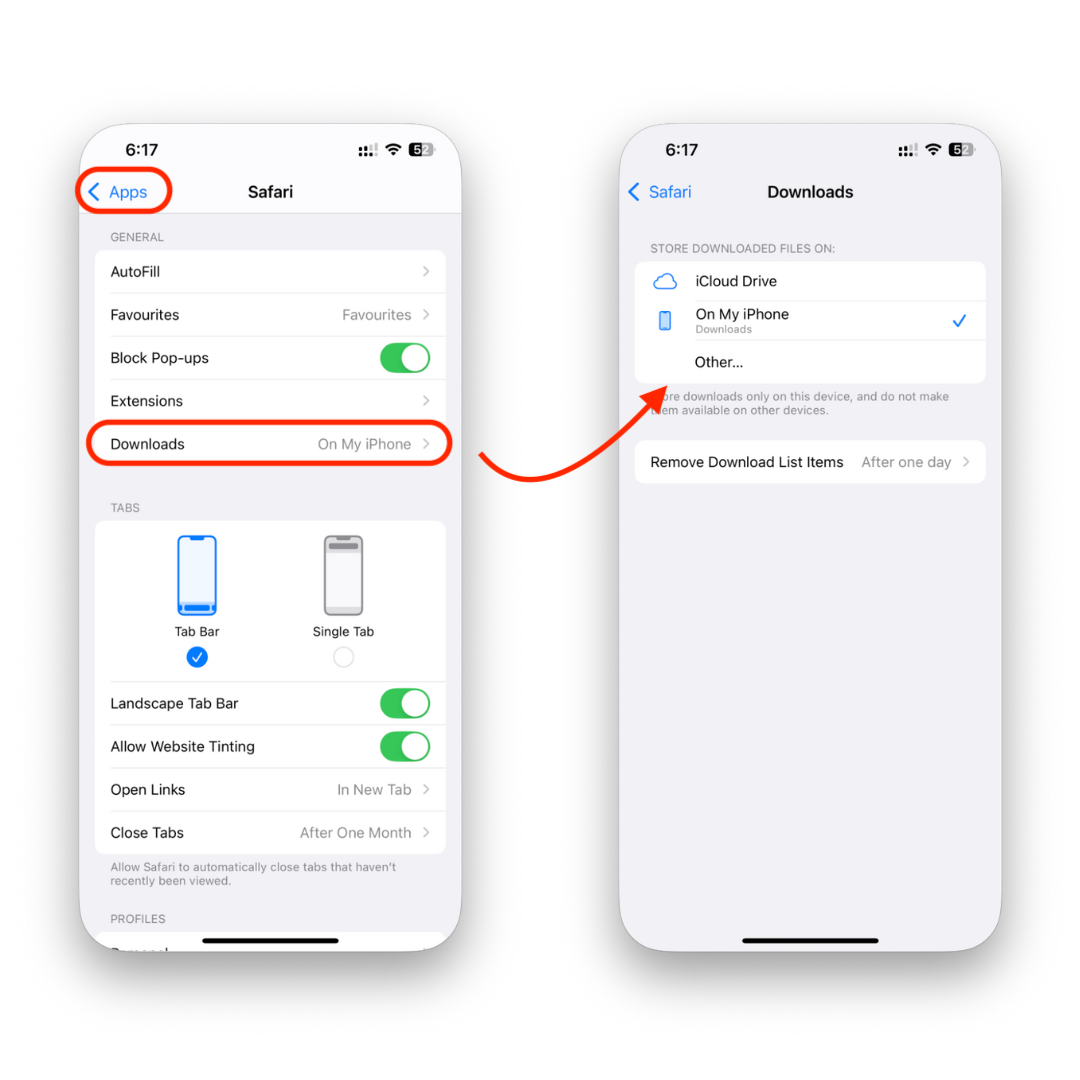
Choose iCloud Drive to access Safari downloads on devices using the same Apple Account with iCloud Drive active. On My iPhone keeps the file local. Other selects a different Files location.
Where Downloaded Photos Appear
A photo saved with Save to Photos or Save Image appears in Photos. An image downloaded as a file stays in Files. A picture inside a ZIP archive also remains in Files until you extract it.
Find Downloads Saved by Mail and Other Apps
Mail attachments can remain inside the email until you save them. Third-party apps also set their own storage rules. Check the app's Downloads, Offline, Saved, Media, or conversation view before searching Files.
If a file is missing, download one small test file again. Watch the save prompt, note the chosen location, then check that same folder in Files.
What to Do When Downloads Are Missing on iPhone
Use this order to check the common locations without opening every folder.
- Check Safari's download status. Open Safari and tap the Downloads button if it appears.
- Confirm Safari's location. Open Settings > Apps > Safari > Downloads.
- Search in Files. Use part of the filename or its extension.
- Check Photos. Do this if you saved an image to the photo library.
- Open the source app. Look for its Downloads, Offline, Saved, or media area.
- Repeat one test download. Note the destination shown by Safari or the app.
If the file will not open, press and hold it, tap Share, and choose a compatible app. For more control, compare these iPhone file manager apps.
Manage and Delete Downloaded Files on iPhone
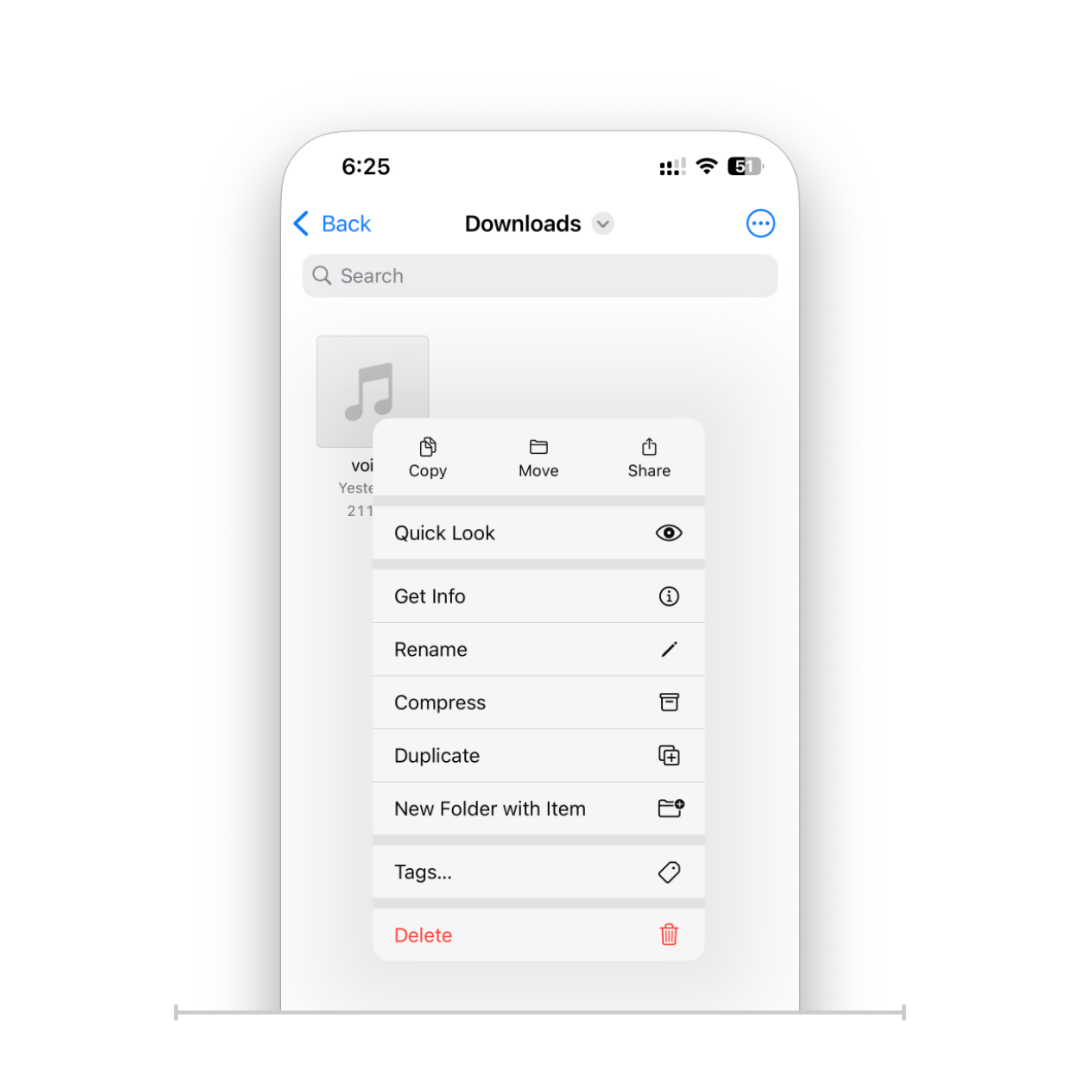
Press and hold a file to rename, move, share, compress, or delete it. Available actions depend on the file and storage location.
- Open Files > Browse.
- Open the folder that contains the download.
- Press and hold the file.
- Choose Rename, Move, Share, or Delete.
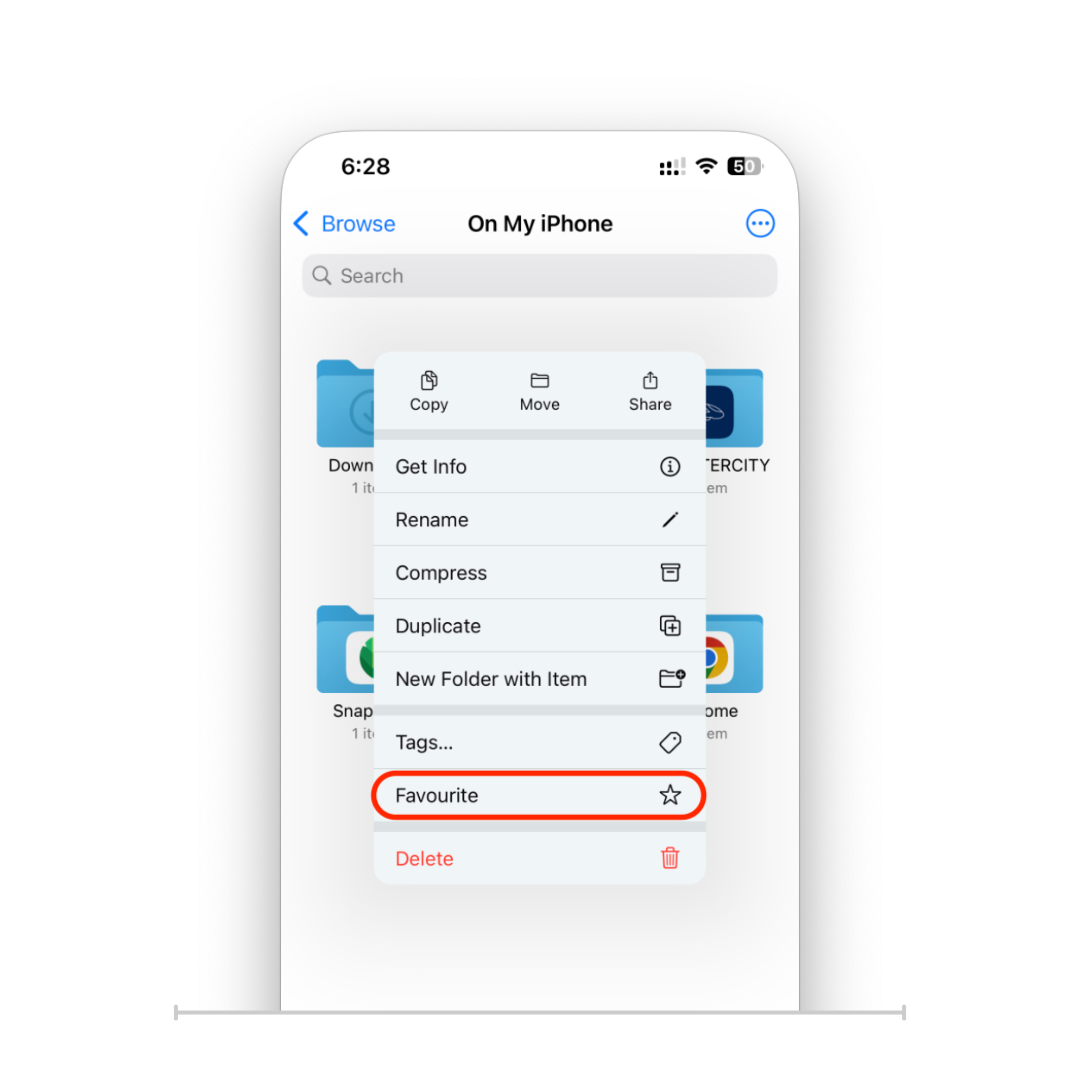
To keep Downloads within reach, press and hold the folder and tap Favorite. The folder then appears under Favorites in the Browse view or iPad sidebar.
Deleting a file from iCloud Drive can remove it from other devices using that account. A file under On My iPhone stays local.
How to Find Downloads on iPad
To find downloads on iPad, open Files and use Browse > iCloud Drive > Downloads. Check On My iPad if the file is not there. Safari uses the same Settings > Apps > Safari > Downloads path.
Move a File from a Computer to iPhone or iPad
If the file is still on your Mac or Windows PC, WALTR PRO can transfer supported music, video, PDF, and book files without an iTunes sync.
Transfer a Computer File with WALTR PRO
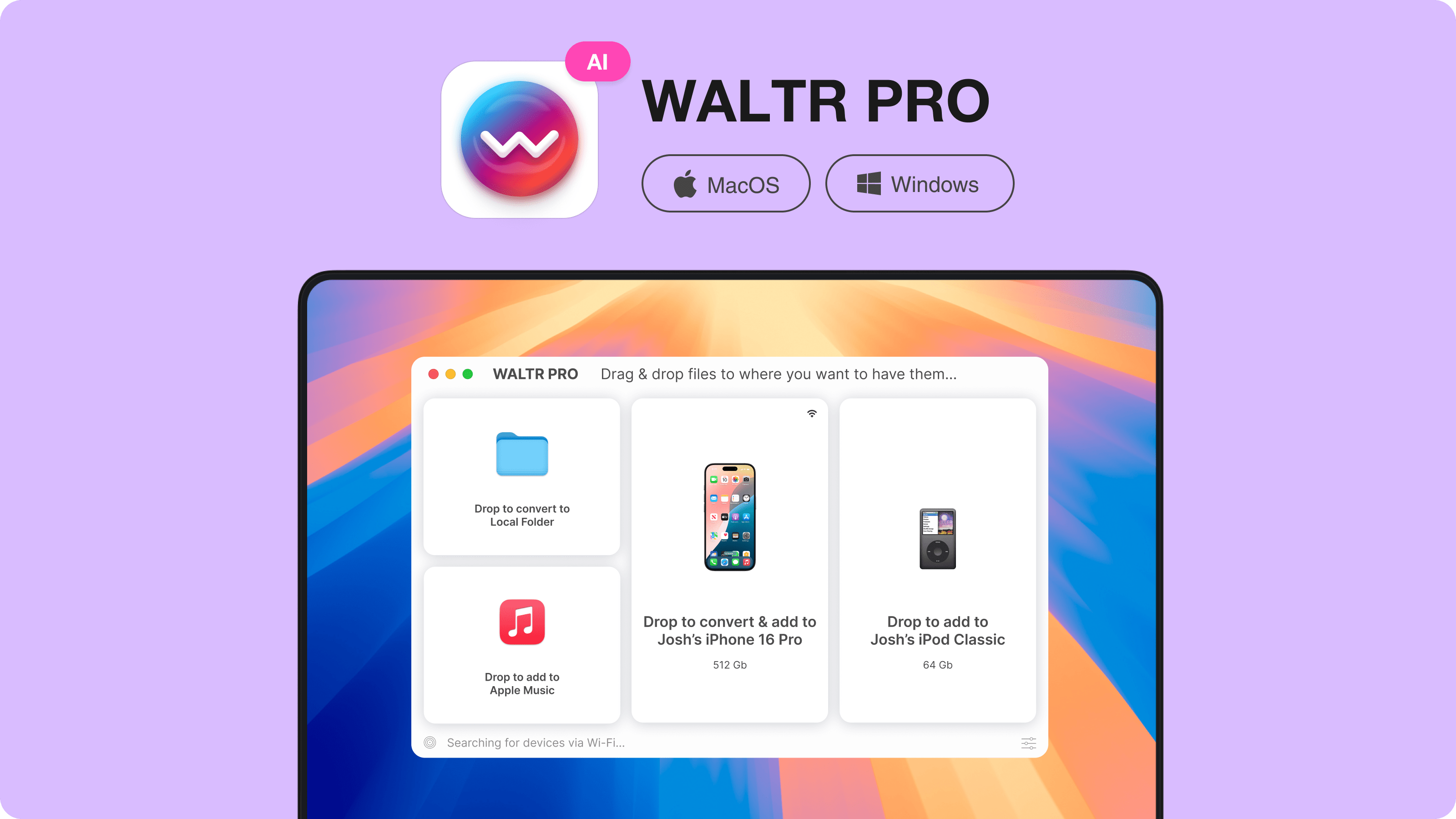
- Install WALTR PRO on Mac or Windows.
- Connect the iPhone or iPad by cable. Wi-Fi works after setup.
- Drop a supported file into WALTR PRO.
- Choose a compatible destination when the workflow offers one.
- Open the destination app on the iPhone or iPad.
The destination depends on the file type and installed apps. See how to move files from a computer to iPhone before transferring a large library.
WALTR PRO does not search, organize, or delete files already stored on the phone. Use Files, Safari, Photos, or the source app for that task.
Frequently Asked Questions About iPhone Downloads
Where is the Downloads folder on iPhone?
Open Files, tap Browse, then open iCloud Drive > Downloads. If it is empty, check On My iPhone or Safari's location under Settings > Apps > Safari > Downloads.
Why can't I see my downloads on iPhone?
Check Safari's download status and configured location, then search Files by filename or extension. Also check Photos and the source app.
Where does a downloaded PDF go on iPhone?
A Safari PDF appears in the configured Downloads folder. Save to Files uses the folder you select. A Mail attachment may remain in Mail until you save it.
Do downloaded photos go to Files or Photos?
A photo saved to the photo library appears in Photos. An image downloaded as a file or kept in a ZIP archive remains in Files.
How do I find Safari downloads on iPhone?
Tap Safari's Downloads button to see recent items and download status. For the full folder, open Files > Browse and check iCloud Drive > Downloads or the location selected in Safari settings.
Can I access the same downloads on iPhone and iPad?
Yes, when Safari saves to iCloud Drive and both devices use the same Apple Account with iCloud Drive active. Files stored under On My iPhone or On My iPad stay local to that device.
Check the Right Download Location First
Start with Files > Browse > iCloud Drive > Downloads. Next, check Safari's location, Photos, or the source app.

WALTR PRO
Convert & Push Any File into Any Apple Device
