How to Open EPUB on iPhone and iPad Without iTunes

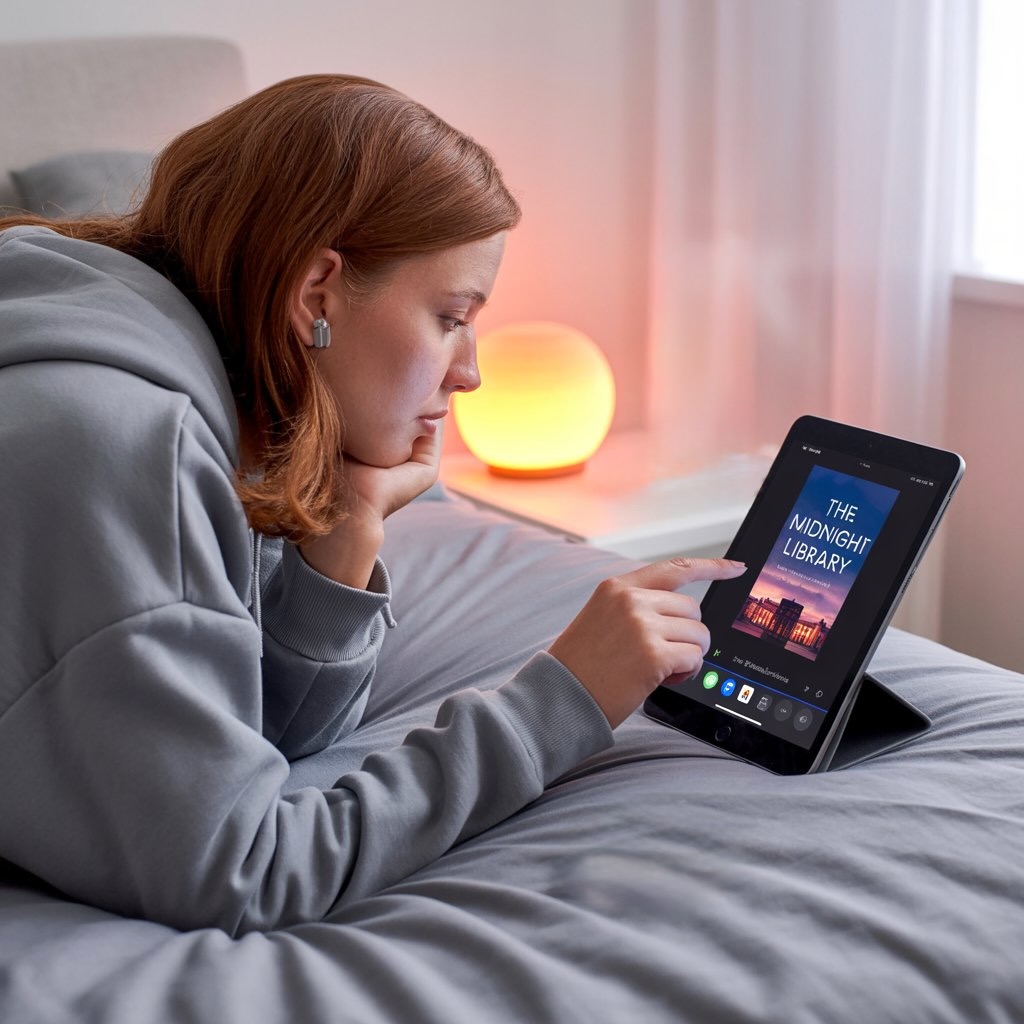
Quick Answer: How to Open EPUB on iPhone
The fastest way to open EPUB on iPhone is Apple Books. Save the EPUB in Files, Safari Downloads, Mail, Messages, or AirDrop, tap the file, then choose Books from the Share menu if it does not open there automatically.
Use the native path first when the EPUB is already on your iPhone or another Apple device: Apple Books, Files, Share, AirDrop, or email. You do not need iTunes, Finder, WALTR PRO, or a separate EPUB reader for a normal DRM-free EPUB that is already on the device.
If the EPUB is on your Mac or Windows PC, transfer it first. Use AirDrop from a Mac, email for one small book, Finder on Mac when you already sync a Books library, Apple Devices on Windows only for apps that support File Sharing, or WALTR PRO when you want the EPUB or PDF sent to Books without the Apple sync maze: https://softorino.com/waltr
TL;DR: Apple Books is the reader. Files and Share are the native handoff. AirDrop or email are fine for one EPUB. Finder and Apple Devices File Sharing are official but limited. WALTR PRO is the shortcut only when the EPUB or PDF is already sitting on Mac or Windows and direct Books delivery is easier.
Before we begin
Download WALTR PRO on Mac or Windows to send EPUB books you already have to an iPhone or iPad without iTunes. Connect the device, drag in the EPUB file, and open it from the Books app after transfer.
Quick takeaways for opening EPUB on iPhone
Apple says EPUB is an open ebook format readable in the Books app on iPhone, iPad, and Mac. For a saved EPUB, tap it on iPhone or iPad and use Books. Apple EPUB and Books support: https://support.apple.com/en-us/108362
Open EPUB from Files and the Share sheet
- Open Files on your iPhone or iPad.
- Go to Browse > Downloads, iCloud Drive, On My iPhone, or the folder where the EPUB was saved.
- Tap the EPUB file.
- If it previews instead of importing, tap Share.
- Choose Books from the app row, or tap More and then Books.
The book should appear in Apple Books. If you use iCloud for Books, it may sync to your other Apple devices after a short delay. Storage and iCloud space still matter for large ebook libraries.
Open EPUB from Safari Downloads
Safari usually saves downloaded EPUB files into the Downloads folder in Files. Tap the downloads icon in Safari, open the file, then use Share > Books if the EPUB does not jump into Books on its own.
This is the cleanest iPhone-only path. No computer. No cable. No iTunes maze. If the book came from a store with DRM, use that store’s app or account instead of trying to force it into Books.
Open EPUB from Mail or Messages
Open the message or email with the EPUB attachment. Tap the file, then choose Share > Books. If Books does not appear, swipe through the app row, tap More, and look for Books there. Email is fine for one small EPUB, not for moving a whole library.
Method 2: Move EPUB from a computer without iTunes
Start with Apple’s native transfer methods. AirDrop is best from a nearby Mac. Finder can sync books from a Mac library. Apple Devices on Windows can copy files only into iPhone or iPad apps that support File Sharing, so it is not the same as dropping an EPUB straight into Apple Books.
Apple’s Finder File Sharing guide says the Files tab only appears for apps that can share files. Apple’s Windows Apple Devices guide says shared files open in the app you chose and cannot be accessed from other apps or locations. File Sharing is app-specific storage, not a universal EPUB-to-Books shortcut. Finder File Sharing: https://support.apple.com/en-us/119585. Apple Devices File Sharing: https://support.apple.com/en-us/120402
When native transfer gets clunky, WALTR PRO is the computer-to-Books shortcut. Here is the WALTR PRO workflow in action:
Method | Best when | Destination | Limits |
|---|---|---|---|
Apple Books + Files/Share | EPUB is already on iPhone or iPad | Apple Books library | DRM/store-protected ebooks may need the original reader app |
AirDrop | Mac and iPhone are nearby | Books, Files, or selected app | Apple-only; not available from Windows |
Email or messenger | One small EPUB | Books, Files, or message app | Bad for large libraries and storage cleanup |
Finder on Mac | You already sync a Mac Books library | Synced Books content or app file area | Mac-only; heavier than one-file sharing |
Apple Devices File Sharing | Windows user needs app-specific file copy | The app selected in File Sharing | Only apps that support File Sharing; files are not available everywhere |
WALTR PRO | EPUB/PDF is on Mac or Windows and direct Books delivery is easier | Apple Books | Paid app/trial limits; transfers files but does not read or unlock DRM |
Use WALTR PRO for normal DRM-free EPUB and PDF transfers. Protected ebooks may still need the store, account, or reader app they came from. WALTR PRO is a transfer tool, not an EPUB reader or DRM remover.
Step 1: Install WALTR PRO on your computer
Download WALTR PRO on your Mac or Windows PC. The official WALTR PRO trial limitations currently say the trial starts when activated, lasts 24 hours, and includes a Books/PDF limit of 10 files: https://help.softorino.com/help/are-there-any-limitations-in-the-trial-version-of-waltr-pro
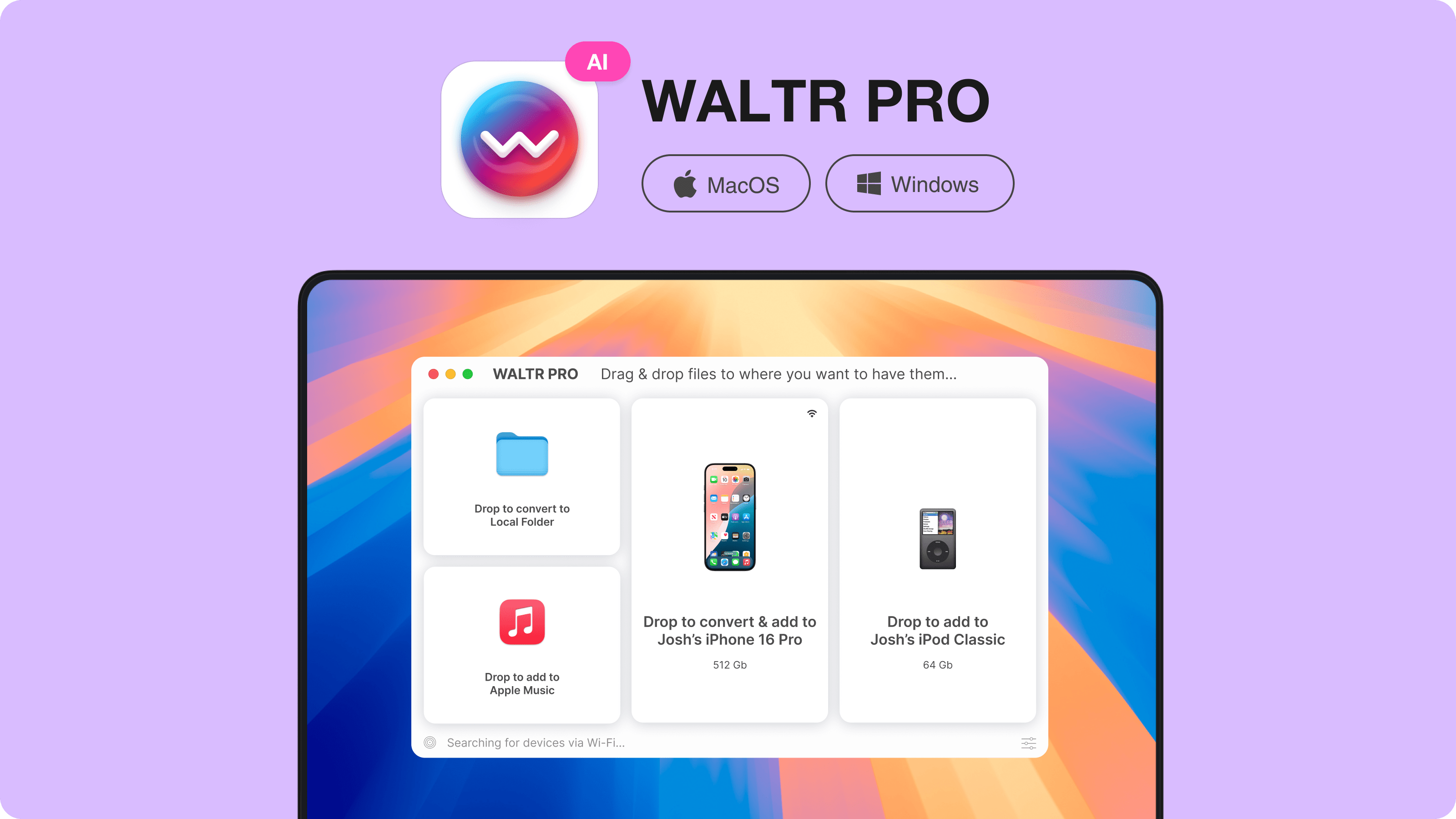
Step 2: Connect your iPhone or iPad
Open WALTR PRO. Connect your iPhone or iPad with USB, or use Wi-Fi transfer when both devices are on the same network. For large files or a first connection, USB is more reliable.
If the device does not appear, unlock the iPhone, trust the computer when iOS asks, and reconnect the cable. Wi-Fi transfer also depends on both devices seeing each other on the same network.
Step 3: Choose the Books destination if needed
For most EPUB files, WALTR PRO can send the file to the right place automatically. Softorino’s supported formats help lists EPUB and PDF as Books-app formats: https://help.softorino.com/help/waltr-pro-supported-formats-full-list
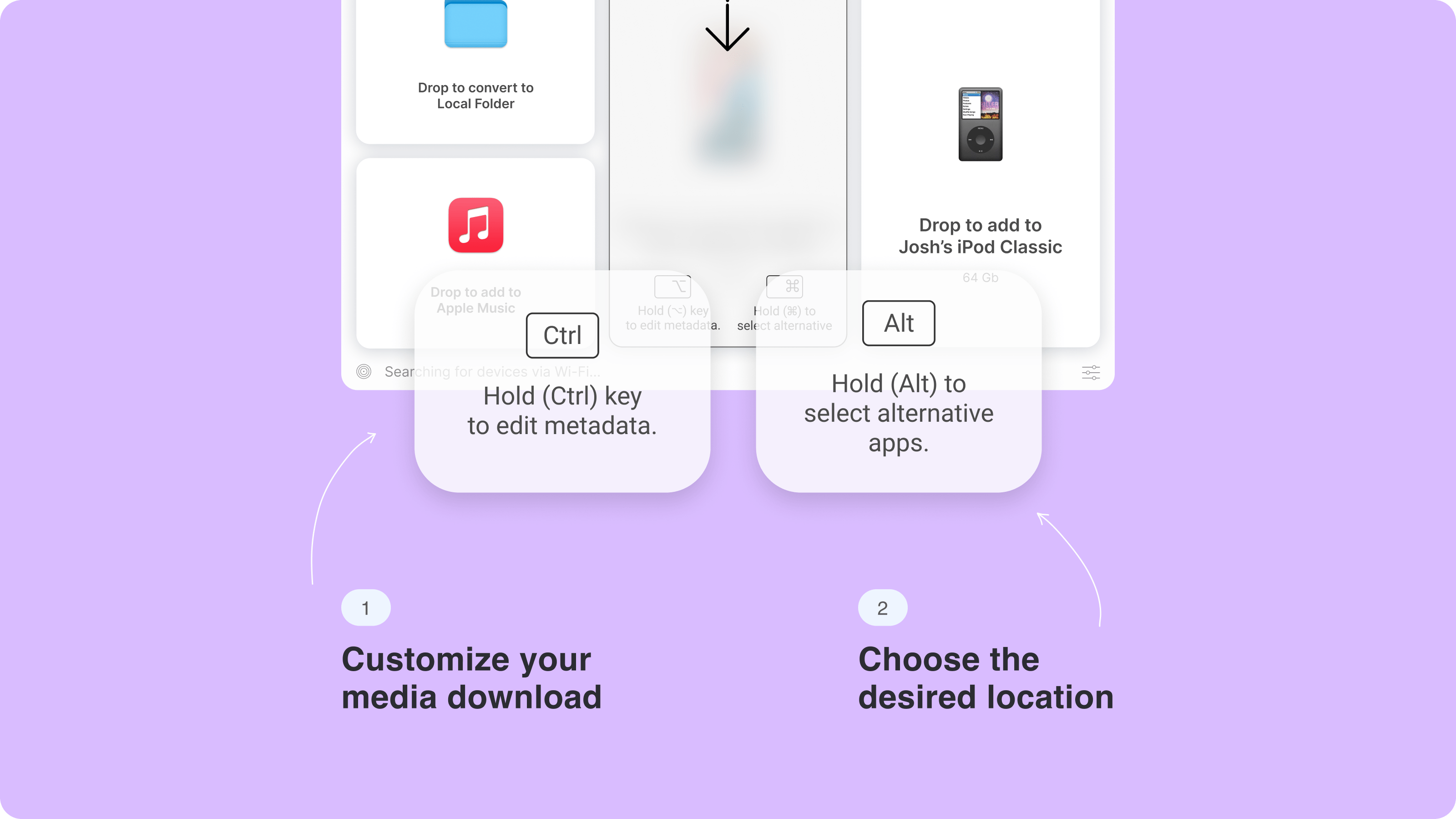
Step 4: Drop the EPUB into WALTR PRO
Drag the EPUB file into WALTR PRO. Wait for the transfer to finish.
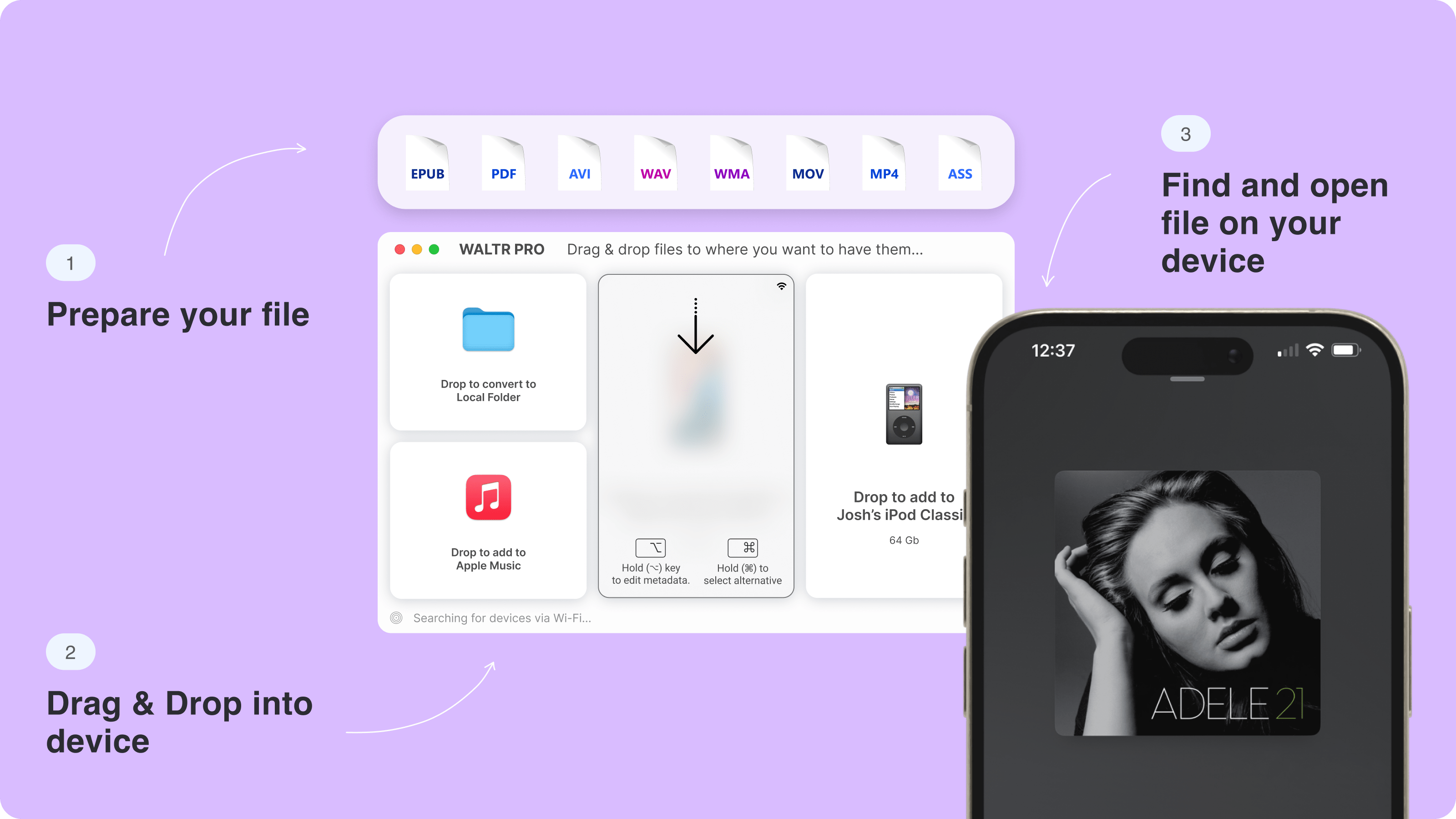
Step 5: Open the EPUB in Apple Books
Open Apple Books on your iPhone or iPad. Your transferred EPUB should appear in the library. Softorino’s file-destination help says EPUB, PDF, and M4B audiobooks appear in Books: https://help.softorino.com/help/where-to-find-transferred-files-with-waltr-pro
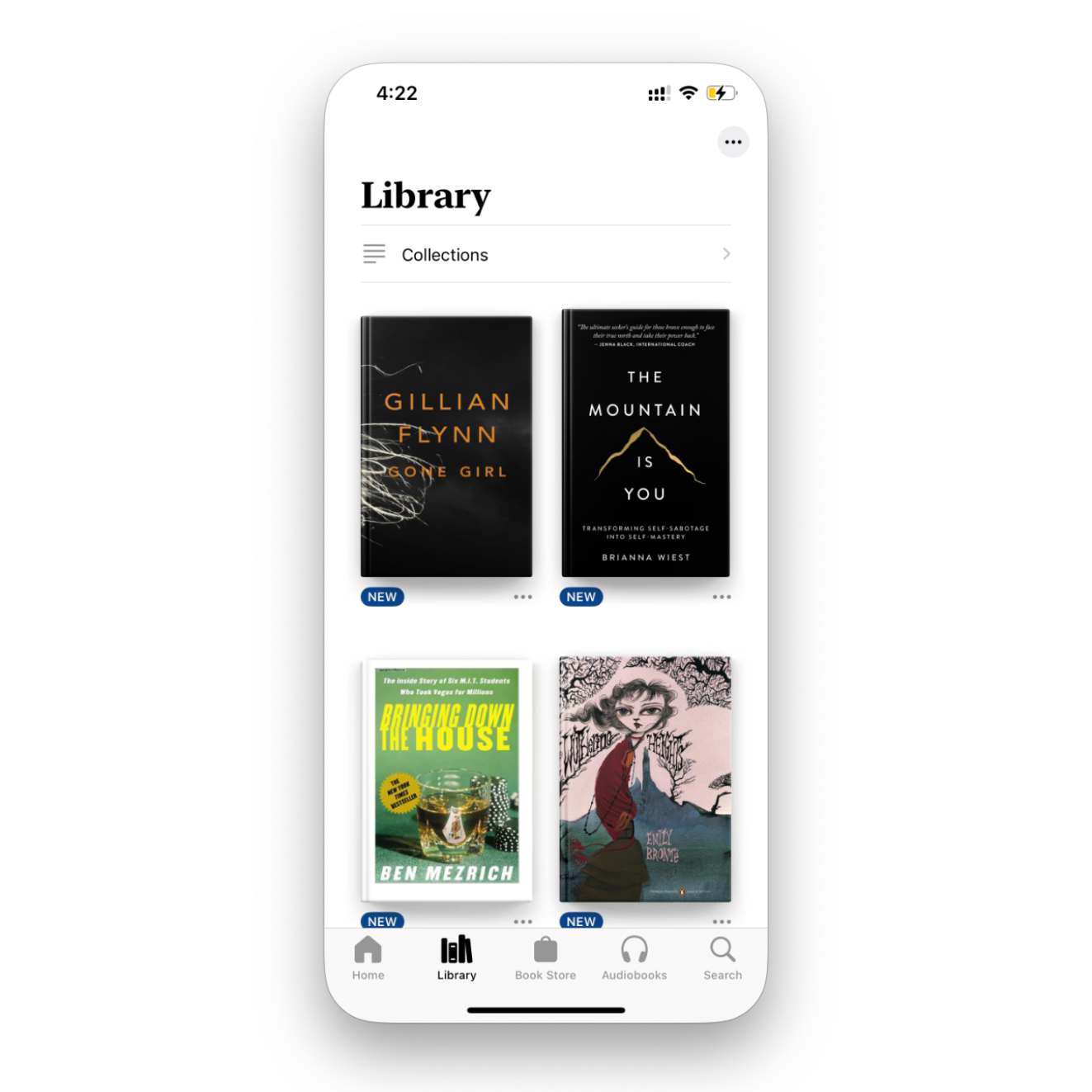
This is also why WALTR PRO fits other local iPhone file-transfer jobs. If you later need to download MP3 to iPhone or move media without iTunes, the workflow stays the same: drag, transfer, open in the native app.
Method 3: Send one EPUB with AirDrop or email
For one small EPUB, AirDrop, Mail, or a messenger can be enough. This is not the best system for a library, but it works when you need one book on your phone now.
AirDrop from Mac or another Apple device
- Right-click the EPUB on Mac.
- Choose Share > AirDrop.
- Pick your iPhone or iPad.
- Accept the file on your device.
- Open it in Books when iOS asks.
AirDrop is the cleanest one-off method if you live inside Apple's ecosystem.
Email or messenger apps
You can also send the EPUB to yourself through Mail, Telegram, Viber, or another messenger.
- Send the EPUB file to yourself.
- Open the message on your iPhone.
- Tap the EPUB attachment.
- Tap Share.
- Choose Books.
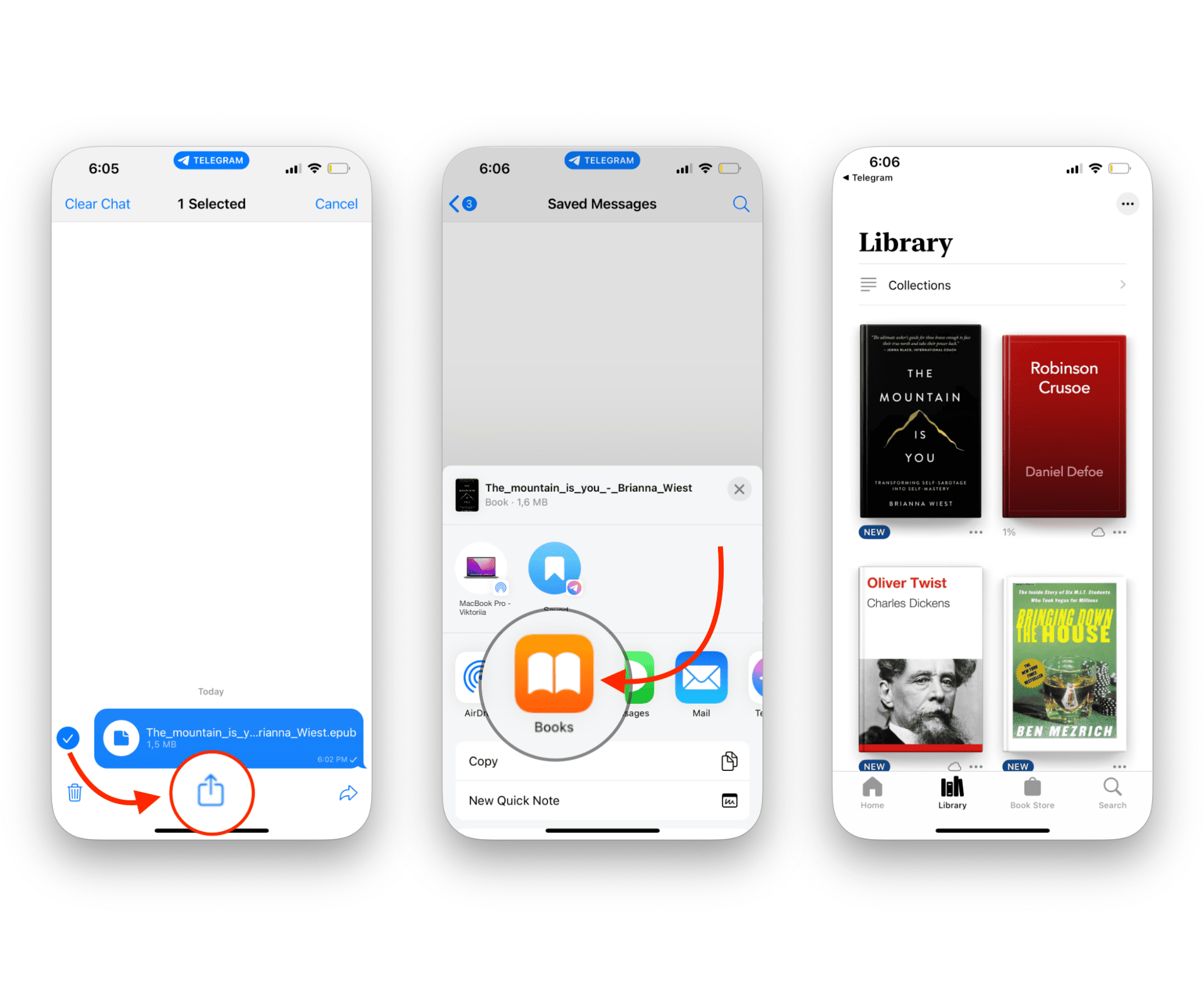
Use this for one file. For many EPUBs, use AirDrop, Finder, or WALTR PRO so you are not digging through chat history for books later.
Method 4: Sync EPUB from Mac with Finder
Finder is Apple’s official Mac path for syncing or sharing files with an iPhone or iPad. It works, but it feels heavier than it should for a single EPUB.
- Connect your iPhone or iPad to your Mac.
- Open Finder.
- Select your device in the sidebar.
- Open the Books tab.
- Turn on Sync books onto [device name].
- Choose All books or Selected books.
- Click Apply.
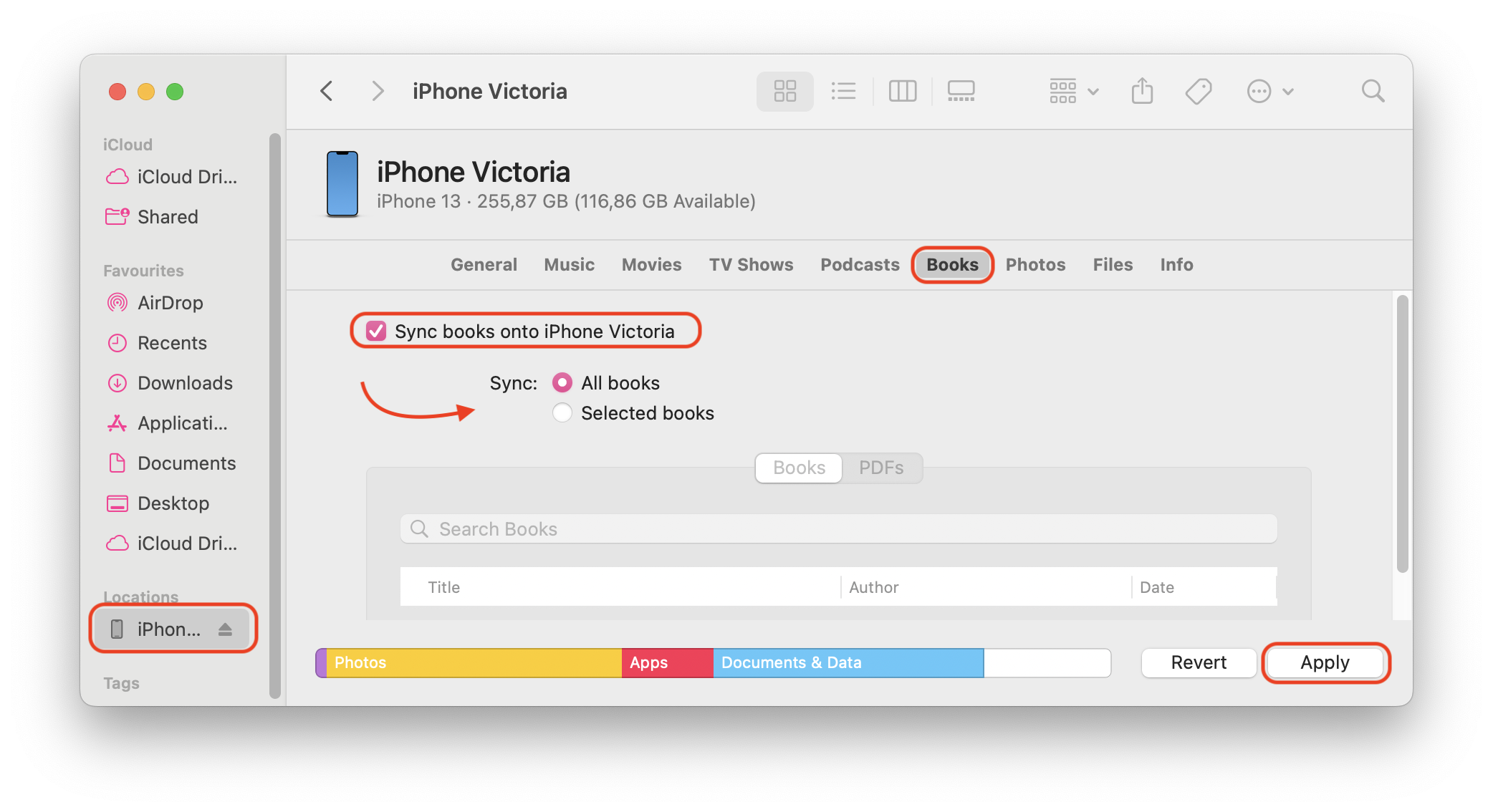
Finder makes sense if you already manage your library in Apple Books on Mac. For quick transfers, especially from Windows, it is more work than most readers want.
Finder sync is official. WALTR PRO is faster when you only want to move a DRM-free EPUB or PDF from Mac/Windows to Books without managing a sync library.
Apple Books vs EPUB reader apps
Apple Books is enough for most EPUB files on iPhone and iPad. It reads normal DRM-free EPUB and PDF files, remembers your place, lets you change the reading view, and keeps your library inside Apple’s ecosystem.
A third-party EPUB reader can still make sense if you want advanced library controls, custom themes, cloud storage integrations, or support for unusual formats. Store-protected books may also require the official app from that store.
File type | Can Apple Books read it? | WALTR PRO destination | Important limit |
|---|---|---|---|
EPUB | Yes, for normal DRM-free EPUB files | Books app | Fixed-layout EPUBs may behave differently from reflowable books |
Yes, for reading and library storage | Books app | Use Files instead when you need folders, uploads, or renaming | |
M4B audiobook | Yes, as audiobook content | Books app | Audiobooks must use .m4b to be recognized correctly |
Store-protected ebook | Usually no outside its store/account | Not a bypass | Use the original store or reader app |
ZIP/RAR containing EPUB | No, not until extracted | Not the final book format | Unzip first, then open the .epub file |
Use Apple Books first for normal DRM-free EPUB files already on iPhone.
Use Files and Share when the EPUB stays in Downloads or iCloud Drive.
Use AirDrop or email for one small book.
Use Finder or Apple Devices only when their File Sharing limits fit the app you are using.
Use WALTR PRO when EPUB/PDF files are already on Mac or Windows and direct Books delivery is easier.
Why your EPUB will not open on iPhone
If your EPUB will not open on iPhone, the problem is usually the file source, the Share menu, or DRM. Work through these checks before blaming the iPhone.
Books does not appear in the Share menu
Swipe to the end of the app row and tap More. If Books still does not appear, install or reinstall Apple Books from the App Store, then try again.
The EPUB stays in Files but not in Books
Open the EPUB from Files, tap Share, and choose Books. Tapping the file may preview it, but the Share menu is what imports it into the Books library.
The file is ZIP, RAR, or another archive
Unzip the file first. Apple Books needs the actual .epub file, not a compressed folder containing the book.
The EPUB is DRM-protected
DRM-protected EPUB files may only open in the app or account that authorized them. Do not use tools that promise to bypass DRM. Use the store's official app or download a DRM-free copy if the publisher provides one.
The book imported but does not show up
Check the Apple Books library filters. Look under Library, Collections, and PDFs if the file was not a true EPUB. If iCloud sync is involved, give it a moment and confirm you are signed in with the same Apple Account.
EPUB vs PDF: which format should you use on iPhone?
EPUB is usually better for reading books on iPhone because the text reflows. You can change font size, margins, and orientation without fighting a fixed page layout.
PDF is better when the layout must stay exact. Manuals, forms, scanned pages, and print-ready files often work better as PDFs. If you need PDF saving and storage steps, use the separate guide: https://softorino.com/blog/how-to-download-pdf-on-iphone
For novels, guides, and most ebooks, EPUB is the better iPhone reading format. For documents where the page must look the same everywhere, use PDF.
WALTR PRO can transfer EPUB and PDF files to iPhone or iPad. Apple Books can read both, but each format behaves differently once it lands there.
Final take for opening EPUB
If the file is already on your iPhone, open EPUB on iPhone with Apple Books through Files or the Share menu. That is the native answer, and it works for most DRM-free books.
If the EPUB is on your Mac or Windows PC, use AirDrop, Finder, Apple Devices File Sharing when it fits, or WALTR PRO to transfer it into Apple Books without iTunes sync. WALTR is useful for transfer, not reading.
EPUB FAQ questions and answers
Can Apple Books open EPUB files on iPhone?
Yes. Apple Books can open normal DRM-free EPUB files on iPhone and iPad. Save the EPUB to Files, tap the file, then use Share > Books if it does not import automatically.
How do I open an EPUB from the Files app?
Open Files, find the EPUB, tap it, then use Share > Books if it does not import automatically. The book should appear in your Apple Books library. If it stays in Files, try the Share sheet again.
How do I open an EPUB from Safari Downloads?
Tap the Safari downloads icon, open the EPUB, then choose Share > Books. Safari usually stores downloads in the Downloads folder inside Files, so check Files > Browse > Downloads if you cannot find it.
Can WALTR PRO transfer EPUB to Apple Books?
Yes. WALTR PRO can transfer normal DRM-free EPUB files from Mac or Windows to iPhone or iPad, and the file appears in Apple Books. WALTR PRO transfers the ebook; Apple Books is still the reader.
Why will my EPUB not open on iPhone?
The EPUB may still be in Files, hidden by a Books library filter, compressed as ZIP/RAR, fixed-layout in a way that behaves oddly, or protected by DRM. Unzip archives first, use Share > Books, and use the original store app for protected ebooks.

WALTR PRO
Convert & Push Any File into Any Apple Device
