How to Play MKV on iPhone: 3 Working Methods (2026)

Wondering how to play MKV on iPhone? Quick answer: iPhone does not natively open MKV the way it handles MP4, MOV, or M4V. Use VLC or Infuse if you want free direct playback inside a player app.
Use WALTR PRO when the MKV or AVI is on Mac or Windows and you want it transferred and converted into the native Apple TV or Videos flow without iTunes or manual conversion: https://softorino.com/waltr
Before we begin
Download WALTR PRO on Mac or Windows to send an MKV file to an iPhone without manually converting it first. Connect the iPhone, drag in the video, and let the transfer prepare it for playback on the device.
Can iPhone Play MKV Files Natively?
Native Apple honesty: Apple does not promise MKV as a normal iPhone video-library format. Apple says older or specialized media formats may require different software, and its support page explicitly suggests searching by extensions such as AVI, WMV, or MKV when a file will not open. That is why MKV usually needs a player app or a conversion-and-transfer path. Apple media-format troubleshooting: https://support.apple.com/en-us/102644
TL;DR: For free direct playback, install VLC for iOS and keep the MKV inside VLC or a location VLC can open. For a native Apple TV/Videos-library result, use WALTR PRO from Mac or Windows; it automatically converts non-native video formats like MKV or AVI during transfer. Manual conversion also works, but it creates another MP4/M4V copy and takes extra time and storage.
Quick takeaways: MKV on iPhone without format errors
The practical choice is simple: MP4, M4V, and MOV are the safer native Apple paths. MKV and AVI are common computer video containers, but on iPhone they usually need either a player app, WALTR PRO automatic conversion/transfer, or a manual converter.
- MKV: flexible container for subtitles, chapters, and multiple tracks, but not a normal native iPhone library format.
- AVI: older computer video container; usually needs a player app or conversion before Apple-native playback.
- MP4/M4V/MOV: safer choices for Apple playback and sharing.
- Subtitles/audio tracks: keep them in a player app if you need maximum track control; conversion may flatten or change some tracks depending on the source file.
- DRM/protected video: outside this local-file workflow. Use the store or app that owns the protected file.
This is the same reason other video formats can fail on iPhone. If you also have Windows Media files, Softorino has a separate guide on how to play WMV on iPhone.
MKV vs MP4 vs M4V: Quick Comparison
Format or path | Native iPhone result | Best use | Main limitation |
|---|---|---|---|
MKV | No normal native-library playback | Movies with subtitles, chapters, or multiple audio tracks | Needs VLC/Infuse, WALTR PRO automatic conversion, or manual conversion |
AVI | No normal native-library playback | Older computer videos | Often needs conversion or a player app |
MP4 / M4V / MOV | Yes, when codec is compatible | Apple TV/Videos, sharing, camera-style files | Still depends on codec, audio, and file health |
VLC / Infuse player app | Third-party app playback | Free or polished direct viewing without making a new MP4 first | File stays in that app; subtitles/codecs depend on player support |
WALTR PRO | Apple TV/Videos destination after transfer | MKV/AVI on Mac or Windows, no iTunes, no manual converter step | Paid app; trial and file-size/storage limits matter |
Native limitation: MKV is a container, not a codec. One MKV may contain easy H.264 video. Another may include audio, subtitles, or DRM that prevents a clean Apple-native result. If the file is protected, corrupted, or larger than your free iPhone storage, no transfer app can magically fix that.
How to Play MKV on iPhone with WALTR PRO
Use WALTR PRO when you want the MKV to behave like a normal iPhone video after transfer. It runs on Mac and Windows, accepts local MKV and AVI files, and handles the iPhone-compatible conversion-and-transfer path without iTunes or a separate manual converter: https://softorino.com/waltr
Why WALTR PRO Is the Clean Native-App Option
VLC is great if you are fine watching inside VLC. WALTR PRO is better when you want the video in Apple’s native TV or Videos flow and do not want to explain where a file lives inside a third-party player. Softorino’s file-location help says transferred MKV videos appear in Videos or TV under Library → Downloaded: https://help.softorino.com/help/where-to-find-transferred-files-with-waltr-pro
With WALTR PRO, you drag the MKV into the app, pick the device, and let the app handle transfer plus conversion when needed. Softorino’s supported formats help lists MKV and AVI as video formats that are converted automatically for iOS-compatible playback: https://help.softorino.com/help/waltr-pro-supported-formats-full-list. No iTunes library. No Finder sync maze. No separate iPhone player app just for one movie.
Steps to Play MKV on iPhone with WALTR PRO
Step 1: Install WALTR PRO on Mac or Windows
Download WALTR PRO from https://softorino.com/waltr, install it on your Mac or Windows PC, then open the app.
WALTR PRO is the right fit when the MKV or AVI is already on your computer and you want to put it on iPhone or iPad without converting it manually. If the video is already on the iPhone and you only need to watch it once, VLC is the cheaper path.
Connect your iPhone or iPad by USB cable for the first transfer. Wi-Fi can work after setup, but USB is the safer choice for large MKV files because movie transfers can be slow and unstable over weak Wi-Fi.
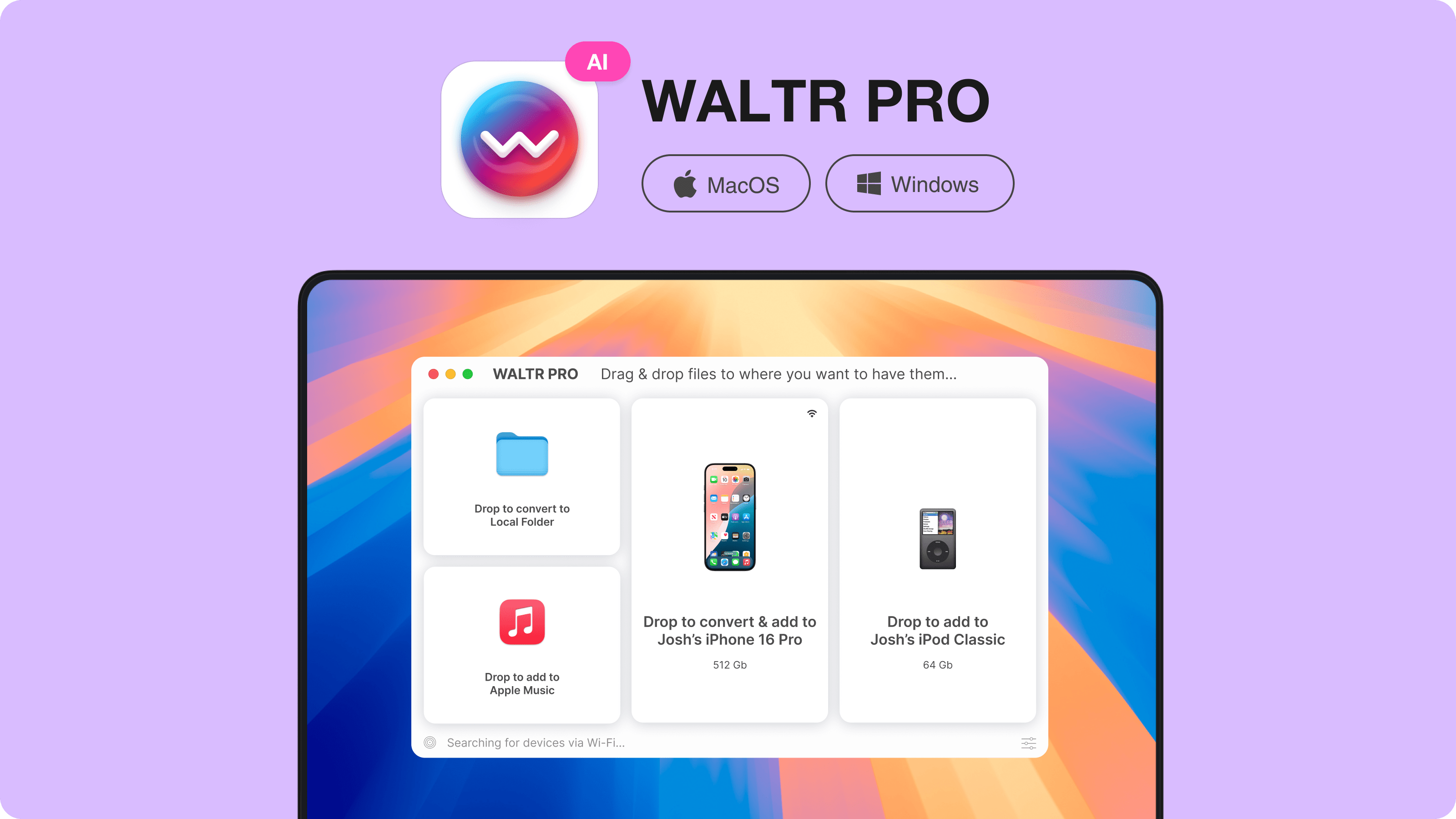
Step 2: Drag the MKV into WALTR PRO
Find the MKV or AVI file on your computer and drop it into the WALTR PRO window. The app checks the file and prepares an iPhone-compatible version during transfer, so you do not have to open HandBrake or export a separate MP4 first.
Source file is DRM-free and not corrupted.
iPhone has enough free storage for the converted video.
Use USB for large movies; use Wi-Fi only when speed and stability are good.
Keep subtitle needs in mind: a player app may be better if you need advanced subtitle or audio-track control.
Trial users should check WALTR PRO trial limits before planning a batch transfer.
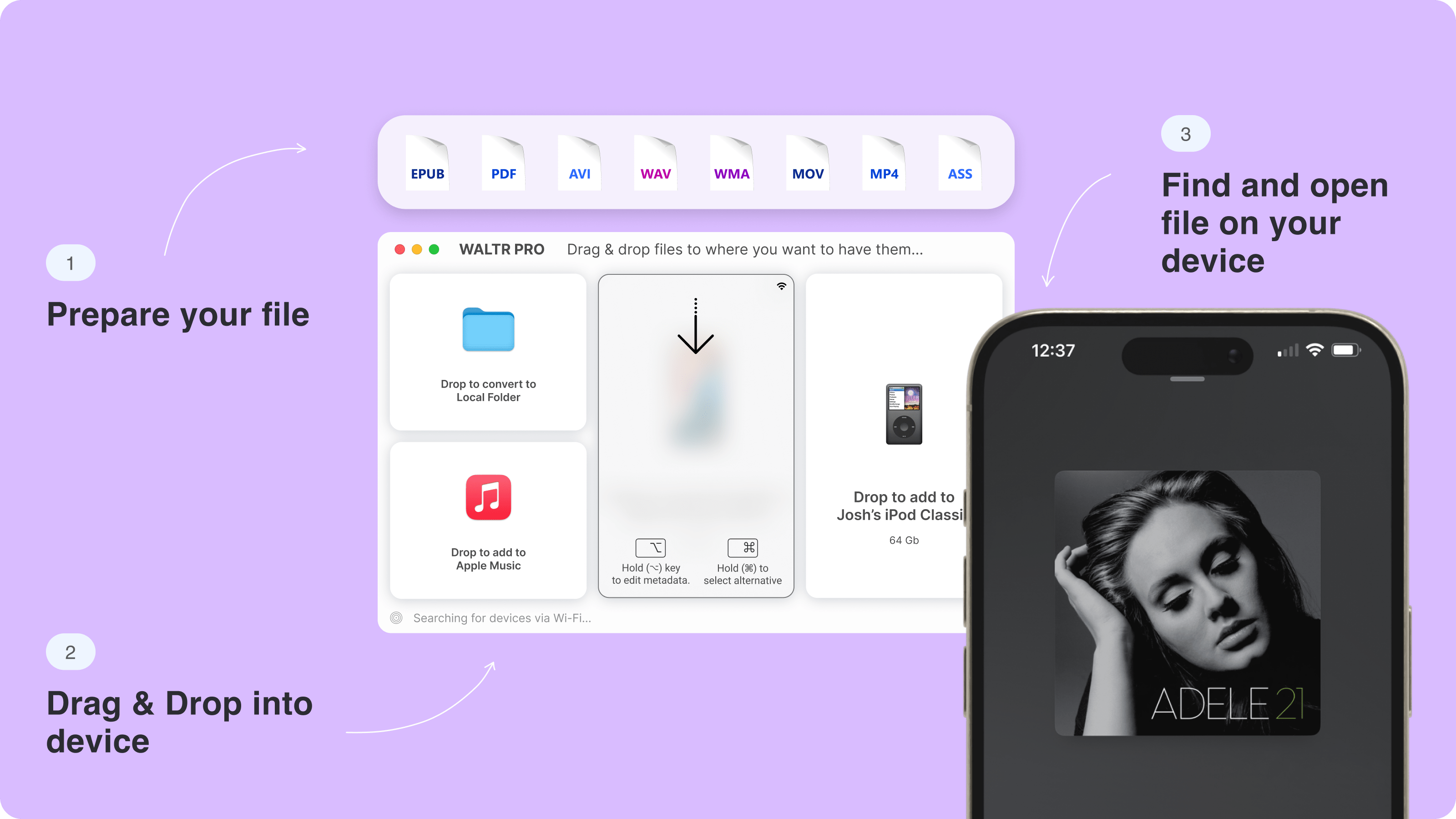
Large movie files can take longer than short clips. When the transfer finishes, open Apple TV/Videos and check Library → Downloaded. If storage is tight, free space first instead of retrying the same transfer five times.
Optional: Adjust Metadata or Destination
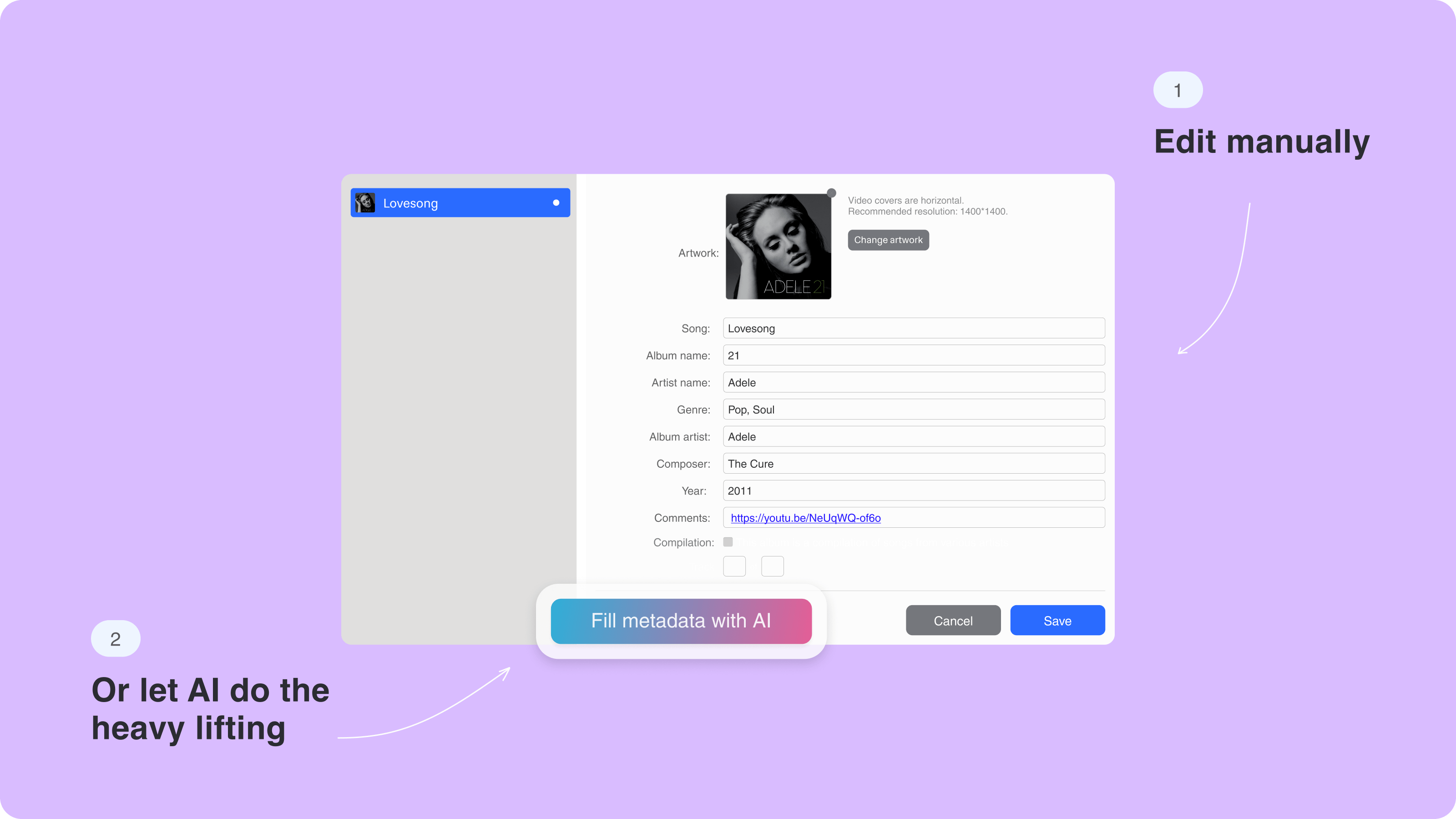
If you want cleaner library details, use WALTR PRO metadata controls before transfer. You can edit names, choose a destination, or keep the default route if you only care about watching the file. WALTR PRO trial limitations currently list a 24-hour trial and a Movies limit of 1 file: https://help.softorino.com/help/are-there-any-limitations-in-the-trial-version-of-waltr-pro
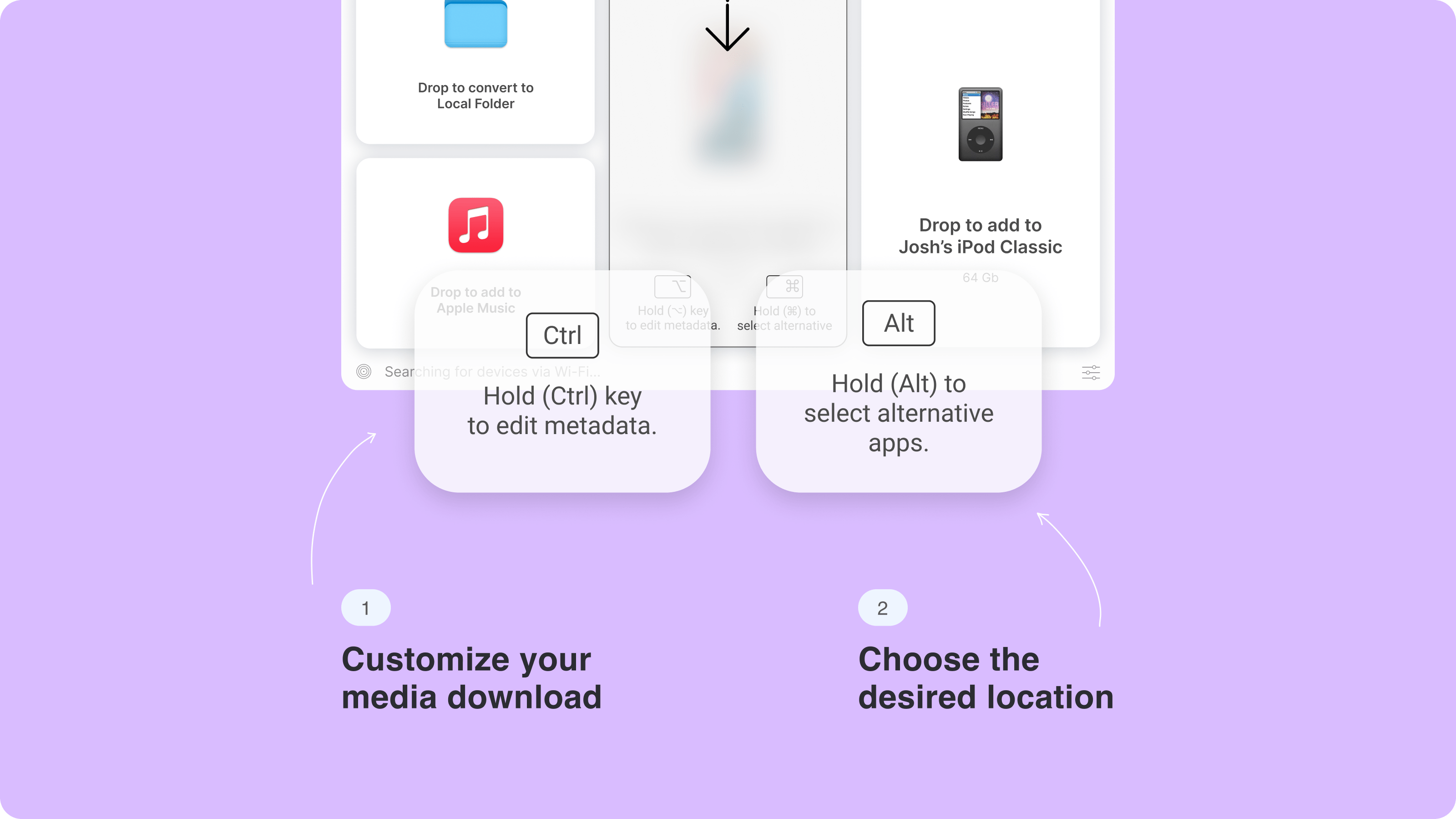
This is where WALTR PRO beats manual converters. A regular converter only creates an MP4 or M4V; you still have to move that file to the iPhone. WALTR PRO combines conversion and transfer, then sends supported video to the Apple TV/Videos destination. It still does not remove DRM, repair broken files, or create extra iPhone storage.
How to Play MKV on iPhone with VLC
Use VLC if you want the free answer and you are fine watching inside a third-party app. VLC for iOS can play MKV and many other formats, and it can be better than conversion when you care about subtitles, multiple audio tracks, or quick one-off playback.
Steps to Play MKV on iPhone Using VLC
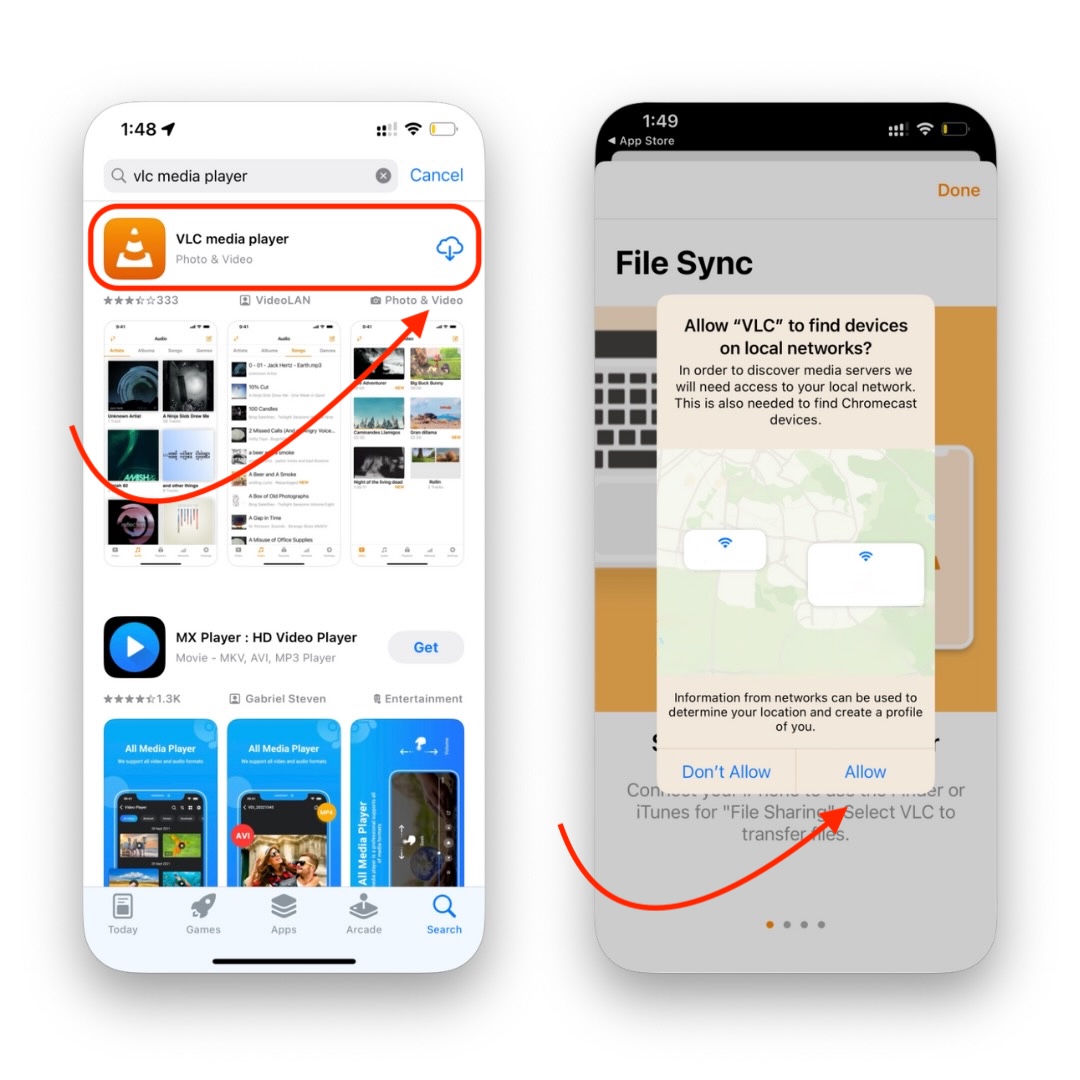
Step 1: Install VLC for iOS
Install VLC from the App Store. It is the most common free MKV player for iPhone, and it is a good choice for occasional playback.
Step 2: Move the MKV File into VLC
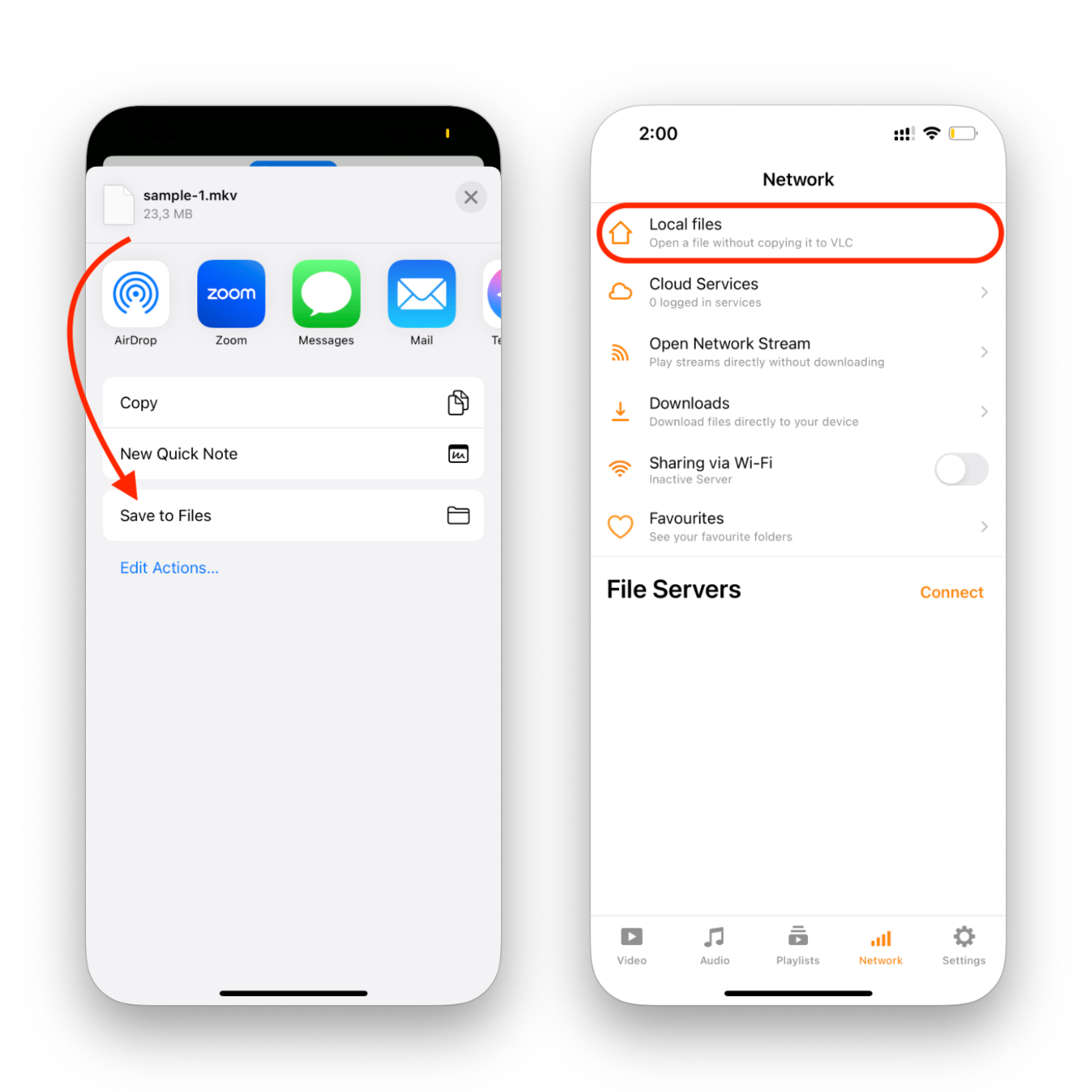
VLC cannot play a file it cannot access. Move the MKV into VLC or into a location VLC can open, such as Files, iCloud Drive, Dropbox, Google Drive, OneDrive, or a local network share. The video will remain part of that player-app workflow, not your native Apple TV library.
- Open the Files app, cloud drive, AirDrop share sheet, or VLC Wi-Fi upload page
- Choose the MKV file you want to watch
- Use Open In or Share and select VLC
- Wait for the file to copy into VLC before disconnecting Wi-Fi or closing the app
Step 3: Open the MKV in VLC
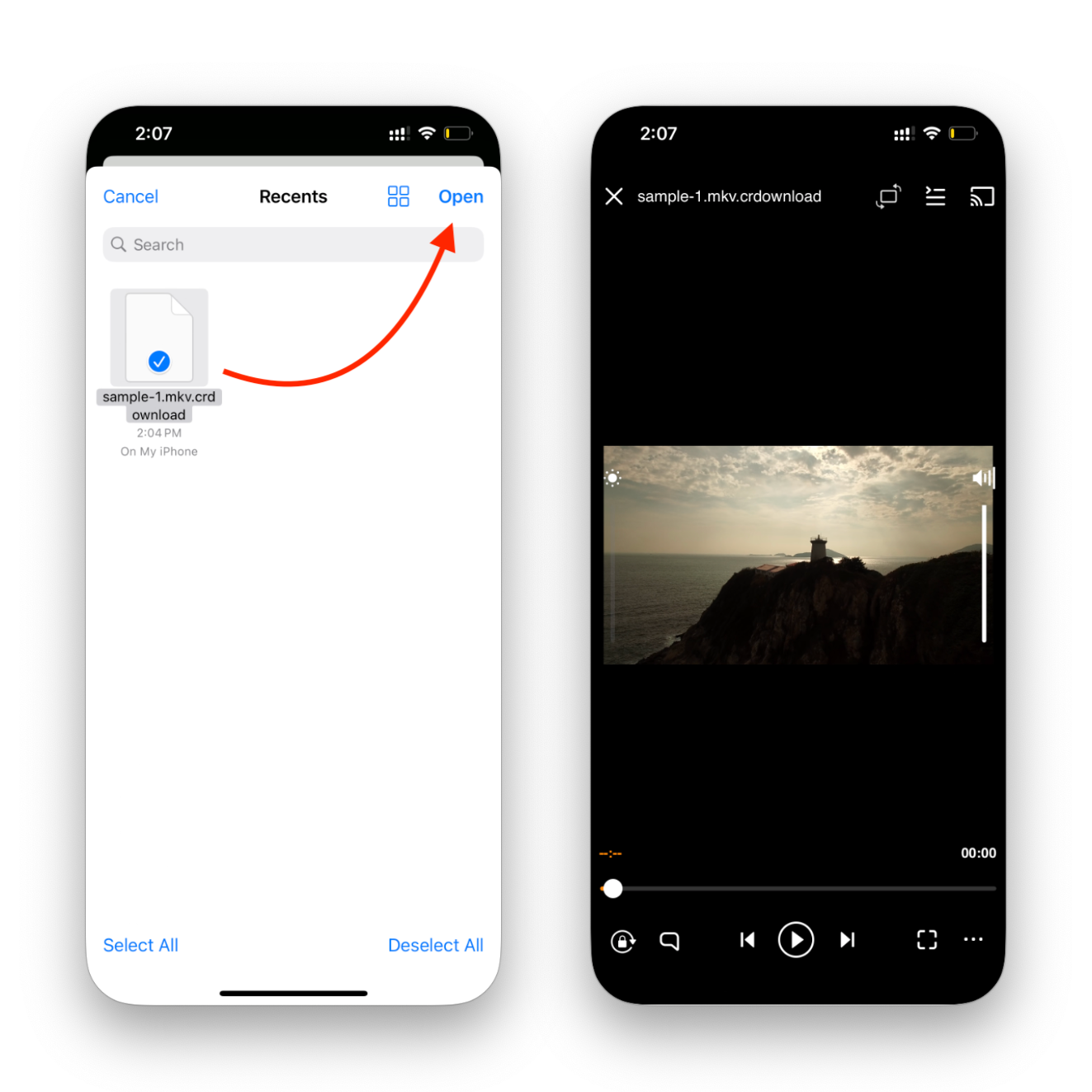
Open VLC, find the video, and tap it. If the file uses subtitles or multiple audio tracks, check VLC's playback controls for track choices.
Tip: Transfer MKV to VLC Over Wi-Fi
- Connect your computer and iPhone to the same Wi-Fi network
- Open the Network tab in VLC on iPhone
- Turn on Sharing via WiFi
- Enter the VLC upload URL in your computer browser
- Upload the MKV file from your computer
- Open the Video tab in VLC after the transfer finishes
Other MKV Player Apps for iPhone and iPad
VLC is not the only iPhone MKV player. Infuse is a fair option if you want a polished media library and broader home-server style playback. Check the current App Store details for each player before relying on subtitles, network streaming, Dolby audio, or offline behavior.
Do not pick a player only because it says MKV. Check the latest App Store listing, privacy notes, subtitle support, and whether the app still receives updates.
Free and Freemium MKV Player Options
- VLC for iOS: best free starting point for direct MKV playback
- Infuse: polished library experience with strong format support
- PlayerXtreme: broad file-format support and network playback features
- KMPlayer: general media player with MKV support
- Outplayer: lightweight video player option for local files
Paid MKV Player Options
- nPlayer: paid player with advanced playback and network features
- AVPlayer-style apps: check current App Store pricing and update history before buying
Convert MKV to an iPhone-Compatible Format
Manual conversion works, but it is not the easiest path. You convert the MKV to MP4 or M4V, then move that converted file to the iPhone with Finder, iTunes on Windows, cloud storage, AirDrop, or another transfer app. This is best when you want a standard MP4 copy for many devices and do not mind the extra time and storage.
- Convert the MKV to MP4 or M4V with a trusted desktop converter.
- Check subtitles, audio tracks, and video quality before deleting the original MKV.
- Make sure the converted file plus the original do not fill your Mac, PC, or iPhone storage.
- Move the converted file to iPhone through Finder, iTunes on Windows, cloud storage, AirDrop, or WALTR PRO.
- If the source video is DRM-protected, use the original store/app instead of trying to bypass protection.
Avoid online converters for private or large movie files. They can be slow, they add an upload step, and you may be sending personal media to a site you do not control.
How to Choose the Best Way to Play MKV on iPhone
If you want to know how to play MKV on iPhone with the least friction, start with the outcome you want. Native Apple TV/Videos playback points to WALTR PRO. Free in-app playback points to VLC. A reusable MP4 copy points to manual conversion.
WALTR PRO is best for Mac and Windows users who hate iTunes and want MKV or AVI transferred cleanly to iPhone or iPad. VLC is best for quick free playback when you do not care whether the movie lives inside VLC. Infuse is worth considering when you want a richer player library. Manual conversion is best when you want a standard MP4 file for many devices.
If you use several Softorino apps, the Universal License can make more sense than buying one app at a time.
Scenario | Best choice | Why | Trade-off |
|---|---|---|---|
You want the video in Apple TV/Videos | WALTR PRO | It converts/transfers MKV or AVI from Mac/Windows without iTunes or a separate converter step | Paid app; trial and storage limits apply |
You want free direct playback | VLC for iOS | It plays MKV inside a player app and can handle many subtitle/audio-track cases | Video stays in VLC or a VLC-accessible location |
You want a polished player library | Infuse or another player | Better library/network features than basic playback for some users | Freemium/paid features vary by app |
You want a universal MP4 copy | Manual conversion | Creates a standard file you can use across devices | Extra time, extra storage, separate transfer step |
The file is DRM-protected | Original store/app | Protected files usually require the app/account that owns the license | WALTR/VLC/manual conversion should not be treated as DRM bypass tools |
FAQ
Can iPhone play MKV files natively?
No, not as a normal Apple video-library format. iPhone handles Apple-friendly formats like compatible MP4, MOV, and M4V more reliably. For MKV, use a player app such as VLC/Infuse or use WALTR PRO to convert and transfer the file from Mac or Windows into the Apple TV/Videos flow.
Can I put MKV or AVI on iPhone without converting manually?
Yes. WALTR PRO is the cleaner option when the MKV or AVI is on Mac or Windows: drag the file in, connect the iPhone, and let WALTR handle conversion and transfer. VLC is the free option if you only need to copy the file into a player app and watch it there.
Where does WALTR PRO put transferred MKV videos?
Softorino’s file-location help says transferred video files such as MKV appear in Videos / TV under Library → Downloaded. PDFs, EPUBs, and audiobooks go to Books; music goes to Music. If a transfer finishes but you cannot find it, check the destination selected in WALTR PRO and your iPhone storage.
Does VLC play MKV on iPhone?
Yes. VLC for iOS can play MKV files and supports features such as subtitles, multiple audio tracks, Wi-Fi upload, cloud storage, and network file access. The trade-off is that the video lives in VLC or a VLC-accessible location, not as a normal Apple TV/Videos library item.
Is WALTR PRO better than VLC or Infuse for MKV files?
WALTR PRO is better if the file is on Mac or Windows and your goal is Apple TV/Videos playback without iTunes or manual conversion. VLC is better for free one-off playback inside a player app. Infuse can be better for users who want a richer player library or network streaming features.

WALTR PRO
Convert & Push Any File into Any Apple Device
