How to Transfer Data from iPhone to iPhone the Safe Way

Quick answer: use Quick Start if your new iPhone is still on the Hello screen and both iPhones are nearby. It is Apple's safest default for a full iPhone-to-iPhone migration.
If the new iPhone is already set up, do not erase it yet. First decide whether you need a full restore, selected files, synced iCloud data, or a local backup. Those are different jobs.
Use iCloud Backup when you already have a backup and stable Wi-Fi. Use a wired Quick Start transfer when wireless setup keeps failing. Use Finder, Apple Devices, or iTunes when you want an encrypted local backup. Use AirDrop only for a few items. Use AltTunes on Windows when you want a local iPhone backup, exports to your PC, or backup browsing before you risk wiping anything.
How to transfer iPhone to iPhone: choose the right method first
Method | Best for | Needs reset? | Needs computer? | Main catch |
|---|---|---|---|---|
Quick Start | Full iPhone migration before setup | New iPhone must be in setup | No | Both phones stay busy until the transfer finishes |
iCloud Backup | Restoring from a cloud backup | Yes, if the new iPhone is already set up | No | You may need enough iCloud storage or temporary iCloud storage |
Wired transfer | Full migration when Wi-Fi is weak | New iPhone must be in setup | No | Cable and adapter depend on iPhone models |
Finder / Apple Devices / iTunes | Local encrypted backup and restore | Yes, if the new iPhone is already set up | Yes | Turn on encryption before backing up |
AirDrop | A few photos, contacts, or files | No | No | Not a full-device transfer method |
AltTunes | Windows local backup, exports, and backup browsing | No for backup/export; restore behavior depends on what you restore | Yes | Useful for control, not a magic merge of 2 phone histories |
Quick takeaways before you move anything
Use Quick Start first if the new iPhone is not set up yet.
Back up the old iPhone before any erase or restore step.
Turn on encrypted local backup before making a computer backup if Health, Activity, saved passwords, Wi-Fi settings, website history, or call history matter.
Treat iCloud restore and computer restore as replacement-style restore flows after setup, not as a guaranteed merge.
Keep the old iPhone until messages, photos, apps, passwords, eSIM, authenticator apps, and Apple Watch pairing are working on the new iPhone.
Before we begin
Before moving to the new iPhone, Windows users should download AltTunes to create a local backup, browse backup data, and export important iPhone data to a PC. AltTunes is not a substitute for Apple's full-device setup flow. It is the safer side tool when you want local control before you erase or restore anything.
1. How to transfer from old iPhone to new iPhone with AirDrop
AirDrop is useful when you only need a small transfer. Think photos from one trip, a contact card, a PDF, a video, or a handful of files. Do not use AirDrop to transfer everything from one iPhone to another. It is manual, easy to interrupt, and not built for full migration.
Use AirDrop when your new iPhone is already set up and you only forgot a few items.
How to transfer iPhone data with AirDrop
- Bring both iPhones close. Make sure Wi-Fi and Bluetooth are on.
- Open Control Center on both iPhones. Set AirDrop to Everyone for 10 Minutes if the devices do not see each other.
- On the old iPhone, select the photos, files, contacts, or videos you want to send.
- Tap Share, choose AirDrop, then select the new iPhone.
- On the new iPhone, tap Accept.
- Repeat for each batch of data.
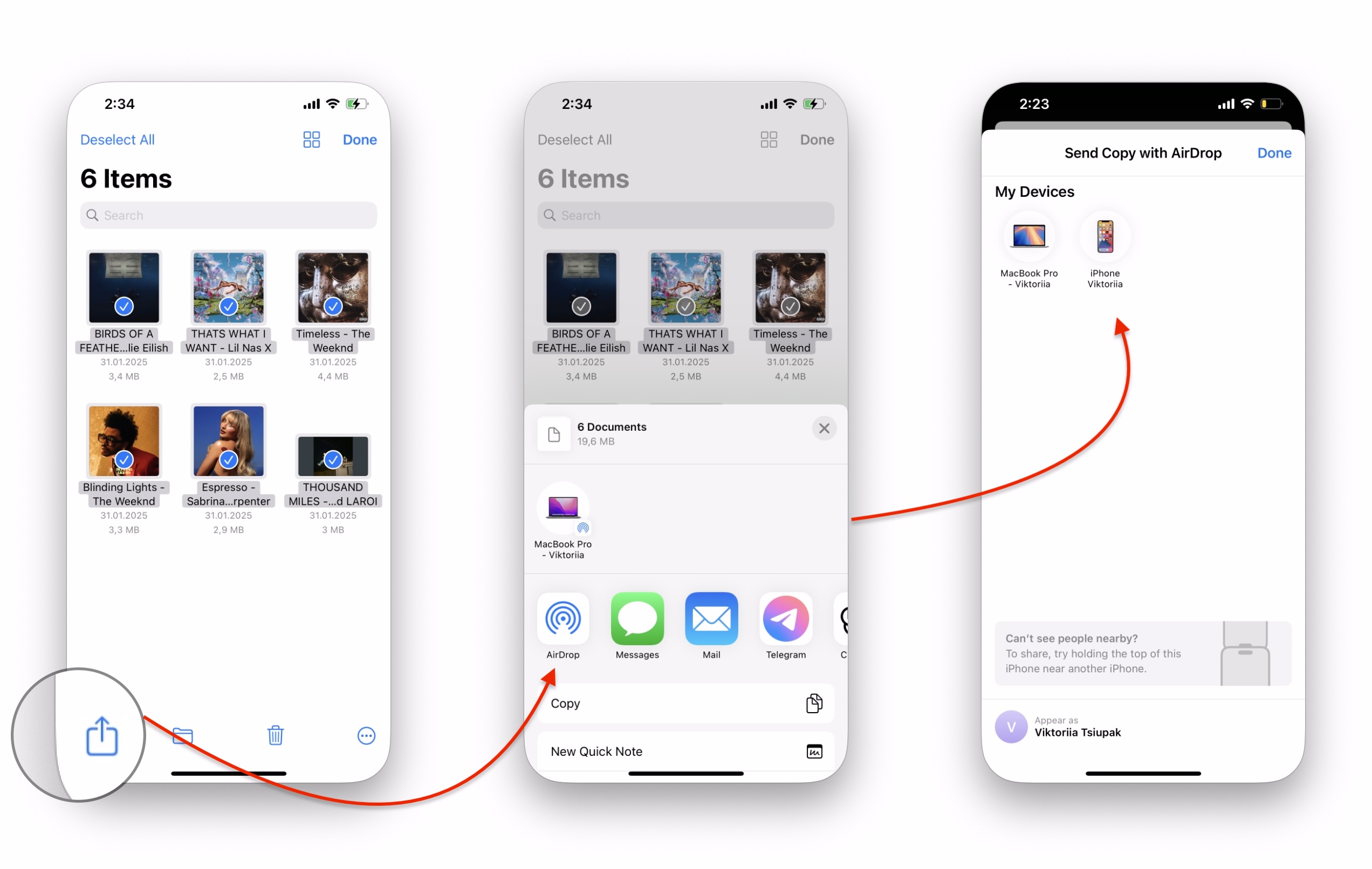
Important: AirDrop works well for small transfers. It is the wrong tool for a full iPhone-to-iPhone migration.
2. How to transfer iPhone to iPhone with Quick Start
Quick Start is the best default method if your new iPhone is not set up yet. Apple built it for this exact job, and Apple's Quick Start guide is still the source to check if the setup screen looks different on your iPhone. Quick Start can transfer data directly from the old iPhone or help you download data from iCloud during setup.
Use Quick Start when both iPhones are nearby, the old iPhone works, and you want the new iPhone to feel like the old one. Quick Start can bring over apps, settings, messages, photos, Apple Account settings, Wi-Fi passwords, and more, depending on your setup and account state.
How to use Quick Start
- Turn on your new iPhone and place it next to your old iPhone.
- Make sure the old iPhone has Wi-Fi and Bluetooth on.
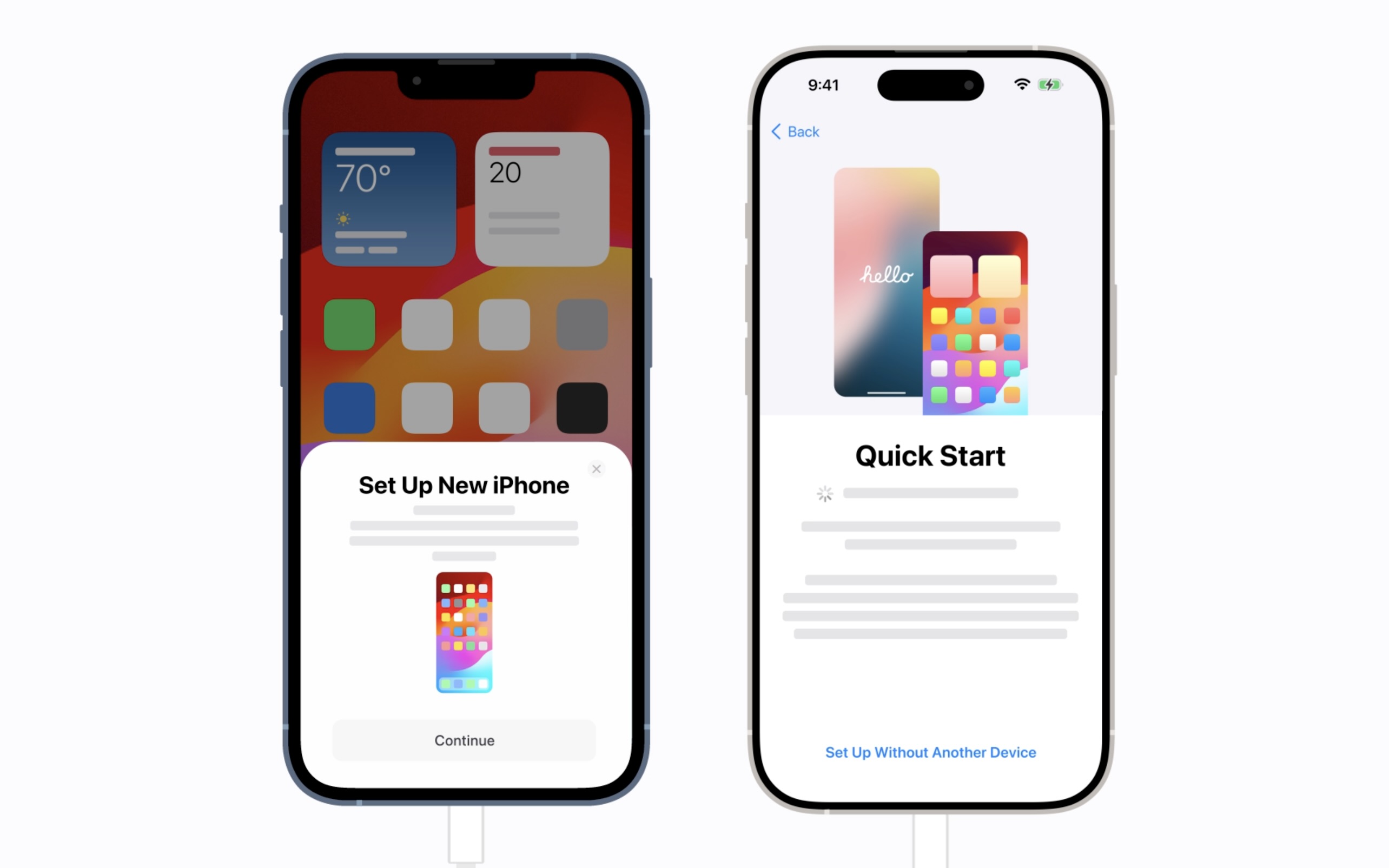
- Wait for the prompt on the old iPhone. Tap Continue. If the prompt disappears, restart both devices and try again.
- Use the old iPhone camera to scan the animation on the new iPhone.
- Enter the old iPhone passcode on the new iPhone.
- Choose Transfer from iPhone if you want a direct device-to-device transfer. Choose Download from iCloud if you want apps and data to download in the background.
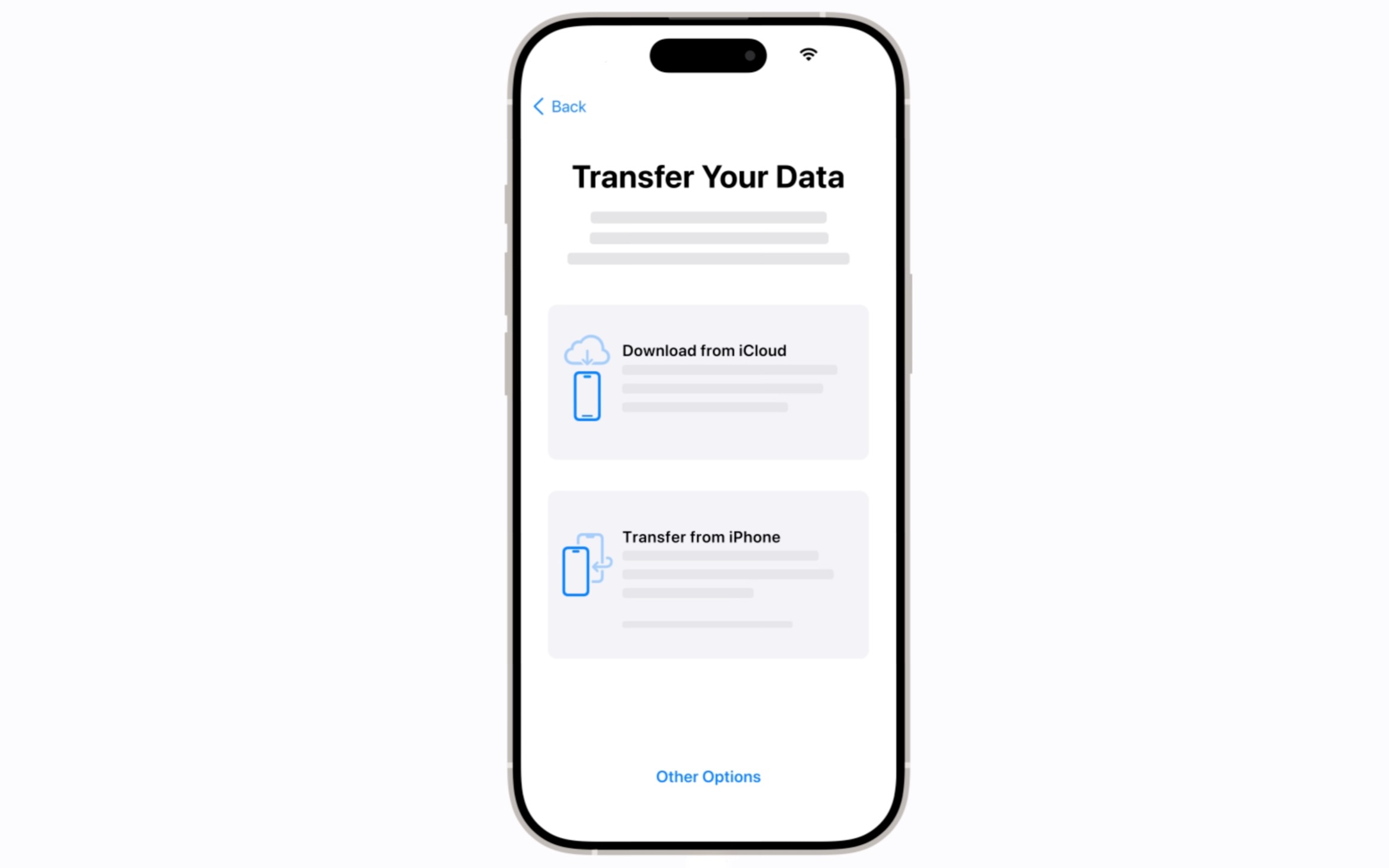
- Follow the setup screens for Face ID or Touch ID, Apple Account, and data transfer.
- Keep both iPhones close and plugged in until the transfer finishes.
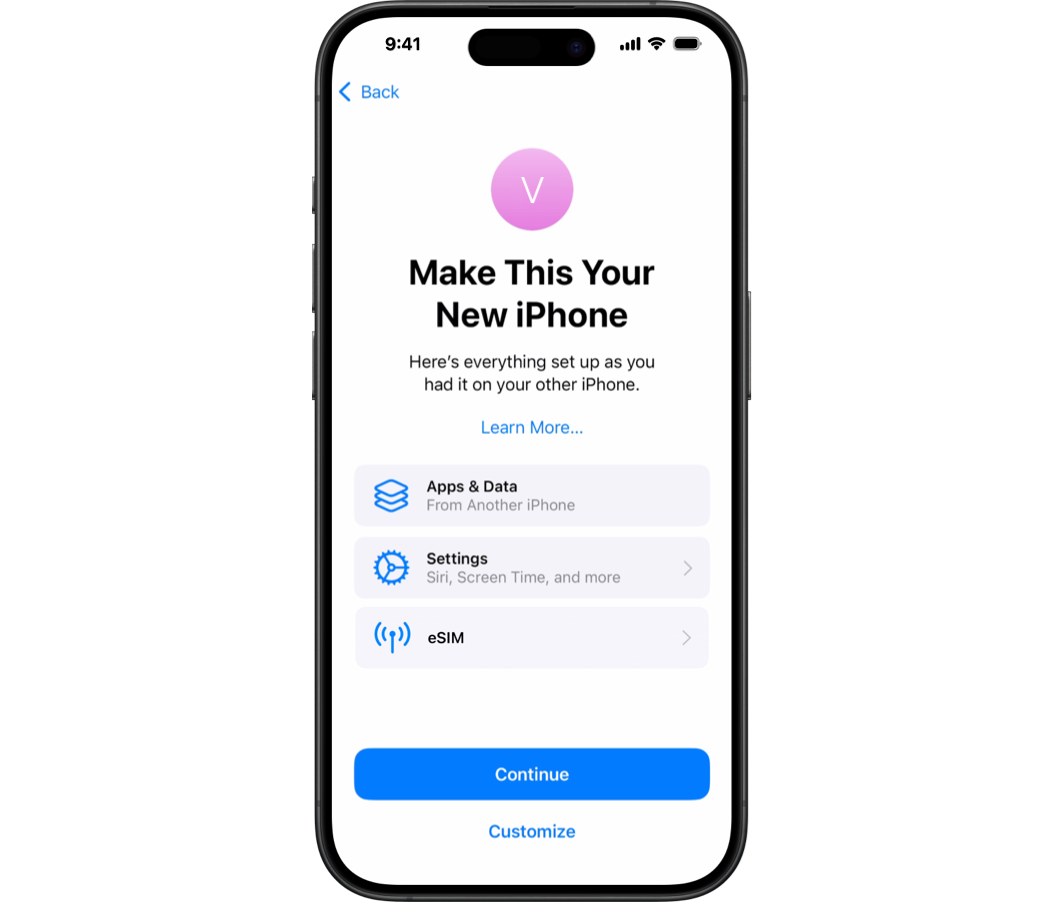
Quick Start can occupy both iPhones until the transfer finishes. Do it when you do not need either phone for a while.
3. How to transfer data from iPhone to iPhone after setup
After setup, the safe choice depends on what you actually need. If you want a full backup restore, Apple says you need to erase the already-set-up device before using iCloud restore or a computer restore. That erases the data currently on the new iPhone.
If you only need selected data, do not start with a full restore. Sync iCloud categories that already belong to the same Apple Account, AirDrop a few files, export data to a computer, or create a local backup before making a bigger decision.
Where AltTunes fits on Windows
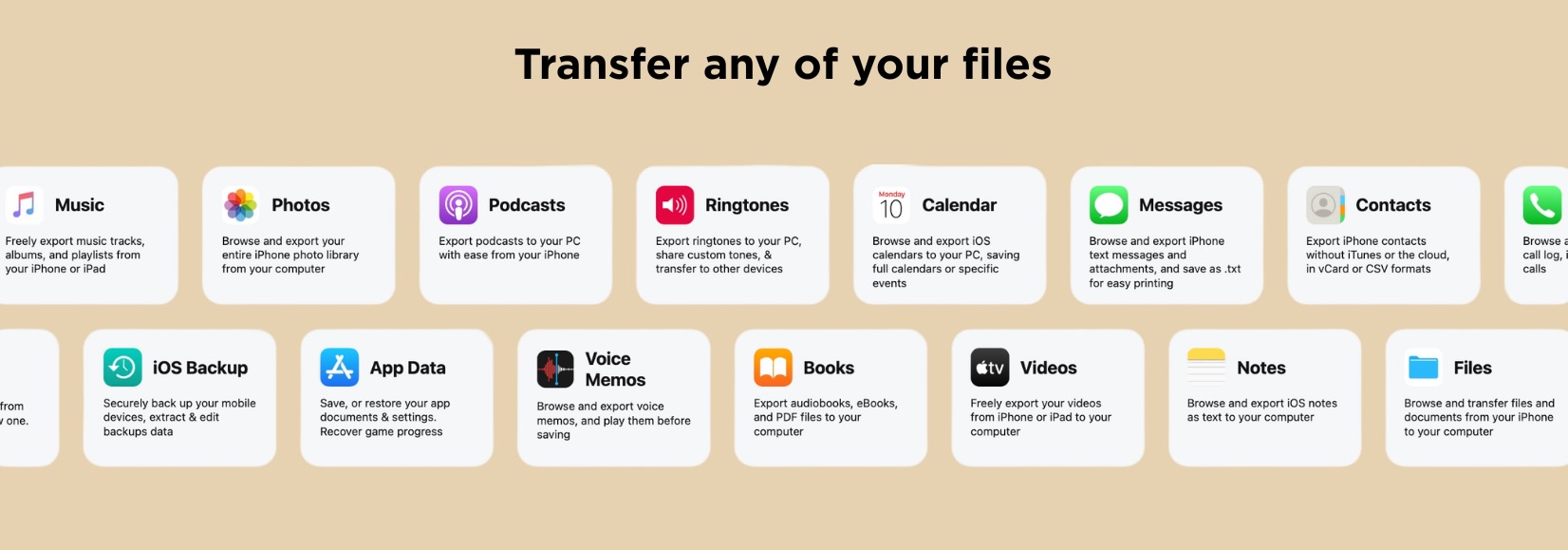
AltTunes is a Windows iPhone manager for local backup, backup browsing, and exporting iPhone data such as photos, music, messages, contacts, videos, and files to a PC. Softorino's AltTunes page also describes backup and restore features, including Clone Device and Restore to Device.
That does not mean every restore is a non-destructive merge into a used iPhone. Treat AltTunes as a Windows control tool: back up the old iPhone, export what you need, inspect the backup, and only use restore features when you understand what will be replaced.
How to use AltTunes as a safer Windows backup step
Step 1. Install AltTunes on your PC
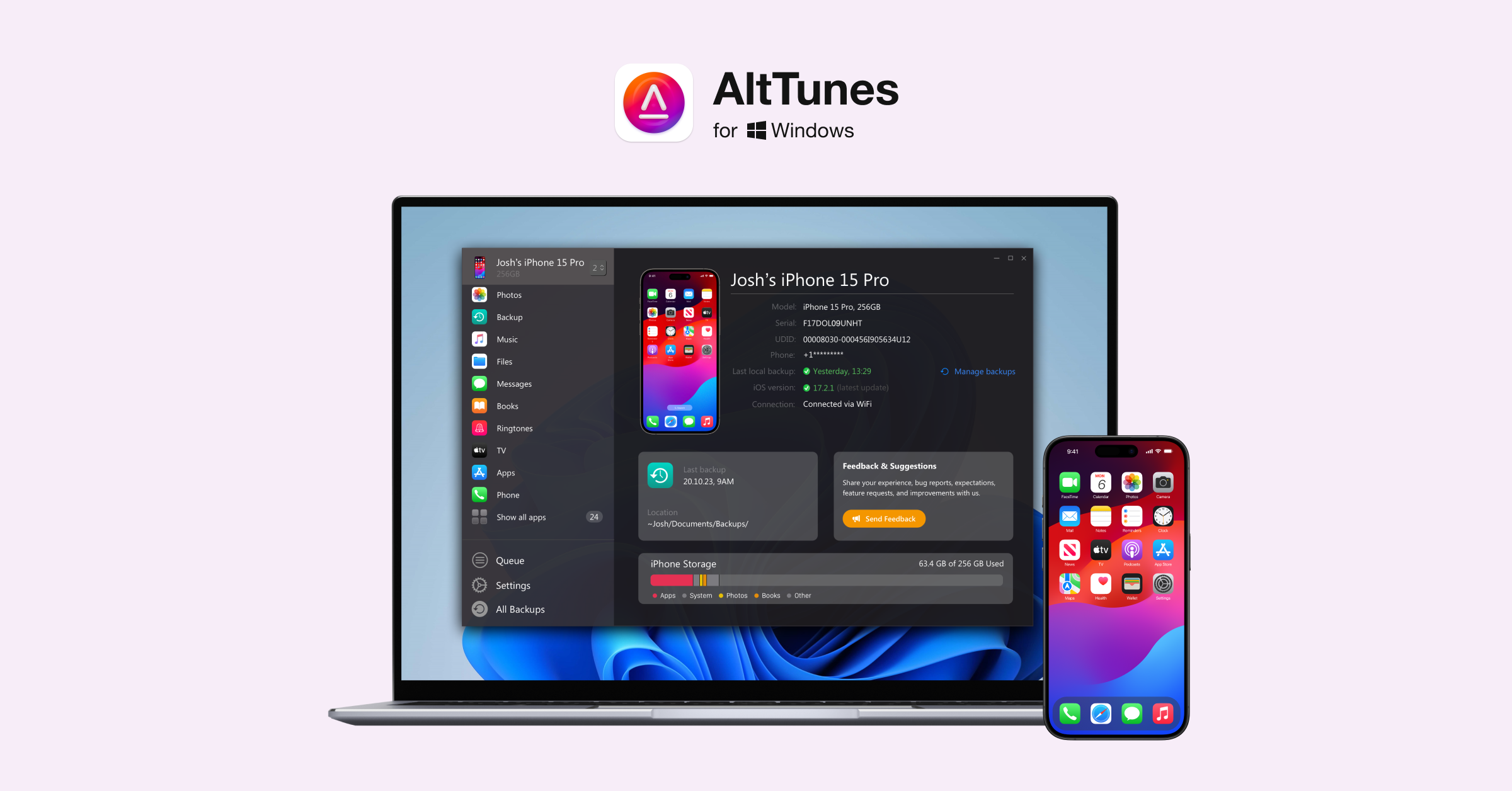
Download AltTunes on your Windows PC and open the app. Use the official download page, not a random mirror.
You can try AltTunes free before deciding if it belongs in your iPhone toolkit.
Step 2. Connect your iPhone to your computer
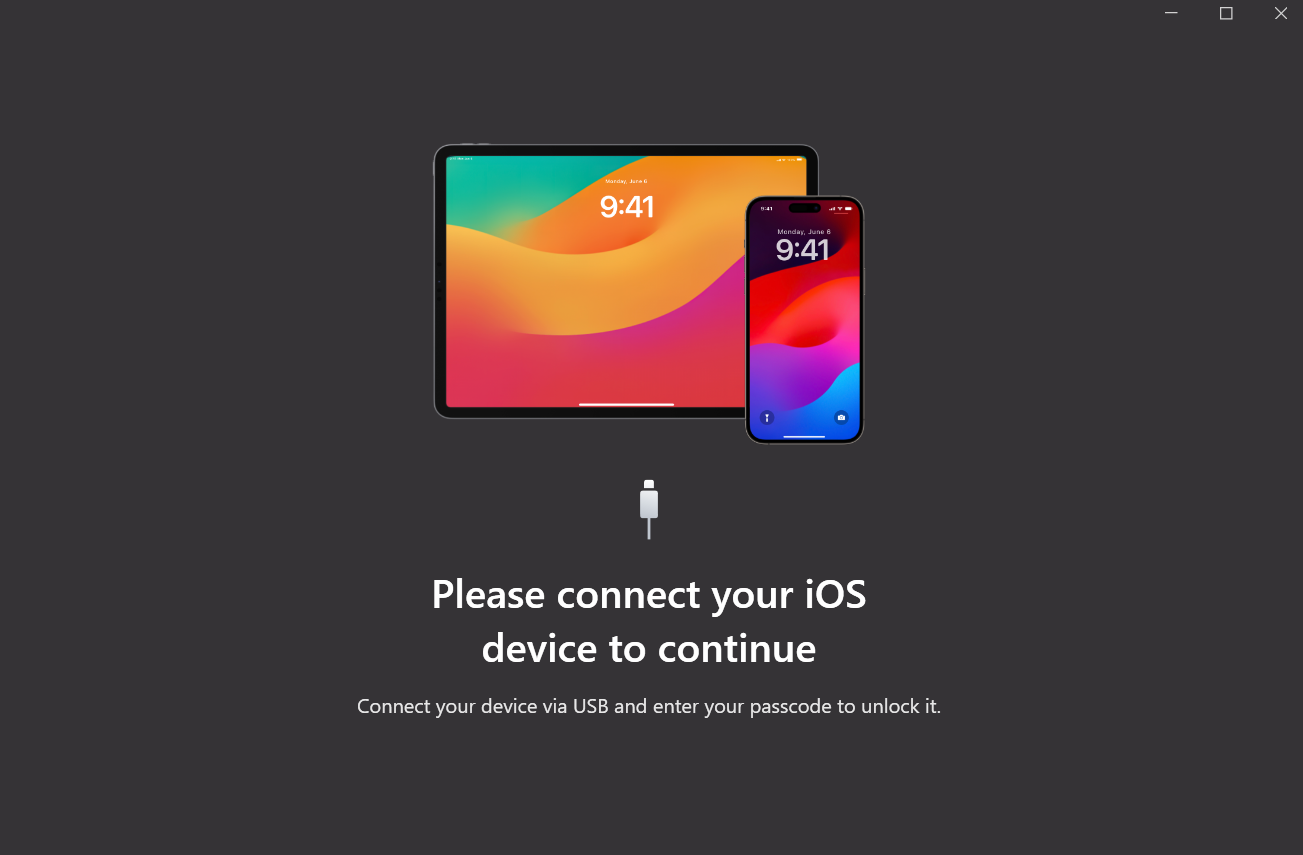
Use USB if you want the most stable backup or export. AltTunes also documents Wi-Fi backup after the device has been connected, but first connection by cable is the safer baseline.
Step 3. Create or inspect a local backup
In AltTunes, use the backup tools to save the current iPhone data to your PC or browse an existing backup. If you plan to restore anything later, confirm which device the backup came from and what data categories it contains.
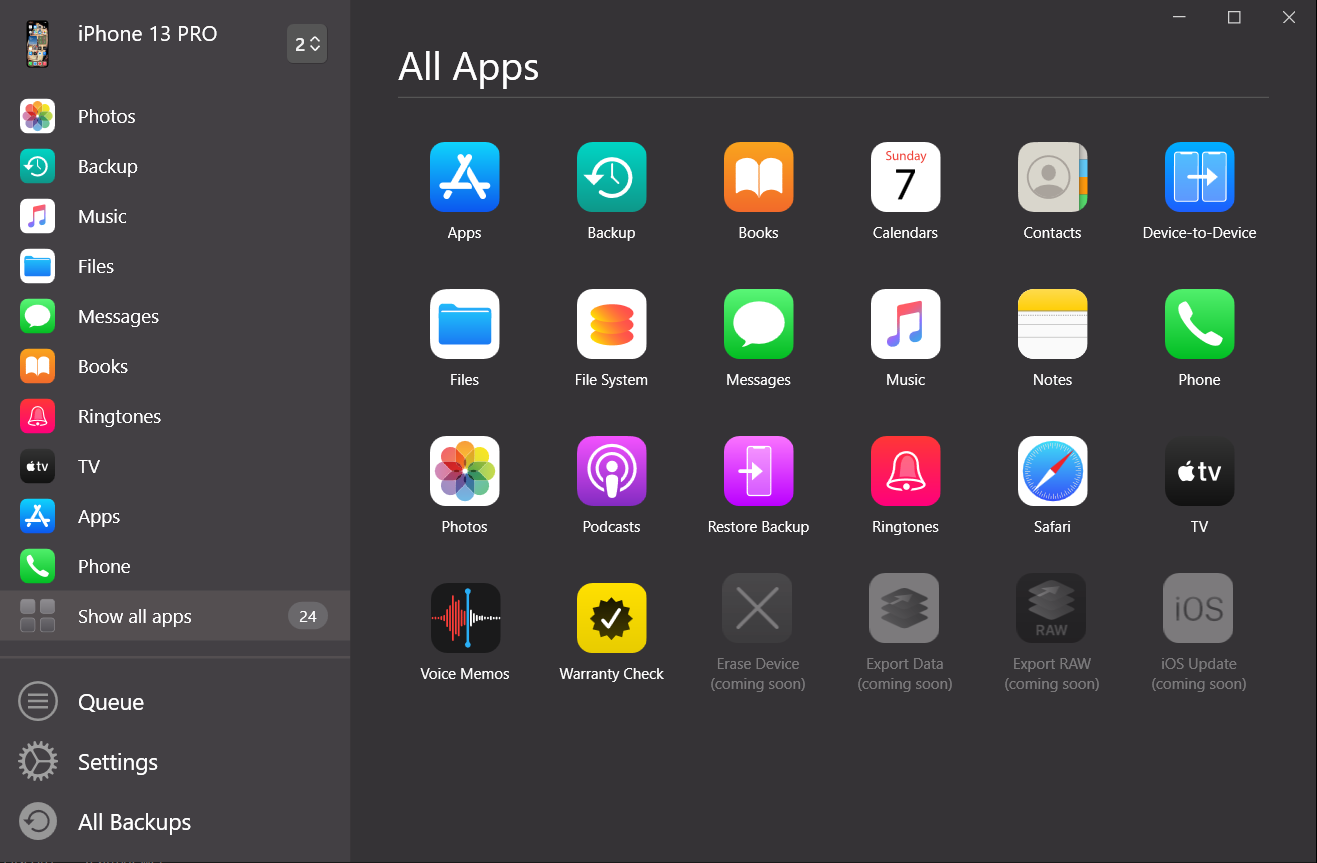
Double-check the source and destination before you run any restore feature. A backup tool is helpful only if you know which phone it is protecting.
Step 4. Export selected data when a full restore is too much
Pick the data types you need to save locally. AltTunes is useful if you want to export iPhone photos to a computer, keep messages for reference, save music, or browse files without using iCloud.
If your goal is a full iPhone clone during first setup, start with Quick Start instead. If your goal is selected data after setup, export first and restore only with a clear plan.
4. How to transfer data from iPhone to iPhone using iCloud
iCloud is the easiest backup-based method when you do not want a computer. It works well if your backup is fresh and your Wi-Fi is stable. Apple also offers temporary iCloud storage during new iPhone setup on eligible devices, so the free 5 GB plan does not always have to block the migration. If your setup flow changes, compare it with Apple's iCloud transfer instructions.
Use iCloud when the old iPhone is not beside you, you already have a backup, or you prefer restoring from the cloud.
How to transfer data from iPhone via iCloud
- On the old iPhone, open Settings.
- Tap your name, then iCloud.
- Open iCloud Backup and tap Back Up Now.
- Keep the old iPhone on Wi-Fi until the backup finishes.
- Turn on the new iPhone and follow setup.
- On the Apps & Data screen, choose Restore from iCloud Backup.
- Sign in with your Apple Account and choose the latest backup by date and size.
- Keep the new iPhone connected to Wi-Fi and power while it restores.
Important: You need stable Wi-Fi. Large photo libraries, videos, and app data can make iCloud restore slow.
If your new iPhone is already set up, iCloud restore usually requires erasing it first. Apple's instructions say erasing removes all data on that device. Back up anything new on the destination iPhone before you erase it.
What about temporary iCloud storage?
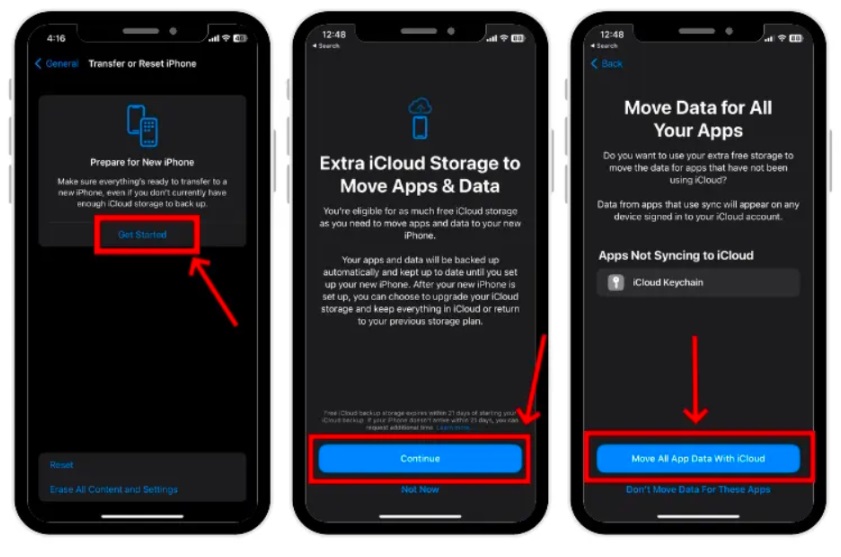
Apple says new iPhone or iPad buyers who do not have enough iCloud storage can create a temporary backup from Settings > General > Transfer or Reset iPhone > Prepare for New iPhone. Apple gives you 21 days to restore that temporary backup, with an option to request more time if the new device does not arrive in time.
Temporary iCloud storage limits
Temporary storage is for the migration. It is not a permanent iCloud plan upgrade. Do not erase the old iPhone until the temporary backup has restored to the new iPhone.
5. Transfer data from iPhone to a new iPhone using Finder, Apple Devices, or iTunes
A computer backup gives you local control. On modern Mac, use Finder. On Windows, Apple now points users to the Apple Devices app for newer setups, while iTunes still appears in older Windows workflows.
This method is useful if you do not want to depend on iCloud, have a slow connection, or want an encrypted local backup. Encryption matters. Apple says in its Finder, Apple Devices, and iTunes transfer guide that Health and Activity data transfer through a computer backup only when the backup is encrypted.
How to transfer iPhone data with a computer backup
- Connect the old iPhone to your Mac or Windows PC.
- Open Finder on macOS, Apple Devices on Windows, or iTunes if that is your available Apple tool.
- Select the old iPhone.
- Turn on Encrypt local backup before you make the backup if you want Health, Activity, saved passwords, Wi-Fi settings, website history, and call history included.
- Create and save the encryption password. You need it to restore the backup later.
- Start the backup and wait for it to finish.
- Verify the backup in Manage Backups. Apple says an encrypted backup shows a lock plus the backup date and time.
- Turn on the new iPhone and start setup.
- On the Apps & Data screen, choose From Mac or PC.
- Connect the new iPhone to the computer.
- Choose Restore from this backup and pick the latest backup by date and size.
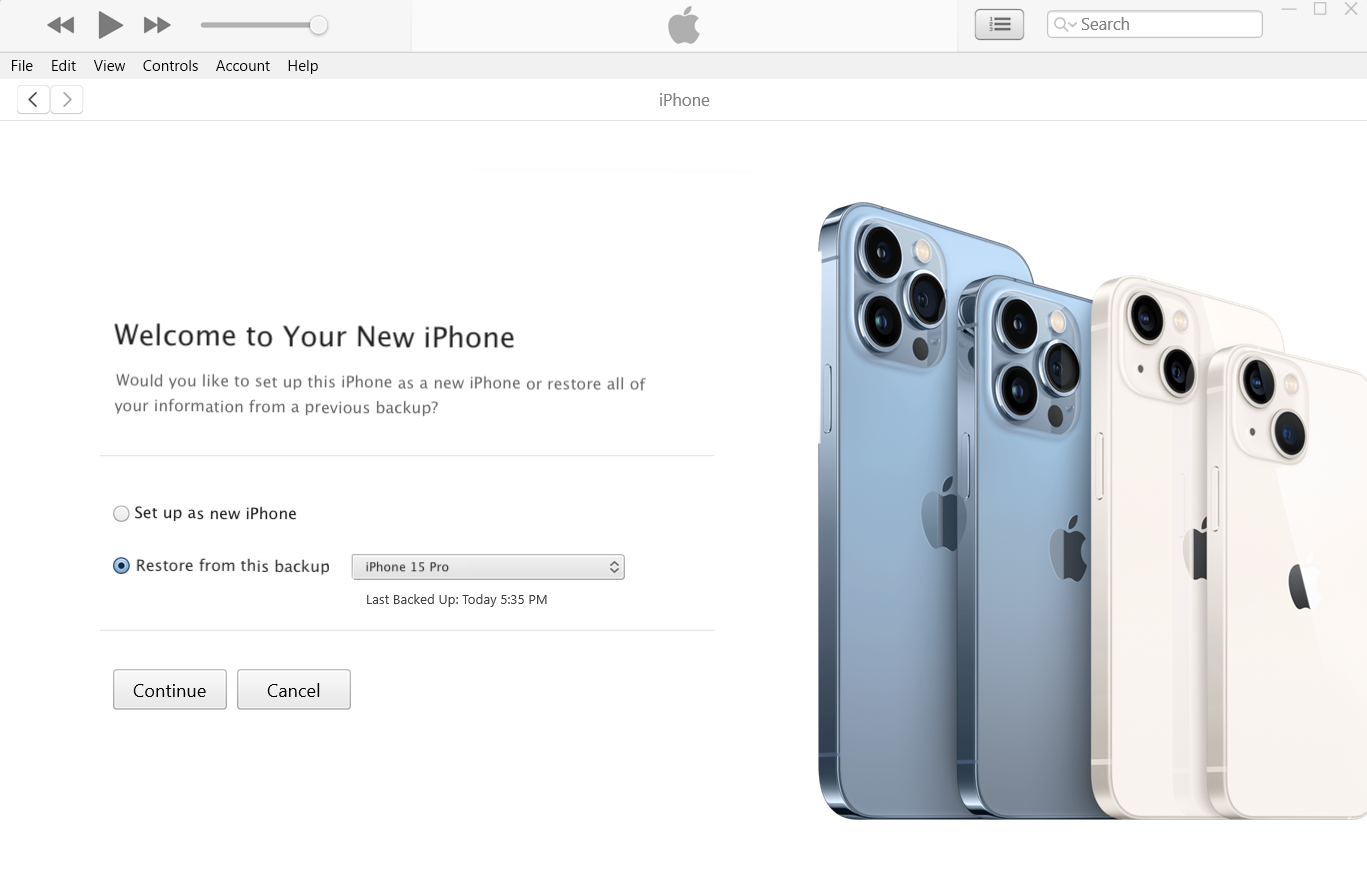
Keep the iPhone connected until restore finishes. If the old iPhone runs a newer iOS version than the new iPhone, update the new iPhone first, then restore.
A computer restore can require erasing the new iPhone if it has already been set up.
6. Use a wired iPhone transfer when Wi-Fi keeps failing
Apple also supports wired transfer during Quick Start. This helps when Wi-Fi is weak, the transfer keeps stalling, or you are moving a large amount of data. Apple's wired transfer guide explains cable combinations for USB-C and Lightning iPhones.
Cable choice depends on your iPhone models:
iPhone pair | Cable or adapter Apple lists |
|---|---|
iPhone 15 or later to iPhone 15 or later | USB-C Charge Cable |
iPhone 14 or earlier to iPhone 15 or later | USB-C to Lightning Cable |
iPhone 14 or earlier to iPhone 14 or earlier | Lightning to USB 3 Camera Adapter, Lightning to USB Cable, and a 12W or higher power adapter |
Wired transfer still follows the setup flow. The new iPhone also needs Wi-Fi or cellular for activation. If the new iPhone is already set up, this is not the method to use unless you are willing to erase it.
When wired transfer makes sense
- Your Wi-Fi drops during Quick Start.
- You have a large photo or video library.
- You are moving from an older Lightning iPhone to a newer USB-C iPhone.
- You want the most stable direct transfer available during setup.
Final tips for a smooth iPhone transfer
Use Quick Start first if your new iPhone is not set up yet.
Use iCloud if you have a fresh backup and solid Wi-Fi.
Use an encrypted computer backup if Health and Activity data matter.
Use AltTunes for Windows backup, export, and backup browsing when you need more control.
Use AirDrop only for small batches of files.
Keep the old iPhone until the new iPhone has your messages, photos, apps, passwords, eSIM, and authenticator apps working.
What data can transfer from iPhone to iPhone?
Most full-device transfer methods can move the data people care about: photos, videos, messages, contacts, call history, apps, app data, Apple Account settings, Wi-Fi passwords, and device settings. Some items need extra attention.
Data type | Best method | Watch out for |
|---|---|---|
Photos and videos | Quick Start, iCloud, computer restore, AltTunes export | iCloud Photos may download originals later |
Messages | Quick Start, iCloud, encrypted computer backup, AltTunes export/backup browsing | Sync settings affect what appears first |
Contacts | Quick Start, iCloud, AirDrop, AltTunes export | Contacts may already sync through iCloud, Google, or Exchange |
Apps and app data | Quick Start, iCloud, computer restore | Some apps require signing in again |
Health and Activity | Quick Start, iCloud, encrypted computer backup | Computer backup must be encrypted |
Music and files | AltTunes, Finder/iTunes, AirDrop | Apple Music purchases and local files behave differently |
eSIM | Carrier setup, Quick Start where supported | Confirm activation before wiping the old iPhone |
Authenticator apps | Manual app migration | Move codes before erasing the old phone |
Bottom line: Quick Start first, AltTunes when you need local control
If you want to transfer data from iPhone to iPhone before using the new device, start with Quick Start. It is the cleanest full-device migration method for most people. If Quick Start fails, try iCloud, wired transfer, or a local encrypted computer backup.
If your new iPhone is already set up, do not rush into erasing it. Use AltTunes on Windows when you need a local backup, selected exports, or backup browsing before a risky restore. For one-category details, the Softorino guide to transfer contacts to a new iPhone is a better next stop than repeating the whole migration here.
FAQ
What is the easiest way to transfer data from an old iPhone to a new one?
Quick Start is the easiest way if the new iPhone is not set up yet. Place both iPhones near each other, follow the setup prompt, and choose Transfer from iPhone or Download from iCloud. Use backup/export tools only when you need selected data or a local safety copy.
Can I transfer data from iPhone to iPhone without a computer?
Yes. Use Quick Start for a full migration during setup, iCloud Backup for cloud restore, or AirDrop for a few files. You only need a computer for Finder, Apple Devices, iTunes, or AltTunes workflows.
How do I transfer iPhone to iPhone after setup?
If you want a full restore after setup, Apple restore methods usually require erasing the new iPhone first. If you do not want to wipe it, use iCloud sync for selected categories, AirDrop for small batches, or AltTunes on Windows for backup/export work.
How do I transfer iPhone to iPhone without iCloud?
Use Quick Start with direct transfer, wired transfer during setup, or a local encrypted backup through Finder, Apple Devices, or iTunes. Use AltTunes if you want to back up or export selected data on Windows without relying on iCloud.
Can I transfer data using iTunes on a Windows PC?
Yes, if iTunes is your available Apple tool. For newer Windows setups, Apple Devices may be the tool Apple points you to instead. Encrypt the backup before creating it if Health and Activity data matter, then restore the backup to the new iPhone during setup.
Can I use AirDrop to transfer everything from one iPhone to another?
No. AirDrop is good for photos, contacts, videos, documents, and small batches of files. It does not migrate apps, settings, messages, passwords, Health data, or full iPhone setup.
How long does it take to transfer iPhone to iPhone?
Small transfers can take minutes. Full migrations can take much longer, depending on storage size, Wi-Fi speed, cable setup, and how much photo or video data you have. Keep both phones plugged in until the transfer finishes.
Does Quick Start transfer Health data, passwords, and messages?
Quick Start can transfer many personal data categories when the devices and accounts support them. For computer backups, Apple says Health and Activity data need an encrypted backup. Face ID, Touch ID, and device passcode data are not included in encrypted computer backups.

AltTunes
Seamlessly Browse, Manage & Export iOS Data
