How to Transfer Music from Computer to iPhone in 2026

TL;DR: The easiest way to transfer music from computer to iPhone is WALTR PRO: install it, connect your iPhone, drag in MP3, FLAC, AAC, ALAC, WAV, or a music folder, and open the Music app on your iPhone. Apple's official methods also work. Use Finder on Mac, Apple Devices on Windows, or Sync Library if you already pay for Apple Music or iTunes Match.
If you want an exact answer: use WALTR PRO for one-off local files and mixed formats. Use Apple Devices or Finder when your songs already live in Apple's library and you are comfortable with sync rules. Use Sync Library only if you subscribe to Apple Music or iTunes Match and want cloud access on all devices.
The catch is destination. Copying an MP3 into Files is not the same as adding that song to the iPhone Music app. Pick the method by where you want the music to appear.
Quick answer: WALTR PRO is easiest for local music folders. Apple Devices, Finder, and Sync Library are honest built-in options, but they are built around Apple library sync, not quick drag-and-drop transfers.
Transfer Music from Computer to iPhone: Quick Answer
Use this rule before touching any cable:
- Want songs in the iPhone Music app without rebuilding your library? Use WALTR PRO.
- Want to manage a clean Apple Music library from Mac or Windows? Use Finder on Mac or Apple Devices on Windows.
- Already pay for Apple Music or iTunes Match? Use Sync Library.
- Only need to store or play a file somewhere on the phone? Use Files, iCloud Drive, Dropbox, or a file-manager app.
Before we begin
Download WALTR PRO on Mac or Windows to transfer local music from a computer to an iPhone without running an iTunes sync. Connect the device, add a few tracks, and confirm they appear in the expected playback app.
Quick Takeaways
- WALTR PRO sends local songs to the native Music app without iTunes sync.
- Apple Devices on Windows can sync music, but Apple says you need the Apple Music app installed and Sync Library must be off for that manual sync method.
- Finder on macOS Catalina or later can sync music, playlists, albums, and other content by USB or Wi-Fi.
- Sync Library requires Apple Music or iTunes Match. It is cloud library sync, not a simple local copy button.
- Cloud storage can move audio files to iPhone, but usually leaves playback inside Files or the cloud app.
- The best method depends on destination: Music app, TV app, Books app, Files, or a third-party player.
Method 1: Transfer Music from Computer to iPhone with WALTR PRO
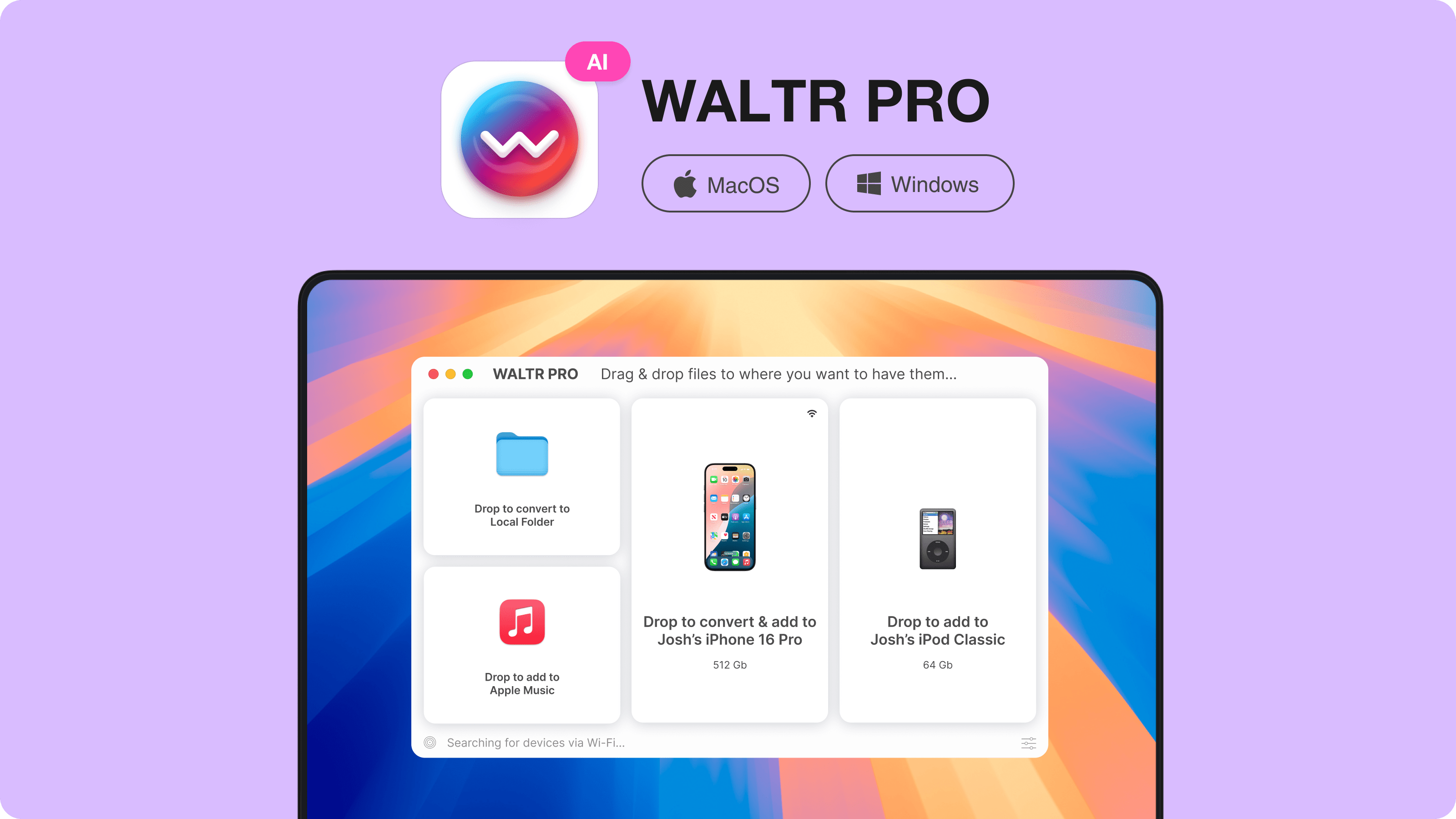
WALTR PRO is the fastest route when you have local audio files on a Mac or Windows PC and want them in the iPhone Music app. It is built for drag-and-drop transfer, not full-device sync.
Use it for loose MP3 files, FLAC albums, AAC files, WAV files, and messy local folders. WALTR PRO can send songs to the default Music app and can handle conversion when the original file is not iPhone-friendly.
WALTR PRO page: https://softorino.com/waltr
Step 1: Install WALTR PRO
Download WALTR PRO for Mac or Windows from Softorino. Install it, open the app, and connect your iPhone. Use USB for the first connection so the computer and iPhone can trust each other cleanly.
Step 2: Connect Your iPhone
Plug your iPhone into the computer. Keep the iPhone unlocked if macOS or Windows asks you to trust the computer. Once WALTR PRO sees the device, you can transfer by USB or use Wi-Fi for smaller follow-up transfers.
Step 3: Check Metadata and Destination
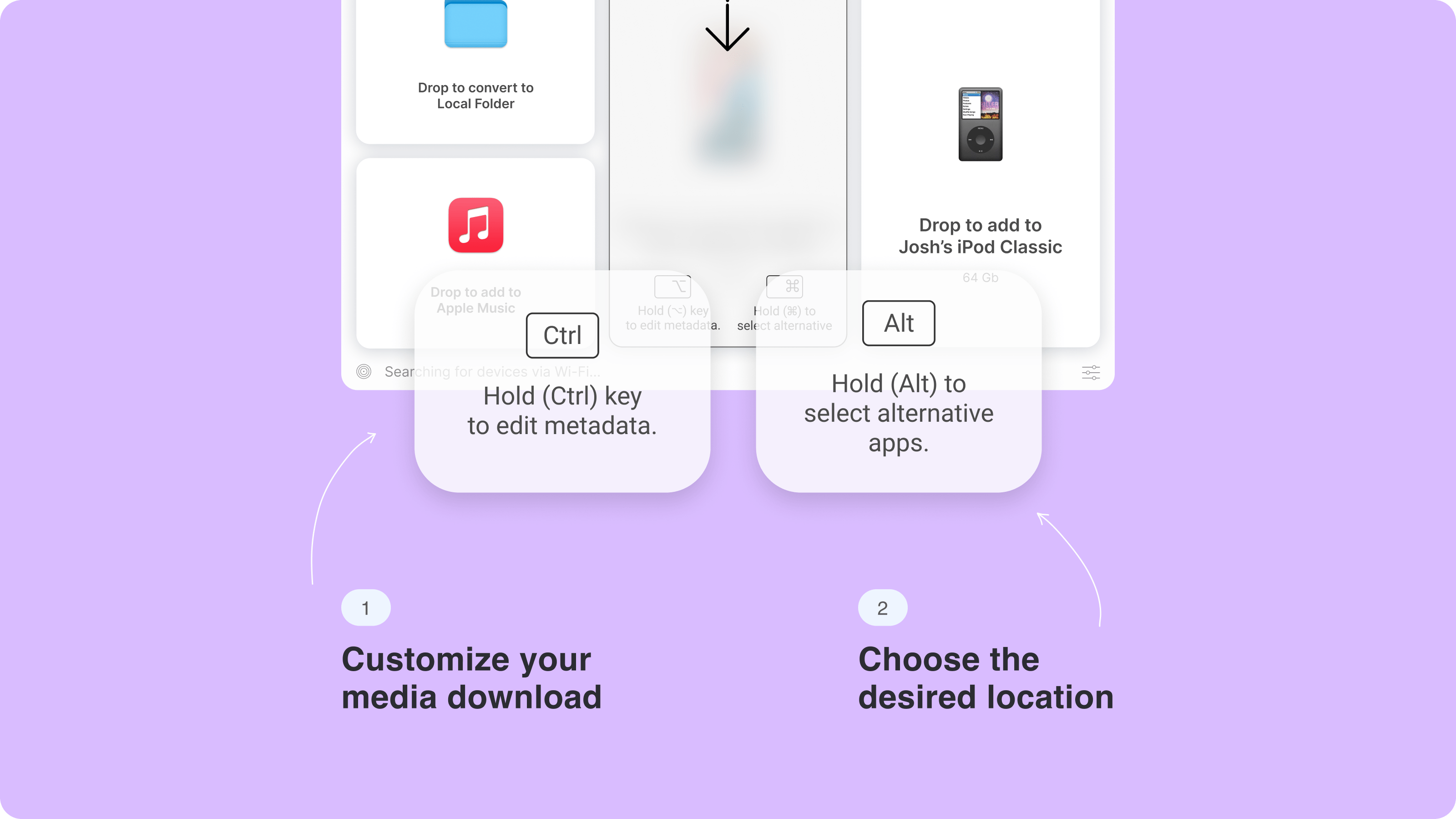
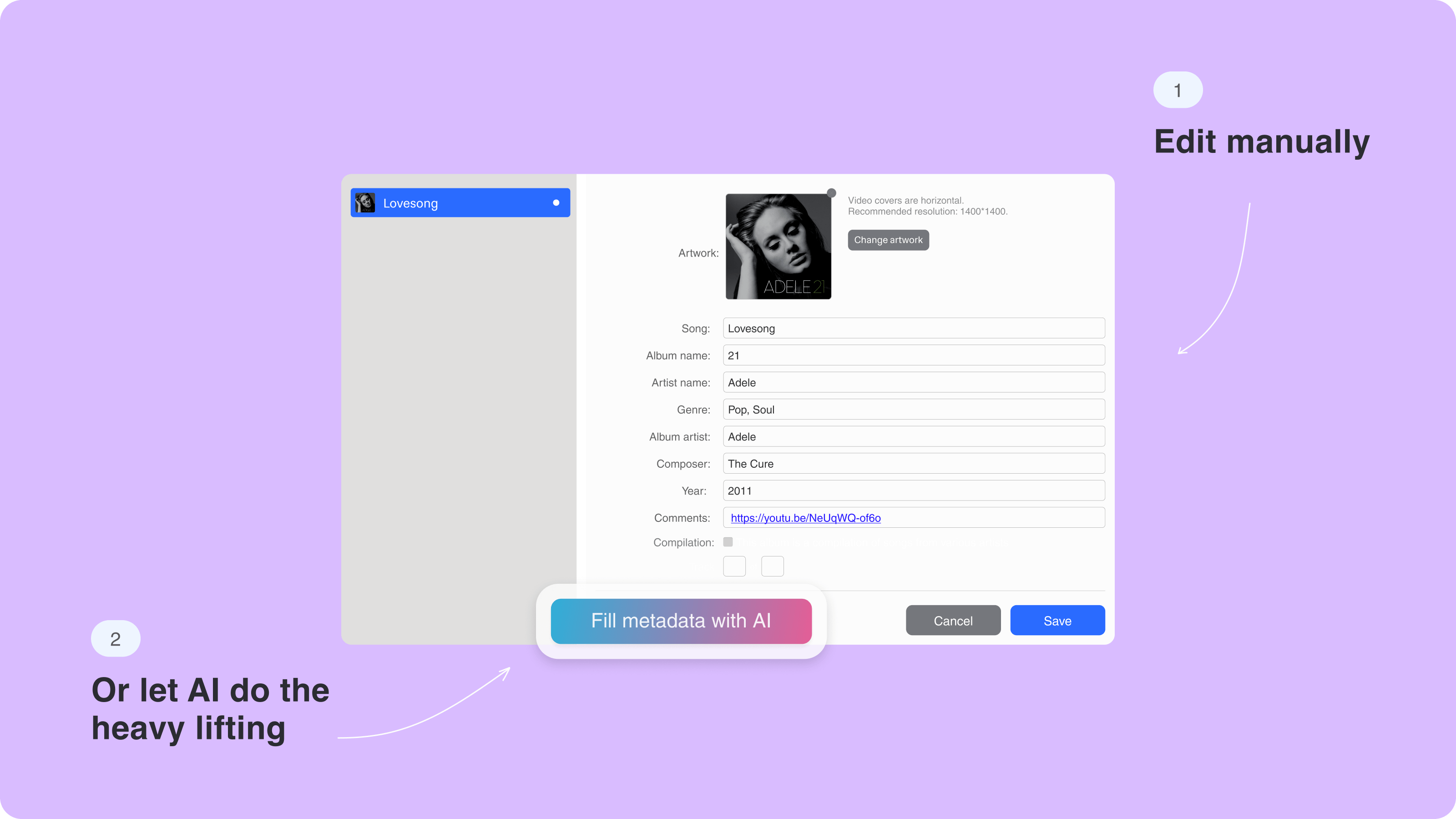
Before a big transfer, check album, artist, title, and artwork for the files that matter. WALTR PRO can help with metadata, but you should still spot-check important albums before sending a full folder.
Hold Option on Mac or Ctrl on Windows while dragging if you need more control over metadata or destination.
Step 4: Drag Music into WALTR PRO
Open the folder with your music files. Drag songs, albums, or a whole music folder into WALTR PRO. Wait for the transfer to finish, then open the Music app on your iPhone.
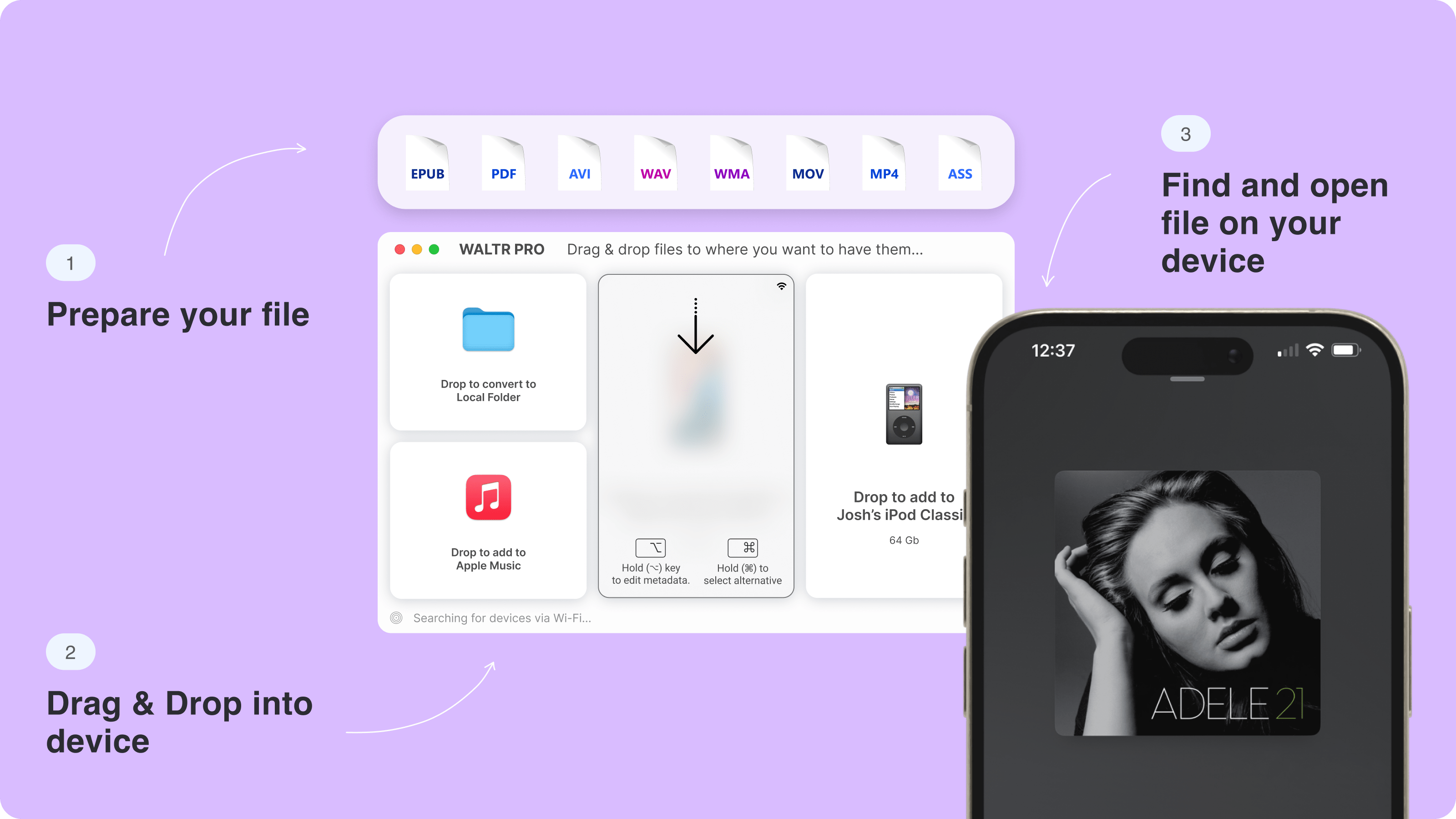
Your songs should appear in Music like normal local tracks. That is the main reason to use WALTR PRO instead of cloud storage: the music lands where you actually expect it.
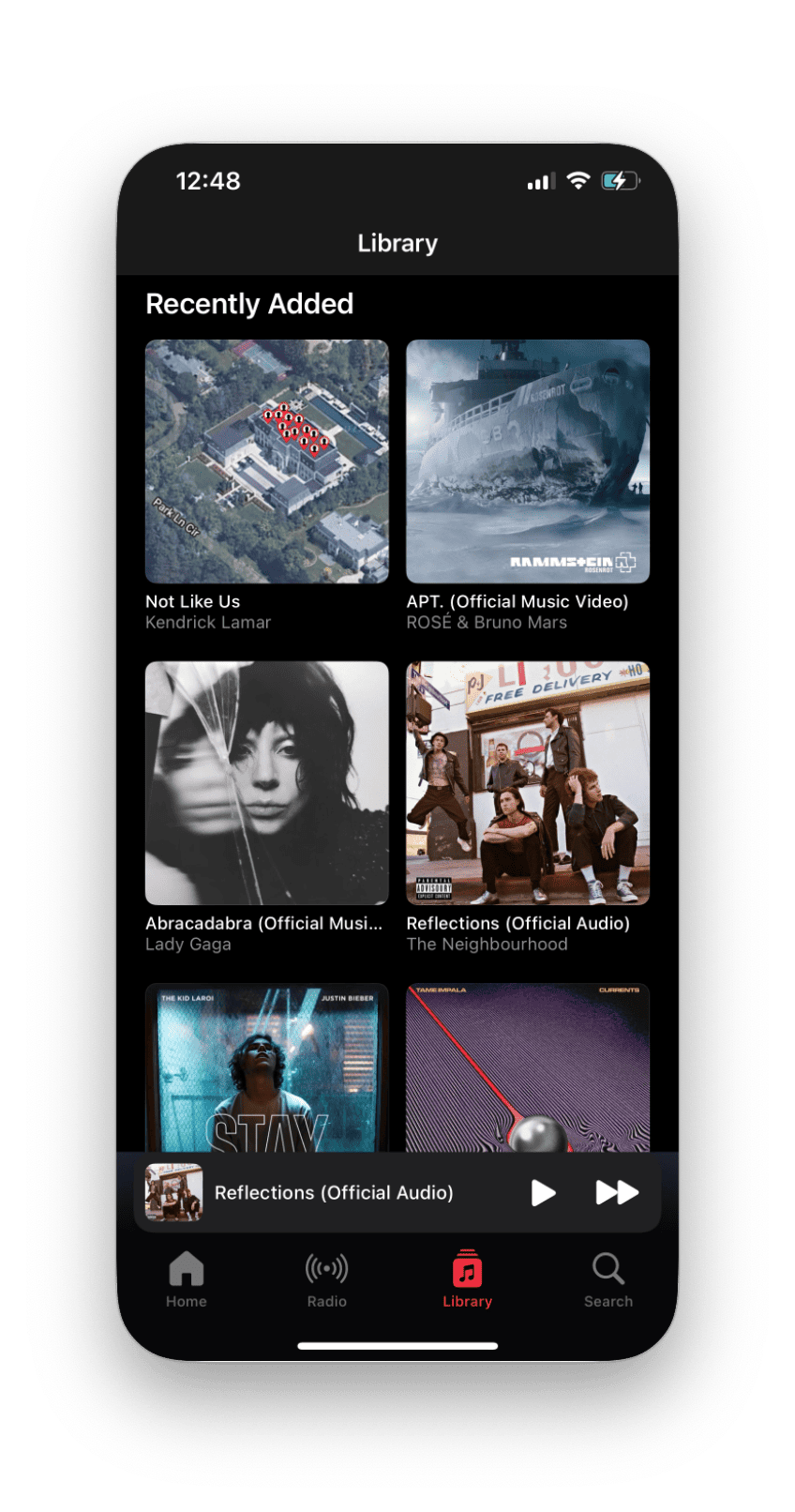
Use USB for a large first transfer. Use Wi-Fi only after the iPhone is already paired and you are moving a smaller batch.
Method 2: Use Apple Devices on Windows
Apple's current Windows path is Apple Devices plus Apple Music. Apple says the Apple Devices app can sync all music or selected artists, albums, genres, and playlists to an iPhone, iPad, or iPod.
Use this method when your music already lives in the Apple Music app on Windows and you want library-style sync. It is less convenient when you just downloaded 12 MP3 files and want them on your iPhone now.
Apple Devices guide: https://support.apple.com/guide/devices-windows/sync-music-to-your-device-mchlbf6a1fab/windows
Steps for Apple Devices on Windows
- Install Apple Music and Apple Devices on the Windows PC.
- Connect the iPhone by USB or set up Wi-Fi syncing after the first connection.
- Open Apple Devices and select your iPhone in the sidebar.
- Select Music in the sidebar.
- Choose Sync music onto this iPhone.
- Pick the entire library or selected artists, albums, genres, and playlists.
- Click Apply and wait before ejecting the iPhone.
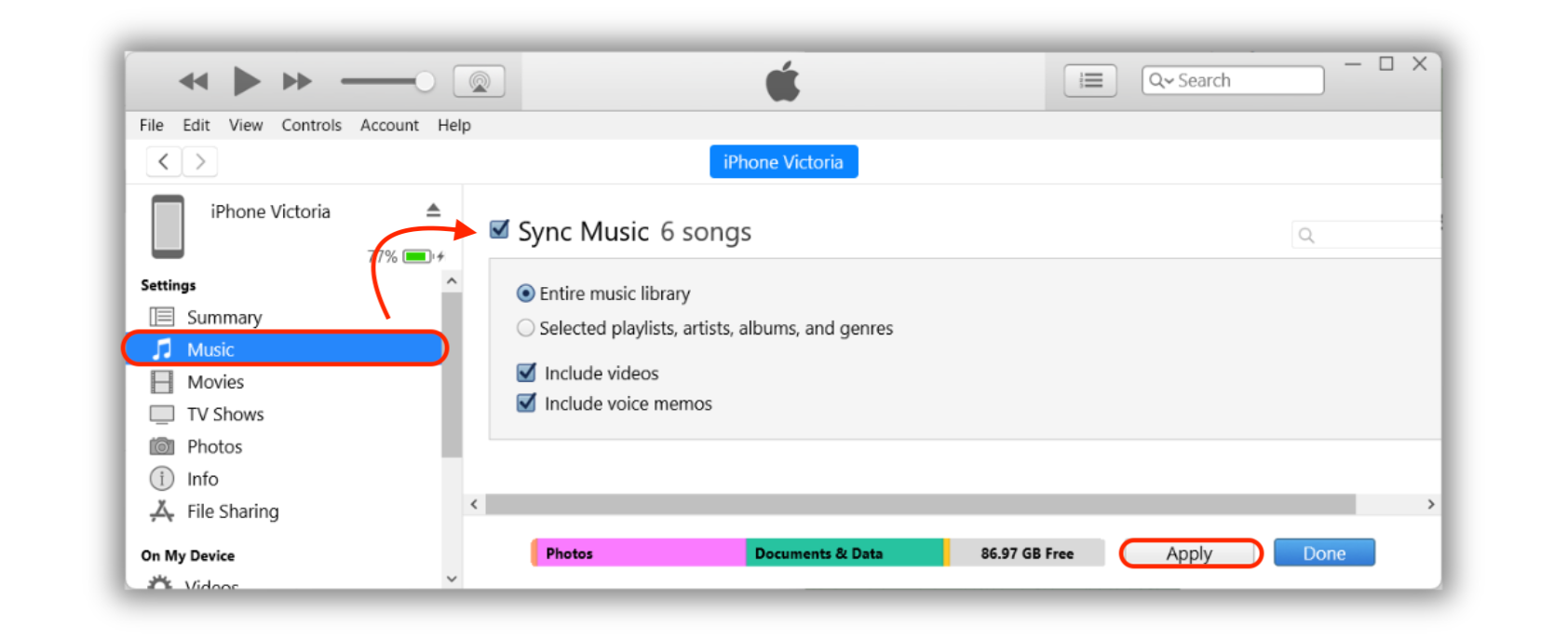
Apple warns that deleted automatically synced items can be removed from the Apple device at the next sync. Read the sync prompts before clicking Apply.
Method 3: Use Finder on Mac
On macOS Catalina or later, Finder handles iPhone syncing. Apple says you can sync music, movies, TV shows, podcasts, audiobooks, books, photos, contacts, and calendars from a Mac to an iPhone, iPad, or iPod touch.
Use Finder when your music library is already organized on the Mac. Do not use it as a quick file drop if you are trying to avoid sync behavior.
Apple Finder guide: https://support.apple.com/en-us/102471
Steps for Finder on Mac
- Connect the iPhone to your Mac with USB.
- Open Finder.
- Select the iPhone in the sidebar.
- Choose Music.
- Turn on Sync music onto iPhone.
- Select the whole library or specific artists, albums, genres, and playlists.
- Click Apply or Sync.
- Eject the iPhone before unplugging it.
Finder can also sync over Wi-Fi after USB setup. That is useful once the library is stable.
Method 4: Use Sync Library with Apple Music or iTunes Match
Sync Library is the best Apple-native option when you already subscribe to Apple Music or iTunes Match. It makes your music library available on devices signed in with the same Apple Account.
It is not a backup service, and it is not the same as dragging local files to an iPhone. Apple says Sync Library requires Apple Music or iTunes Match. If you do not pay for one of those, manually sync music instead.
Apple Sync Library guide: https://support.apple.com/en-us/118285
Steps for Sync Library
- Sign in to the same Apple Account on your computer and iPhone.
- On Mac, open Music, go to Settings, and turn on Sync Library.
- On Windows, open Apple Music, go to Settings, and turn on Sync Library.
- On iPhone, open Settings, choose Music, and turn on Sync Library.
- Wait for the library to finish updating before judging missing tracks.
Use this when you want a cloud music library. Skip it when you want one local album moved today.
Method 5: Use Cloud Storage or a File-Manager App
Cloud storage can move audio files to your iPhone, but it usually does not add them to the Music app. The file may play in Files, Dropbox, Google Drive, VLC, Documents, or another app instead.
That can be fine. If you only need to listen once, share a file, or store a lecture, cloud storage is enough. If you want albums, artists, artwork, and normal Music app playback, choose WALTR PRO or Apple sync.
Supported Audio Formats and Where Files Land
File or method | Best destination on iPhone | Works with Apple Devices or Finder | Works with Sync Library | Works with WALTR PRO | Main limitation |
|---|---|---|---|---|---|
MP3 | Music app | Yes, after library import | Yes, with subscription library | Yes | Metadata can still be messy |
AAC or M4A | Music app | Yes | Yes | Yes | Check artwork and artist fields |
ALAC | Music app | Yes | Yes | Yes | Larger files take more space |
WAV or AIFF | Music app | Usually after import | Usually after import | Yes | Large files, weak metadata |
FLAC | Music app after conversion | Not ideal without conversion | Not ideal without conversion | Yes | Native Music playback usually needs conversion |
M4B audiobook | Books app | Possible through Apple library workflows | Depends on library setup | Yes | Must use .m4b for audiobook handling |
M4R ringtone | Settings > Sounds & Haptics > Ringtone | Not a normal music sync flow | No | Yes | File must be .m4r |
Cloud-stored MP3 | Files or cloud app | No | No | Not needed | Usually not added to Music |
WALTR PRO help says songs such as FLAC or MP3 land in the default Music app, videos land in TV, EPUB/PDF/M4B land in Books, and M4R files land in ringtones. That is why destination matters.
WALTR file destination help: https://help.softorino.com/help/where-to-find-transferred-files-with-waltr-pro
WALTR PRO vs Apple Sync vs Cloud Apps
Method | Best for | Where songs land | Format handling | Main drawback |
|---|---|---|---|---|
WALTR PRO | Fast local transfers from Mac or Windows | Native Music app for songs | Handles MP3, FLAC, AAC, ALAC, WAV, and more | Paid app after trial |
Apple Devices on Windows | Managed Windows library sync | Music app | Best with Apple-friendly library files | Requires Apple Music app and sync settings |
Finder on Mac | Managed Mac library sync | Music app | Best with an organized Music library | Can erase and replace synced content if you accept the wrong prompt |
Sync Library | Apple Music or iTunes Match subscribers | Music app through cloud library | Depends on cloud library matching/upload | Requires subscription and internet sync |
Cloud storage | Simple file storage or one-off playback | Files or the storage app | Depends on the player app | Usually not native Music app playback |
Common Limitations to Know First
- WALTR PRO is easiest for local files, but it is still a transfer app. Bad source metadata can still need manual cleanup.
- Apple Devices and Finder are official, but they are sync tools. They can change what is on the device based on library settings.
- Sync Library requires Apple Music or iTunes Match and a stable internet connection.
- Cloud storage is not a Music app import method.
- Audiobooks should be .m4b if you want audiobook behavior in Books.
- Ringtones should be .m4r if you want them under iPhone ringtone settings.
Troubleshooting Music Transfer Problems
Songs do not show in Music: confirm the method actually sends files to the Music app, not Files or a cloud player.
iPhone does not appear: unlock the phone, tap Trust, change the cable, and try USB before Wi-Fi.
FLAC does not play: use a method that converts for iPhone playback, or convert before syncing.
Apple Devices sync is unavailable: check whether Sync Library is on. Apple says manual sync does not work with Apple Music subscription songs unless Sync Library is off.
Albums look messy: fix artist, album, track number, and artwork before a large transfer.
A synced song disappeared: check Apple sync settings and whether the item was removed from the computer library before the next sync.
Best Method for Most People
For most local music files, WALTR PRO is the best way to transfer music from computer to iPhone because it avoids iTunes, works on Mac and Windows, and sends songs to the native Music app.
Apple sync is still the honest built-in method. Use Apple Devices on Windows, Finder on Mac, or Sync Library when your library is already organized around Apple. Just do not pretend those methods are as simple as dragging a random folder into an iPhone.
Try WALTR PRO with your own files if your goal is simple: computer music in the iPhone Music app without a full sync session. If you also move videos, books, PDFs, or ringtones, the same destination rules help there too.
WALTR PRO: https://softorino.com/waltr
Key Takeaways
- The easiest no-iTunes method is WALTR PRO because it transfers local songs into the native Music app.
- Apple Devices is the current Windows sync path, but it needs the Apple Music app and follows Apple sync rules.
- Finder is the current Mac sync path for macOS Catalina or later.
- Sync Library is useful only if you subscribe to Apple Music or iTunes Match.
- Cloud storage copies files, but usually does not add them to Music.
- Always choose by destination first: Music, TV, Books, Files, or a third-party player.
FAQ
How do I transfer music from computer to iPhone without iTunes?
Use WALTR PRO for the simplest no-iTunes route. Install it on Mac or Windows, connect your iPhone, drag in MP3, FLAC, AAC, ALAC, WAV, or a music folder, and open the iPhone Music app after transfer.
Can I transfer MP3 files to iPhone without syncing?
Yes. WALTR PRO can transfer MP3 files to iPhone without Apple library sync. Cloud apps can copy MP3 files too, but those files usually play inside Files or the cloud app instead of the native Music app.
Can I transfer FLAC to iPhone?
Yes, but FLAC usually needs conversion for native Music app playback. WALTR PRO can handle that during transfer. Apple's official sync route works better with files already in an Apple-friendly library format.
Does Apple Devices replace iTunes on Windows?
For modern Windows syncing, Apple points users to Apple Devices and Apple Music. iTunes can still appear in older workflows, but Apple Devices is the honest current method for syncing an iPhone from Windows.
Does Finder transfer music from Mac to iPhone?
Yes. On macOS Catalina or later, Finder can sync music from a Mac to an iPhone. Connect the iPhone, select it in Finder, choose Music, pick what to sync, and click Apply or Sync.
Is Sync Library the same as transferring local music files?
No. Sync Library is a cloud library feature for Apple Music or iTunes Match subscribers. It is useful for keeping a library available across devices, but it is not the fastest method for a one-time local folder transfer.
Where do WALTR PRO music files go on iPhone?
WALTR PRO help says songs such as MP3 or FLAC land in the default Music app. Videos go to TV, EPUB/PDF/M4B files go to Books, and M4R files go to ringtone settings.

WALTR PRO
Convert & Push Any File into Any Apple Device
