How to Transfer Contacts from iPhone to iPhone in 2026

To transfer contacts from iPhone to iPhone, use Quick Start before setup or iCloud Contacts for the same Apple Account. If the new phone is already set up, sync contacts or import a contact file without resetting it. Windows users can also save a local safety copy with AltTunes.
The method depends on where your contacts live. A phone can show iCloud, Gmail and work contacts together, even though each account stores its own list. Check those lists before the move. For a contact-only transfer without iCloud, export a list and open the resulting VCF attachment on the new iPhone.
Quick answer: best way to transfer contacts from iPhone to iPhone
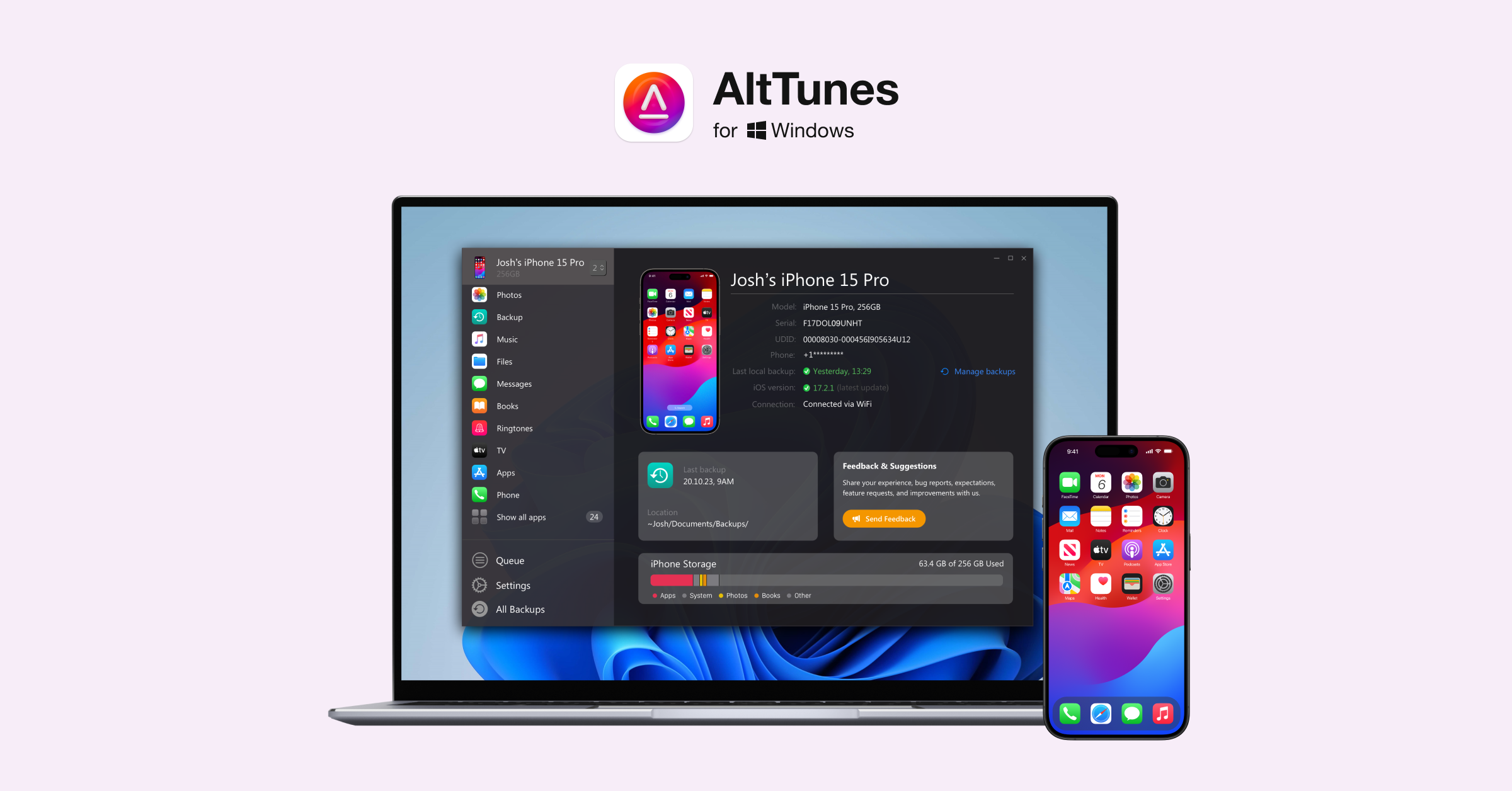
Choose by setup state and account. Quick Start suits a full upgrade. Contacts sync or file import suits a phone you already use. The AltTunes video below introduces the Windows app; it does not demonstrate a complete phone-to-phone contact transfer.
Method | Best for | Contact coverage | Uses iCloud? | Main catch |
|---|---|---|---|---|
Quick Start | New iPhone on the setup screen | Full-device move; check account contacts afterward | Direct transfer is available | Not a contact-only method after setup |
iCloud Contacts | Same Apple Account on both phones | Contacts stored in iCloud | Yes | Other accounts need separate sync |
Contacts list export | Contact-only move or different accounts | Contacts in the exported list | No iCloud required | Import the VCF on the destination |
AltTunes | Local contact copy on a Windows PC | Exported iPhone contacts | Local export | Export is not a completed phone-to-phone move |
AirDrop | A few nearby contact cards | Shared cards; list export is a separate option | No | Check received contacts before moving on |
SIM import | Contacts already on an old SIM | SIM-stored contacts only | No | iPhone cannot export contacts to SIM |
Tip: A vCard or VCF file can hold one contact or a whole list. Exporting one account's list does not prove you have copied contacts from every account on the phone.
Before we begin
Windows users can download AltTunes for a local contact safety copy before changing phones or accounts. AltTunes exports iPhone contacts to a PC. Use the Apple sync or contact-file routes below to complete the move to your new iPhone; do not assume a contacts-only restore.
Use Quick Start if your new iPhone is not set up yet
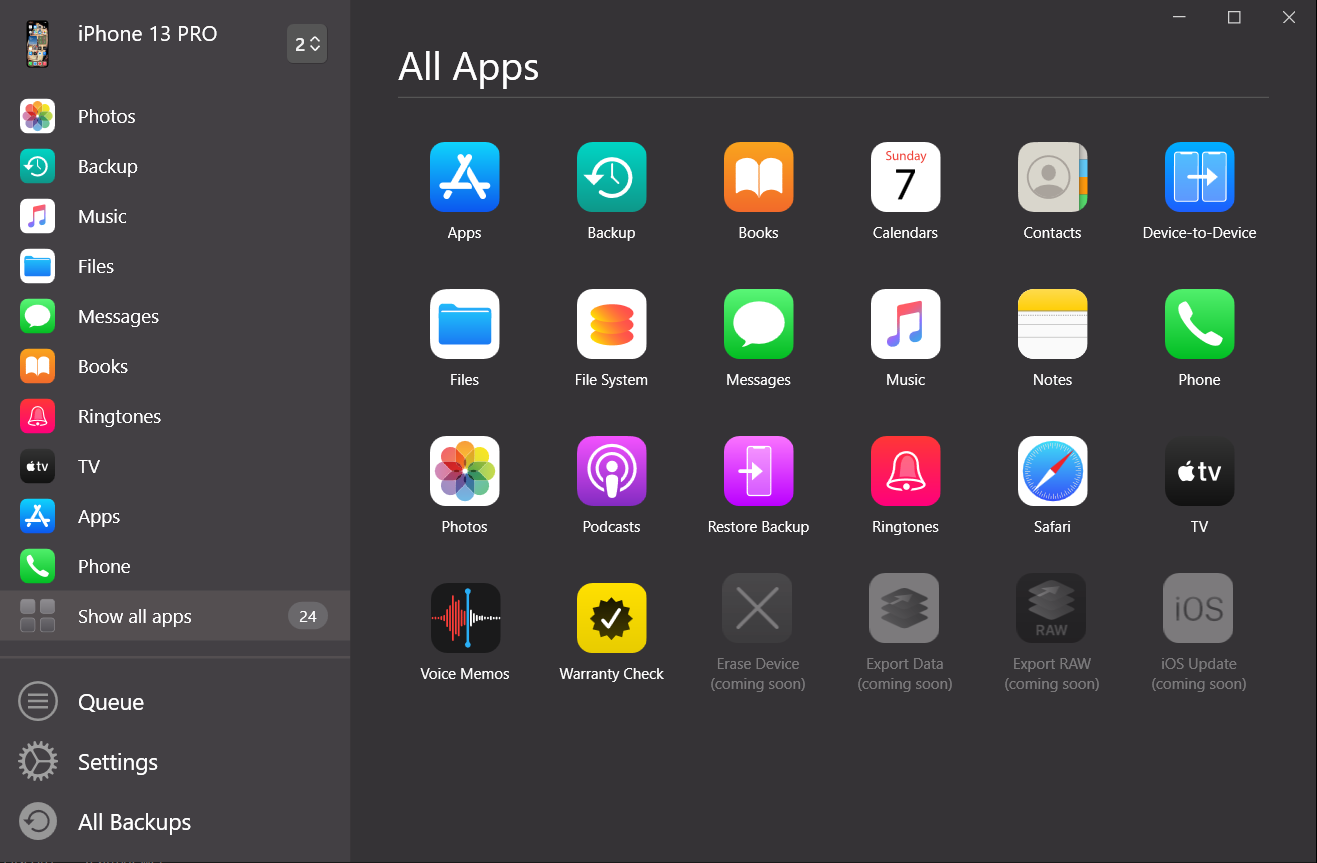
Apple Quick Start moves your device during initial setup. The image above shows AltTunes, not the Quick Start screen. For Apple's transfer, keep the old iPhone on Wi-Fi with Bluetooth on, place both phones nearby, and follow the setup prompts.
- Turn on the new iPhone and place it near the old iPhone.
- Check Wi-Fi and Bluetooth on the old phone and follow its Quick Start prompt.
- Follow the onscreen instructions to set up the new iPhone.
- Choose direct transfer or download from iCloud when Apple offers those options.
- Keep both devices near each other and connected to power until the transfer finishes.
Quick Start moves more than contacts. Do not erase an already-set-up iPhone just to copy an address book. Use Contacts sync or file import instead. After a full-device move, check contacts from Google, Exchange and other accounts before wiping or trading in the old phone.
How to transfer contacts from iPhone to iPhone with iCloud Contacts
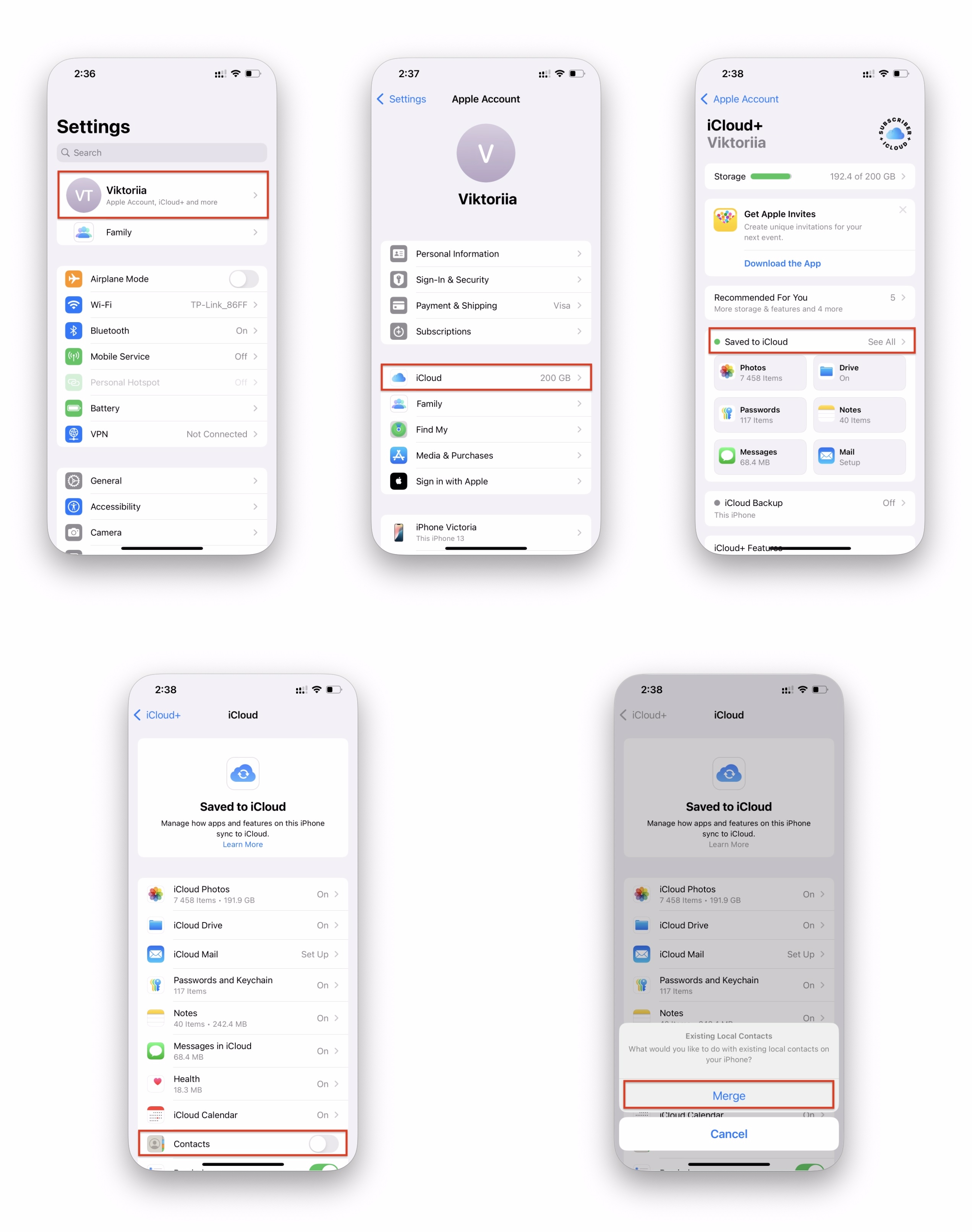
iCloud Contacts suits two phones using the same Apple Account. Turn on Contacts sync on each device to see that account's address book. Apple's iCloud Contacts setup guide documents the current menus. Syncing an account does not move contacts stored in a different service.
- On the old iPhone, open Settings and tap your name.
- Tap iCloud, then See All or Show All to find Contacts.
- Turn on Contacts. If iOS asks about local contacts, choose Merge.
- On the new iPhone, sign in with the same Apple Account.
- Open the same iCloud settings, turn on Contacts, and allow time for sync.
If cards are missing, open Contacts and check Lists before repeating the transfer. A contact under Gmail on the old phone will not appear merely because you turned on iCloud on the new one. Add the account that owns the contact, or export its list for a one-time move.
Tip: iCloud Contacts is ongoing sync, not an independent backup. Check the destination cards before deleting anything from the source account. For different Apple Accounts, use a contact file rather than expecting same-account sync to work.
Export contacts from the iPhone Contacts app as a vCard
Apple documents how to export contacts on iPhone from an existing list. This route suits a contact-only move after setup, including between different Apple Accounts. The older screenshot below illustrates iCloud merging; use the written Lists and Export steps for the contact-file route.
- Open Contacts on the old iPhone and tap Lists.
- Find the list containing the contacts you want to move.
- Touch and hold the list, then tap Export.
- Choose the fields to include, tap Done, and send or save the file.
- Send the VCF to the new iPhone in an email or message. Open that attachment on the new phone and complete the contact import.
Apple's iPhone contact import guide confirms the receiving step: tap a .vcf attachment in an email or message. You do not need iCloud.com for this route. Check the imported names, numbers and email addresses. Repeat for another source list only if it contains contacts you have not already copied.
Save a local contact copy on Windows with AltTunes
AltTunes exports iPhone contacts to a Windows PC. Use it when you want a local safety copy before changing accounts or handing over the old phone. A PC export is a separate job from importing contacts on the new iPhone. Do not treat AltTunes as a verified one-click contact bridge between two phones.
- Download AltTunes for Windows on your PC.
- Connect the old iPhone by USB and trust the computer if iOS asks.
- Open AltTunes and choose the Contacts category.
- Select the contacts you want to keep and export them to your PC.
- Check the saved export before changing or erasing the source phone. To finish a contact-only move, use the documented Apple Contacts export and import route above.
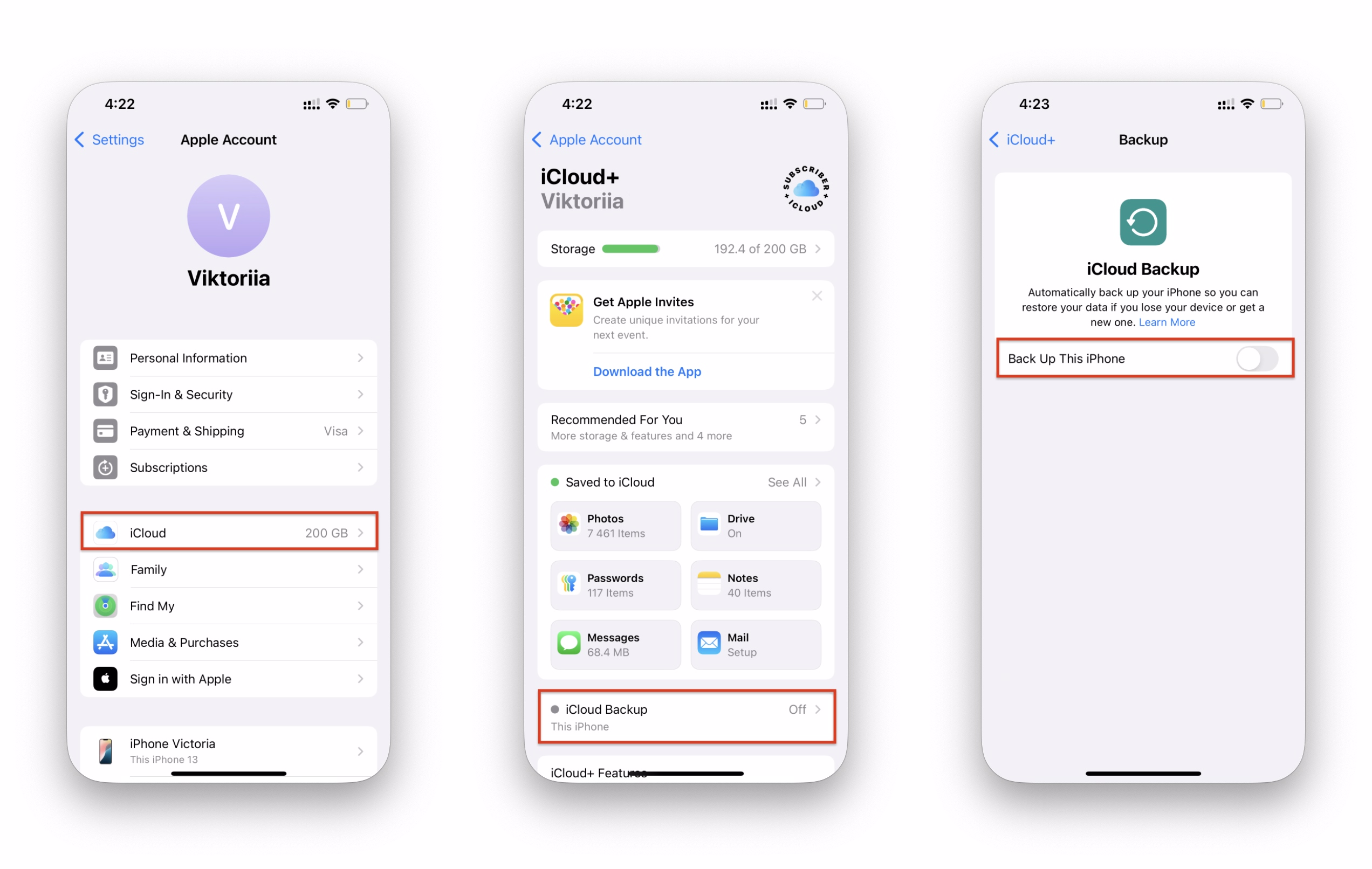
The screenshot above illustrates iCloud settings, not an AltTunes export result. Softorino's AltTunes product page confirms Windows contact export. For the PC-focused workflow, read export contacts from iPhone to computer. Keep the local copy separate from your transfer checks; a saved file alone does not confirm contacts reached the new phone.
Tip: AltTunes is Windows-only. Check its current system requirements before downloading. This guide does not promise a particular export format, a contacts-only restore, or compatibility tested on every current iOS version.
Import or export contacts with iCloud.com
Use iCloud.com when you already have a vCard and want the destination Apple Account to store those contacts. Apple's iCloud.com import and export guide covers this browser route. It uses iCloud even if you created the file locally or exported it from a different account.
- On a computer or tablet, open iCloud.com and sign in to the destination Apple Account.
- Open Contacts.
- Choose the Add button, then Import Contact, and select your vCard file.
- On the new iPhone, use that same Apple Account and turn on iCloud Contacts.
- Open Contacts and check the imported cards before importing the file again.
A vCard containing multiple people creates separate contact entries. Avoid repeating an import because you have not yet seen the new cards on the phone. Check the account, its Contacts setting and the visible list first. If you want a route without iCloud, open the VCF attachment on the destination iPhone instead.
Use AirDrop for a few nearby contacts
AirDrop suits a small number of nearby contact cards. Open a contact on the old iPhone, share it, and receive it on the new phone. For a whole list, start with Contacts list export rather than sharing each person in turn. Those are different workflows, even if you use AirDrop to send the exported file.
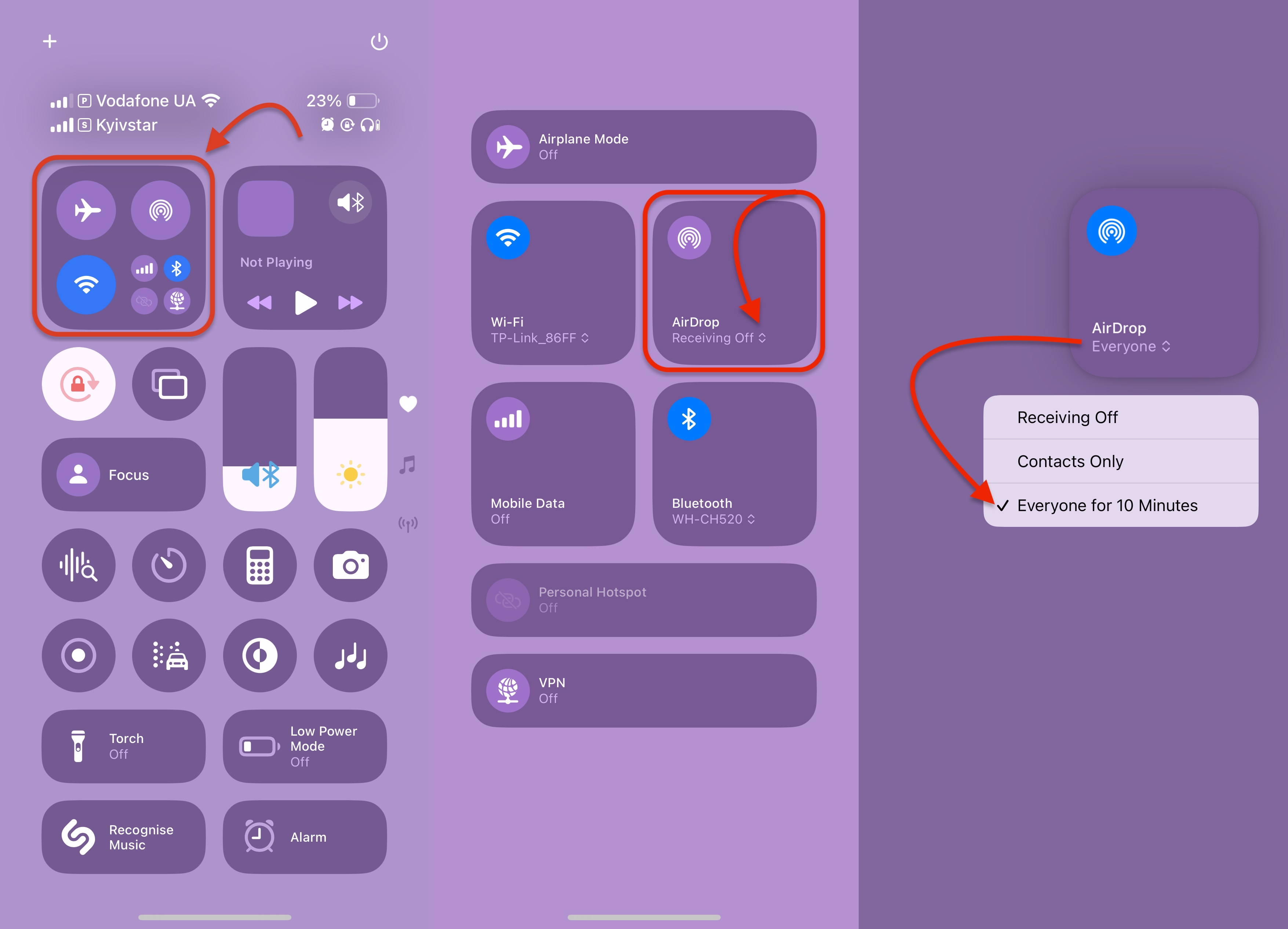
- Turn on Wi-Fi and Bluetooth on both phones and make the destination available in AirDrop.
- Open Contacts on the old iPhone.
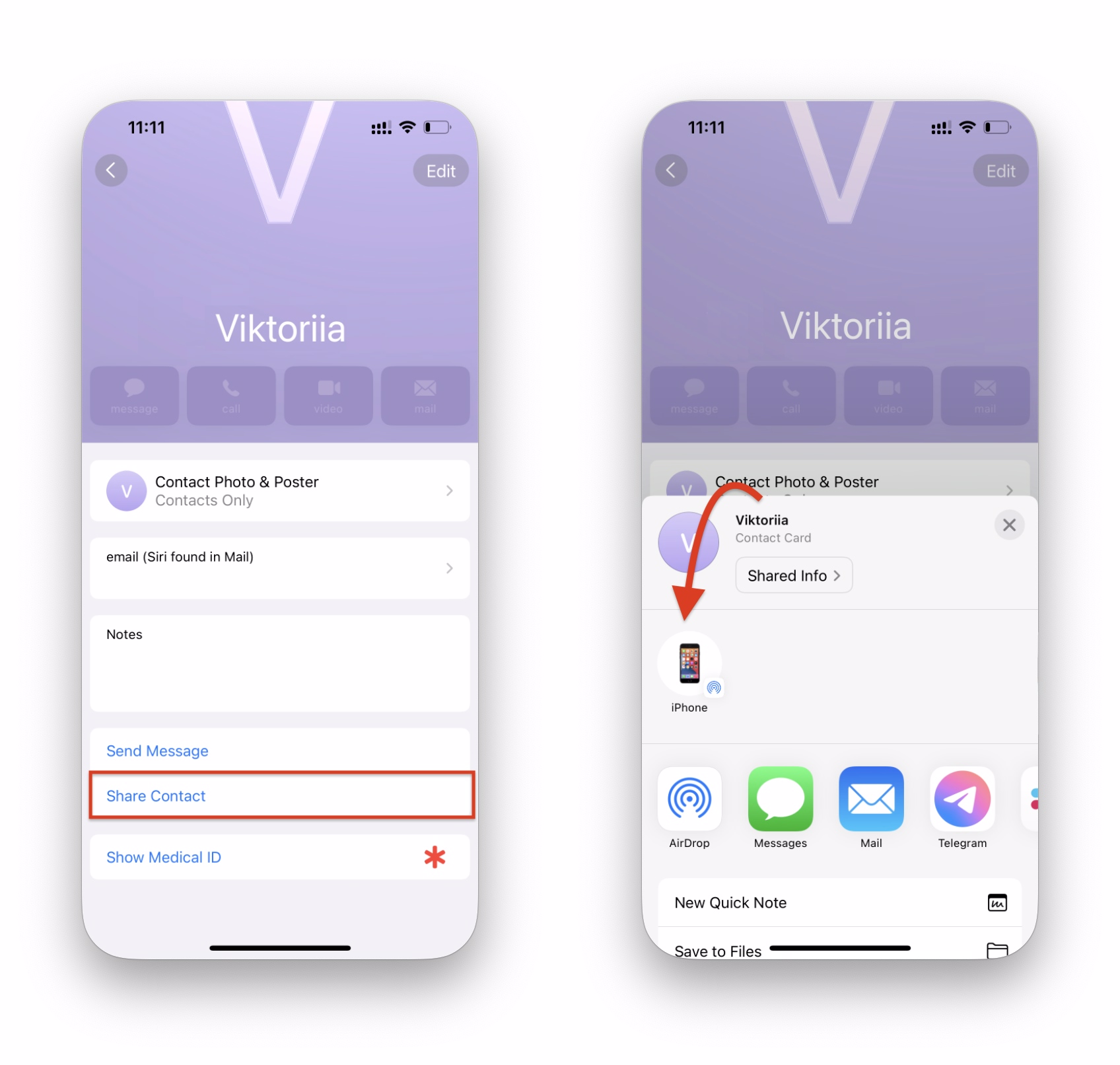
- Open the contact you want and tap Share Contact.
- Choose AirDrop and select the destination iPhone.
- Accept the transfer when prompted, complete any contact-saving prompts, and check the received card.
For one family member's number, individual sharing avoids moving an entire account. For an address book, export the list and verify its contents on the destination. Keep the old phone available until you have checked the cards you need; receiving a file and saving its contacts are separate checks.
When SIM import works and when it does not
SIM import only helps with contacts another phone already stored on a compatible physical SIM. Apple says iPhone does not store contacts on SIM cards. Moving the SIM from one iPhone to another will not copy the first iPhone's address book. Use account sync or a contact file for that job.
- Insert the compatible SIM that already contains contacts into the destination iPhone.
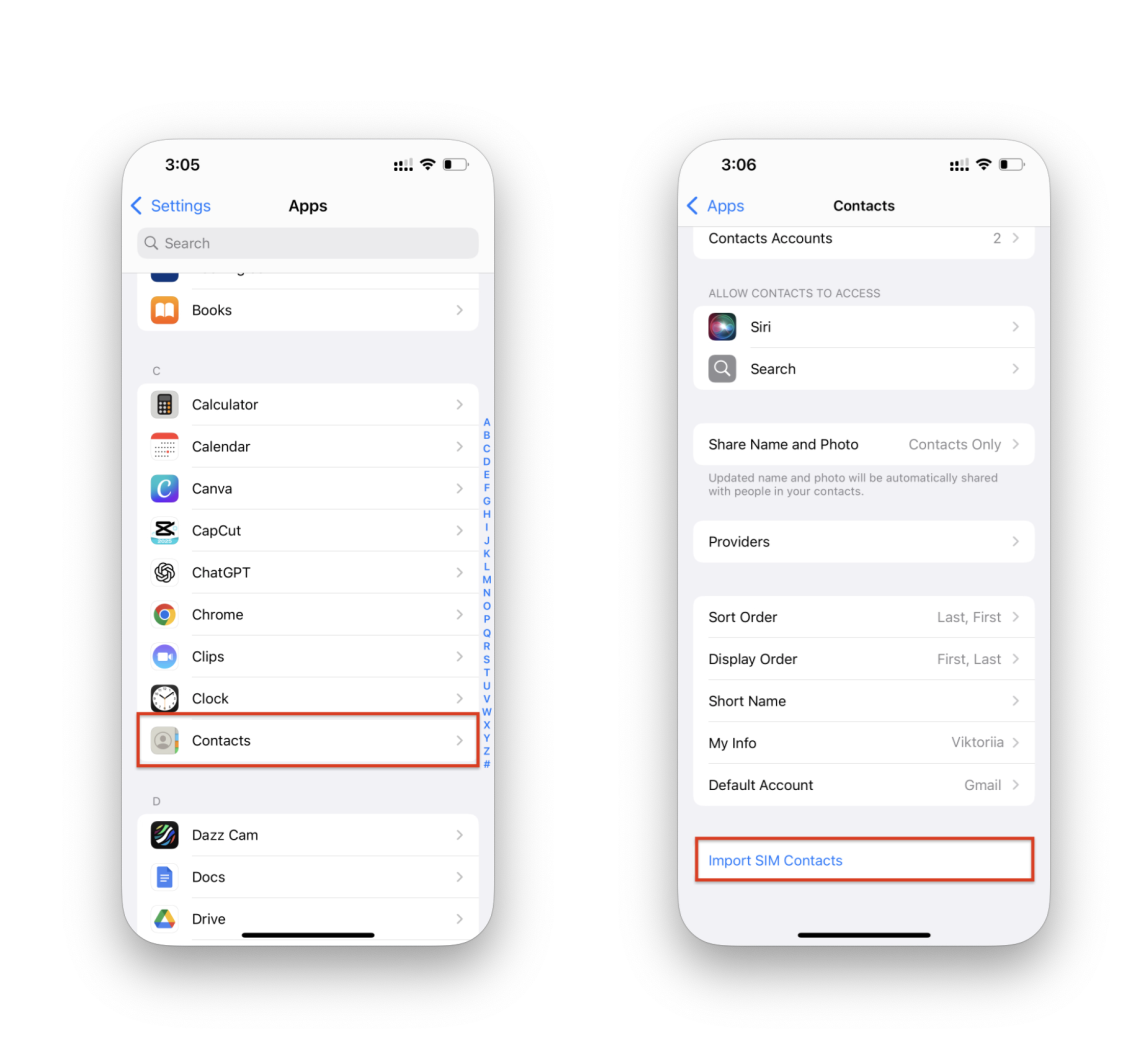
- Open Settings > Apps > Contacts.
- Tap Import SIM Contacts.
- Choose the destination account if iOS asks.
- Open Contacts and check the imported entries.
See Apple's SIM contact import instructions for the supported route. The screenshot below shows Contacts under Apps and the Import SIM Contacts option. This method is a legacy-phone option, not a way to export contacts from your old iPhone.
What about iTunes or a full iPhone backup?
A full-device restore suits a full migration, not a contact-only update to a phone you already use. Sync and backup are different. Apple explains that iCloud Backup copies data not already synced to iCloud. Do not assume a device backup contains a second copy of every cloud contact.
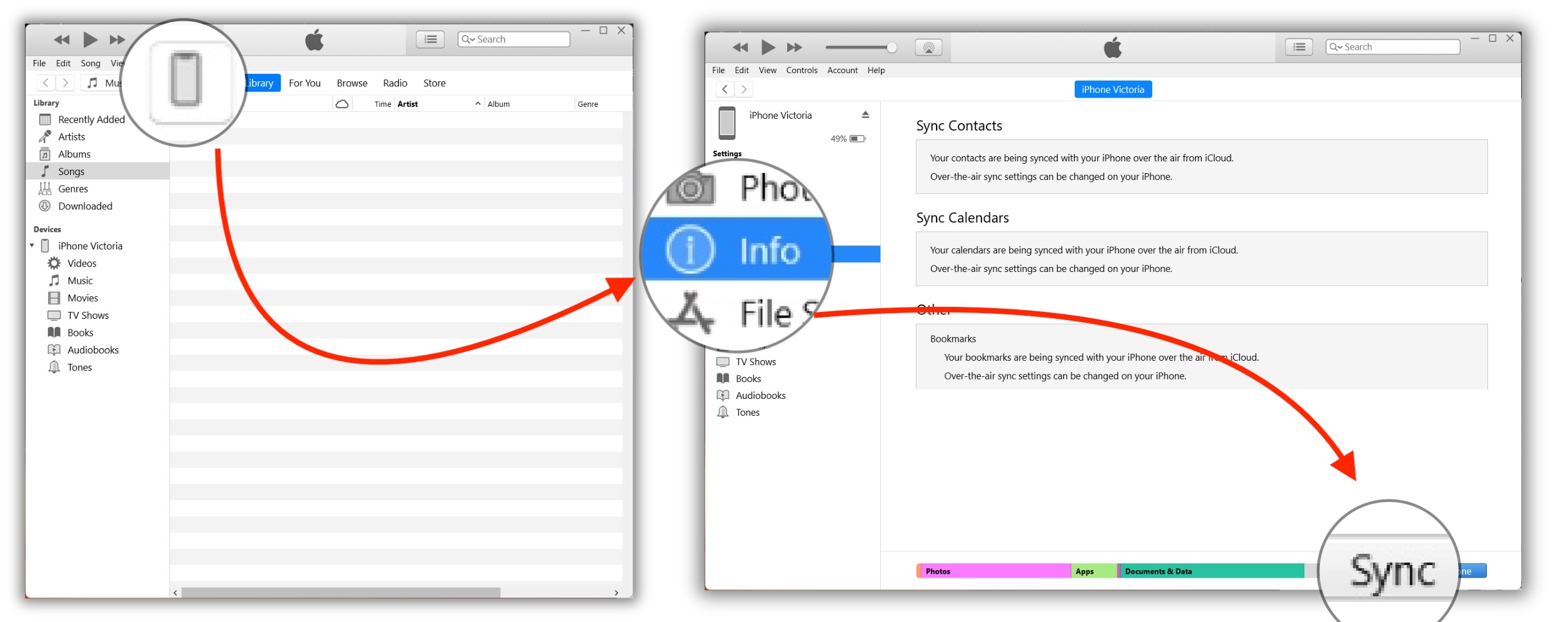
For a full-device move, read how to back up and restore an iPhone. For contacts alone, use account sync or VCF import. The older iTunes image in the next section is background context, not a required troubleshooting step or the current interface for every computer.
Troubleshooting: contacts missing after transfer
Check account ownership first. The old iPhone may combine contacts from iCloud, Google, Outlook and Exchange in one view. The new iPhone needs access to each account you still want to sync. If only work contacts are missing, check the work account before repeating the entire migration.
Check which account owns the missing contacts
- On the old iPhone, open Contacts and tap Lists.
- Look under iCloud, Gmail, Outlook, Exchange or your other accounts for the missing cards.
- Add the same account to the new phone and turn on its Contacts option if you want ongoing sync.
- For a one-time move instead, export the relevant list and import the contact file into your intended destination.
Fix duplicate contacts without deleting the wrong copy
Duplicates can follow repeated imports or overlapping account lists. Check one source list at a time and inspect the numbers and email addresses before deleting cards. Keep a copy before cleanup. Do not remove an account merely because its contacts resemble entries elsewhere; it may hold details the other copy lacks.
Move contacts between different Apple Accounts
Different Apple Accounts do not share an iCloud address book. Export the source list and import its VCF on the new iPhone, or import it into the destination account at iCloud.com. Use the destination account when checking the result. Do not sign into someone else's account just to copy a few contact cards.
Quick takeaways before erasing your old iPhone
- Choose Quick Start for initial full-device setup, not contacts alone after setup.
- Use iCloud Contacts for the same Apple Account, or VCF export and import for a one-time move.
- Check each source account's list and several destination cards before deleting anything.
- Keep the old phone and any local export until you have confirmed the contacts you need.
FAQ
Can I transfer contacts from iPhone to iPhone without iCloud?
Yes. Export a list from the iPhone Contacts app, send its VCF in an email or message, and open the attachment on the new iPhone to import it. Check each source list so you do not miss contacts from another account.
How do I transfer contacts after setting up my new iPhone?
Use iCloud Contacts if both iPhones share an Apple Account, or import a VCF attachment for a one-time contact move. Neither route requires resetting the new iPhone. Quick Start is for initial device setup.
Can AltTunes transfer contacts directly from one iPhone to another?
Use AltTunes for its verified Windows contact-export job. This guide does not establish a direct phone-to-phone or contacts-only restore workflow. Save a local copy, then complete the destination transfer with Apple's contact sync or file-import options.
Can I transfer all contacts at once instead of sharing each card?
The iPhone Contacts app can export a whole list. Import the resulting VCF on the destination phone. Check whether that list includes every account you need; a list from one account may leave out contacts stored elsewhere.
Does iPhone save contacts to a SIM card?
No. Apple says iPhone does not store contacts on SIM cards. SIM import only helps when another phone already stored contacts on a compatible physical SIM, so it is not the normal iPhone-to-iPhone transfer route.
Why are some contacts missing on my new iPhone?
The missing cards may belong to Google, Outlook, Exchange or another account on your old iPhone. Check Contacts > Lists on the source, then add that account to the destination or export the relevant list for import.
Choose the transfer route that matches your phone
For a new phone on the setup screen, use Quick Start. For a phone you already use, sync the right contact account or import a VCF. Check the destination names and numbers before erasing the old device. SIM import cannot copy an iPhone's address book to another iPhone.
If you also want a local contact copy on your Windows PC, download AltTunes before the move. Keep the export while you verify the new phone. Choose that extra step for a local safety copy, not as a substitute for completing the destination import.

AltTunes
Seamlessly Browse, Manage & Export iOS Data
